


Before employees request leave, you set up the parameters once: which leave types exist, when previous-year leave expires, which public holidays apply, whether half leave days are possible and who is allowed to approve. This page walks you through all the settings. The day-to-day requesting and approving is covered on the page Request & approve leave.
Activate leave types and special leave
Which leave types employees can request is governed by the attendance and absence types:
Configuration → Time tracking → Categories → Attendance and absence types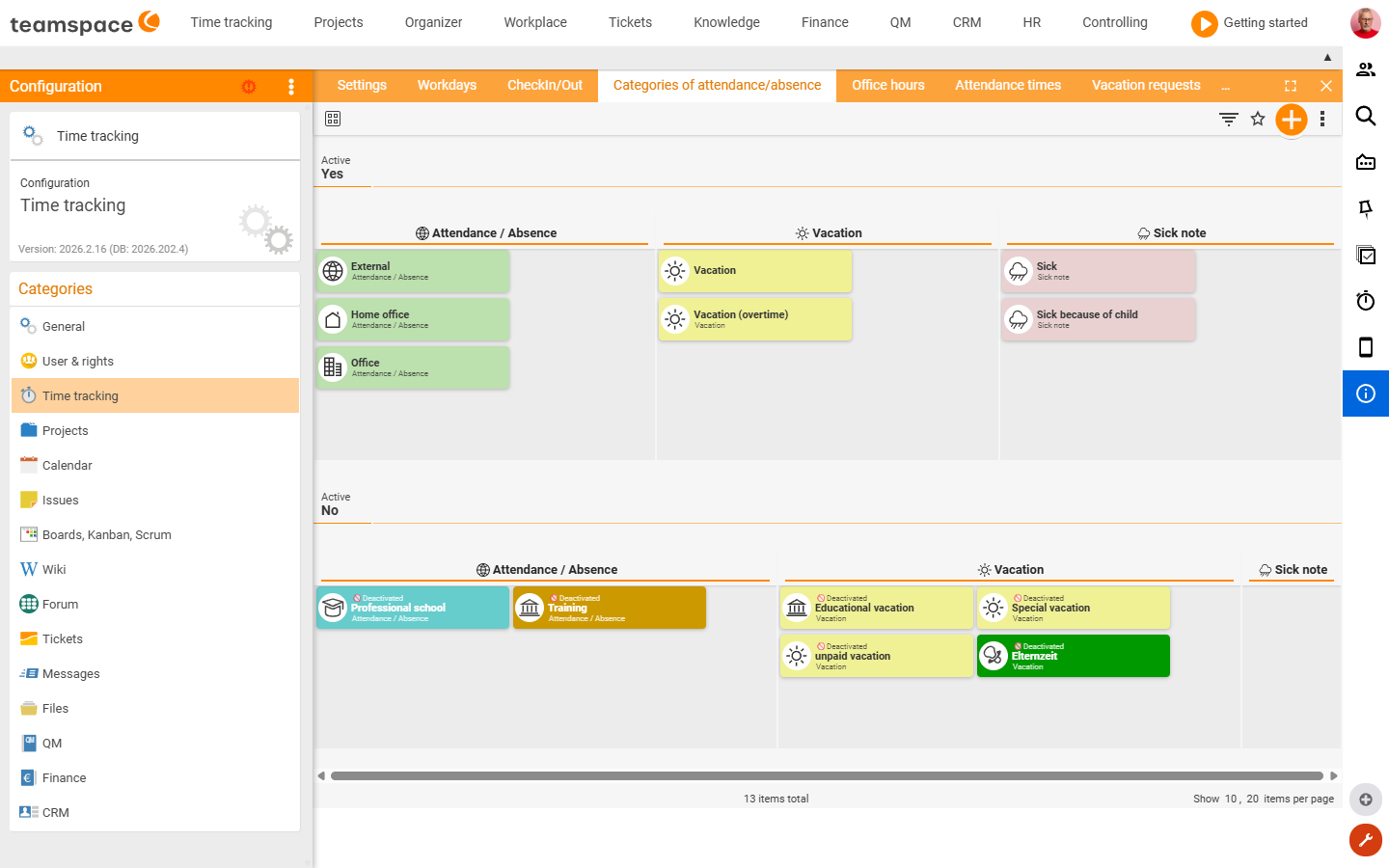
The types are split into active (attendance time blocks) and passive. Further down you find prepared types such as Special leave, Unpaid leave and Educational leave. Click a type and set it to active — from then on it can be requested and approved. By default only Leave and Reduce overtime are active.
ℹ Info: Activating existing types is straightforward. Defining completely new attendance/absence types yourself is not entirely trivial — the consultant team will support you with that. During the coronavirus period,
Short-time workcame into play as an additional model; that can be set up as well, but is more complex to enter.
Expiry of the previous year’s leave
You set the expiry date globally in Configuration → Time tracking: you define that previous-year leave expires, say, on 1 April (or on another effective date). The expiry can be deactivated individually per employee. If expiry is active, the employee sees a note during the request process that they still have X days of leave that will expire on the effective date.
Half leave days
If employees need half leave days — for example for Fridays with reduced working hours — you enable the function in Configuration → Time tracking (the “are there also half leave days” entry). After that, the option to mark individual days as half working days appears in the contract data dialog, and in the leave request the employee gets the choice between full day and half days. How this affects the value of a leave day is covered under Contract data & working hours.
ℹ Info: Without half leave days the following applies: even for a half working day (e.g. Friday, 4 hours) a full leave day must be requested to get the half day off — this is a legal requirement (calculated via “as many days that two full weeks of leave are possible”).
Create and assign public holiday calendars
Which public holidays apply to an employee comes from the public holiday calendar that you assign in the contract data. By default there is a Standard public holiday calendar for the whole tenant.
Configuration → Time tracking → Public holiday calendars tab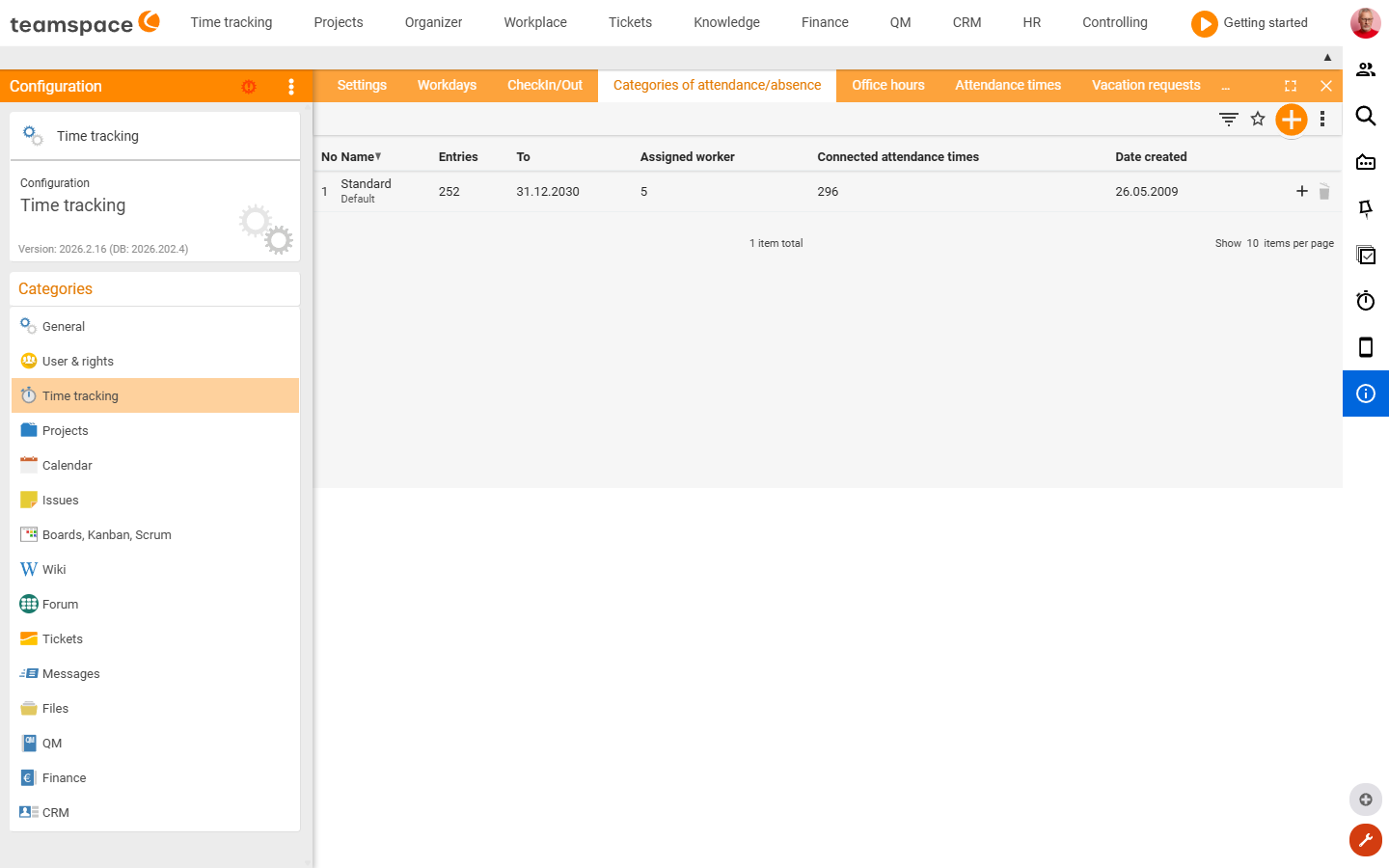
This is how you work with calendars:
- Several calendars: if you employ staff in several federal states, create one calendar each (e.g. Bavaria, Hesse) and assign it per employee in the contract data.
- Create a public holiday:
Add new public holiday→ enter date and name → choose the type (full day,half dayorcompany holiday). - Templates / import: the teamspace website provides templates for the German federal states; via the three-dots menu you can
ImportandExportor copy a calendar.
ℹ Info: A public holiday in the assigned calendar is automatically free — the employee does not have to take leave for it.
Who is allowed to approve
Two mechanisms govern who is allowed to approve for whom:
Via group permissions. In Configuration → Users and rights → Permission groups → Group-specific permissions sits the right Approve leave requests. Members of the group are allowed to approve for the defined employees — either for everyone or, via an exception list, for specific colleagues (e.g. “except their own”).
Via the manager assignment. If you enable the option Manager can approve leave in Users and rights → Settings → Time tracking, the direct line manager is allowed to approve for their employee — independently of the group right. You enter the line manager in HR on the employee.
In most companies this runs as a mixed model: HR and management via group rights, the direct line managers via the employee assignment. In addition, a review by project members can be prepended to the request. Deputy rules that take effect when the approver is away themselves are set up under HR permissions & data protection.
Common problems
Why can’t an employee request Special leave or Educational leave?
By default only Leave and Reduce overtime are active. You switch the other types to active individually under Configuration → Time tracking → Categories → Attendance and absence types.
Why does a free half day cost a full leave day?
Without half leave days enabled, a full leave day must be requested even for a half working day (e.g. Friday, 4 hours) — this is a legal requirement. Enable half leave days in Configuration → Time tracking so that the employee can choose between a full day and a half day.
Does the employee have to take leave for a public holiday? No. A public holiday in the assigned calendar is automatically free. The prerequisite is that the employee is assigned the correct public holiday calendar in the contract data.
The direct line manager cannot approve leave.
Enable the option Manager can approve leave under Users and rights → Settings → Time tracking and enter the line manager in HR on the employee. Alternatively, approval runs via the group right Approve leave requests.
Common questions & needs
| You want to … | How to |
|---|---|
| Enable special leave | In Attendance and absence types, switch the type Special leave to active. |
| Have remaining leave expire on 1 April | In Time tracking, set the expiry date; deactivate per employee if needed. |
| Allow half leave days | In Time tracking, enable “half leave days”. |
| Map employees across several federal states | Create several public holiday calendars and assign one per employee in the contract data. |
| Let the department head approve | Give the group the Approve leave requests right or enable Manager can approve leave. |
| Exclude individual employees from the approval right | Maintain an exception list in the Approve leave requests right. |
Related topics
- Request & approve leave (with video) Personnel & HR How-to
- HR permissions & data protection Personnel & HR Configuration
- Topic: Permissions Permissions
- Manage leave & sickness