



A clear HR system makes processing employee data simple and straightforward. Knowing the operating concepts makes it easier still. In HR you work with the personnel file and its tabs, with timelines for contract data and hourly rates, and with three ways in which a person becomes visible in the system at all — as a contact, as an employee, as a user. Once you know the difference, you find the data where it sits.
Three layers per person
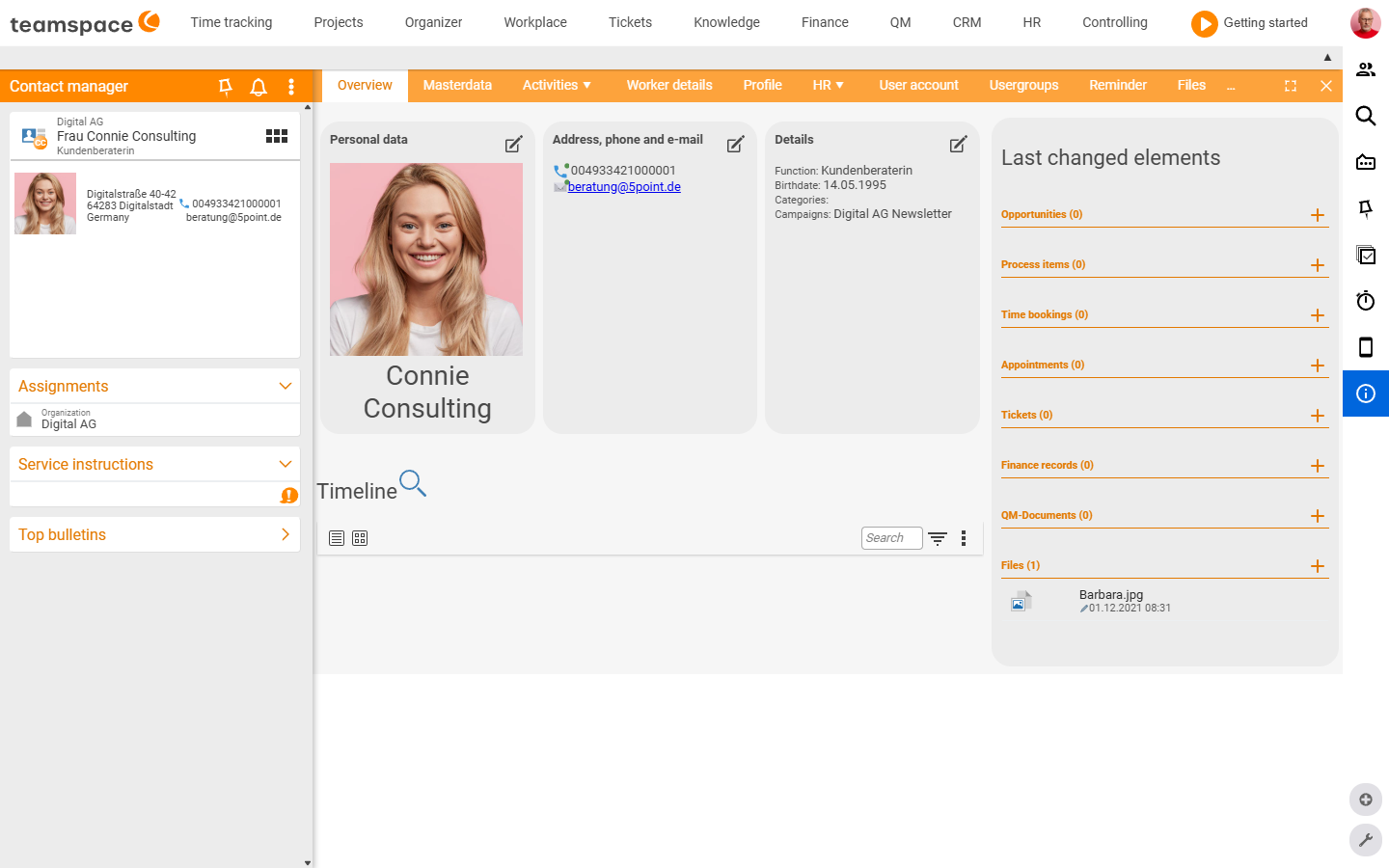
In teamspace, an employee is always also a contact in the CRM and usually a user too. These three layers appear in the detail manager as different tabs:
- Contact tabs:
Master data,Activities ▼,Files. This is where data sits that concerns every contact — address, phone, email, activities, appointments. This data is also visible in the CRM contact list. - Employee tabs:
Employee,Profile,HR ▼. This is where data sits that only employees have — position, skills, contract data, hourly rate, salary, leave. - User tabs:
User account,User groups,External access. This is where data sits that controls the login and the software permissions — password, language, group memberships.
A normal contact only has the first layer. An external employee without a login has the first two. One of your own colleagues has all three.
The employee detail manager
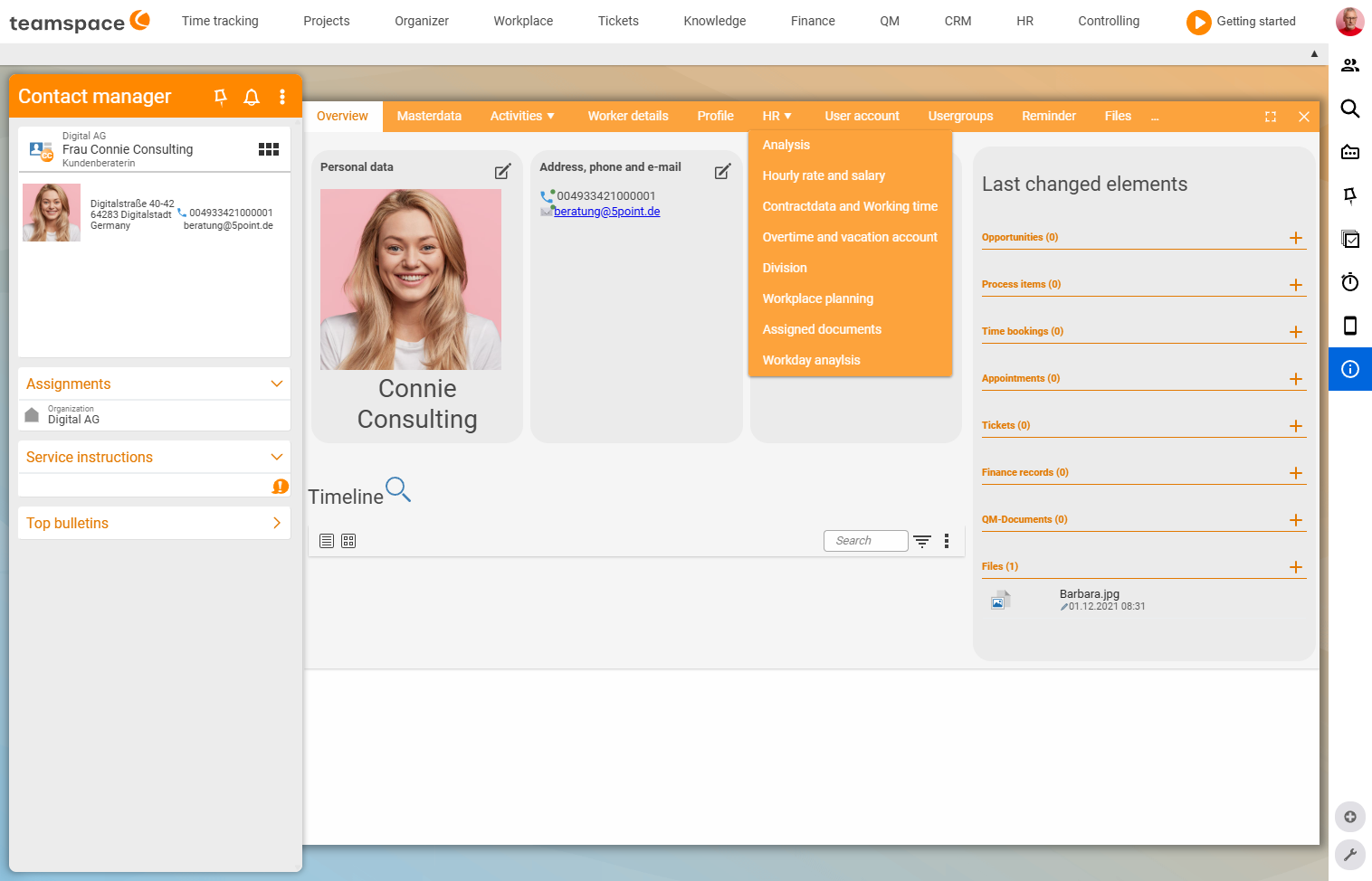
When you click a row in the employee list, the detail manager opens — the header of the left sidebar reads Contact manager. You may also come across the terms Employee detail dialog or User account for employees — these all mean the same screen. The tab row sits at the top, with a sidebar on the left holding a record card, an address block, the Assignments accordion and the Actions section.
Two tabs have a drop-down:
Activities ▼containsActivities,Times,Appointments,Tickets,Documents,Sales opportunities. Here you see everything that has happened in teamspace involving this employee — filtered like a normal list.HR ▼contains the time-dependent HR data:Analysis,Hourly rates and salaries,Contract data and working hours,Overtime and leave account,Department,Workplace booking,Assigned documents,Working days analysis.
The Employee tab stands on its own in the tab row (not in the drop-down). There you decide whether the employee is an external one, which user groups they belong to, how far back they may change time bookings retroactively, and which areas they may book time to.
Time-dependent data — the time-slice principle
Most HR data is time-dependent: each value applies for a period, not for “ever”. When a value changes, the system creates a new entry that applies from an effective date — the old time slice ends one day before. These elements sit in the HR ▼ drop-down:
- Hourly rates and salaries: internal hourly rate, basic salary, salary components such as Christmas or holiday bonus, payout rates for overtime.
- Contract data and working hours: weekly working hours, working days, leave entitlement, public holiday calendar, rules for time tracking and the overtime account. Details on the Contract data & working hours page.
- Overtime and leave account: here you adjust the account by hand — starting values, gifted days, transfers. The system handles the gradual build-up and reduction automatically in the background.
- Department: which department the employee sits in. This too is time-dependent, because a department often has a cost centre attached to it.
- Workplace booking: desk, parking space, office.
The timeline logic in the “Analysis” sub-tab
In the Analysis sub-tab you see all of an employee’s changes on a timeline. Each block is a time slice — start, end, values.
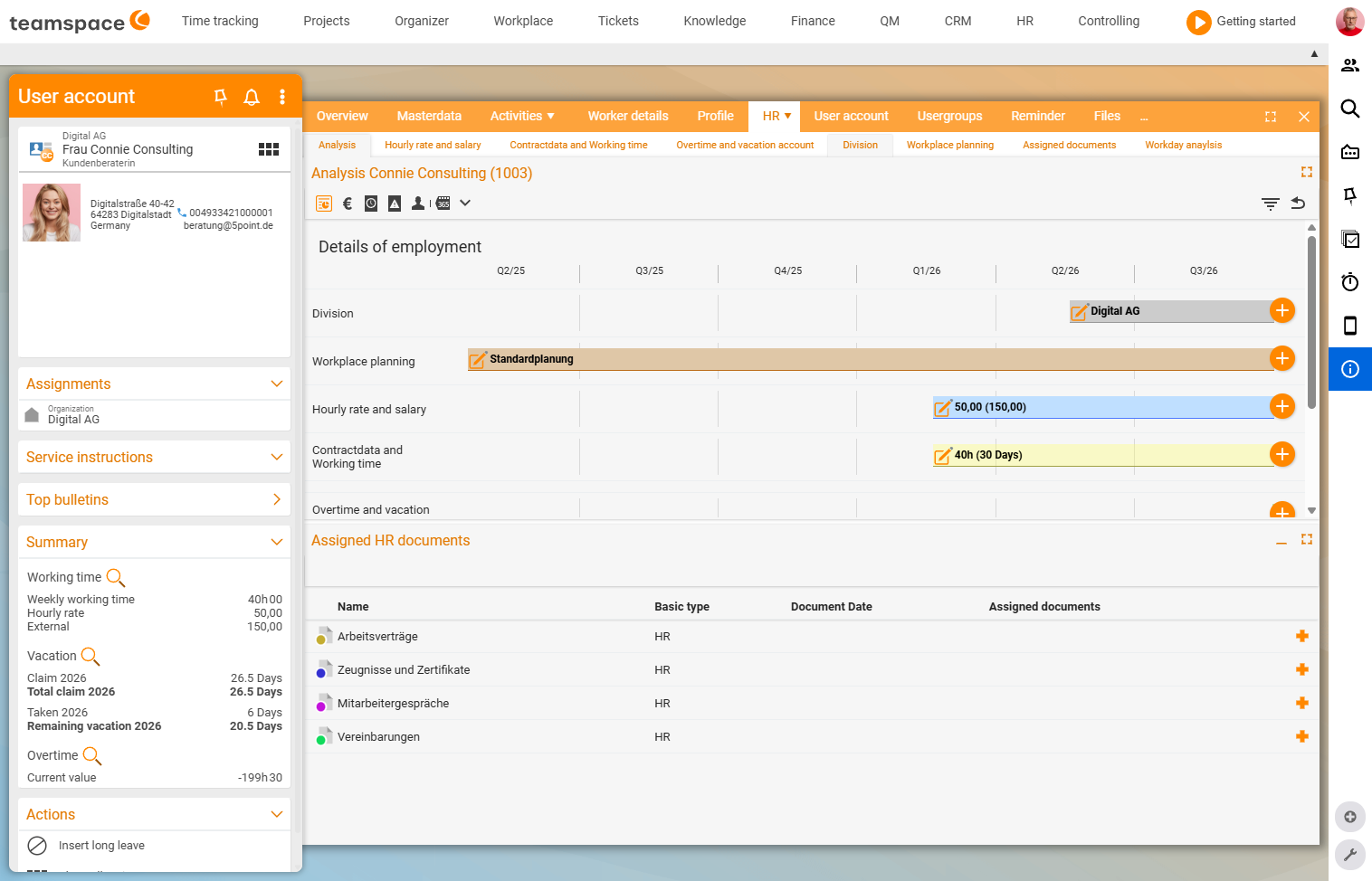
- With the edit pencil you change an existing time slice — the values apply from the original effective date.
- With the plus icon at the end of the row you create a new entry from a new effective date — the previous slice ends automatically one day before.
The last element of a timeline is always open, i.e. without an end date. The system ensures that the slices follow one another without gaps. A gap may only exist before the first element — for example, avoid booking project times before a valid hourly rate has been set.
⚠ Important: Retroactive changes take effect retroactively too. If you change the hourly rate for a past period, teamspace recalculates all affected projects with the new costs. This is intended — but check beforehand whether you really want it. So always create new states via the plus icon, not via the pencil (which changes the past along with it).
If you prefer working in a table rather than on the timeline, click one of the other sub-tabs under HR ▼ — there you see the same entries as a list.
Protection classes and visible fields
HR data is often sensitive — salary, illness, severe disability. teamspace protects it on two levels:
Protection classes per field. If an area is not protected by a protection class, you see its values normally. If it is protected, the area disappears and it only reads protected — typically with salary data. You define which fields are protected in the configuration.
Visibility per field. In the same configuration you decide whether a field is shown at all. By default, many HR fields (severe disability, employment status, tax details, social insurance, remuneration components) are hidden — you switch them on when you need them. If a switched-on field has an empty selection list, teamspace hides it anyway, because there would be nothing to select.
How to set up protection classes and field visibility is described on the HR permissions & data protection page.
Exporting data to Excel
Via the three-dots menu at the top right of every list you reach Excel — the currently filtered data lands as a table in a file. This applies to the employee list, sickness reports, overtime, salary analyses — anywhere there is a list. This is how you prepare analyses, even without using the internal interface to payroll accounting.
Common problems
Should I change a time slice with the pencil or the plus? With the plus icon at the end of the row when the new value applies from an effective date (a pay rise, a contract change) — the old slice ends automatically one day before and the history is kept. With the edit pencil only when you are correcting a typo in the existing slice — it changes the values retroactively from the original effective date.
Why does teamspace suddenly recalculate everything after a change? Because retroactive changes take effect retroactively. If you change the hourly rate for a past period, teamspace recalculates all affected projects with the new costs. This is intended — so create new states via the plus, not via the pencil, if the past should stay unchanged.
Why do I only see protected instead of the values for an employee?
The area sits under a protection class that you do not have — typically with salary data. You define which fields are protected in the configuration, see HR permissions & data protection.
I made an HR field visible, but it still does not appear. If the field has an empty selection list, teamspace hides it anyway, because there would be nothing to select. Enter the selectable values in the configuration first.
Related topics
- Introduction to personnel & HR Personnel & HR Introduction
- Manage employees Personnel & HR How-to
- HR permissions & data protection Personnel & HR Configuration
- Digital personnel file