


In the sub-tab HR ▼ → Hourly rates and salaries you maintain two things: the internal hourly rate used to calculate the labour costs of a project, and an employee’s monthly salary composition. Both values are time-dependent — every change creates a new time slice, so salary developments can be traced cleanly.
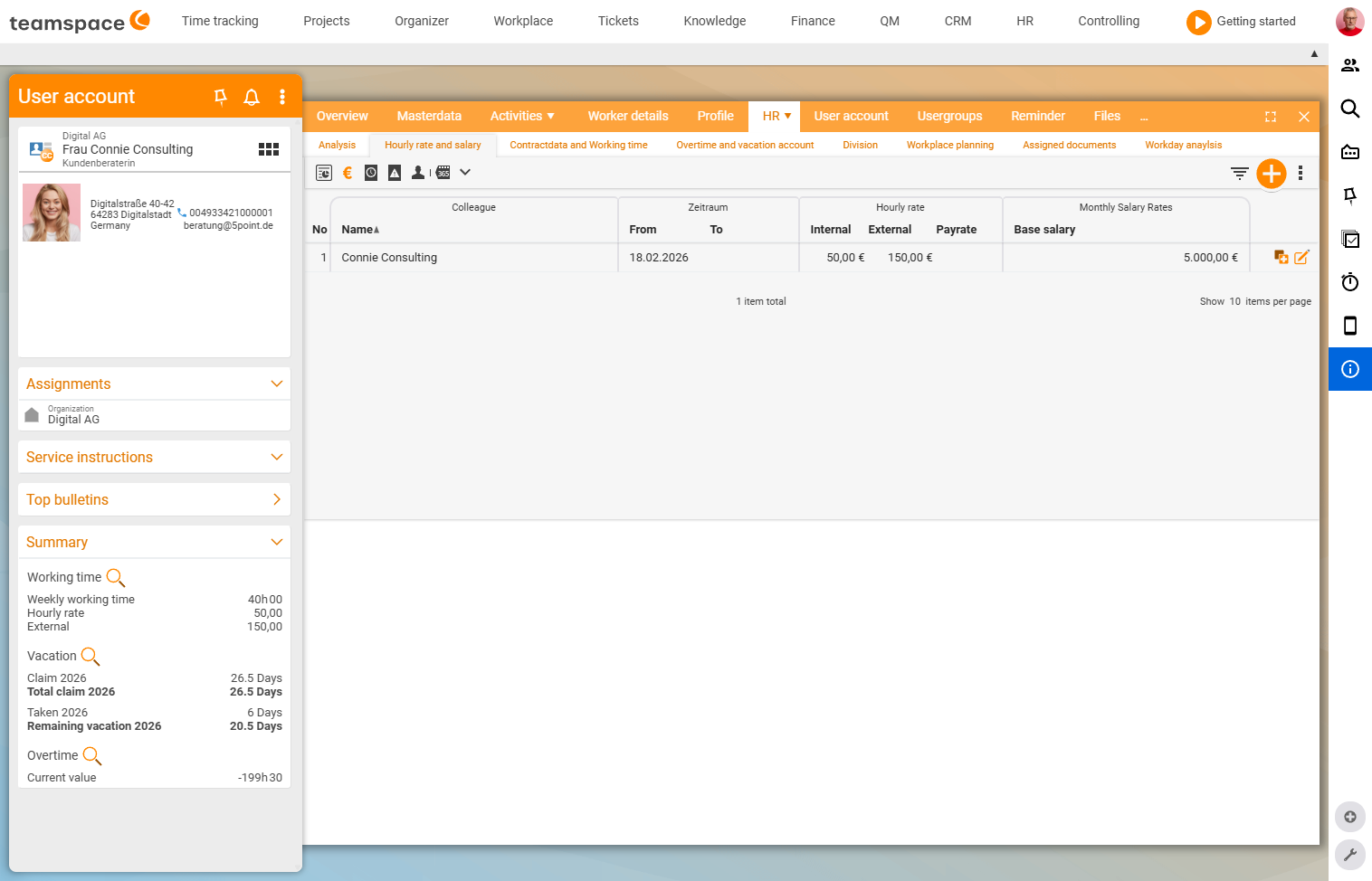
Hourly rate vs. basic salary
- Hourly rate: Defines the rate at which a project’s labour costs are calculated — essential for reflecting project costs correctly and for calculating effort against the budget.
- Basic salary: The monthly remuneration. In addition, you can define salary components such as bonuses, supplements or other remuneration that make up total earnings.
Together, both elements ensure that the labour costs for projects as well as the payroll for employees are managed correctly and transparently.
Create a new salary record
- Open
HR ▼→Hourly rates and salaries. - Click the plus — never the pencil, otherwise the entry is changed retroactively and the whole existing entry shifts.
- Set the effective date, e.g.
from 1 January. - Enter the hourly rate and basic salary (e.g. internal rate €50, external €150, basic salary €4,000.00).
- Save.
Salary components
In addition to the basic salary, you create salary components — for example Christmas bonus:
- Add the component and enter the amount (e.g. €200.00).
- Set the payout months (e.g. November or December).
- Save.
Further possible components are Holiday bonus, company pension scheme or a Bonus. These feed into the preparatory payroll.
Unlock remuneration fields
Not all remuneration fields are visible from the start. You unlock them once:
Configuration → Users and permissions → Settings → HR data → all the way down → Remuneration dataThere you will find fields such as Basic salary, Annual salary (= basic salary × 12), Christmas bonus, Holiday bonus, company pension scheme. Some are time-dependent, others are not: fixed salaries and pure pay components are not time-dependent, whereas certain remuneration components are. If you need a field, set it to visible — then you can maintain it on the employee.
ℹ Info: If a field that has been switched on has an empty selection list, teamspace hides it anyway. So first enter the selectable values (such as business units) in the configuration.
View salary data in the list
Via HR → Remuneration (filter switch in the employee list) you show salary columns:
- Current salary: the current monthly value.
- Current full-time salary: What the employee would earn if the position were full-time — the value is extrapolated to the full 40-hour week. Example: €4,000.00 currently (32 hours) corresponds to €5,000.00 full-time.
- Detailed salary data: breakdown of the components.
Via the month filter you switch the effective date — one month back shows, for example, the state before a salary reduction; far enough forward, the Christmas bonus appears in the payout month (which is why the annual salary looks “odd” in that month). If you do not use the internal interface to payroll accounting, export the filtered list to Excel via the three-dots menu.
Payout rate for overtime
In the same sub-tab there is the field Overtime — the internal payout rate per hour (e.g. €25.00) that applies when an employee requests an overtime payout “at the internal rate”. If the field is not visible, unlock it under Users and permissions → Settings as above. Details under Overtime account.
Common problems
A remuneration field I need does not appear.
Not all remuneration fields are visible from the start. Unlock it once under Configuration → Users and permissions → Settings → HR data → Remuneration data and set it to visible.
I made a field visible, but it still does not appear. If the field has an empty selection list, teamspace hides it anyway. First enter the selectable values (such as business units) in the configuration.
Why does the annual salary look “odd” in one month? A salary component with its own payout month falls in that month — the Christmas bonus, for example. Switch to the month in question via the month filter and you will see the component’s share.
I created a new salary record, but the old one has shifted. You used the pencil instead of the plus — the pencil changes the existing entry in a past-oriented way. Always create new states from an effective date via the plus.
Common questions & needs
| You want to … | How to |
|---|---|
| Record a salary increase from next month | Via the plus, create a new entry with an effective date in Hourly rates and salaries. |
| Set up a Christmas bonus | Create the salary component Christmas bonus, set the amount and payout month. |
| Use a hidden remuneration field | In Configuration → Users and permissions → Settings → HR data → Remuneration data, set it to visible. |
| See the full-time equivalent of a part-time salary | Show the Current full-time salary column in the employee list. |
| Set the internal overtime payout rate | Set the Overtime field in Hourly rates and salaries. |
Related topics
- Adjust contract data & salary (with video) Personnel & HR How-to
- Overtime account: adjust & pay out (with video) Personnel & HR How-to
- Preparatory payroll & DATEV Personnel & HR Concept
- Preparatory payroll