


In HR you manage all the data about your employees — from general contact details such as phone number and email, through more detailed master data (health insurance, bank account), to contract periods, leave entitlements, salary and sick days. What makes it special: much of this data is stored time-dependently. Every change applies to a fixed period and sits on a timeline, so you can reconstruct the state on any given day. Approved requests take effect immediately in the calendar, in capacity planning and in the overtime account.
What HR holds
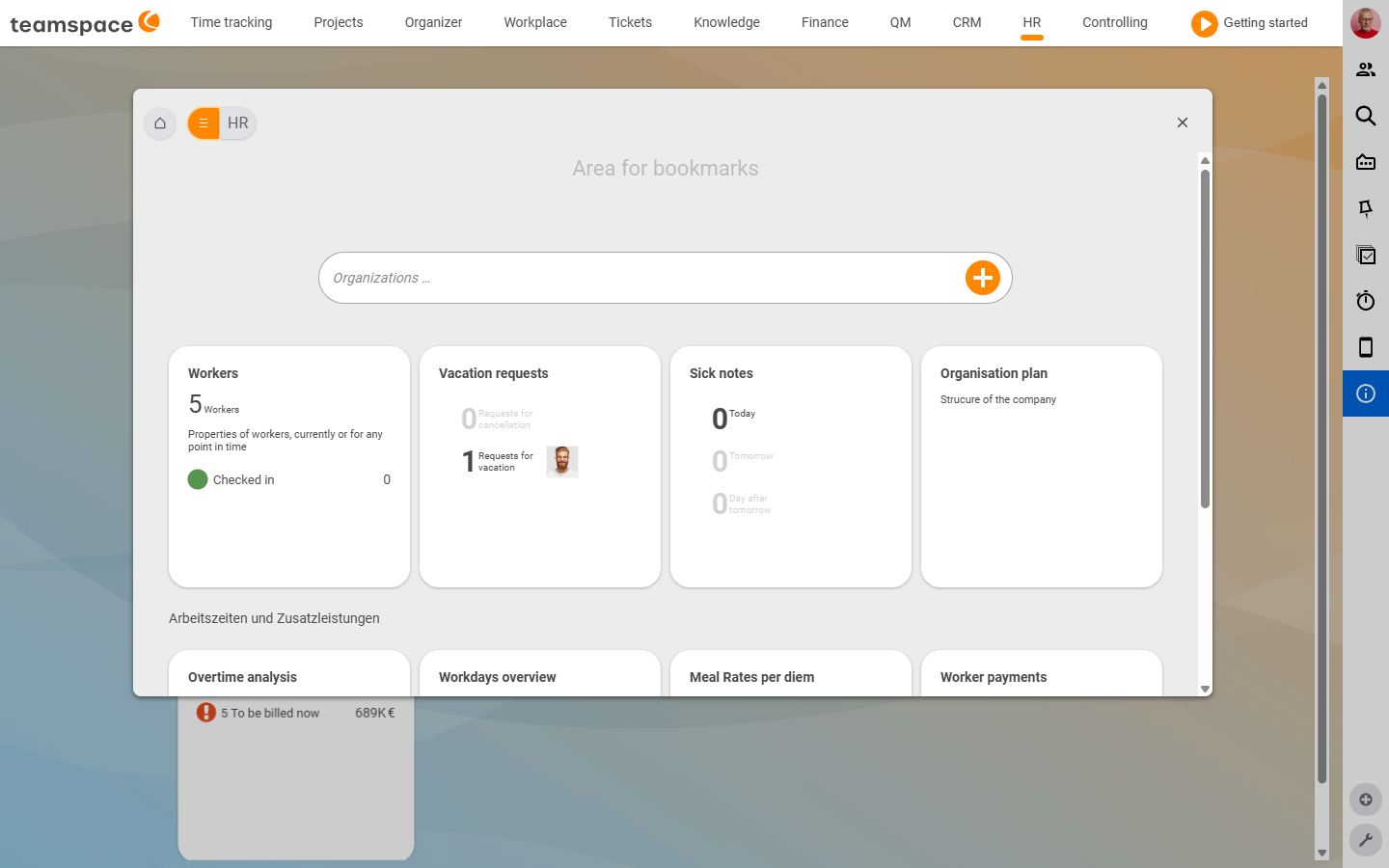
HR is the module for human resources. On the module start page you will find tiles that show live figures straight away: who is off sick today, how many leave requests are waiting, how many employees are checked in. Typical tiles:
- Employees – the central list of people
- Leave requests – open and approved requests
- Sickness reports – with day counts
Today,Tomorrow,Day after tomorrow - Overtime – the team’s overtime accounts
- Meal allowances and Employee payouts
- Org chart – the company structure
Among other things, HR gives you access to: contact details, more detailed master data, departments, contract periods, leave and overtime, sick days, salary data, meal allowances, appraisal meetings and skills.
Note: You will not find travel costs, expenses and commissions in HR but under Finance. The recruiting boards sit under Organisation/Boards. HR does, however, bundle the personnel view of all this — for example via Employee payouts.
The time-dependent personnel file
Contract data, hourly rate, leave entitlement, salary — all of these values can change over the course of an employment relationship. teamspace stores them as time slices: every change creates a new entry that applies from an effective date; the previous entry ends one day before. The last element stays open, with no end date.
This has an important consequence: if you change something retroactively — say the weekly working hours from 40 to 32 hours — the system recalculates all affected projects and the overtime account. So the old figures do not simply stay put. This is intended, but bear it in mind before you tinker with old contracts. Exactly how this logic works is explained in the HR concepts.
Three layers per person
In teamspace, an employee is always also a contact in the CRM and usually a user too. These three layers appear in the detail manager as different tabs — from the contact tab Master data, through the employee tab HR ▼, to the user tab User account. Once you know the difference, you find the data where it sits. More on this on the Manage employees page.
What employees do themselves
Not everything goes through the HR department. Employees report sick, request leave and view their own balances — provided the permissions allow it:
- Reporting sick runs from time tracking: a click on
New sickness report, a date, done. The report appears in the HR module, in the team calendar and in capacity planning. More under Manage sickness reports. - Requesting leave works the same way:
Request leave, choose type and period, and the request lands with the approver. More under Request & approve leave.
Using HR day to day
Three typical tasks from the HR department:
- Recording a sickness report: a call comes in, an employee is off sick. You open HR, click
Report sick, enter the colleague, today’s date, categorySick, and save. As soon as the sick note arrives, you attach it to the same entry. - Approving leave: you receive a notification about a leave request, check the period against the resource schedule, see the available remaining leave and click
Approve. The leave appears in the account and in the team calendar. - Adjusting a contract: an employee reduces from five to four days. You open their profile, go to
HR ▼→Contract data and working hours, create a new entry from the effective date via the plus icon, and adjust weekly working hours, working days and leave entitlement. See Adjust contract data & salary.
Related topics
- HR concepts: personnel file & time slices Personnel & HR Concept
- Manage employees Personnel & HR How-to
- Request & approve leave (with video) Personnel & HR How-to
- Topic: Time tracking Time tracking
- Topic: Capacity Capacity
- HR software for personnel management