


You record sickness reports digitally in teamspace — either the employee reports themselves sick from time tracking, or the HR department enters a sickness report received by phone. The report appears in the HR module, in the team calendar and in capacity planning. teamspace automatically respects protection classes and permissions in the process.
Report yourself sick
The employee reports themselves sick — provided they have the right Create and edit sickness report for yourself:
- Go to time tracking →
Overview. - Click
New sickness report. - Choose the date (default: today) and confirm.
From this moment, their day is booked as a sickness report, colleagues with the appropriate visibility see the entry in the calendar and in the colleague overview, and project managers see the absence in their utilisation overviews. Anyone who has enabled the Sick days as colleague notification (Personal settings → User account → Notification) receives a message — provided they are allowed to see the report.
Report others sick
Anyone who is allowed to report several employees sick needs the group right Report colleagues sick. By default the HR department and management have this right; you grant it to department heads and the back office as needed.
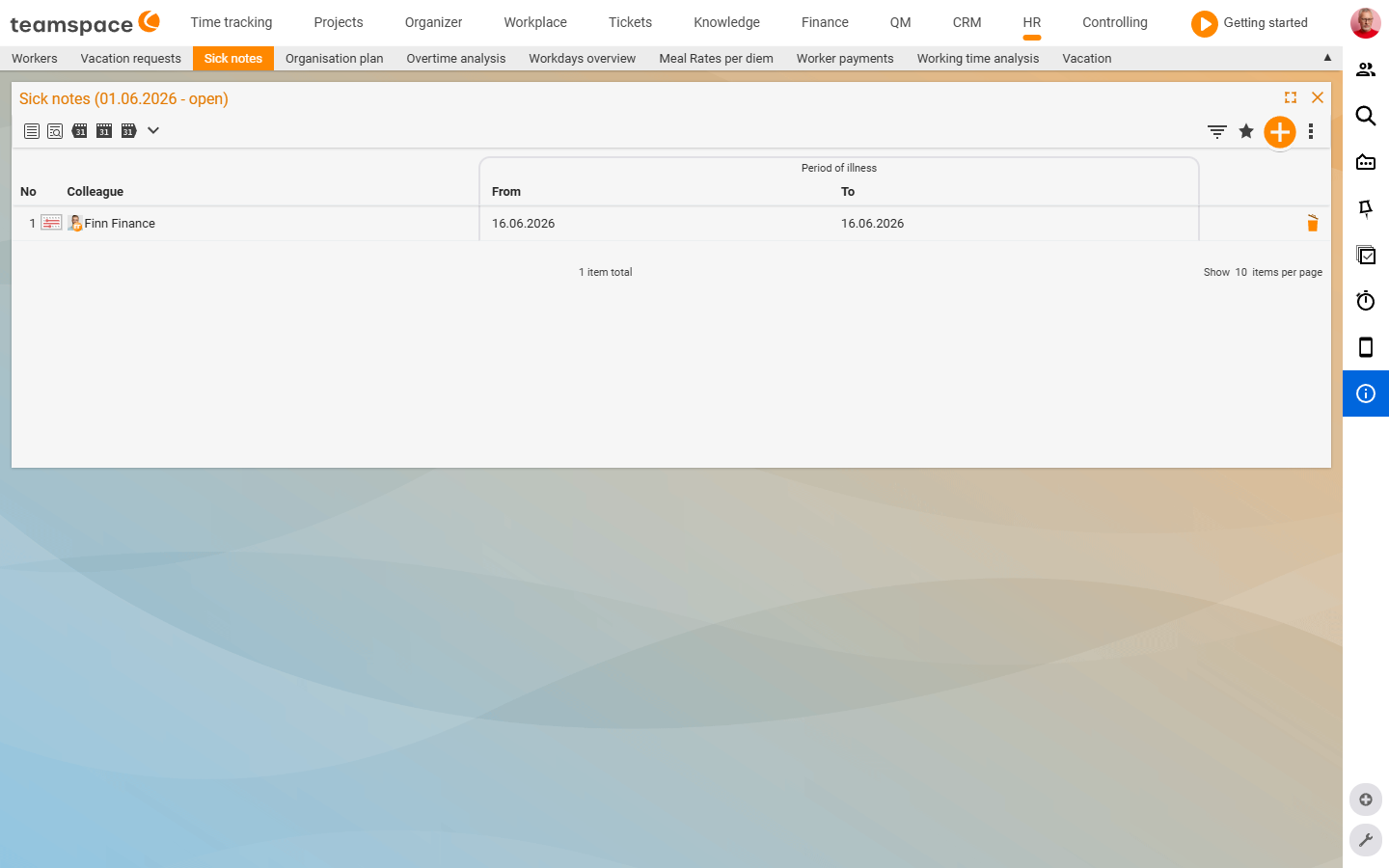
- Switch to HR, in the
Sickness reportslist click the plus (orReport sickin the plus-button drop-down). - Choose the colleague and enter the date.
- In the
Categoryfield, choose the value —Sickor, for example,Sick due to child. - Save.
⚠ Important: The hurdle for one’s own sickness report is a deliberate decision. Only grant the right
Create and edit sickness report for yourselfif you accept self-entered sickness reports. Otherwise the sickness report remains a matter handled via HR or the line manager — the employee calls in, and the person called enters it.
Edit a sickness report and attach a sick note
A click on a row opens the sickness report in the detail manager with the tabs Master data, Working days, Files, History.
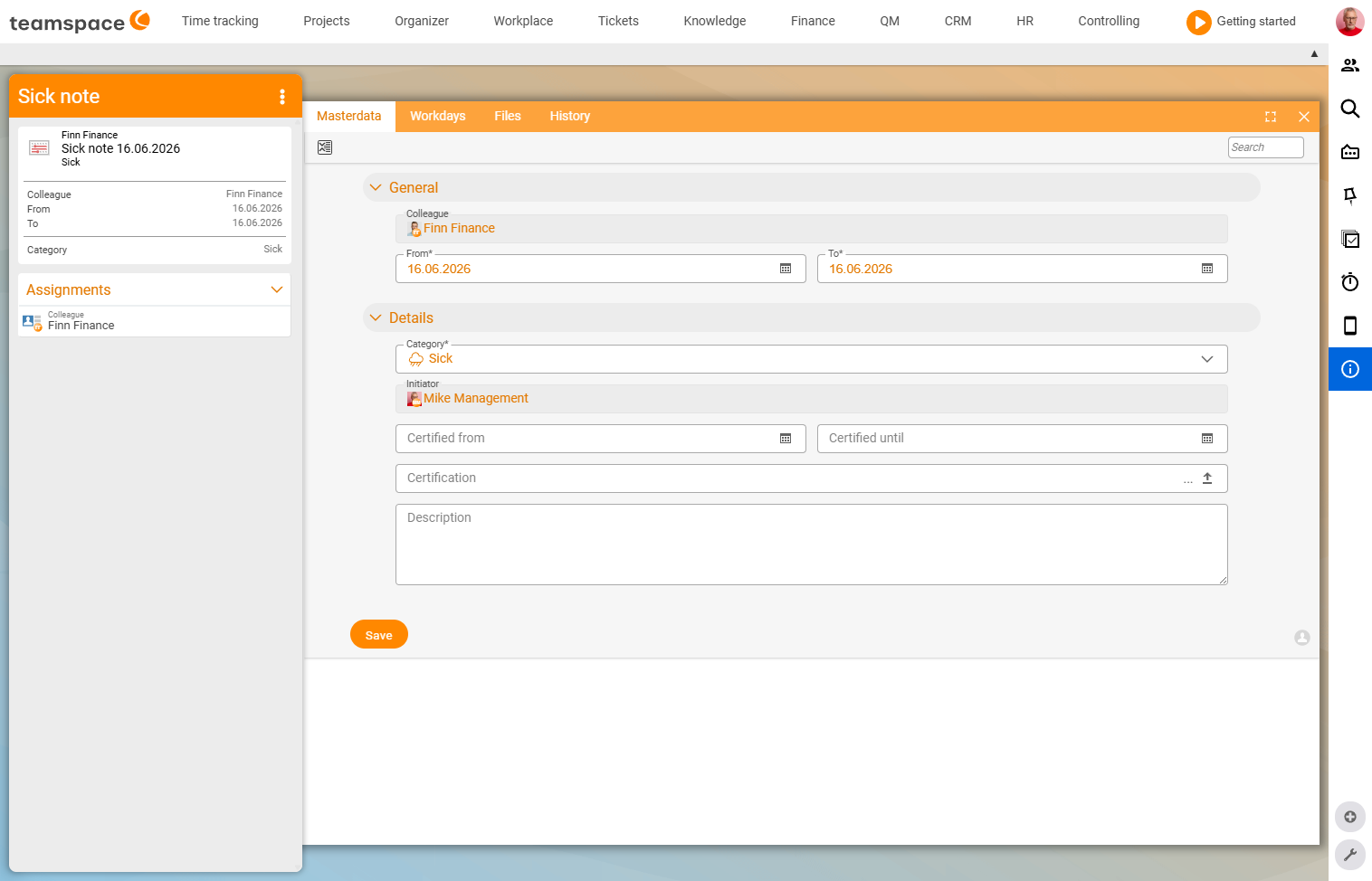
In the Master data tab there are two accordion blocks:
General:Colleague,From*,To*(or open, if not yet known).Details:Category*,Author(who entered the report),Certified from,Certified to,Sick note(file attachment or link),Description.
Anyone with the Confirm sickness report permission can enter the sick note — the “yellow slip” — here: scan the original and attach it as a file, or link to the electronic original (eAU).
The Working days view shows the affected working days — for example “24 hours of sickness report spread across three days of 8 hours each”. If an employee fell sick only after six hours of work, the column shows 2 instead of 8 — it measures the hours filled by the report, not the total length of the day.
Who is allowed to see a sickness report
Sickness data is sensitive, which is why teamspace governs visibility on several levels:
- Time-based logic: sickness reports in the future are visible — colleagues need to know who is absent in order to organise cover. Sickness reports in the past are only visible to authorised persons.
- Category protection: in
Configuration → Time tracking → Categoriesyou define per category whether it appears in the calendar and whether it is protected. A protected category only shows colleaguesabsent— the “sick” information stays hidden. - Permission groups: who is allowed to view, enter and confirm sickness reports is governed by the configuration of the permission groups (the
Group-specific permissionssection).
Sickness reports in the employee list
In the employee list you show the Sickness report column via the three-dots menu. For the selected period it shows the hours lost, the number of individual sickness reports and the number of sick notes. A sickness report takes effect immediately in time tracking, the calendar and capacity planning.
Common problems
I can’t find the New sickness report button.
The employee needs the right Create and edit sickness report for yourself. If it is not set, the sickness report deliberately runs via HR or the line manager — the employee calls in, and the person called enters it.
Why don’t colleagues see a past sickness report? Sickness reports in the future are visible so that cover can be organised; sickness reports in the past are only visible to authorised persons.
Colleagues see sick — I want it to read only absent.
Mark the category as protected in Configuration → Time tracking → Categories. teamspace then only shows colleagues absent, and the “sick” information stays hidden.
The Working days column shows 2 instead of 8 — is that an error?
No. If an employee fell sick only after six hours of work, the column measures the hours filled by the report, not the total length of the day.
Common questions & needs
| You want to … | How to |
|---|---|
| Report myself sick | Time tracking → Overview → New sickness report (Create and edit sickness report for yourself right needed). |
| Report a colleague sick | In HR in the sickness reports list click plus, colleague + date + category (Report colleagues sick right). |
| Store the yellow slip | Open the sickness report, in the Details block attach the Sick note as a scan or enter an eAU link. |
| Record “child sick” | When creating, choose the category Sick due to child. |
| Hide an illness from colleagues | Mark the category as protected in the configuration – colleagues only see absent. |
| Evaluate a month’s absences | In the employee list show the Sickness report column and choose the effective date. |
Related topics
- Request & approve leave (with video) Personnel & HR How-to
- HR permissions & data protection Personnel & HR Configuration
- Topic: Controlling Controlling
- Sickness management