


In the org chart you map the company structure — departments, sub-departments, subsidiaries. Each department is a standalone organisation that is assigned to a higher-level unit. This creates a tree structure with hierarchies and responsibilities. You use the org chart both for your own company and for external organisations, for example to record a customer’s specialist departments.
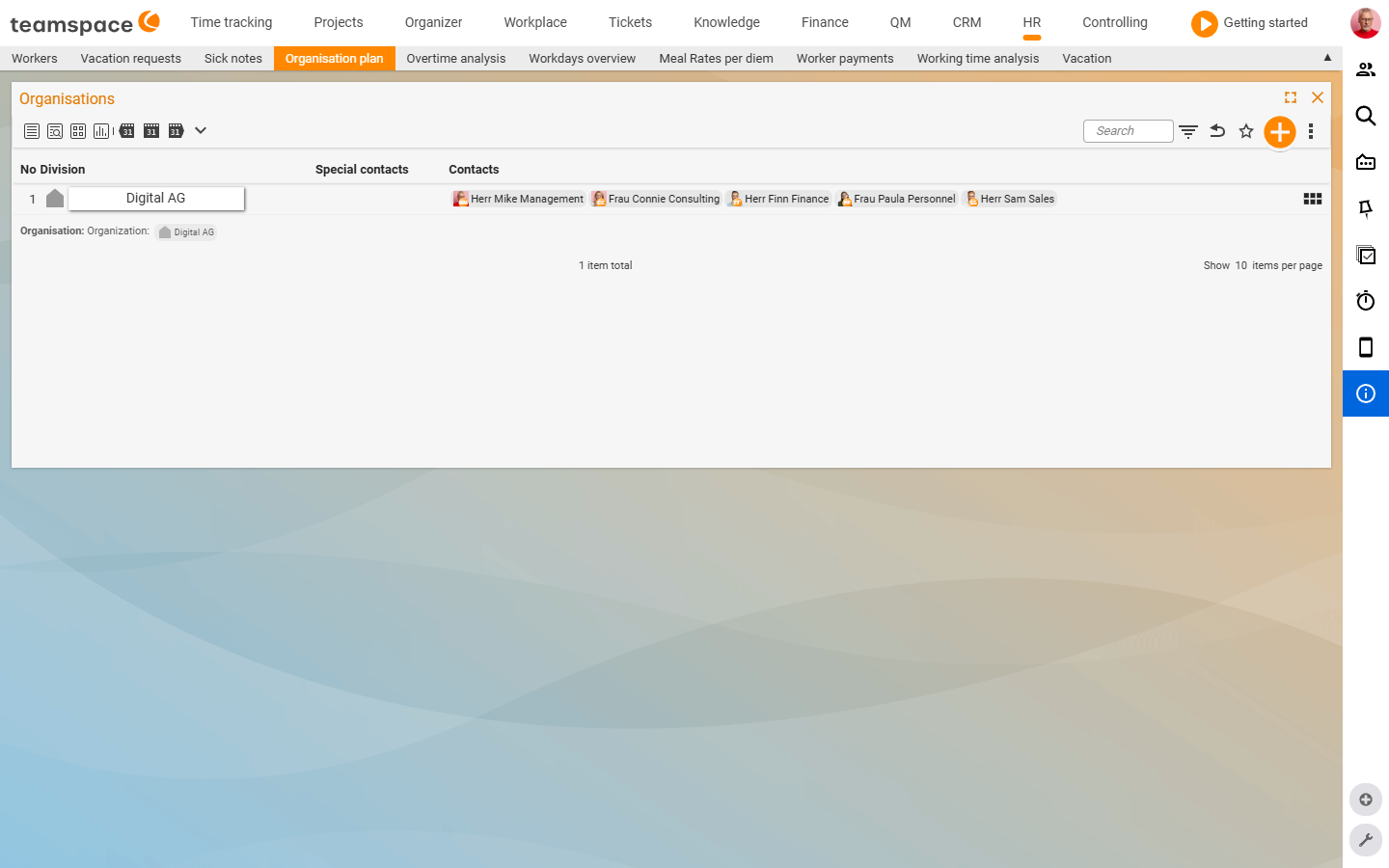
Where the org chart sits
In the HR module you will find the org chart as a tab of its own. The view header shows Organisations with a filter that restricts the higher-level organisation. The view toggle in the toolbar offers four views: Standard, Details, Tile view, Statistics. In the Tile view you see each organisation as a tile with an initial box, address and telephone; in the standard list the columns No, Department, Special contacts, Contacts are shown.
Create a department
Use the Create new department action to create a new department or sub-department. The new department is run as a standalone organisation — with its own master data, its own contacts and, optionally, its own address — while at the same time being subordinated to the existing organisation (you choose the parent organisation in the creation dialog).
Data such as the address can be inherited from the parent organisation by the children. This makes sense when the department is at the same location; if they are physically separate, you enter a separate address and thereby override the inherited one.
What a department brings with it as an organisation
Because a department is a standalone organisation, it gets everything a CRM organisation also has: its own master data (name, description, industry, note), its own contacts as employees, its own or inherited address, visibility in the CRM contact list and in analyses. This is why the org chart also works for customers — you record specialist departments or subsidiaries so that contacts and tickets are assigned correctly.
Assign an employee to a department
Assigning an employee to a department does not happen in the org chart itself, but in the employee detail manager under HR ▼ → Department. There you define the period in which an employee belongs to which department. This is time-dependent — anyone who moves gets a new time slice.
ℹ Info: Why time-dependent? A cost centre is often attached to a department. Past times an employee booked there continue to belong to the department of the day — not to the new one. Otherwise the cost accounting would shift retroactively.
Departments and permissions
Permissions can be set depending on department membership — for example: “The Marketing department head may approve leave for their employees.” This only works if the department in the org chart and the employees in the HR ▼ → Department tab are assigned cleanly. More under HR permissions & data protection.
Common problems
Why don’t I create the department change in the org chart?
Assigning an employee to a department does not happen in the org chart, but in the employee detail manager under HR ▼ → Department. There you create a new time slice from the date of the move.
Why is the department assignment time-dependent? Because a cost centre is often attached to a department. Past times an employee booked there continue to belong to the department of the day — otherwise the cost accounting would shift retroactively.
Department-based leave approval doesn’t take effect.
It only works if the department in the org chart and the employees under HR ▼ → Department are assigned cleanly and the right is granted in the permission groups. More under HR permissions & data protection.
Common questions & needs
| You want to … | How to |
|---|---|
| Create a new department | Create new department action, choose the parent organisation. |
| Take the address from the parent | Leave inheritance activated in the creation dialog. |
| Reorganise an employee | In HR ▼ → Department, create a new time slice from the date of the move. |
| Map a customer structure | Create specialist departments/subsidiaries as subordinate organisations. |
| Set up department-based approval | Assign the department cleanly, grant the right in the permission groups. |