



The overtime account fills automatically — teamspace compares the work performed with the contracted time and credits the difference to the account. Overtime is reduced in three ways: as a leave request with the type Reduce overtime, as a conversion into leave days, or as a payout in the normal review process. Where the account has to be adjusted manually, the timeline helps.
How the account fills
The system takes the contracted working hours as the Target, checks from the first contract date what was actually booked, and calculates the difference. What counts depends on the time-tracking basis you set in the contract data:
- Attendance time: Checking in and out is compared with the contracted time.
- Project time: The booked project times are compared with the contracted time.
- Trust-based working time: No overtime account.
The balance an employee sees in the overview of their time tracking always applies up to the end of yesterday — today is only included after the day has been closed. Example: if Volker books 4 instead of 9 hours for a Monday, the account drops to −5; if he books 9 instead of 7 hours on Tuesday, it evens out to −3. This happens automatically.
The overtime table in HR
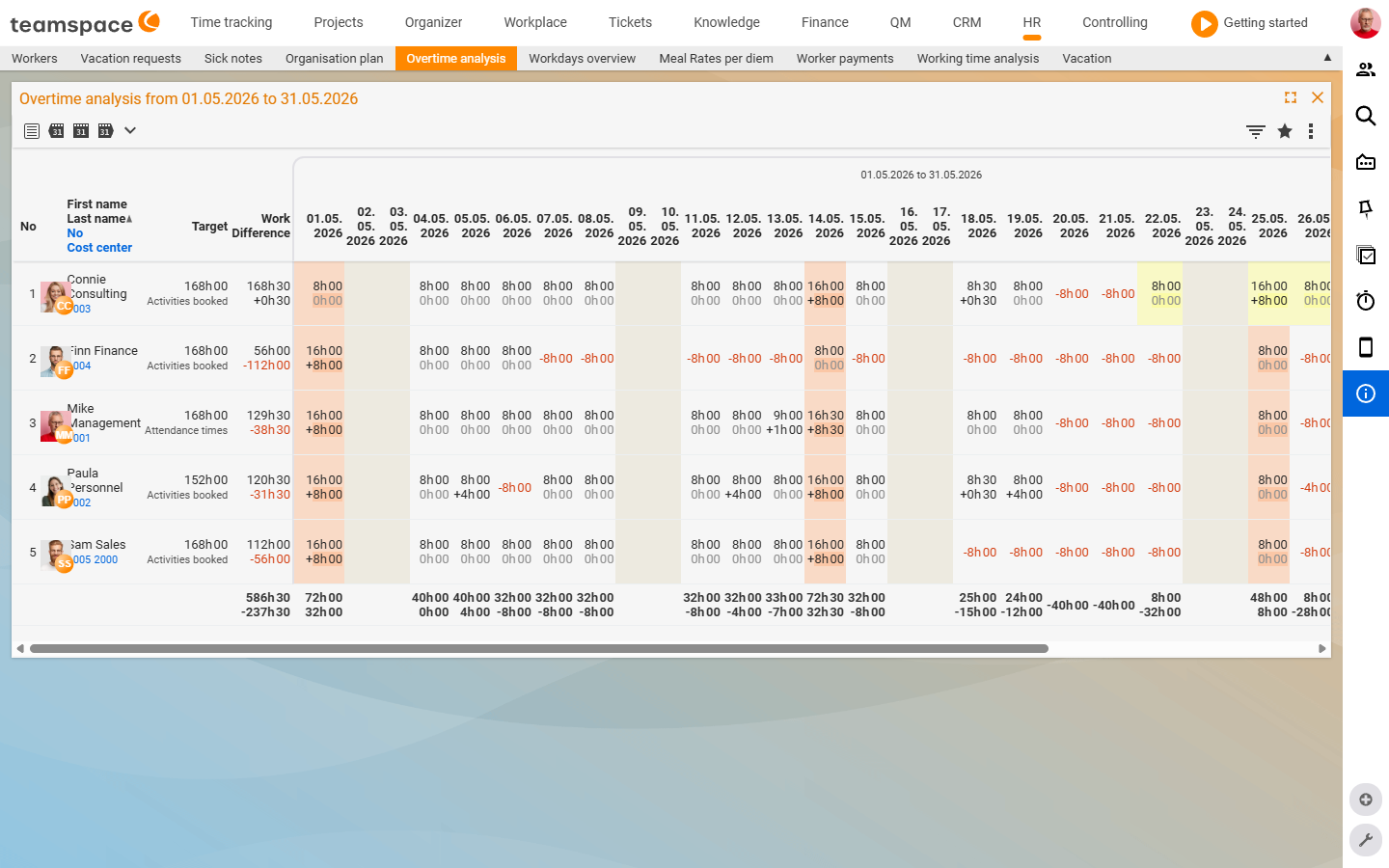
The tab Overtime shows the account for all employees. The default is the day-by-day view — it is better to switch to weekly via the filter. The columns:
- Target: hours the employee was supposed to work in the period according to the contract.
- Work: hours actually worked.
- Difference: balance of over- and under-hours in the period.
- Balance: current account balance (default: yesterday).
Via the filters you show Overtime account, Weekends and Leave account. If hours are missing, teamspace shows the values in red. For a specific effective date (e.g. 1 January) you enter the date and click Apply; if you delete it, the list jumps back to yesterday.
Three ways to reduce overtime
- Leave request with the type
Reduce overtime: The simplest way. Colleagues see the absence like normal leave, the leave account is untouched, the overtime account is reduced — only when the days are actually taken. See Request & approve leave. - Conversion into leave days: You reduce the overtime account by a number of hours and credit the corresponding days to the leave account. Advantage: immediately visible and easy to trace.
- Payout as a cost element: Runs through the normal review process and ends up in the employee payroll.
Manual adjustments to the account
Sometimes the automatically calculated account is not correct — for example because a new employee brings overtime from the old system, or because you want to gift someone hours. Open the employee, go to HR ▼ → Analysis → Overtime and leave account and create an entry via the plus. Four types:
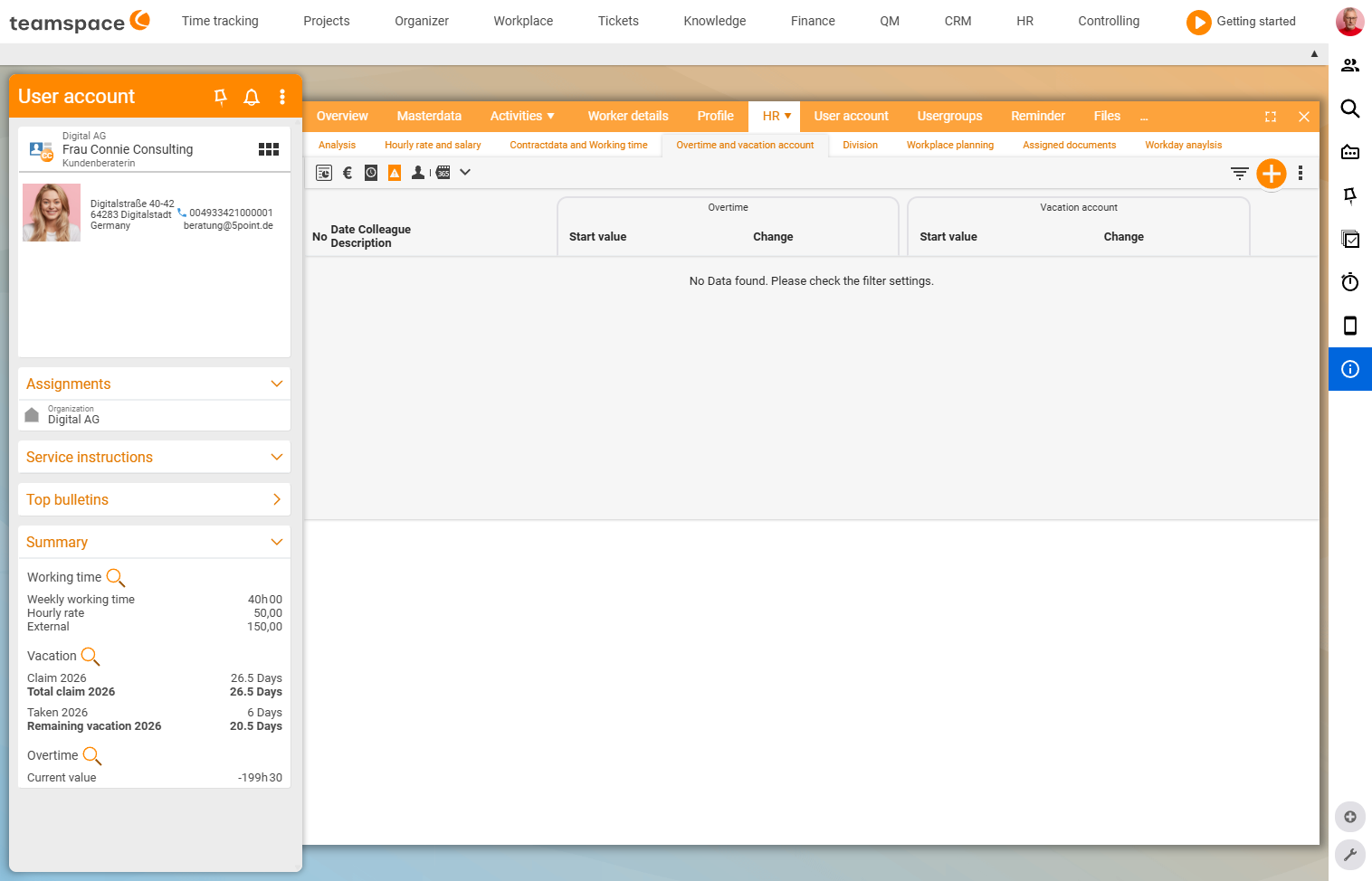
- Set starting value: Sets the account to a fixed value at a date (e.g. 120 hours as of 16 October). The calculation of the past is ignored; from the starting value the system continues calculating — ideal when taking over from an old system or when a calculation has gone completely wrong. Give the entry a name such as
initial. - Change: Changes the account by a delta value (e.g. +8 hours as a gift on a date).
- Transfer: Moves between the overtime and leave account. With the tick set, the system converts, for example, two leave days into 16 hours of overtime — or vice versa.
- Payout: Reduces the account because hours were paid out (usually set automatically by the payout mechanism).
The same applies analogously to the leave account — there too you can make starting values, gifts (Special day) and transfers. Every entry appears traceably in the history and can be removed again.
Request an overtime payout
- In the plus button →
New cost element→Request overtime payout. - Enter the date and specify the number of hours.
- Choose the rate:
Overtime rate at the internal rate(different per employee, fromHourly rates and salaries) orat the fixed rate(e.g. €30.00, the same for everyone).Create. Release for review.- The reviewer finds the item in the Finance module under
Costs→Billing, reviews it and releases it.
After that, the overtime account is reduced by the paid-out hours, and in HR under Employee payouts the potential payout appears. Via create this becomes a tax-compliant employee payroll.
ℹ Info: You maintain the fixed rate in
Configuration → Finance → Cost types→Overtime payoutin the fieldUnit price(e.g. €30.00). You enter the internal rate per employee inHR ▼→Hourly rates and salaries→ fieldOvertime. If the internal field is empty and you chooseinternal, teamspace takes a default value — usually not what you want.
Common problems
The overtime balance does not match the work done today. The balance always applies up to the end of yesterday — today is only included after the day has been closed. A booking made today therefore only appears in the account tomorrow.
I choose the internal payout rate, but teamspace takes a wrong value.
If the Overtime field in HR ▼ → Hourly rates and salaries is empty and you choose internal, teamspace takes a default value — usually not what you want. Enter the internal rate per employee there.
A carry-over from the old system should not be recalculated.
Create the entry Set starting value as of the start date via the plus. The calculation of the past is then ignored, and from the starting value the system continues calculating.
I adjusted the account, but the whole history has shifted. You used the pencil instead of the plus. Always create manual adjustments (starting value, change, transfer) via the plus — each entry then stays traceable and can be removed again.
Common questions & needs
| You want to … | How to |
|---|---|
| See the team’s overtime balance | Tab Overtime, switch to the weekly view, choose an effective date. |
| Gift an employee hours | In Analysis → Overtime and leave account, create a Change (+8 hours) via the plus. |
| Take over existing overtime | An entry Set starting value as of the start date with the carried-over balance. |
| Convert overtime into leave | A Transfer entry with the tick between the overtime and leave account. |
| Pay out overtime | Plus → Request overtime payout, choose the rate, release for review. |
| Set the payout rate | Fixed rate in Finance → Cost types; internal rate in the Overtime field of the hourly rates. |