


HR has special data protection requirements — salary, sickness and severe disability are not for everyone’s eyes. teamspace secures this through two mechanisms for data (field visibility, protection classes) and three for processes (group rights, line-manager logic, deputies). This page walks you through the setup.
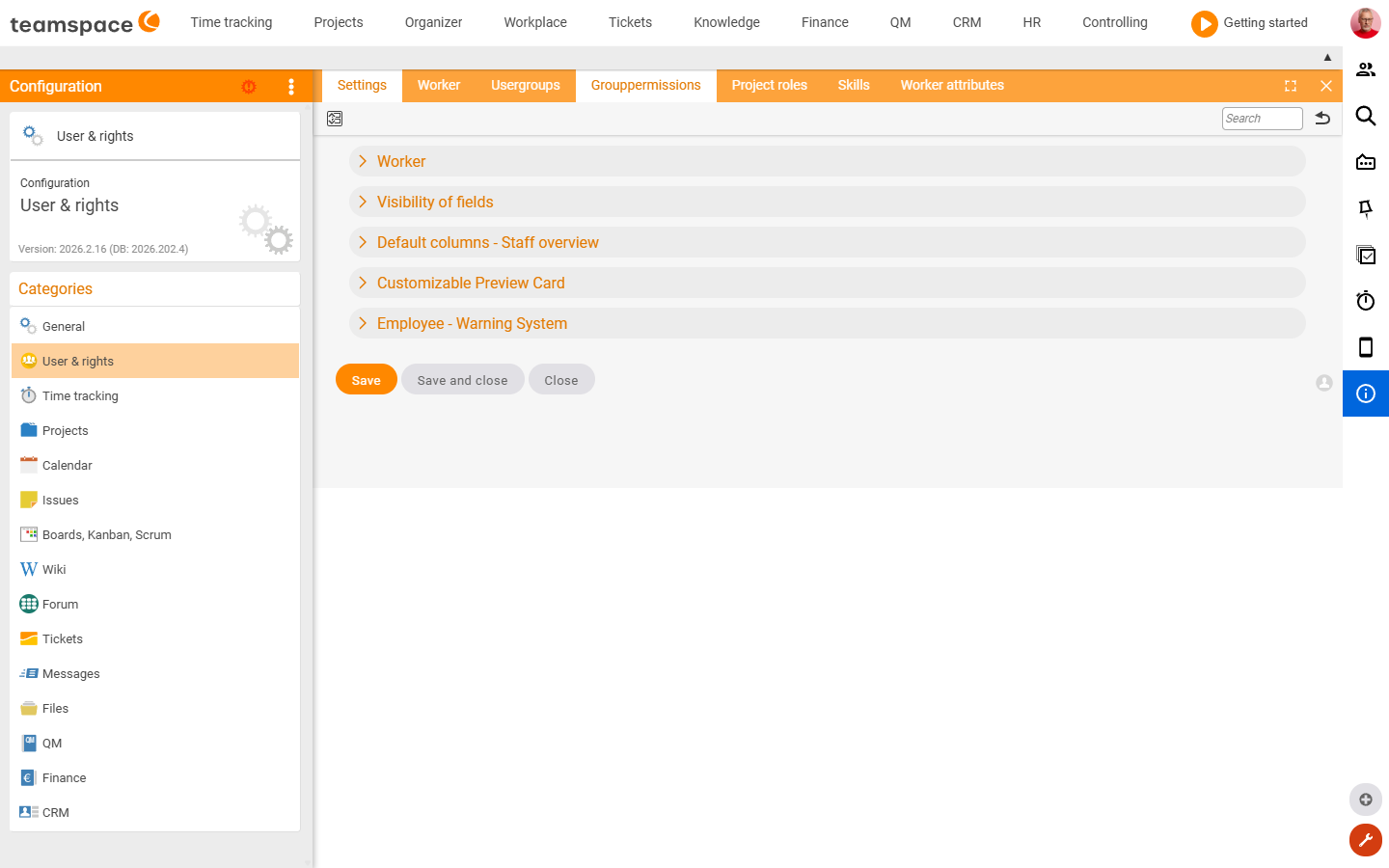
Making fields visible
By default, many HR fields are hidden. You enable them once:
Configuration → Users and rights → Settings → HR dataThere you find fields such as Severe disability, Employment data, Temporary agency work, Fixed-term, Tax and social insurance, Remuneration schemes, time-dependent remuneration components. Set the fields you need to visible/active. For fields with selection lists (for example Business area), you also enter the selectable values.
ℹ Info: If an enabled field has an empty selection list, teamspace still hides it — the system recognises that there would be nothing to select. So enter the values first.
Assigning protection classes
In the same configuration, you assign a protection class to fields. By default, none is set. Anyone without that class sees only protected instead of the values — typical for salary data. This keeps sensitive areas of the personnel file hidden from unauthorised users, while authorised people see them as normal.
Group and individual rights for leave and sickness
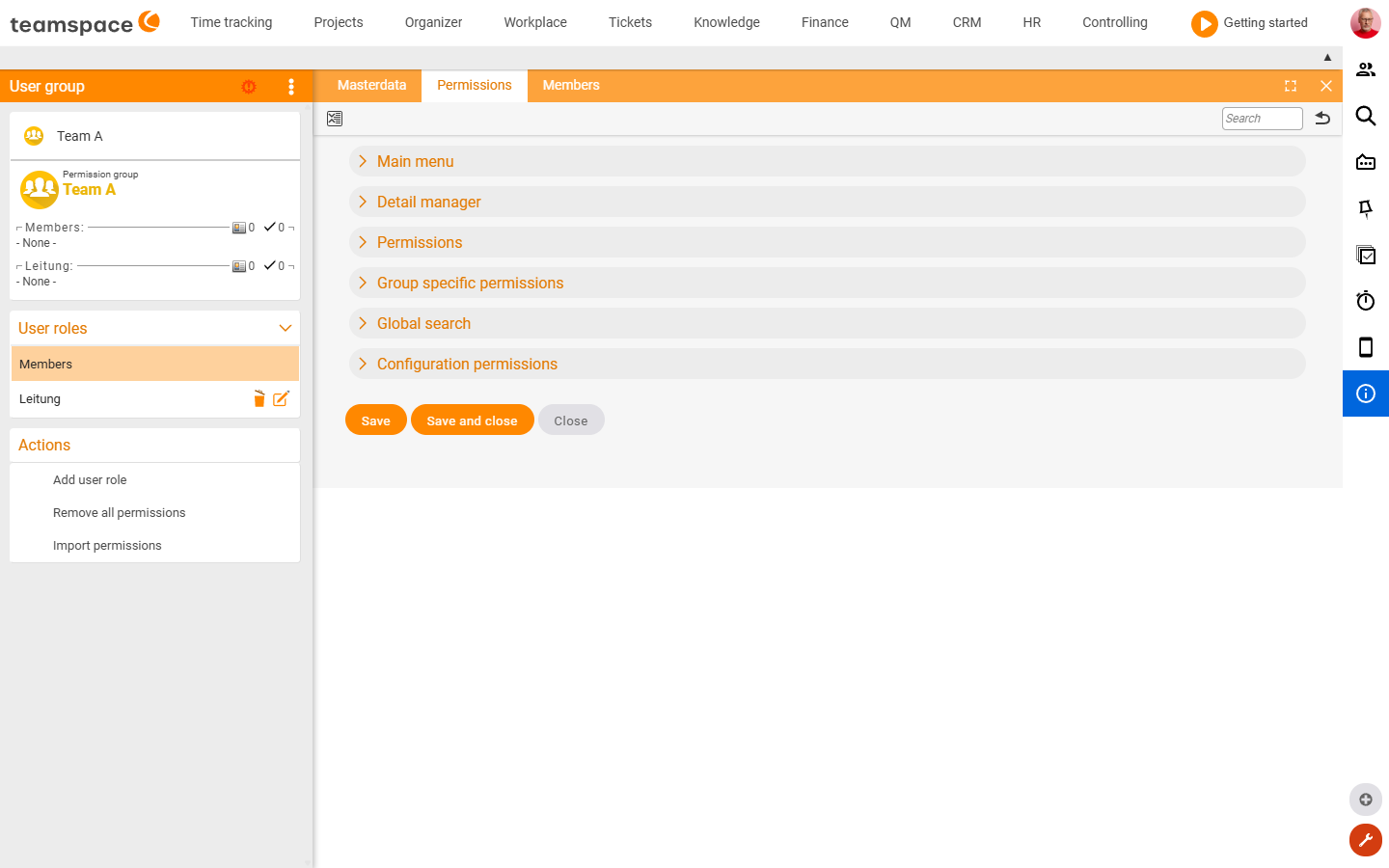
In Configuration → Users and rights → Permission groups → Group-specific permissions you set, per group, among others:
Approve leave requests— for everyone or via an exceptions list (“except your own”, “not for Finn”).Report colleagues sick— typical for HR and management.Confirm sickness report— record the sick note.View colleagues' leave and overtime accounts— for everyone or a subgroup.
In addition, there are individual rights that you search for specifically (Ctrl+F) and set:
Create and edit own sickness report— removes the hurdle so that an ordinary employee may report sick without a group right.Edit own deputy rule— allows the employee to maintain their own deputy (see below).
Line-manager logic: If you enable the option Line manager can approve leave in Users and rights → Settings → Time tracking, the direct line manager may approve for their employee — the line manager is recorded against the employee in HR. In most companies this runs as a mix of group rights (HR, management) and line-manager assignment.
Deputies with rights inheritance
If the responsible approver is sick or on leave themselves, deputy rules take effect. For them to work, you first enable the deputy areas:
Configuration → Users & rights → Settings → Field visibility
  → Organisation and management → Deputy areas / Deputy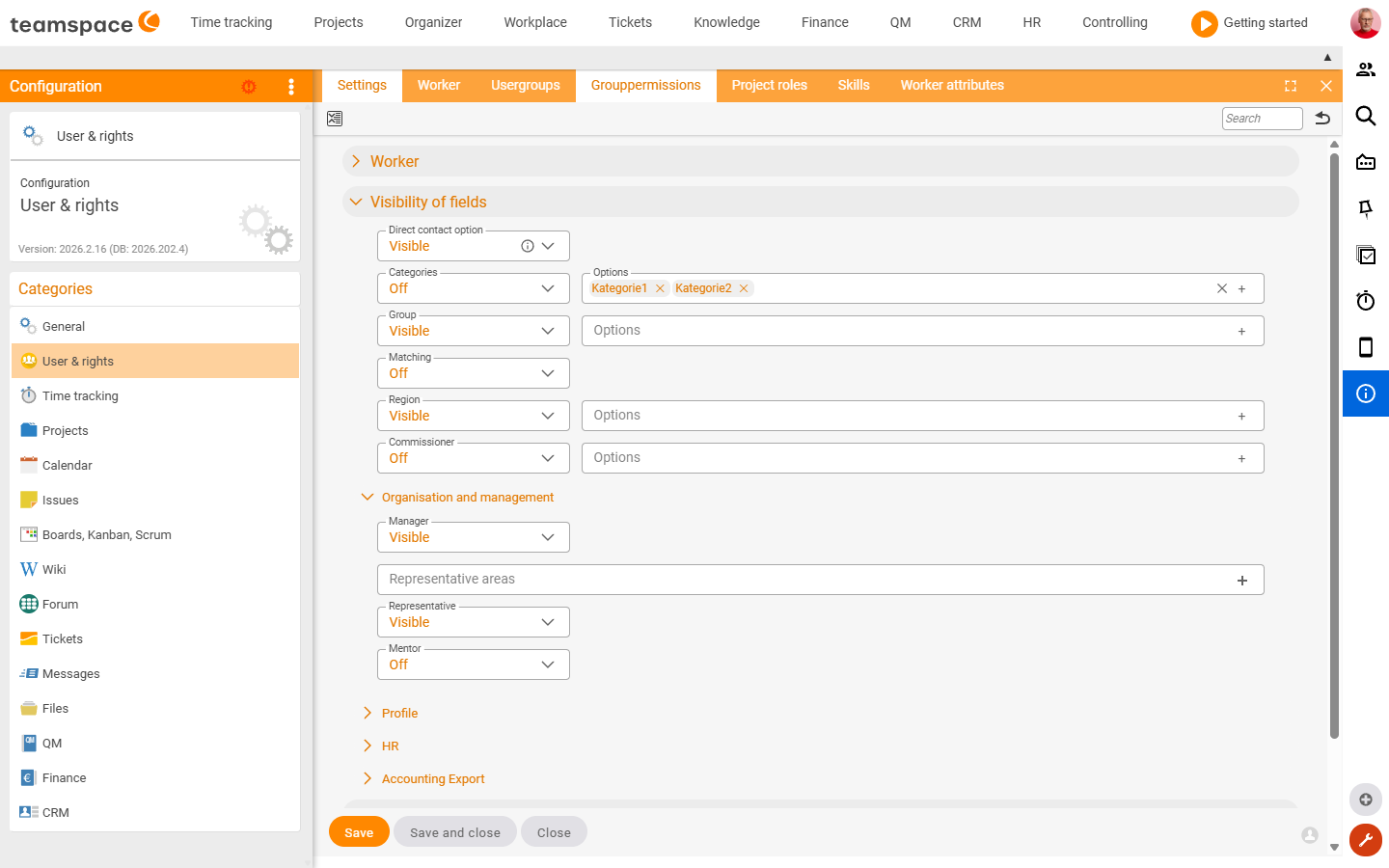
You specify the areas (such as Leave approval, Reviews, Permanent employee change). Then, per employee, you set a general deputy in the Employees tab and, optionally, area-specific deputies. The deputy takes effect automatically when the person represented is on leave or sick.
⚠ Important: During the deputy period, the deputy receives the rights of the person represented. So anyone who previously could not see leave requests can see and approve them during the deputy period. That is why the deputy rule is maintained from HR by default (
HR→ Employees →Employees→ Deputy rules). Only grant the employee theEdit own deputy ruleright if you deliberately want this.
Common problems
I made an HR field visible, but it still does not appear.
If the field has an empty selection list, teamspace hides it anyway — the system recognises that there would be nothing to select. For fields with selection lists (e.g. Business area), enter the values first.
Why does one authorised person see salary data and another only protected?
The values sit under a protection class. Anyone with that class sees them normally; anyone without it sees only protected. You assign the protection class per field in Users and rights → Settings → HR data.
My deputy suddenly sees data they are not normally allowed to see.
During the deputy period, the deputy receives the rights of the person represented. Anyone who previously could not see leave requests can see and approve them as a deputy. That is why the deputy rule is maintained from HR by default — only grant the Edit own deputy rule right deliberately.
The deputy areas do not appear against the employee.
Enable them first under Configuration → Users & rights → Settings → Field visibility → Organisation and management. Only then can you set an area-specific deputy per employee in the Employees tab.
Common questions & needs
| You want to … | How to |
|---|---|
| Hide salary data from unauthorised users | Assign a protection class to the fields – unauthorised users see only protected. |
| Use a hidden HR field | Set it to visible in Users and rights → Settings → HR data. |
| Let HR approve leave for all colleagues | Grant the group right Approve leave requests without exceptions. |
| Allow employees to report sick themselves | Set the individual right Create and edit own sickness report. |
| Set up a leave deputy for the boss | Enable the deputy areas and, in HR against the employee, set the deputy for Leave approval. |
| Prevent employees from changing their own deputy | Leave the Edit own deputy rule right off – only HR maintains it then. |
Related topics
- HR concepts: personnel file & time slices Personnel & HR Concept
- Set up leave Personnel & HR Configuration
- Topic: Permissions Permissions
- Digital personnel file