


The employee payroll bundles open payouts to an employee into a billing document — expenses, meal allowances, overtime payouts, commissions. If an employee has requested a reimbursement, the item waits for someone to review it, release it and put it into an employee payroll.
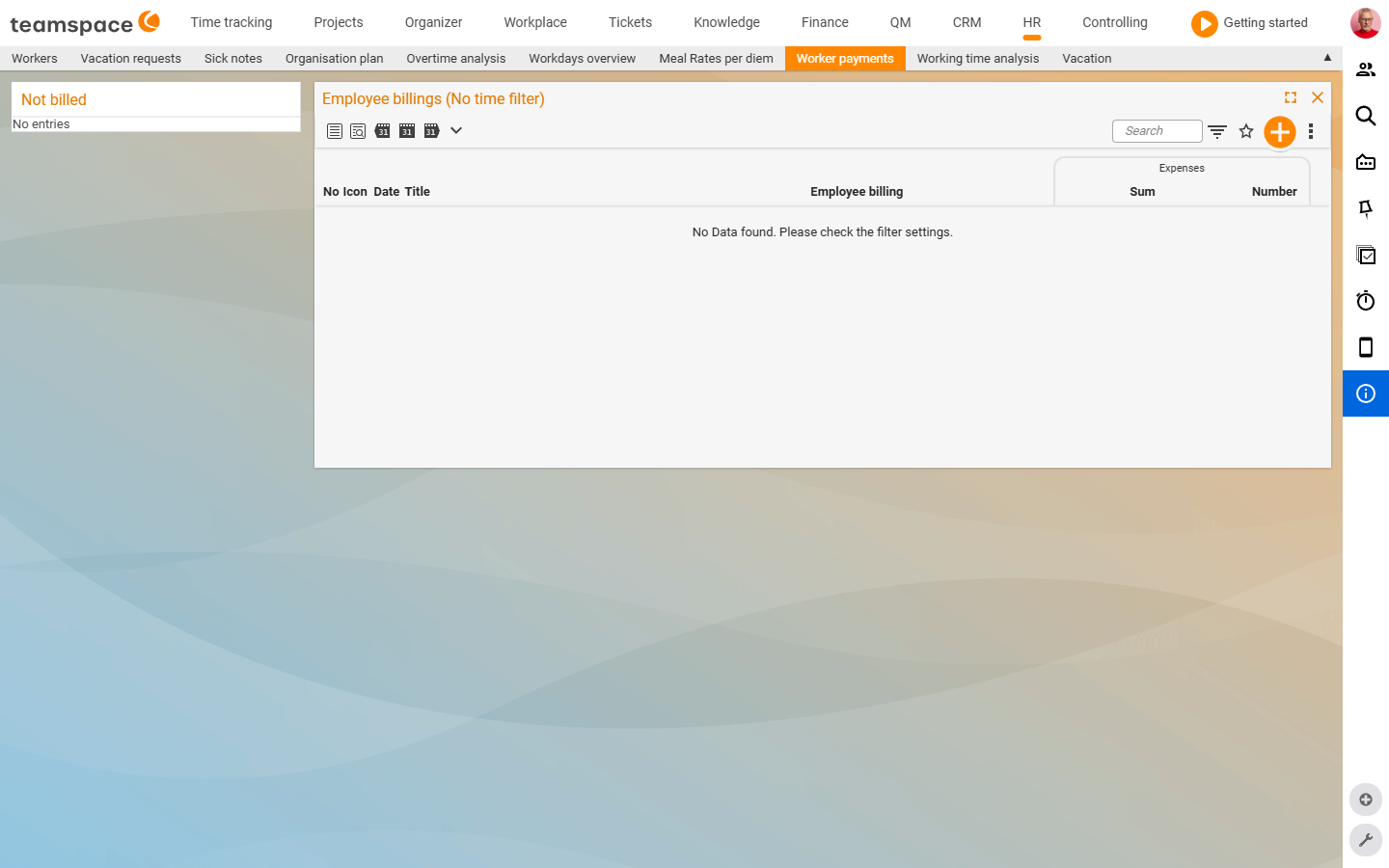
Where the list sits
The list is called Employee payouts in the tab (the view header partly shows Employee payrolls). Columns: No, Icon, Date, Title, Employee. In the left sidebar is the accordion Not billed with all employees who still have open payout items. A click on an employee opens the screen in which you combine their open items into a payroll.
What ends up in it
Three to four sources supply items to the payroll:
- Expenses and travel costs: records from the travel expense report. After review and release they end up in the open payouts.
- Meal allowances: separate cost elements, often part of a trip — see Meal allowances.
- Overtime payouts: a request for an overtime payout as a cost element — see Overtime account.
- Commissions: automatically calculated commissions end up in the payroll in the same way.
Create a payroll
- In the
Not billedbox, click an employee. The screen opens a new payroll with all open items — the reviewed expenses, the released allowances, the requested overtime payouts. - Check that everything is correct, leave out unsuitable items, add notes if necessary.
- Click
Create. teamspace bundles everything into an employee payroll with a fixed number and fixed date — prepared in a tax-compliant way. The original cost elements now count as billed.
ℹ Info: Which cost types are intended for employee payrolls is governed by
Configuration → Finance → Cost types.
The payout flow by example
A requested overtime payout goes through the same flow as an expense report:
- The employee creates a payout in the plus button →
New cost element, chooses the cost type (e.g.Overtime payout), enters the date and number of hours and releases it for review. - The reviewer sees the item in the Finance module under
Costs→Billing, reviews it and releases it. - In HR →
Employee payoutsthe item appears in theNot billedbox. - You create the employee payroll — the document gets a number and date.
- The payout is accounted for in a tax-compliant way; the overtime account was already reduced when the request was made.
Export data to payroll accounting
Via employee payrolls, the figures reach payroll accounting. Those who use DATEV export the prepared data to the tax advisor — basic salary, booked times, additional salary components, leave and sickness reimbursement. Those who do not use DATEV export the filtered list as Excel via the three-dots menu. More on this under Preparatory payroll & DATEV.
Common problems
A requested payout does not appear in Not billed.
The item has to be reviewed and released first. The employee releases it for review, the reviewer finds it in the Finance module under Costs → Billing and releases it — only then does it appear in the Not billed box in HR.
How do I leave a single item out of the payroll?
In the creation screen, deselect the item before you click Create. What you leave out stays open and can go into a later payroll.
A cost type cannot be billed.
Which cost types are intended for employee payrolls is governed by Configuration → Finance → Cost types. If the type is missing there, it does not appear in the payroll.
I don’t use DATEV — how do the figures reach payroll accounting?
Export the filtered list as Excel via the three-dots menu and hand it to payroll accounting. More under Preparatory payroll & DATEV.
Common questions & needs
| You want to … | How to |
|---|---|
| See an employee’s open payouts | In the sidebar, open the Not billed accordion and choose the employee. |
| Bundle several items into one payroll | Click the employee, review the items, Create. |
| Leave an item out of the payroll | In the creation screen, deselect the item before you click Create. |
| Set which cost types are billable | Set this in Configuration → Finance → Cost types. |
| Hand the payrolls to the tax advisor | Via the DATEV interface or by Excel export from the three-dots menu. |
Related topics
- Overtime account: adjust & pay out (with video) Personnel & HR How-to
- Meal allowances Personnel & HR How-to
- Preparatory payroll & DATEV Personnel & HR Concept
- Preparatory payroll