


Meal allowances are separate cost elements that you book individually or as part of a travel expense claim. teamspace uses templates with the correct tax rates per country — employees do not have to enter the amounts themselves; they simply select the country and the key trip details. In HR you see the list of all submitted allowances with their status and totals.
What a meal allowance is
Anyone travelling on business is entitled to tax-defined daily allowances — depending on the country, the trip type (more than 8 hours, more than 24 hours) and whether meals were provided. The employee does not enter these values by hand — they select the country and the key trip details, and teamspace calculates the allowance.
The list in HR
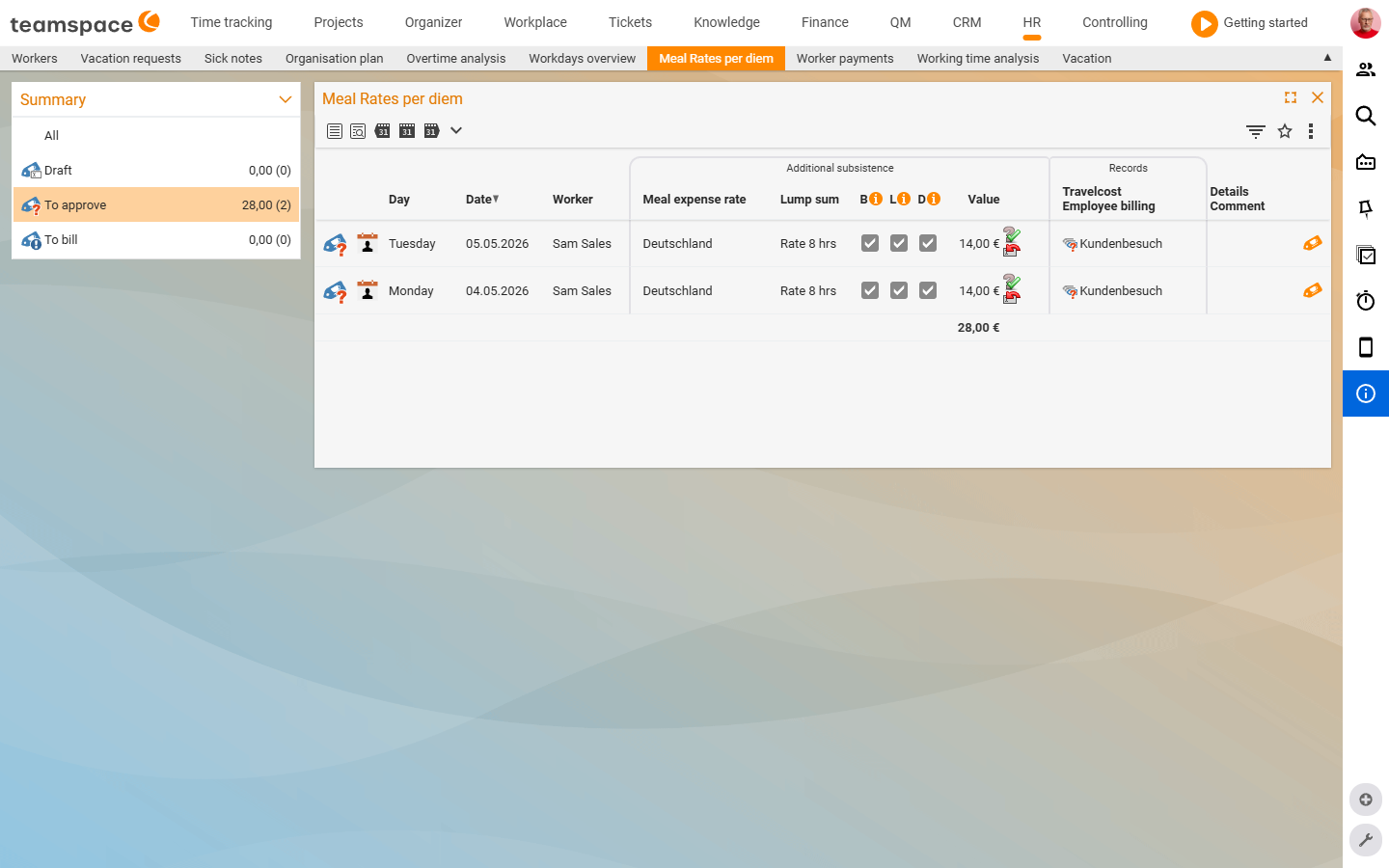
In the Meal allowances tab you see all submitted allowances, filtered by status via the left sidebar. The Summary accordion shows the status filters and totals:
All— all allowances without a status filter.Draft <amount> (<count>)— submitted, not yet sent for review.For review <amount> (<count>)— waiting for approval.For payroll <amount> (<count>)— checked, waiting for the next employee payroll.
The columns under the parent group Additional subsistence expenses: Subsistence rate, Allowance, B, L, D, Value. B, L, D stand for breakfast, lunch and dinner — when ticked it means: the meal was included in the trip price and reduces the allowance accordingly.
ℹ Info: An empty list with the message
No data foundoften means the status filter is set too narrowly — clickAll, and the checked and paid-out allowances will appear as well.
Templates in the configuration
So that employees do not have to calculate anything themselves, you set up templates:
Configuration → Finance → Meal allowancesFor each country and trip duration you enter the correct tax rate. teamspace comes with templates for Germany and the most important destination countries; imports from the teamspace website are possible. When making a travel expense claim, the employee selects the country and the trip dates, and teamspace inserts the correct allowance. If meals are provided, they tick B, L or D — the value is recalculated.
The review process
A submitted meal allowance follows the same path as an expense claim:
- The employee enters the allowance (often automatically as part of a trip) → status
Draft. - They send it for review → status
For review. - The reviewer sees the item, checks it and approves it → status
For payroll. - As soon as an employee payroll is created, the allowance is settled.
teamspace takes the tax treatment into account: allowances are tax-free up to certain amounts; above that, the excess is added to the taxable salary. The employee payroll shows which part is reimbursed.
Common problems
The list shows No data found, even though there are allowances.
The status filter is usually set too narrowly. Click All in the left sidebar — the checked and already paid-out allowances will appear as well.
Why is the allowance lower than the country rate?
Meals were provided. Ticked B, L or D (breakfast, lunch, dinner) mean the meal was included in the trip price — and reduce the allowance accordingly.
Does the employee have to calculate the allowance amount themselves?
No. teamspace uses templates with the correct tax rates per country. The employee only selects the country and the key trip details, and teamspace inserts the amount. You maintain the rates under Configuration → Finance → Meal allowances.
Common questions & needs
| You want to … | How to |
|---|---|
| Set up the correct country rates | Create or import templates in Configuration → Finance → Meal allowances. |
| Deduct provided meals | Tick B, L, D in the entry – the allowance is reduced automatically. |
| Find checked allowances that are not shown | Click All in the sidebar instead of a narrow status filter. |
| Approve a submitted allowance | Set the item to For payroll in the list (review right required). |
Related topics
- Employee payroll & payouts Personnel & HR How-to
- Topic: Costs & travel expenses Costs & travel expenses
- Travel expense management