


Without a salary cost centre, cost accounting only contains the valued hours: time booking × internal cost rate. The real salary does not appear, and personnel costs are only estimated. The salary cost centre solves this: the salary is posted twice, once to the department that is supposed to see it and once to the salary cost centre. The salary cost centre passes it on to the projects via the time bookings. What is left over is allocated at the end of the month – and is also one of the most meaningful metrics there is.
The problem: only times, no salary
Anna Berger costs the company around €7,200 a month; her internal cost rate is €50/h.
| Month | worked | cost accounting sees | actual | difference |
|---|---|---|---|---|
| Normal month | 144 h | €7,200 | €7,200 | €0 |
| Two weeks’ holiday | 88 h | €4,400 | €7,200 | −€2,800 |
| Final project sprint | 190 h | €9,500 | €7,200 | +€2,300 |
What gets lost:
- Holidays and sickness: the salary continues to be paid but does not show up.
- Extra work: overtime is valued even though it has already been paid for.
- Idle time: hours that are not booked are invisible.
- No reconciliation with financial accounting.
You cannot simply post the salary in addition. Then the department would carry the salary and the valued hours – counted twice.
The principle
- The salary is posted to the department (cost centre, without a cost object). It sees the real salary.
- The same salary is posted to the salary cost centre (without a cost object).
- Each time booking charges the project with hours × cost rate and at the same time relieves the salary cost centre by the same amount.
- At the end of the month, an allocation rule distributes the remainder on the salary cost centre to the projects. Afterwards it is at zero.
Because the salary cost centre is hidden and does not count in any total, the salary appears exactly once in the cost centre view: on the department. It also appears exactly once in the cost object view: distributed across the projects. Both totals match.
Anna in a normal month: €7,200 salary, 136 h booked, of which 102 h on P-018 and 34 h on P-021, remainder evenly distributed.
| Step | Consulting 2100 | Salary CC | P-018 | P-021 |
|---|---|---|---|---|
| Salary to the department | −7,200 | |||
| Salary to the salary CC | −7,200 | |||
| Times 102 h + 34 h × €50 | +6,800 | −5,100 | −1,700 | |
| End of month: remainder evenly distributed | +400 | −200 | −200 | |
| Result | −7,200 | 0 | −5,300 | −1,900 |
Σ cost centres −€7,200 = Σ cost objects −€7,200 ✓
Setup step by step
1. Create the salary cost centre
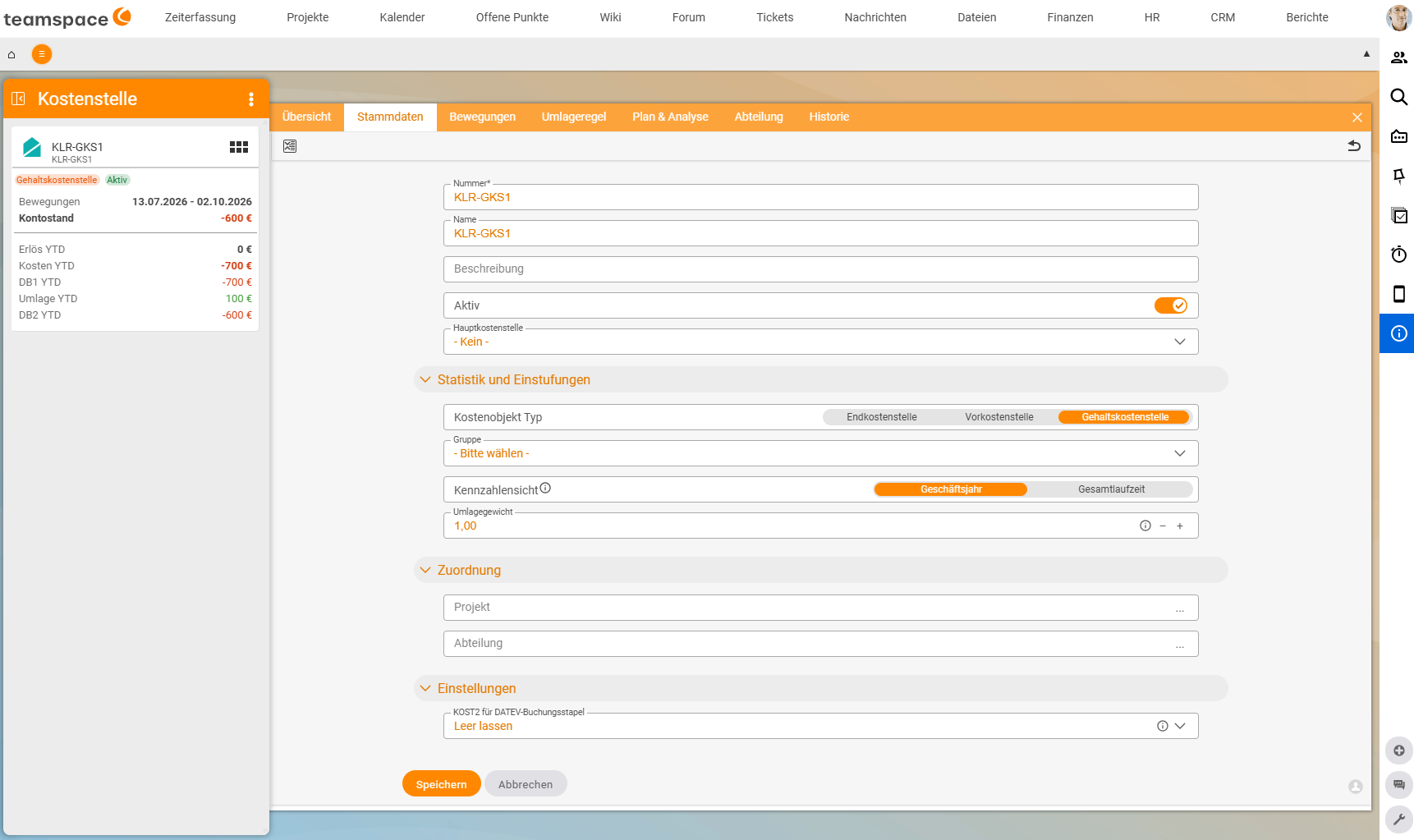
For each department, create a cost centre under Finance → Cost centres, e.g. 2190 Salary consulting, and in the Master data under Statistics and classifications set the Cost object type to Salary cost centre. Under Assignment, select the department it belongs to in the Department field, so that hours and utilisation are still attributed to the right department.
Important: Do not select the department’s cost centre as the Parent cost centre, i.e. do not place the salary cost centre under it in the cost centre tree. Otherwise the department node adds up its relief as well, and the department sees fewer costs than it actually has.
2. Assign employees to the salary cost centre
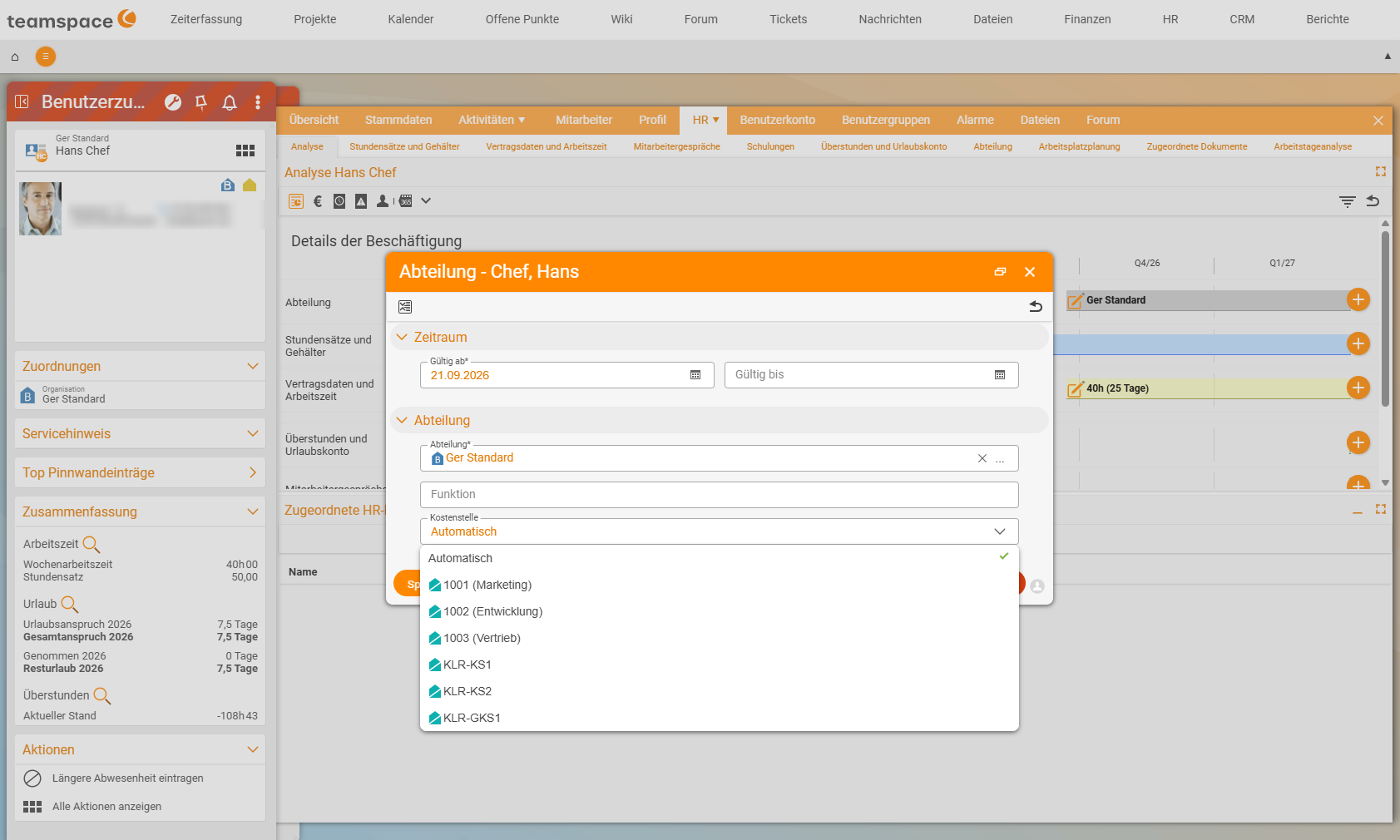
An employee’s cost centre is a time-dependent value on their department (see Org chart & departments). The default is Automatic, i.e. the department’s cost centre. However, a department does not have a salary cost centre, so Automatic never leads there. If you want to allocate personnel costs via the salary cost centre, you therefore specify it explicitly for each employee.
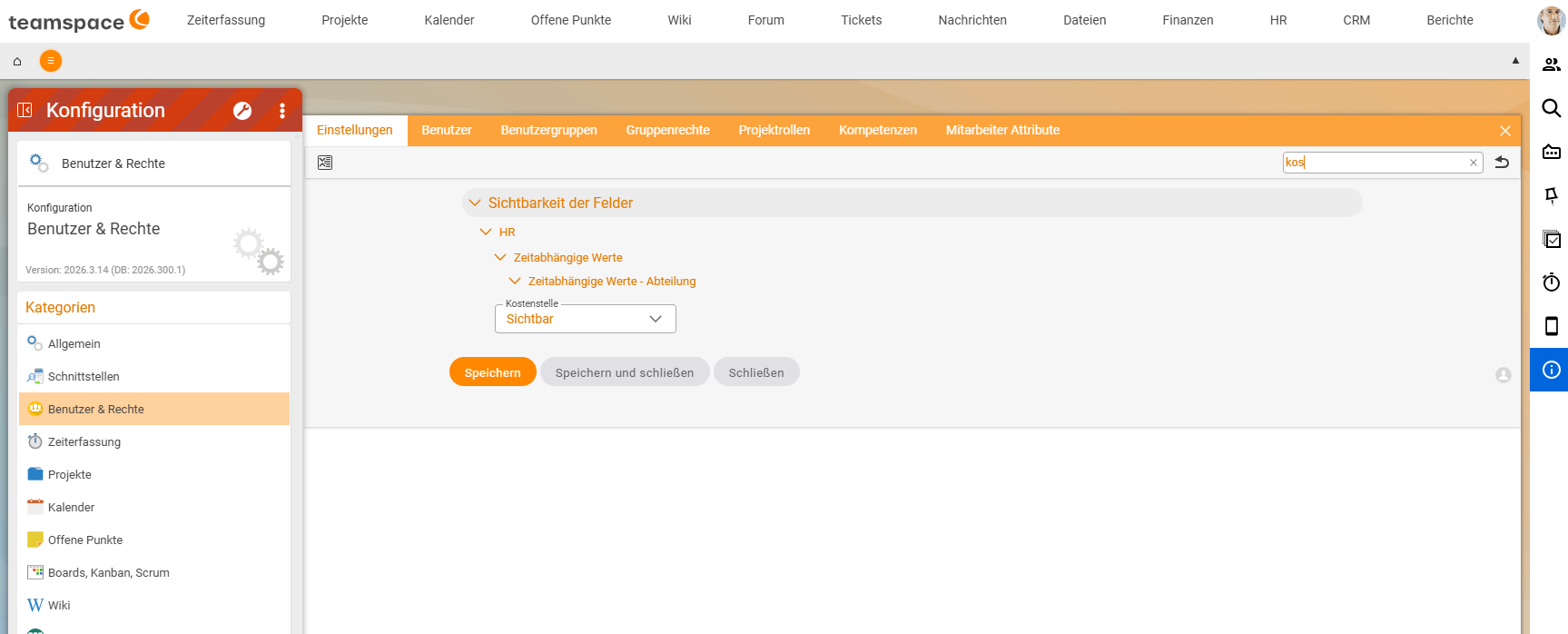
- Make the field visible once:
Configuration → Users & rights → Settings → Field visibility → HR → Time-dependent values → Time-dependent values - Department → Cost centre: Visible - Open the employee and go to
HR → Analysis. - In the
Departmentrow, create a new value using the plus, or edit the existing one using the pencil. - In the
Departmentdialog, enter the date underValid from*and, in theCost centrefield, select the salary cost centre instead ofAutomatic. - Save. From this date onwards, their time bookings carry the salary cost centre.
3. Check the rule for project times
Under Configuration → Time tracking, the rule for the cost centre on project times must start with the employee, e.g. 1. Employee, 2. Project. Then every time booking automatically receives the salary cost centre (see Define rules for default values).
4. Post the salary twice every month
Post the salary for each department as a general posting under Finance → Postings with the cost category 6500 Salaries. In the posting’s Cost accounting section, set the cost centre and cost category using Override, because there is usually no rule for postings:
Posting 1: cost category 6500 · cost centre department (e.g. 2100 Consulting) · no cost object · −€7,200
Posting 2: cost category 6500 · cost centre salary cost centre (e.g. 2190) · no cost object · −€7,200
You can post salaries per employee or as a total per department. The total is enough if you do not want to show individual salaries in cost accounting.
5. Create the allocation rule for the remainder
Open the salary cost centre, Allocation rule tab:
- When: monthly after month-end closing, e.g. on the 3rd at 9:00, i.e. before the allocations of the service cost centres.
- How:
KeyEvenly distributedorAllocation key(by theAllocation weightof the cost objects),Cost category*9390 Allocation personnel remainder. - Where: set the toggle to
Cost objectand select the cost objects the department works on.
Set up an allocation rule shows the allocation rule of a salary cost centre in a screenshot.
The Cross-posting (cost centre/cost object) switch has no effect on salary cost centres: they may always allocate to cost objects.
The remainder as an early warning signal
Before the allocation, the salary cost centre shows a balance: salaries minus charged hours.
| Salary cost centre consulting, year to date | Amount |
|---|---|
| Salaries | −€180,000 |
| Σ charged hours | +€167,500 |
| Remainder = under-recovery | −€12,500 |
- Under-recovery (negative remainder): the salaries are not fully covered by hours. Causes: bench time, sickness above plan, utilisation below plan.
- Over-recovery (positive remainder): more was charged than paid. Causes: extra work, high utilisation or cost rates that are too high.
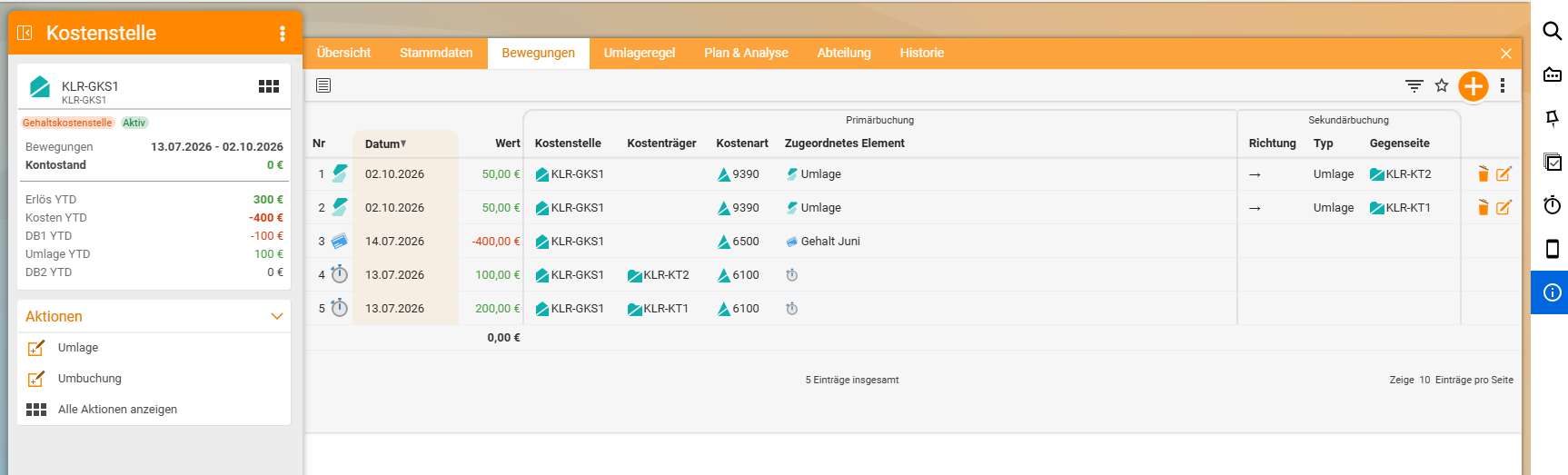
In the detail manager of the salary cost centre, you can read this directly in the quick info on the left: Costs YTD are the salaries, Revenue YTD the charged hours, CM1 YTD is the remainder, Allocation YTD what has already been allocated of it, and CM2 YTD is 0 after the allocation.
The remainder also shows whether the internal cost rates are realistic. Base the cost rate only on hours worked, including internal projects, not on holidays and sickness. With around €6,000 gross, it is roughly €50/h. In the plan, the salary cost centre then comes out at roughly zero.
How this compares
In SAP, the method corresponds to activity allocation with actual price revaluation: the cost centre is relieved for every hour, and the remainder is settled afterwards. The difference: in teamspace, the department still sees its full salary. The time booking remains a primary posting; it only has a relieving effect on the salary cost centre.
Permanent employees with a salary cost centre and freelancers without one can be mixed: whether a time booking relieves is decided solely by the type of the cost centre on the time booking.
Notes
- Data protection: anyone who may open a department or salary cost centre in the detail manager sees all postings there, including the salaries. So grant the view right on cost centres narrowly, or post salaries as a total per department.
- Internal projects count too. Hours on internal projects also relieve the salary cost centre. This way the remainder only shows what really was not booked anywhere.
- Changing the type later: if you change a cost centre to
Salary cost centrelater on, the times already booked on it also count as relief. Afterwards, check the balance and allocations of the months concerned. - Change of department: the cost centre is stored on every time booking. If an employee changes department, old postings remain on the old salary cost centre.
Common problems
The department shows too few costs. The salary cost centre sits under the department in the cost centre tree. The node then adds up its relief as well. Place it outside.
The salary cost centre is not relieved.
The time bookings do not carry the salary cost centre but a normal cost centre. Check the employee’s cost centre and the rule for project times, and look at a time booking in the Cost accounting section.
The cost centre total is too high by the amount of the salary. The salary was posted to the department in addition, without a salary cost centre, while the time bookings still charge the department. Then both are there. Assign the employees to the salary cost centre (step 2).
The salary cost centre shows “revenue”.
The relief from time bookings appears on the revenue side of the salary cost centre (Revenue YTD) and in the movements as a positive time booking. This is not real revenue but the employees’ charged work.
Common questions & needs
| You want to … | How to |
|---|---|
| Real salaries in cost accounting instead of estimated hours | A salary cost centre per department, post the salary twice (steps 1 and 4). |
| See how much salary is not covered by hours | Balance of the salary cost centre before the allocation: under-recovery or over-recovery. |
| Check whether the cost rates are right | Watch the remainder over several months; a persistent over- or under-recovery means the rates do not fit. |
| Get the remainder onto the projects | Allocation rule on the salary cost centre, targets cost objects, cost category 9390 (step 5). |
| Mix permanent employees and freelancers | Permanent employees on the salary cost centre, freelancers on a normal cost centre. |
| Protect individual salaries | Post salaries as a total per department and grant the view right on cost centres narrowly. |
Related topics
- Set up an allocation rule Cost accounting Configuration
- Cost centres and cost objects: types and structure Cost accounting Concept
- Contribution margin I and II by project, customer and area Cost accounting Concept
- Set up cost rates, commissions & ad-hoc reports Controlling Configuration
- Topic: Cost accounting Cost accounting
- Cost centre accounting with teamspace