


So that nobody has to record anything extra for cost accounting, teamspace pre-fills cost category, cost centre and cost object by rule when you record. A rule is an order of sources: the first source that has a value wins. If no source finds anything, the field stays empty (“None”), because none of the fields is mandatory. You maintain the values themselves where the information belongs: on the employee, the project, the customer, the article and the cost type.
Where to set the rules
The rules are in two configuration areas, each next to the field visibility:
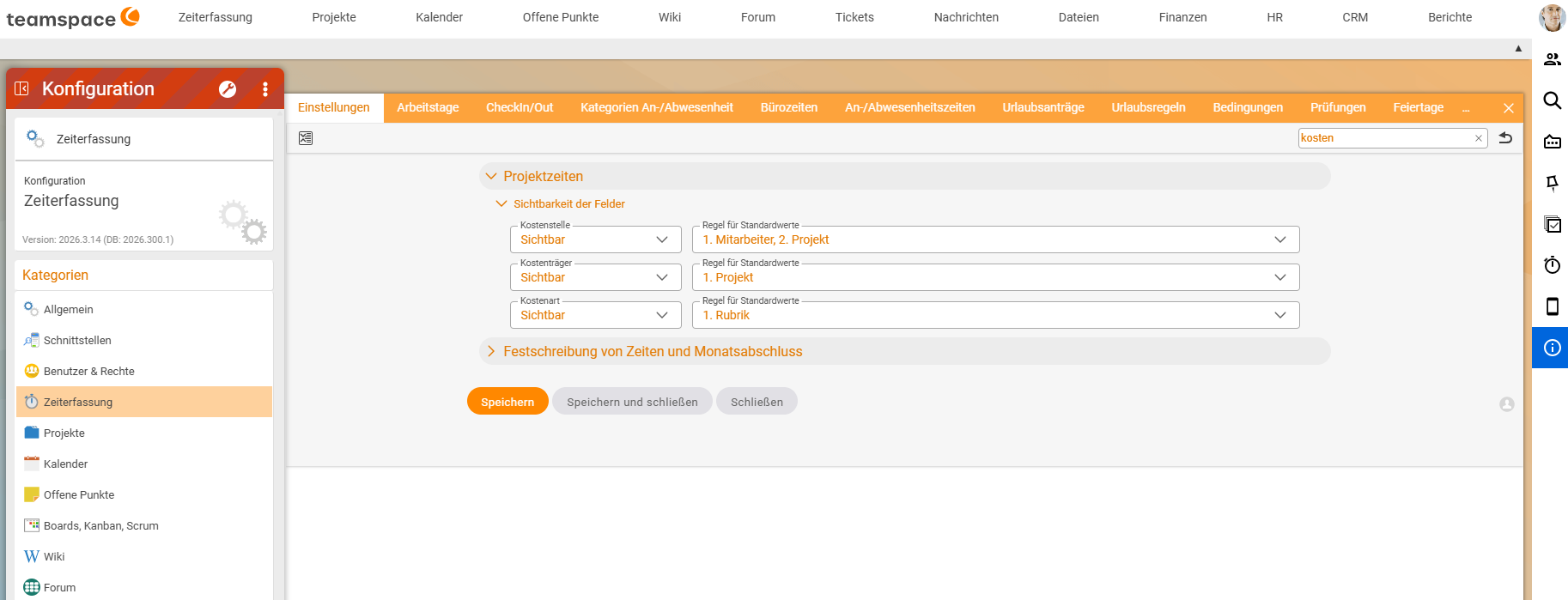
Configuration → Time tracking → Settings → Project times → Field visibility   (project times)
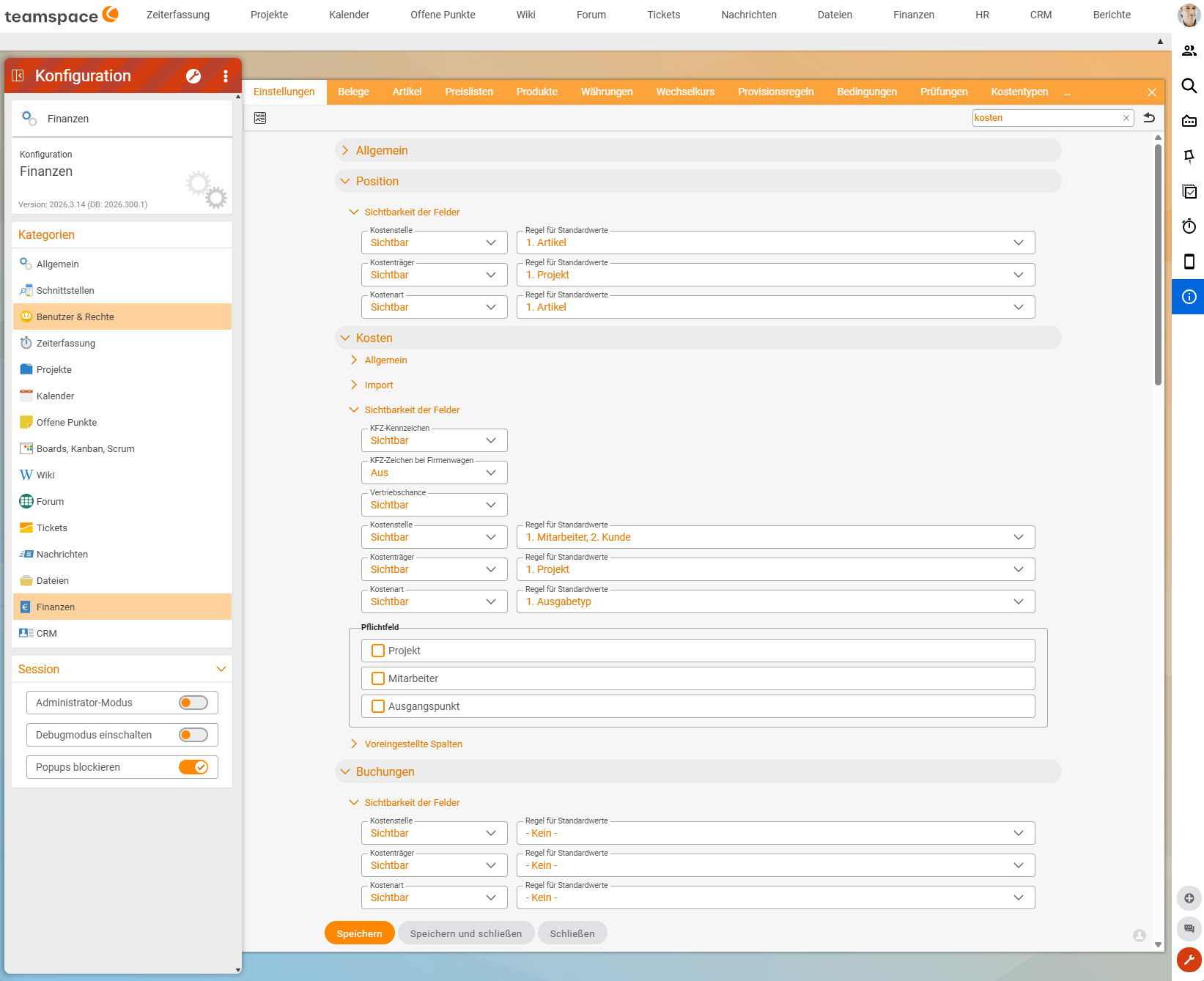
Configuration → Finance → Settings → Line item → Field visibility            (line items)
Configuration → Finance → Settings → Costs → Field visibility                (cost elements)
Configuration → Finance → Settings → Postings → Field visibility             (general postings)
For each field (Cost centre, Cost object, Cost category), the visibility (e.g. Visible) is on the left and next to it on the right is a Rule for default values selection with the possible orders, e.g. - None -, 1. Project, 2. Employee or 1. Employee, 2. Project.
Tip: Type “kosten” into the search field at the top right of the configuration. teamspace then only shows the sections with the cost accounting fields.
A proven setup
| Area | Cost centre | Cost object | Cost category |
|---|---|---|---|
| Project times | 1. Employee, 2. Project | 1. Project | 1. Category |
| Costs (cost elements) | 1. Employee, 2. Customer | 1. Project | 1. Expense type |
| Line item (line items) | 1. Article | 1. Project | 1. Article |
| Postings (general postings) | - None - | - None - | - None - |
How to read the “Costs” row: the cost category depends on the kind of expense (travel costs, material …). The cost object is the project. The cost centre comes from the employee first; if they do not have one, the system takes the customer.
General postings deliberately remain without a rule. Controlling creates them and sets the three fields itself on purpose.
Where the sources get their values from
| Source | Supplies | Where you maintain the value |
|---|---|---|
| Employee | cost centre | in the employee’s time-dependent value Department (HR → Analysis → Department), field Cost centre: Automatic = the department’s cost centre, or a specific cost centre, e.g. the salary cost centre (see Salary cost centre). |
| Project | cost object, cost centre | in the project fields Cost object and Cost centre on the project |
| Customer | cost centre | in the Cost centre field on the organisation in the CRM |
| Category | cost category | in the project time category, e.g. Billable: Configuration → Projects → Project time categories → open the category |
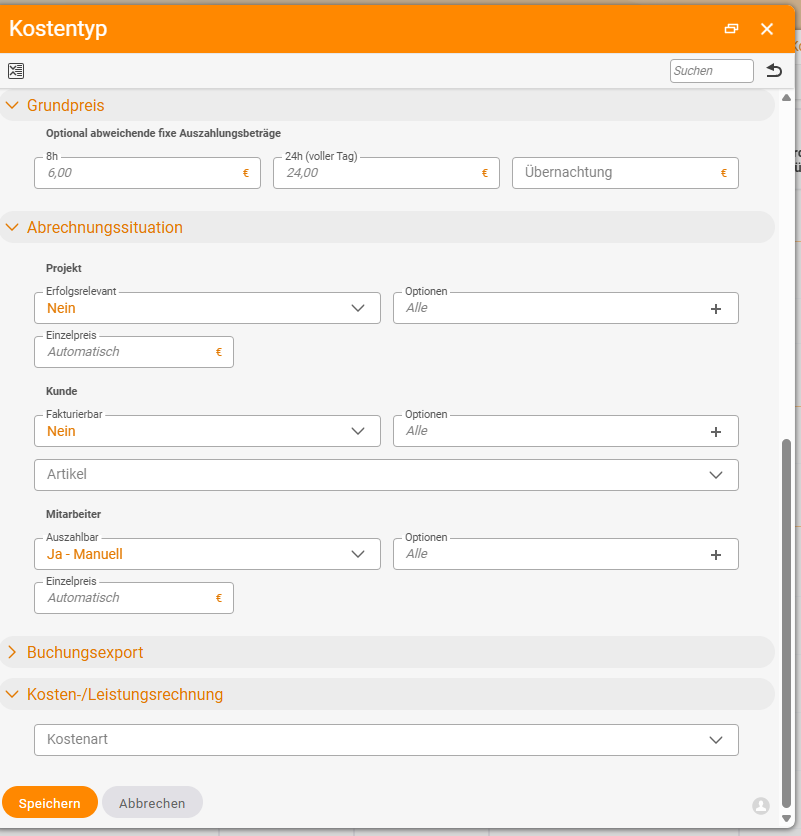
| Expense type | cost category | on the cost type (Configuration → Finance → Cost types), section Cost accounting, field Cost category. The cost type only supplies the cost category; cost centre and cost object come from the employee, customer or project. |
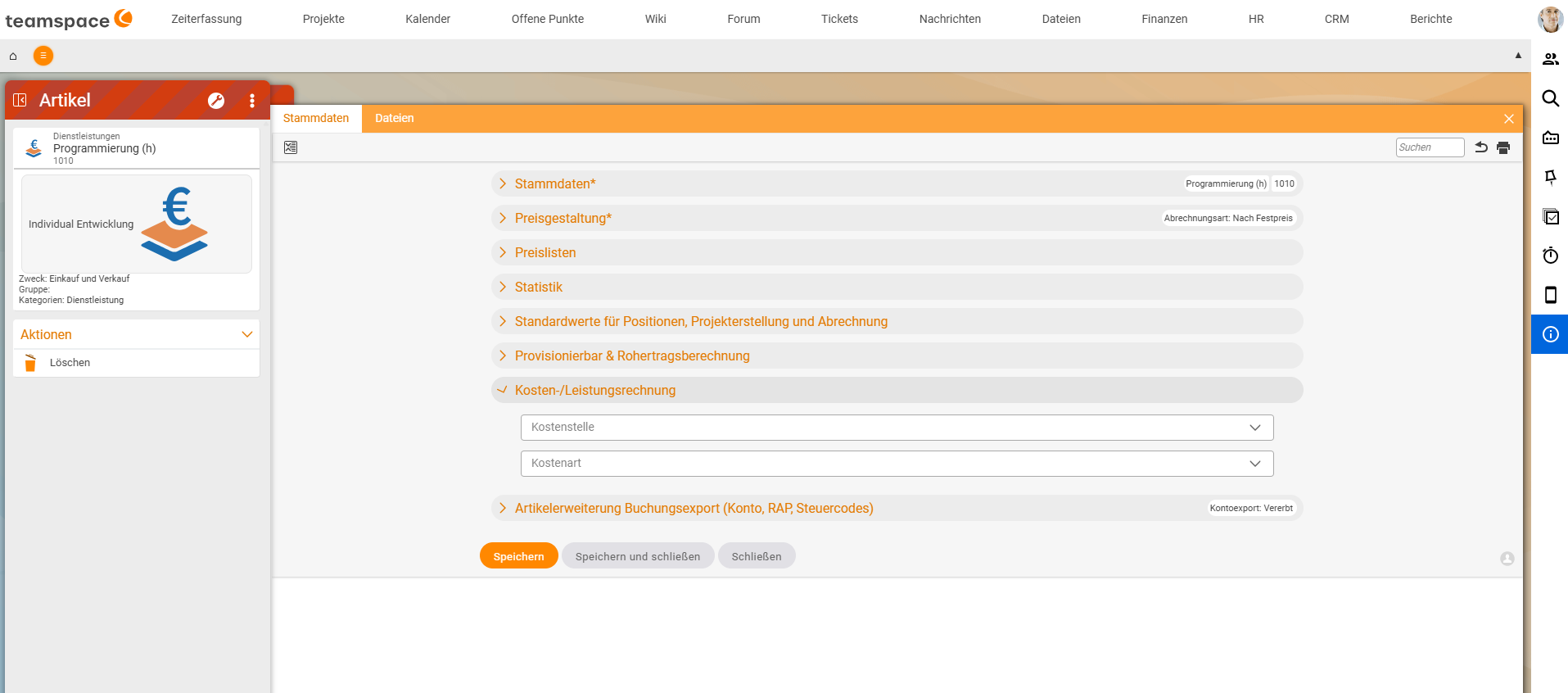
| Article | cost centre, cost category | on the article, section Cost accounting, fields Cost centre and Cost category (see Articles and price lists) |
Step by step
- First maintain the sources: cost centre on the employees’ departments, cost object on the projects, cost category on cost types, categories and articles.
- Open
Configuration → Time tracking → Settings → Project times → Field visibilityand set the visibility and theRule for default valuesfor cost centre, cost object and cost category. - Open
Configuration → Finance → Settingsand set the same in the sectionsLine item,CostsandPostings, each underField visibility. - Record a test entry for each area and check in the
Cost accountingsection whether the expected rule values appear on the left (see Check and override cost accounting fields when recording).
Automatic cost elements from attendance and absence times
Cost elements that teamspace creates automatically from attendance and absence times (such as flat rates) get their cost accounting fields via the same rules as manually recorded cost elements: the cost category from their cost type, cost centre and cost object from the employee, customer or project. You switch this on under Configuration → Finance → Settings → Travel expenses & weekly/monthly closing with Rules for the automatic creation of cost elements based on attendance/absence times (see Generate flat rates automatically with rules).
Notes
- Manual beats rule. If someone has overridden a value in the element, it stays in place.
Resetbrings back the rule value. - Correct wrong rule values at the source, not in each element. Otherwise employees will keep overriding the same error.
- Departments are time-dependent. If an employee changes department, only new postings receive the new cost centre.
Common problems
The dialog shows ”- None -” as the rule value everywhere. The sources are not maintained: no cost centre on the employee’s department, no cost object on the project, no cost category on the cost type. Maintain the source, and the rule will apply the next time you record.
The cost centre comes from the customer instead of the employee.
The employee has no cost centre for the date of the posting; the rule falls back to the second source. Check the time-dependent value Department under HR → Analysis: does it apply to the posting date, and is the Cost centre field filled in – or, with Automatic, does the department have a cost centre?
Line items have no cost centre. The “Line item” rule takes the cost centre from the article. Free line items without an article do not supply a value. Enter a cost centre on the article or set it manually in the line item.
Common questions & needs
| You want to … | How to |
|---|---|
| Assign times to the employee’s cost centre | Project times, cost centre: 1. Employee, 2. Project. |
| Assign times to the project’s cost centre | Project times, cost centre: 1. Project, 2. Employee. |
| Distinguish expenses by type of expense | Costs, cost category: 1. Expense type; maintain the cost category on the cost type. |
| Assign revenue per article to a cost category | Line item, cost category: 1. Article; maintain the cost category on the article. |
| Put the salary cost centre on every time booking automatically | Project times: start the cost centre rule with 1. Employee and store the salary cost centre on the employee: Salary cost centre. |
| Assign general postings freely | Postings: all three set to - None -. |
Related topics
- Check and override cost accounting fields when recording Cost accounting How-to
- Set up cost accounting: create cost categories, cost centres and cost objects Cost accounting Configuration
- Cost types at a glance Costs & travel expenses Reference
- Configure time tracking Time tracking Configuration
- Topic: Cost accounting Cost accounting
- Cost accounting with teamspace