



Cost rules generate flat rates automatically from booked times – a travel flat rate per on-site day, a hotel allowance from six hours, a travel flat rate per travel day. The rule is attached to an order item and takes effect when the invoice is created: teamspace analyses the times of the invoice according to the rule and creates the flat rates as additional invoice items.
ℹ The exact sidebar wording of the configuration mode is verified against the live tenant in a separate configuration run. The paths below come from the training video and may differ slightly in your installation.
Two basic rules up front
- Rule items are defined in the order and only come into play when invoicing.
- Only the times linked to the invoice are analysed. Here the devil is in the detail: times that aren’t billed by effort (e.g. travel times) normally don’t land in the invoice – so the rule doesn’t see them at all. That’s what the time collector is for (case 2).
For every rule you need: an article of type rule-based billing item, the global activation, an order item with the flat rate and the right time category in the time categories.
Prerequisite: enable rule-based billing items
Before you can even create a rule article, the feature has to be switched on globally. As long as it’s off, the Rule-based billing items section is missing from the article and the order item – so you have nowhere to store the rule.
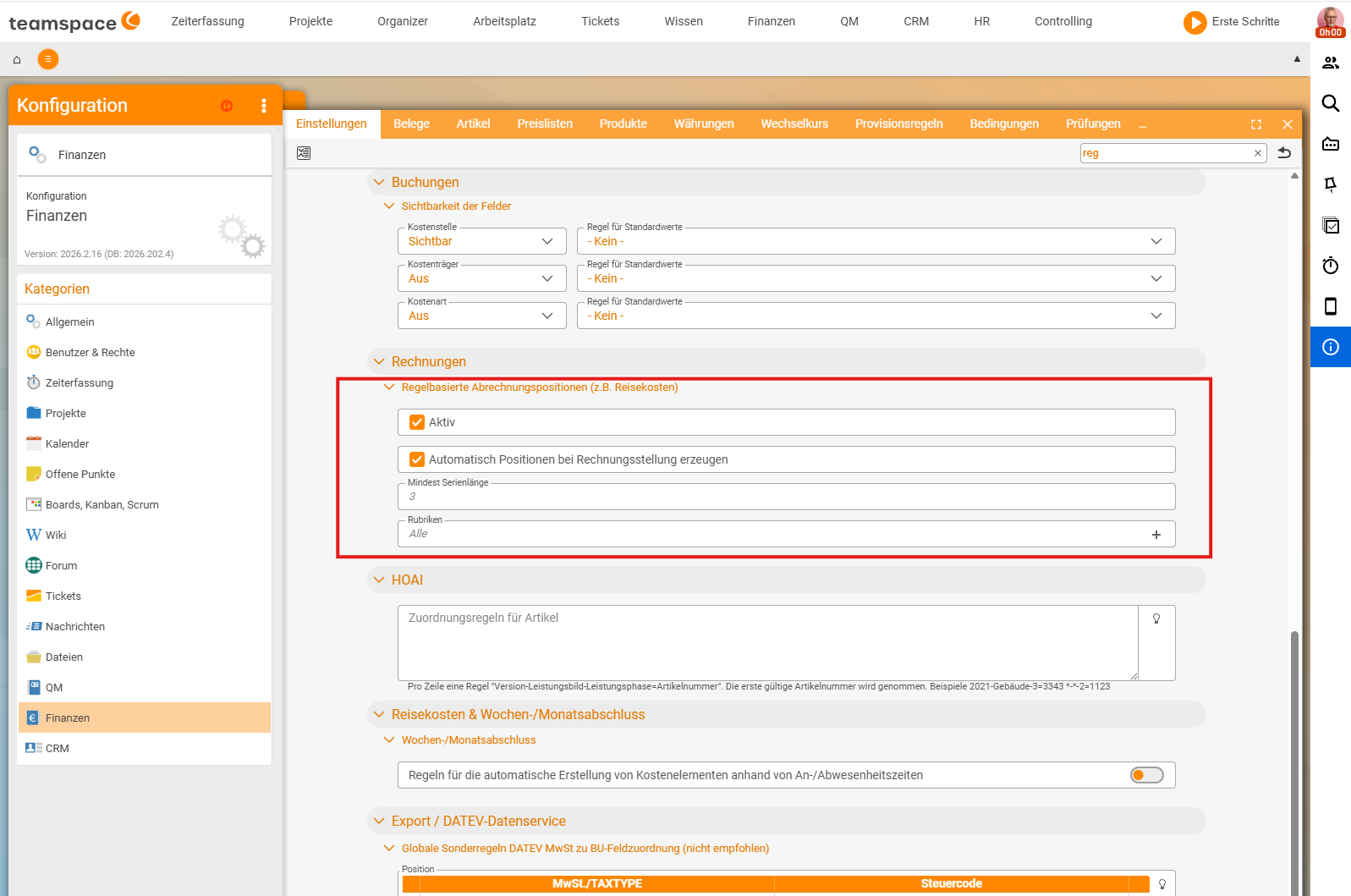
You’ll find the switch under Configuration → Finance → "Settings" tab, section Rule-based billing items (e.g. travel expenses) (search-field tip: filter by rule). Tick Active. Directly below sit the global defaults:
Automatically create items when invoicing– with this tick, teamspace creates the flat rates by itself at every invoicing run. Without it you have to add them manually viaCreate item via rulesafter every invoice draft.Minimum series length– from how many consecutive trigger days a series flat rate takes effect at all (default in the demo:3).Categories– globally restricts which time categories the rules may evaluate;Allallows any category, the fine control then happens per order item.
Only once Active is set does the Rule-based billing items section appear on the article – the next step in case 1.
Case 1 – travel flat rate per on-site day
Goal: per day on which at least one hour was booked on site, a flat rate of €50.
- Check the activation. Make sure
Rule-based billing items (e.g. travel expenses)isActiveinConfiguration → Finance → Settings– see the Prerequisite section above. It’s best to also setAutomatically create items when invoicingthere, otherwise you have to clickCreate item via rulesmanually after every invoice draft. - Create the article. In the system configuration under Finance, create an article
flat-rate-rule: number (e.g.3080), tax rate19%, areaOther. In therule-based billing itemsection, set that no subproject is created andMaximum per day=1. - Time category for on site.
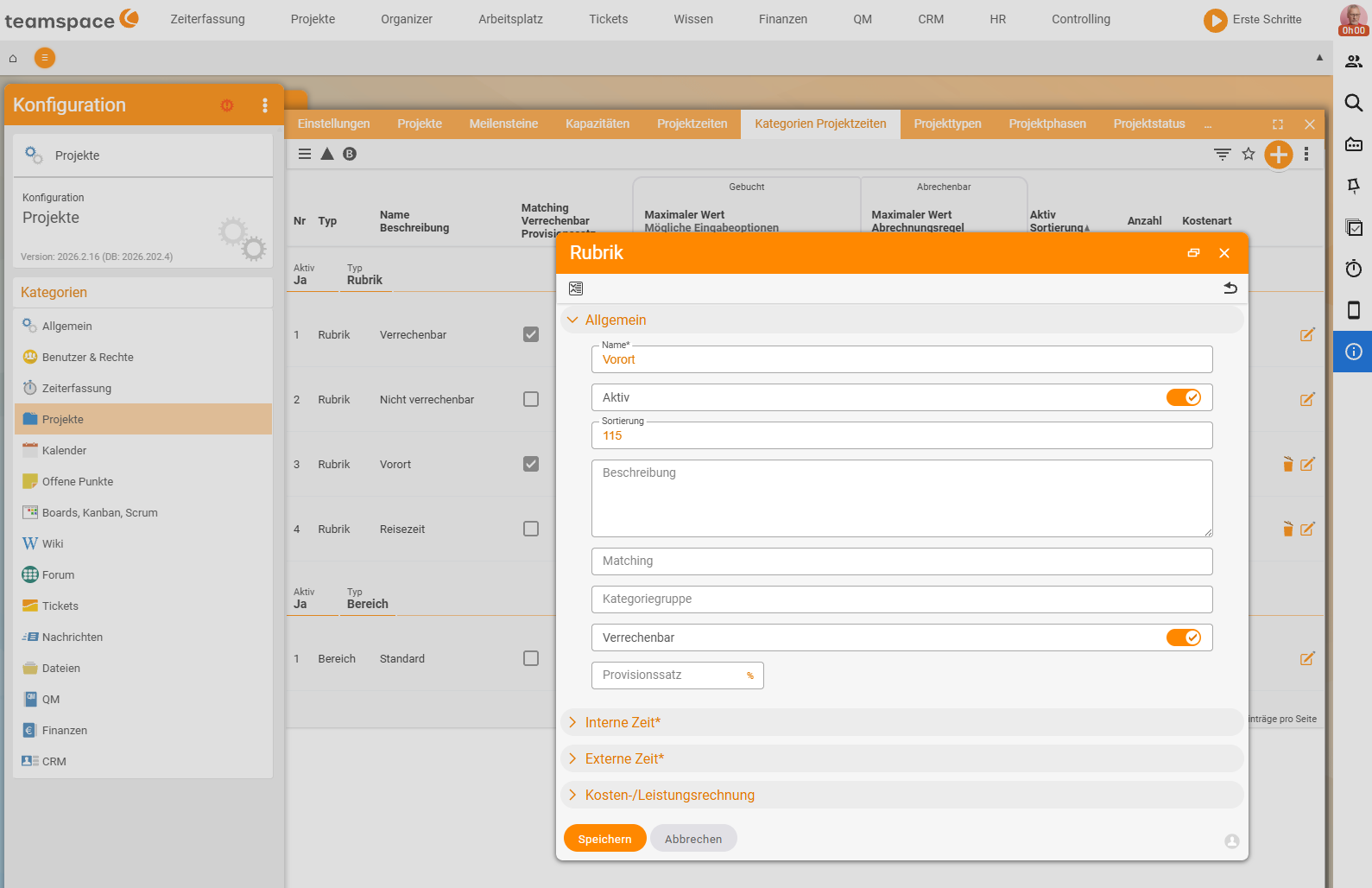
Configuration → Projects → Project time categories. Create a new categoryOn site, enable theBillableswitch. This gives your team the category to choose when booking time. - Set up the order item. In the order, an item
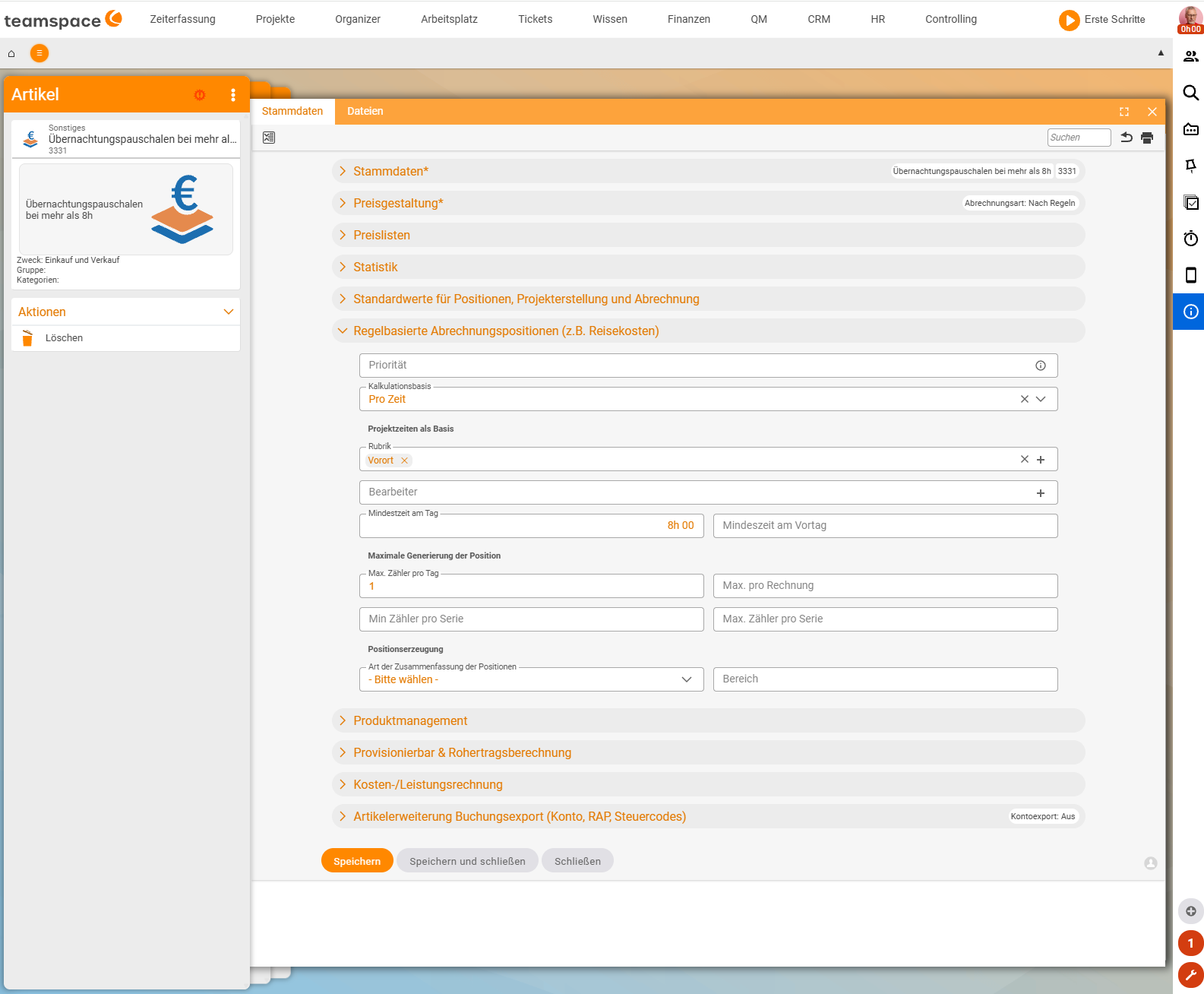
flat-rate-rule. In theRule-based billing itemsaccordion: choose theOn sitecategory asProject times as basis → Category, amount €50. WithMax. counter per day=1there is exactly one flat rate per day – even if three on-site times are booked on the day. - Create the invoice. If you book three times on three days, two of them on site, two flat rates arise at the invoicing run. Via
Type of summary → per invoiceyou get one item with quantity 2 instead of two rows.
ℹ If flat rates don’t update automatically after you manually correct the times, recalculate them with the
Create item via rulesbutton.
Case 2 – travel-time flat rate with a time collector
Goal: per day with travel time, a flat rate of €50; the travel times themselves not billed by effort. Since travel times aren’t billable, they don’t land in the invoice – the rule doesn’t see them. The trick: a time collector that pulls the travel times into the invoice without billing by effort.
- Time category for travel time.
Configuration → Projects → Project time categories. New categoryTravel time, theBillableswitch not set (internal time). - Time-collector article. In the configuration under Finance, an article
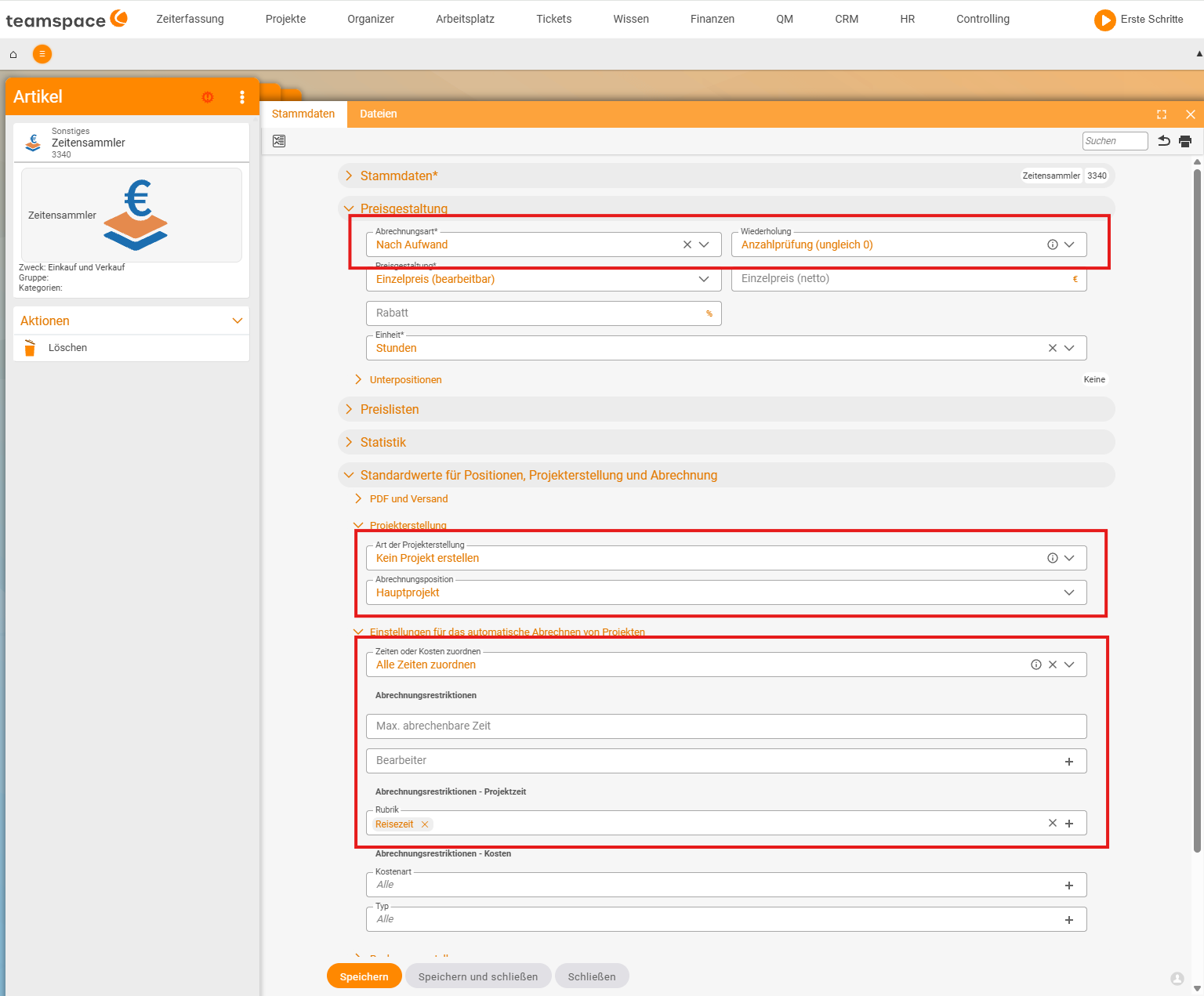
time-collector, number (e.g.3340), areaOther. Important: in thePricingaccordion, set theBilling typetoBy effortand theRepetitionfield toQuantity check (not equal to 0)instead of the default amount check – the collector has an amount of €0, after all. Without this quantity check, teamspace ignores the item and the times drop out again. Also, underDefault values,Do not create project. - Flat-rate item. In the order, set the
flat-rate-ruleso that it only analyses theTravel timecategory. - Time collector into the order. An item of type
time-collector. Set:can assign all times, and as a restriction collect onlyTravel times. - Create the invoice. If two travel-time days are booked, two travel flat rates arise; the travel times run through the time collector at a value of €0 – they carry the activity report, not the fee.
ℹ Nicer invoice: in the order, create areas (
Consulting,Travel,Travel duration) and sort the items into them. In the description of a travel flat rate, the placeholderxStartxautomatically fills in the specific date when the invoice is printed.
Case 3 – hotel allowance from six hours
Goal: for every day with at least six hours of on-site work, €120 hotel allowance; not on pure arrival/departure days with fewer hours. In addition, per arrival/departure day a travel flat rate of €50.
You build two rule-based items – travel-flat-rate for arrival/departure, hotel-flat-rate for full days – on the same order. You parametrise the hotel-flat-rate with Minimum time per day = 6 hours, the decisive threshold.
In the same rule-based billing item accordion you’ll find further switches:
- Maximum per invoice – e.g. the postage flat rate of €20 per invoice, as law firms charge it (
Maximum per invoice= 1). - Series – when a flat rate only takes effect after e.g. five consecutive days (
Per seriesonly once). - Calculation scheme – which items of an invoice are included in the trigger count; also “don’t count items again that have already been considered elsewhere”.
Common problems
Why is the rule-based billing item section missing from the article?
Then the global activation isn’t set. Only once the Rule-based billing items (e.g. travel costs) section under Configuration → Finance → Settings is set to Active does the section appear on the article and the order item.
Why does the rule trigger on all times, or on none?
Then the category distinction is missing from the time categories. Create the needed category (e.g. On site) under Configuration → Projects → Project time categories and choose it on the order item as Project times as basis → Category.
Why don’t internal times (e.g. travel times) land in the rule?
Non-billable times normally don’t land in the invoice – so the rule doesn’t see them. The trick is a time-collector article with Billing type → By effort and Repetition = Quantity check (not equal to 0), which pulls the times into the invoice at a value of €0 (see case 2).
Also for employee commissions
The same rule tool automatically generates employee commissions: when item X is sold, the sales employee gets e.g. 5% of the sales price or gross profit. You create a commission rule on the order, teamspace generates the commission element when invoicing. Commission rules follow the same switches – only that the trigger isn’t a day but an item.
Common questions & needs
| You want to … | How to |
|---|---|
| A flat rate per on-site day | Category On site + order item with Project times as basis → Category + Max. counter per day = 1. |
| Get non-billable travel times into the rule | Time-collector article with Repetition = Quantity check (not equal to 0) in the order. |
| A hotel allowance only from a number of hours | Minimum time per day = 6 in the flat-rate item. |
| A fixed postage flat rate per invoice | Maximum per invoice = 1. |
| One item with a quantity instead of many rows | Type of summary → per invoice. |
| The date in the flat-rate description | Placeholder xStartx in the description of the order item. |
| Flat rates automatically without a click | The Automatically create items when invoicing tick in the settings. |