


In teamspace, cost centres, cost objects and cost categories each have their own list and their own detail manager. It shows at a glance what has been posted to the object, where it came from and where it was passed on to. Project and area managers see their contribution margin here, up to date every day; controlling checks every reposting and allocation here.
Getting started: the Finance menu
Finance → Cost objects · Cost centres · Cost categories · Cost accounting analysisThe four cost accounting entries are separate items in the Finance menu. In the Finance tile overview, you find them in the Cost accounting area: one tile each for Cost objects, Cost centres and Cost categories with the number per type (e.g. final cost centre and service cost centre; for cost categories, primary posting and secondary posting) and the orange tile Cost accounting analysis (see Work with the cost accounting analysis). Click a tile to open the list.
The lists
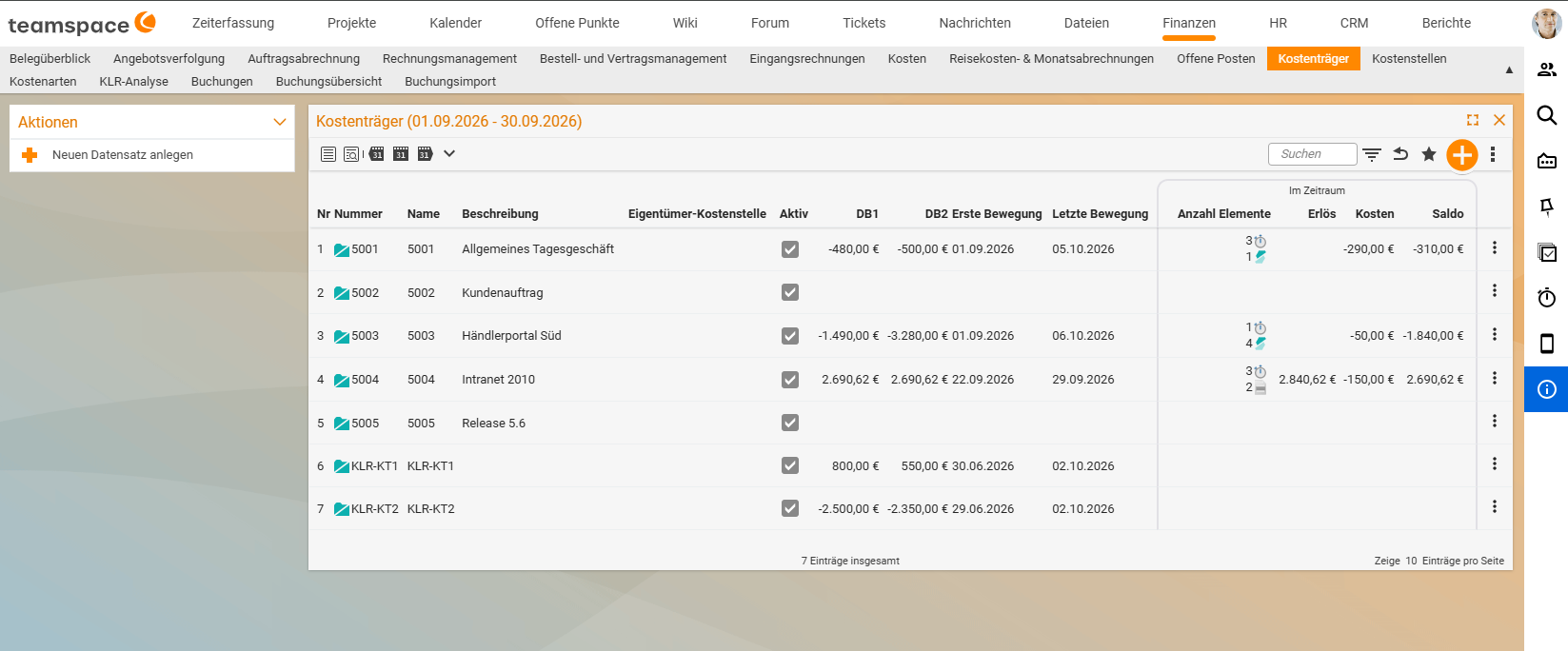
The lists show the period in the title, e.g. “Cost objects (01/09/2026 - 30/09/2026)”. In the Details view you see, among other things, the owner cost centre or department, Active, CM1, CM2, First movement, Last movement and, under In period, the Number of elements, Revenue, Costs and Balance for each object. Cost categories appear as a tree with their classes (e.g. 6000 Personnel costs with 6100 and 6500). You create new objects with the action Create new record. As in all lists, you can have the values shown summarised with Analyse with AI via the three dots (⋮) at the top right next to the favourites star (see Analyse reports with AI).
The tabs at a glance
| Tab | What you see there | For |
|---|---|---|
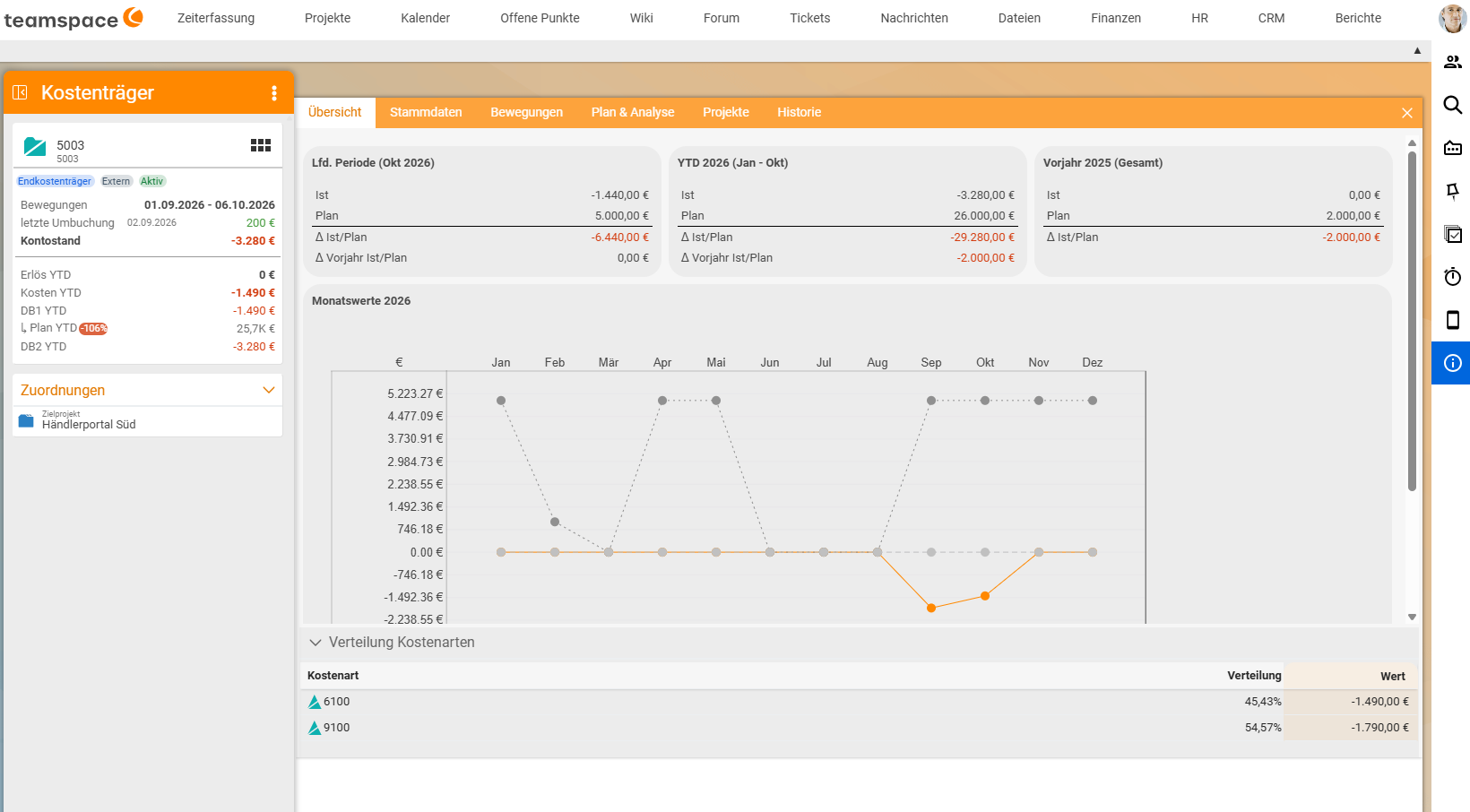
| Overview | tiles for the current period, the year to date (YTD) and the previous year with actual, plan and variance, the monthly values as a chart and the Cost category distribution | all |
| Master data | number, name, type (Cost object type), group, Metrics view, Allocation weight and the assignments | all |
| Movements | all primary and secondary postings that affect the object | all |
| Allocation rule | when, how and where the object is allocated (see Set up an allocation rule) | cost centres and intermediate cost objects; not for final cost objects and cost categories |
| Plan & analysis | plan per month, actual per month, cumulative and variance (see Enter a plan and compare it with actuals) | cost centres, cost objects |
| Projects | the projects assigned to this cost object, with project times plan, actual and open | cost objects |
| Department | the department the cost centre belongs to | cost centres |
| History | changes to the object | all |
The quick info is always on the left of the tabs: type and status as labels (e.g. Final cost object, External, Active), the period of the movements, the last reposting, the Account balance and the metrics Revenue YTD, Costs YTD, CM1 YTD, Plan YTD (with variance in per cent), Allocation YTD for cost centres, and CM2 YTD. Below that are the Assignments, such as the target project, and the Actions of the current tab.
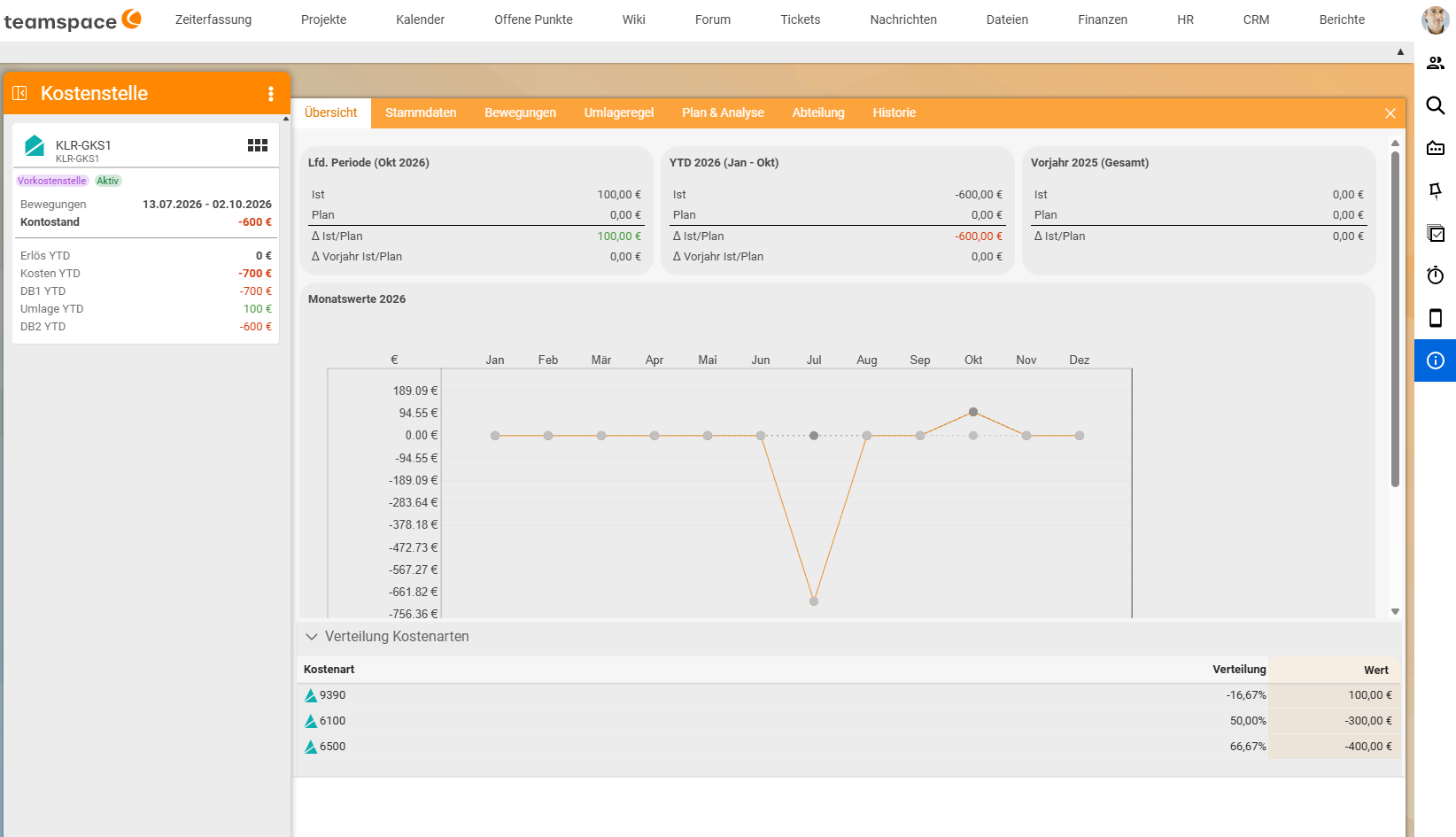
Cost centres also have the tabs Allocation rule and Department; the quick info shows Allocation YTD, i.e. what the cost centre has passed on or taken over through allocations this year.
Check the master data
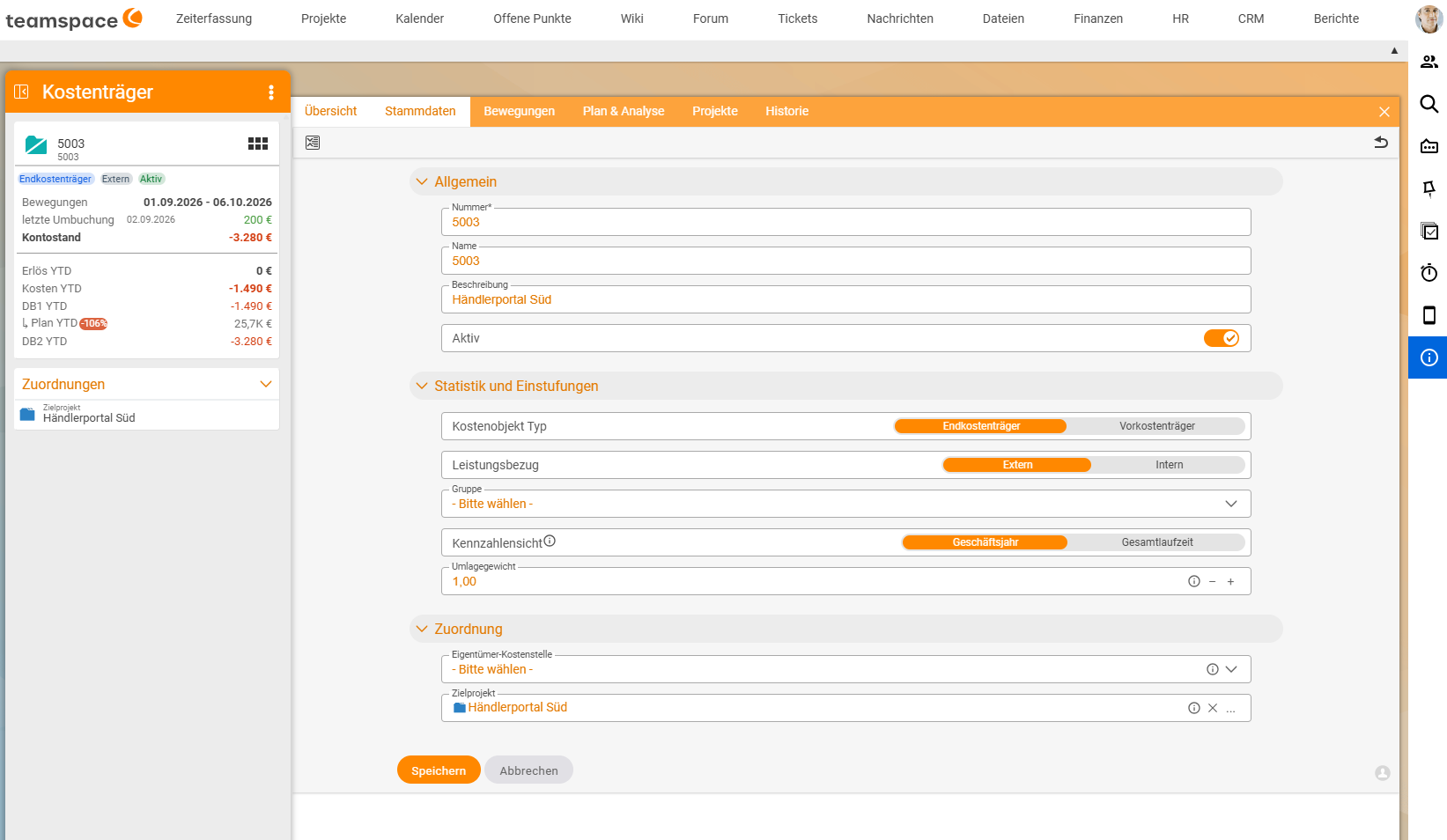
The Master data tab shows how the object counts in cost accounting. The most important field is the Cost object type: it decides whether an object keeps its costs (final cost centre, final cost object), is distributed down to zero by an allocation (service cost centre, intermediate cost object) or is hidden as a salary cost centre. Cost objects also have the Service basis (External or Internal), the Owner cost centre and the Target project; both have the Allocation weight (default 1.00) and the Metrics view (Financial year or Total term; controls whether the metrics show the year or the whole term). What the types mean is explained in Cost centres and cost objects: types and structure.
You may only change the master data with the right Edit cost accounting elements (master data and plan data).
Read the movements
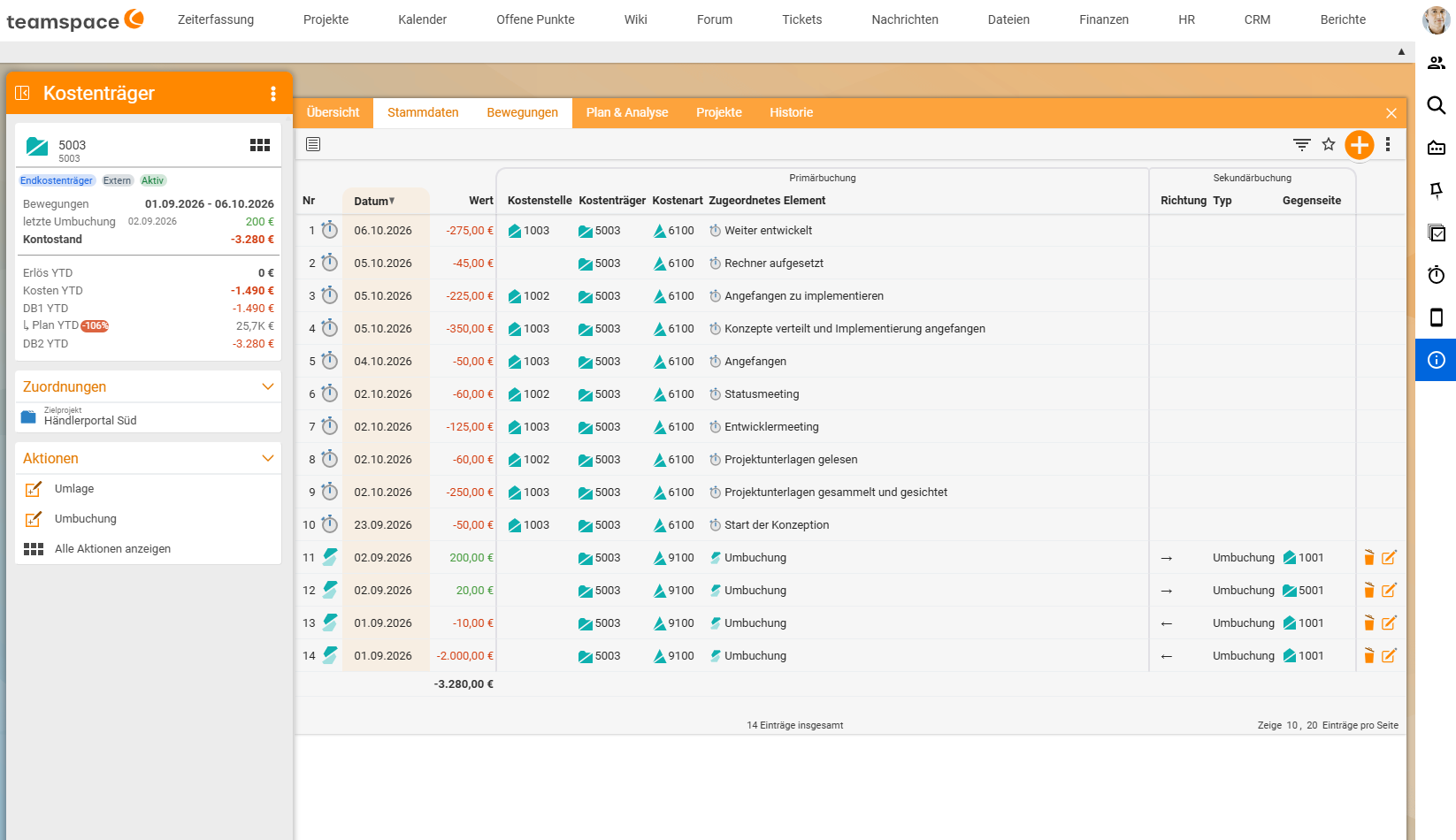
The Movements tab is the account view of the object. Each row shows Date and Value, followed by two groups of columns:
- Primary posting (
Cost centre,Cost object,Cost category,Assigned element): postings from outside, i.e. time bookings, cost elements, line items and general postings. The icon at the start of the row shows the kind. - Secondary posting (
Direction,Type,Counterpart): repostings and allocations. The right arrow (→) means that the object has passed something on and has been relieved (positive value). The left arrow (←) means that it has taken something over and has been charged (negative value). TheTypeisRepostingorAllocation; theCounterpartis the other object.
Secondary postings have a pencil and a bin icon at the end of the row: use them to edit or delete a reposting or allocation. The total of all movements is shown at the bottom.
To trace an amount:
- Open the detail manager, e.g. of a cost object.
- Switch to the
Movementstab. - Look for the secondary posting you are interested in. The cost category in class 9000 tells you what kind it is, e.g.
9200 Repostingor9390 Allocation personnel remainder. - Click the counterpart to open the other object, provided you are allowed to see it.
Projects of a cost object
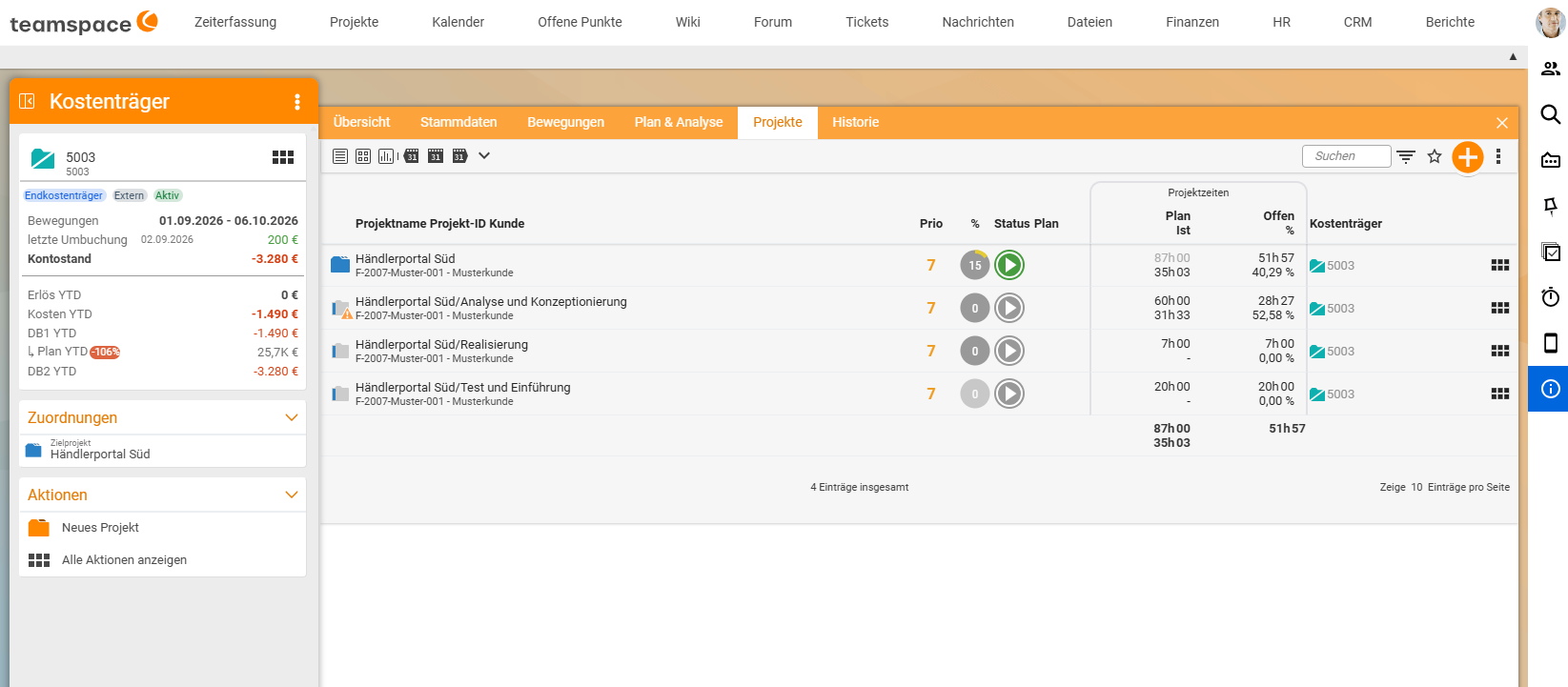
The Projects tab lists all projects and subprojects assigned to this cost object, with priority, status and the project times (Plan, Actual, Open). Use the action New project to create another project with this cost object. This way, for example, all subprojects of a framework contract can share one cost object.
The preview card
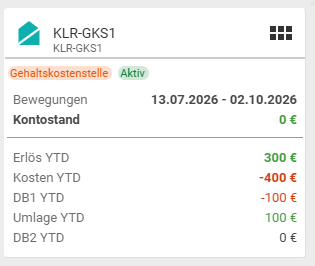
When you hover over a cost centre or cost object in a list, the preview card appears. It shows type and status, the period of the movements, the account balance and the year-to-date metrics: revenue, costs, CM1, the allocation for cost centres, and CM2. Without the right Show full details, the preview only shows number and name, no amounts. The same right applies to the amount columns in the lists, such as CM1, CM2 or Balance.
What you see in the detail manager
Anyone who may open a cost accounting object sees all its postings and movements there, including documents, times or salaries they would otherwise not be allowed to see. Otherwise the figures would make no sense. The administration therefore grants the view right selectively, for example for project managers only on their own cost objects (see Permissions for cost accounting).
Common problems
The list of cost centres is empty.
You lack the right View cost accounting elements for cost centres, or it is restricted to certain objects. Also check the period in the list title.
I cannot find the “Allocation rule” tab.
Cost centres and intermediate cost objects have this tab. It is missing for a final cost object and for cost categories. If a cost object is to be allocated, set its Cost object type to Intermediate cost object in its master data (see Set up an allocation rule).
A counterpart cannot be opened. You are not allowed to see the other object. Name and amount are still shown so that the movement remains traceable.
The YTD values do not match the project term.
The Metrics view is set to Financial year. For projects that run over several years, set it to Total term in the master data.
Common questions & needs
| You want to … | How to |
|---|---|
| See the current CM of a project | Finance → Cost objects → open the cost object → quick info on the left or Overview tab. |
| Find out where an amount on my cost centre comes from | Movements tab → secondary posting with direction, type and counterpart. |
| Compare all cost objects with CM1 and CM2 | Cost objects list in the Details view. |
| See which projects are attached to a cost object | Projects tab. |
| Reverse a reposting | Movements tab → bin icon on the secondary posting. |
| Compare plan with actuals | Plan & analysis tab: Enter a plan and compare it with actuals. |
| Move an amount to another object | Reposting action in the detail manager: Repost an amount. |
| Compare all cost centres in one table | Work with the cost accounting analysis. |
Related topics
- Work with the cost accounting analysis Cost accounting How-to
- Enter a plan and compare it with actuals Cost accounting How-to
- Cost centres and cost objects: types and structure Cost accounting Concept
- The 3 key interface elements Basics Concept
- Topic: Cost accounting Cost accounting
- Cost centre accounting with teamspace