


Who may see and do what in cost accounting is controlled on the user group in the “Cost accounting” accordion. It is structured like the invoicing rights: one checkbox per right, with an options field next to it. Use the options to define which object types a right applies to and whether it applies to all objects or only to those whose project the user has rights to.
Where to find the rights
Open the user group → Permissions tab → Permissions accordion → Cost accountingAt the top of the section, the Permissions toggle with None or All sets all rights in the section at once.
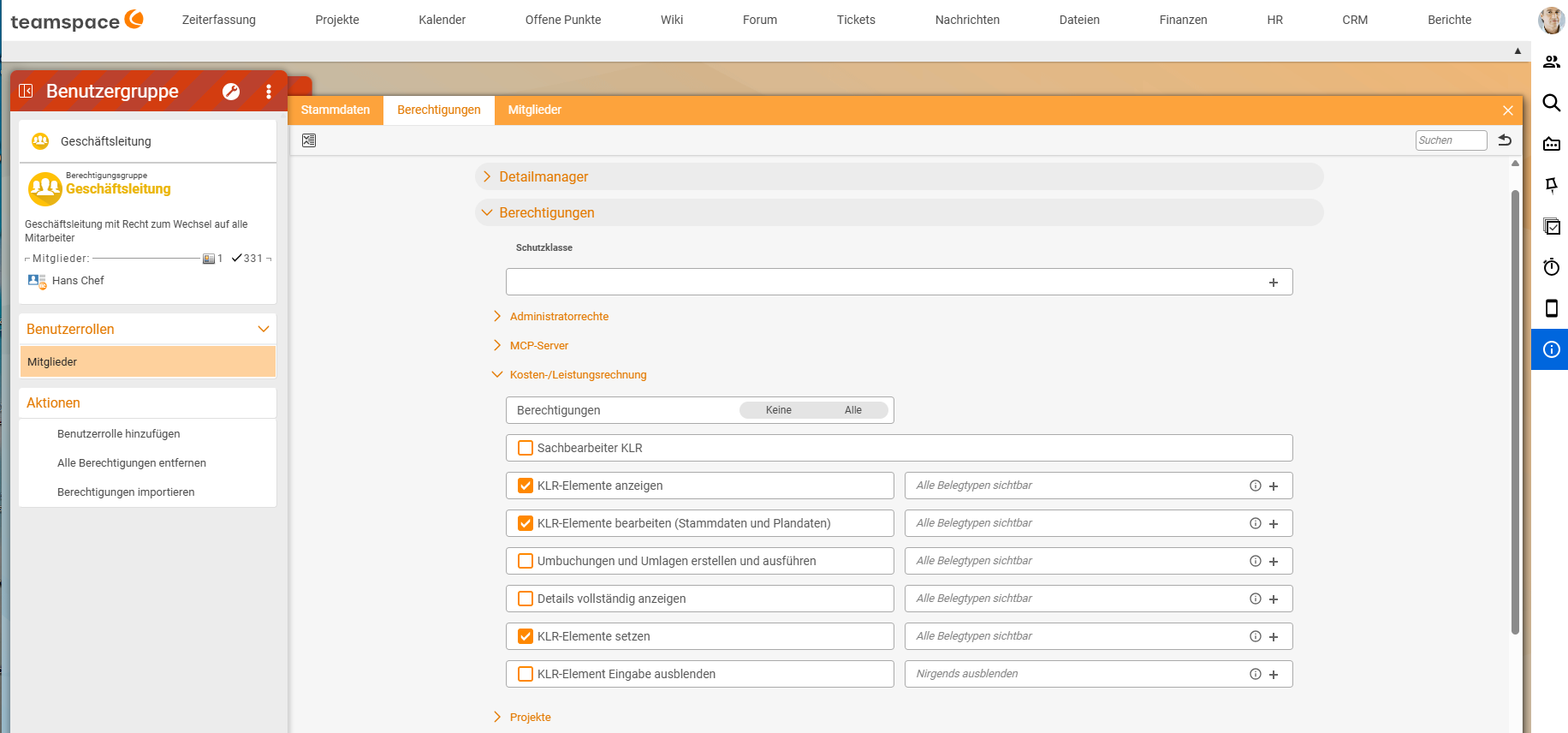
The rights
| Right | What it allows |
|---|---|
| Cost accounting clerk | access to all cost accounting elements and the configuration. The right for controlling. |
| View cost accounting elements | detail manager, tiles and cost accounting analysis for the selected object types |
| Edit cost accounting elements (master data and plan data) | change master data and plan values of cost categories, cost centres and cost objects |
| Create and run repostings and allocations | create repostings, define and run allocation rules |
| Show full details | amounts in the preview card (account balance, revenue, costs, CM) and in the amount columns of the lists, e.g. CM1, CM2 or Balance. Without this right, the preview only shows number and name, and the amount columns stay empty. |
| Set cost accounting elements | set cost category, cost centre and cost object in the recording dialogs of the four primary elements (time booking, cost element, line item, general posting) or override the rule value. Without this right, you see the values from the rule but cannot change them. |
| Hide cost accounting element input | hides the Cost accounting section in the recording dialogs entirely. In the options field, you select for which of the four primary elements; the default is Hide nowhere. |
See, set or hide
The last two rights control how much of cost accounting a user sees when recording. In all three cases, the rules pre-fill cost category, cost centre and cost object:
| Goal | Setting | Example |
|---|---|---|
| See and change values | grant Set cost accounting elements | controlling, project management |
| See values but not change them | do not grant Set cost accounting elements | employees whose assignment should always come from the rule |
| Not see values at all | Hide cost accounting element input for the primary elements concerned | The intern gets a very simple time-tracking dialog without a cost accounting section. |
The options per right
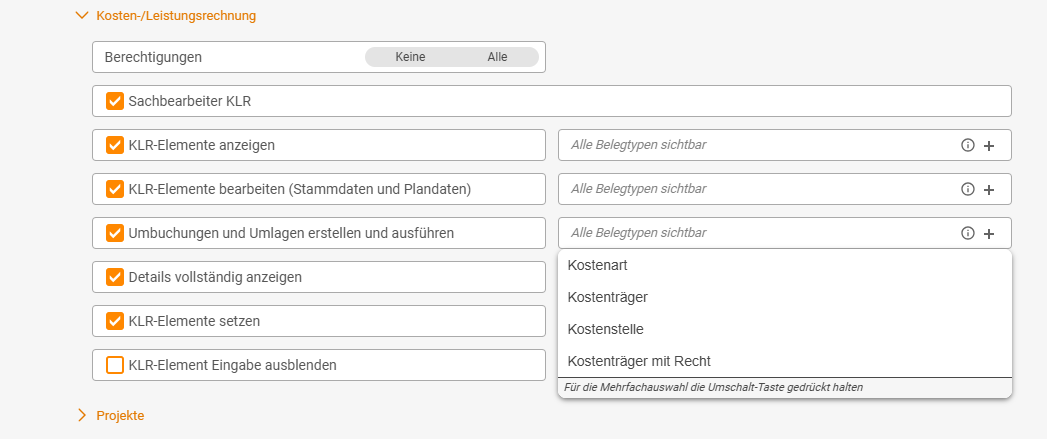
Use the plus in the options field on the right to choose what the right applies to. For multiple selection, hold down the Shift key; the right then only applies to the selected options. If nothing is selected, the field shows “All document types visible”: the right applies to all object types.
| Option | Applies to |
|---|---|
| Cost category | all cost categories |
| Cost object | all cost objects |
| Cost centre | all cost centres |
| Cost object with right | only cost objects on whose target project the user has the Finance/cost accounting right. Cost objects without a target project can only be reached via the “Cost object” option. |
Cost categories have no owner and no project, so there is only the option for all of them. For cost centres, too, there is only “Cost centre”, i.e. all cost centres.
For the right Hide cost accounting element input, the options field offers the four primary elements instead.
Reposting and allocating with ”… with right”: the user must have rights to the source and all targets.
What authorised users see
- Everything in the detail manager: anyone who may open a cost accounting object sees all its postings and movements there, including documents, times or salaries they would otherwise not be allowed to see. Otherwise the figures would make no sense.
- Only authorised items in the analysis: the cost accounting analysis and the cost categories only show rows and totals for the objects the user may see. Counterparts of other objects appear with name and amount but cannot be opened.
- Cost accounting fields in the recording dialogs: whether a user may change them is controlled by
Set cost accounting elements; whether they see them at all is controlled byHide cost accounting element input(see “See, set or hide”). - Amounts in preview and lists: only with
Show full details.
Sample roles
| Role | Rights |
|---|---|
| Controlling | Cost accounting clerk |
| Management | View cost accounting elements and Show full details without restriction (all object types) |
| Project management | View cost accounting elements, Edit cost accounting elements and Show full details with “Cost object with right”, plus Set cost accounting elements |
| Area management | View cost accounting elements with cost centre and cost object; note: this lets them see all cost centres, including the salaries on them |
| Employees | no cost accounting rights: they see the rule values when recording but do not change them. Set cost accounting elements only if they are to assign values themselves. |
| Interns, temporary staff | Hide cost accounting element input for the time booking: a simple time-tracking dialog without a cost accounting section |
Migration from the previous rights
Previously, the accordion only had two checkboxes. They were migrated as follows:
| Previously | Now |
|---|---|
View elements of cost accounting | View cost accounting elements with the options cost category, cost centre, cost object |
Edit elements of cost accounting | Edit cost accounting elements (master data and plan data) with the options cost category, cost centre, cost object |
Existing users therefore keep their access. All other rights are new and off by default.
Configuration rights
There are separate rights for the admin lists in the system configuration:
User group → Permissions → Configuration rights → Finance → Cost centres / Cost objects / Cost categoryNotes
- Protect salaries: because all postings are visible in the detail manager, anyone with the view right on a cost centre also sees the salaries on it. Grant the right on cost centres narrowly, or post salaries as a total per department (see Allocate personnel costs via a salary cost centre).
- Rights work via groups. How group rights, roles and inheritance interact is described in How permissions combine.
Common problems
A project manager cannot see her cost object. She has “Cost object with right”, but she lacks the Finance/cost accounting right on the target project, or the cost object has no target project. Maintain the target project or her project role.
The preview card or the CM1 and CM2 columns in the list show no amounts.
Show full details is missing for this object type.
An employee sees the cost accounting fields but cannot change them.
That is intended if they do not have Set cost accounting elements: the values then always come from the rule. If they are to assign values themselves, grant the right for the object types concerned.
A user cannot repost even though they have the right. With ”… with right”, they must be allowed to see the source and all targets. If one is missing, the reposting is not possible.
The cost accounting section is missing in time tracking.
Either Hide cost accounting element input hides it, or the fields are not switched to visible in the configuration (see Set up cost accounting).
Common questions & needs
| You want to … | How to |
|---|---|
| Allow controlling to do everything | Cost accounting clerk. |
| Show project managers only their own projects | View cost accounting elements with the option “Cost object with right”. |
| Let project managers maintain plan values | Additionally Edit cost accounting elements (master data and plan data) with “Cost object with right”. |
| Allow only controlling to repost | Create and run repostings and allocations only in the controlling group. |
| Hide amounts in the preview | Do not grant Show full details. |
| Spare employees the cost accounting fields | Set Hide cost accounting element input for the inputs concerned. |
| Allow rule values to be overridden | Set cost accounting elements. |
Related topics
- Create and manage user groups Permissions Configuration
- How permissions combine: the six levels Permissions Concept
- Cost centres, cost objects and cost categories in the detail manager Cost accounting How-to
- Set up cost accounting: create cost categories, cost centres and cost objects Cost accounting Configuration
- Topic: Cost accounting Cost accounting