


Every project time, cost element, line item and general posting has a “Cost accounting” section with the fields cost category, cost centre and cost object. Usually you do not need to do anything there: a rule pre-fills the fields. You only look at them if the rule value does not fit or is missing, and then you override it.
Where to find the section
The section is available in all four primary elements, i.e. wherever costs or revenue arise:
| Element | Dialog | Typical rule value |
|---|---|---|
| Time booking | Project time | cost category from the project time category, cost centre from the employee, cost object from the project |
| Cost element | Expense receipt, Material | cost category from the expense type, cost centre from the employee or customer, cost object from the project |
| Line item | Line item | cost category and cost centre from the article, cost object from the project |
| General posting | Posting | usually no rule; controlling sets the values itself |
The administration decides which source applies in which order (see Define rules for default values).
How to read the section
Each of the three fields has two sides:
- On the left is the value from the rule, labelled
Cost centre from rule,Cost object from ruleorCost category from rule, e.g. “6100”. - On the right is the
Overridebutton. Use it to set your own value; the field is then called e.g.Cost centre manually overridden. A manual value always wins over the rule value. Resetdeletes your manual value and restores the rule value.- None -means that the rule did not find anything. The field stays empty, because none of the three fields is mandatory unless the administration has set it as a mandatory field.
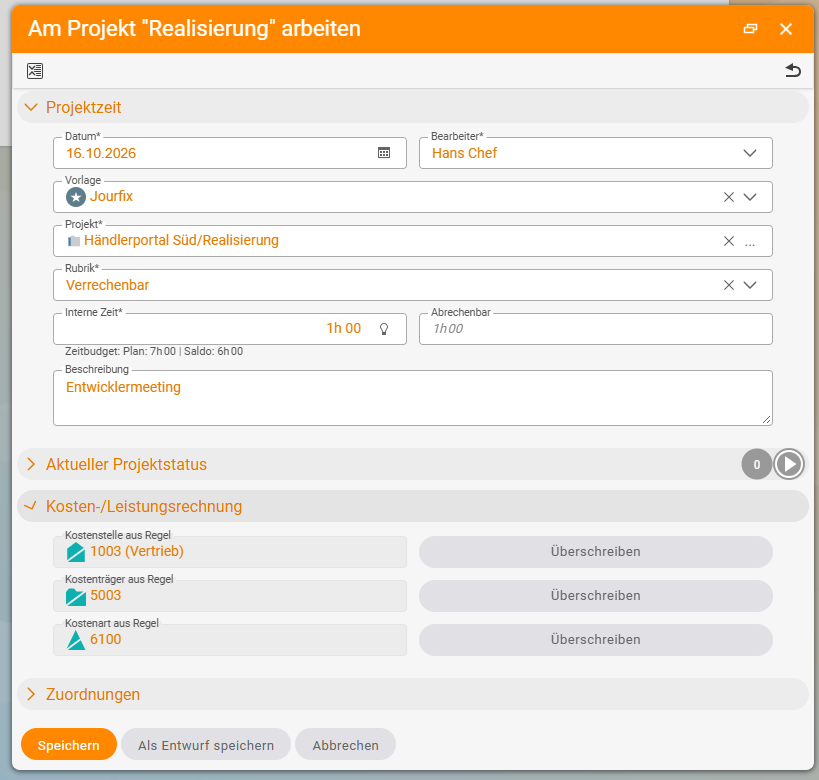
Override a value
- Open the element, e.g. the project time, the expense receipt, the line item or the posting. When you create a new element, the section is only visible if the administration has already enabled it for new elements.
- Expand the
Cost accountingsection. - Check the three rule values on the left.
- Next to the field that does not fit, click
Overrideand select the correct value, for example a different cost centre. - Save the element.
If you want the rule value back later, click Reset for that field.
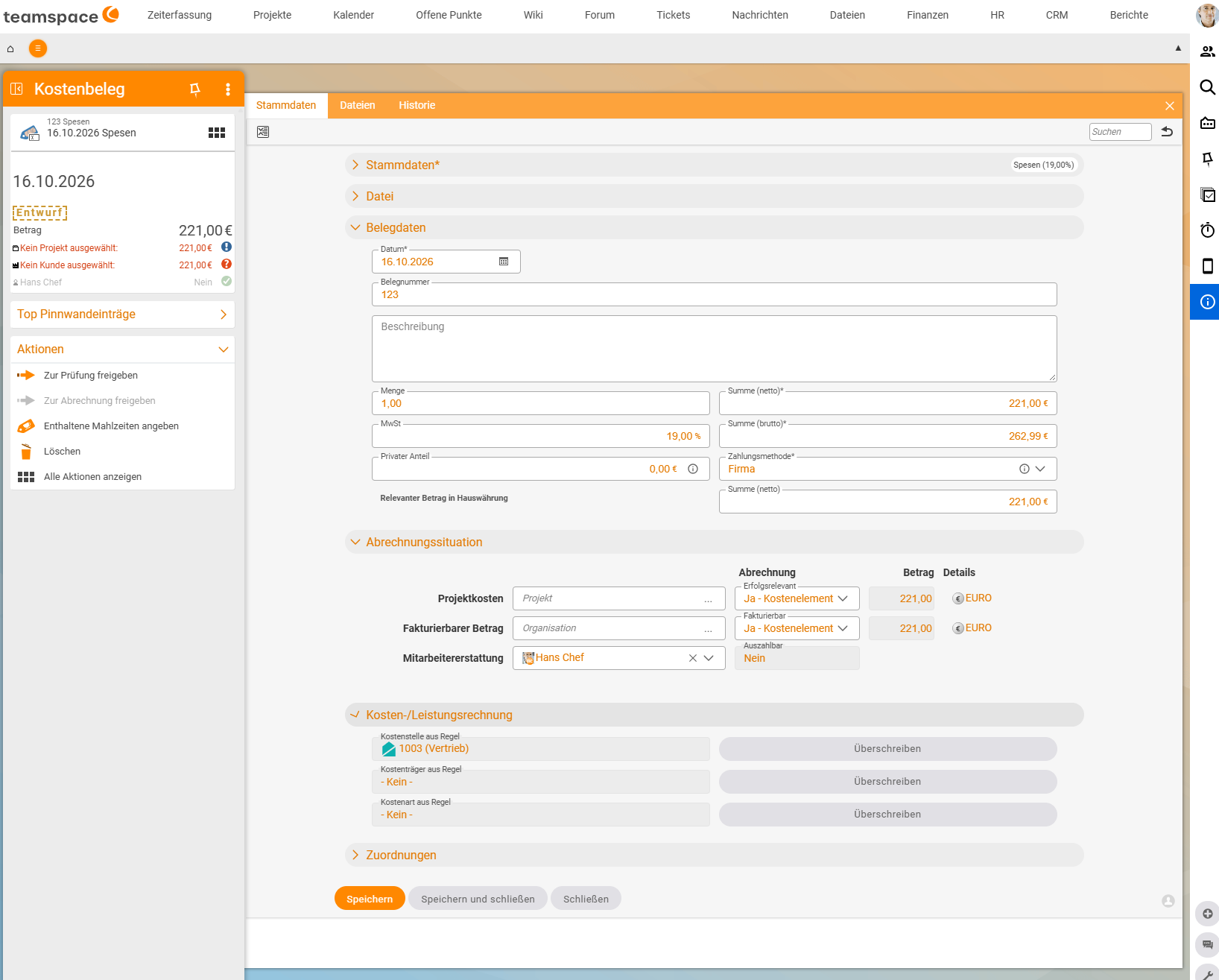
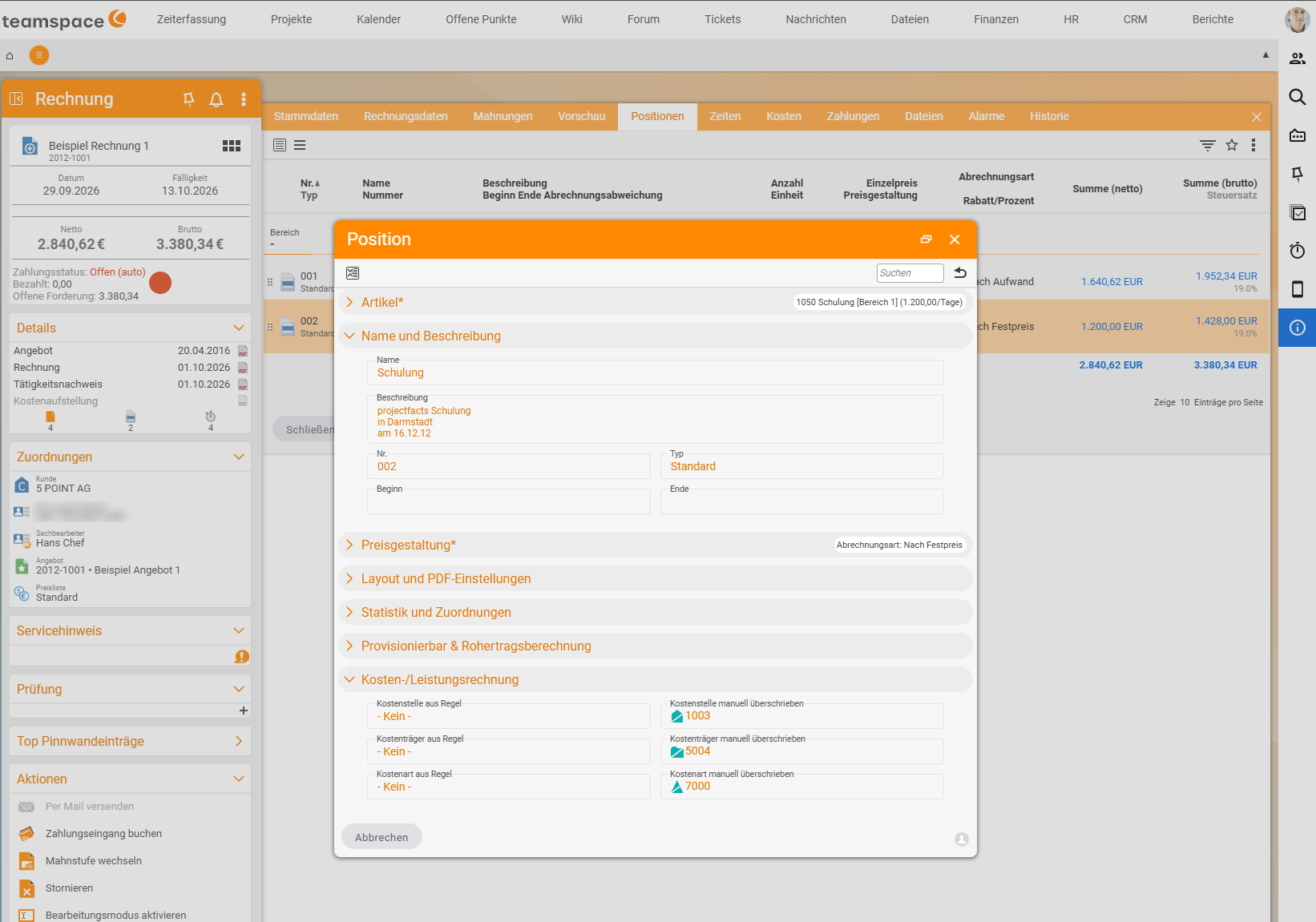
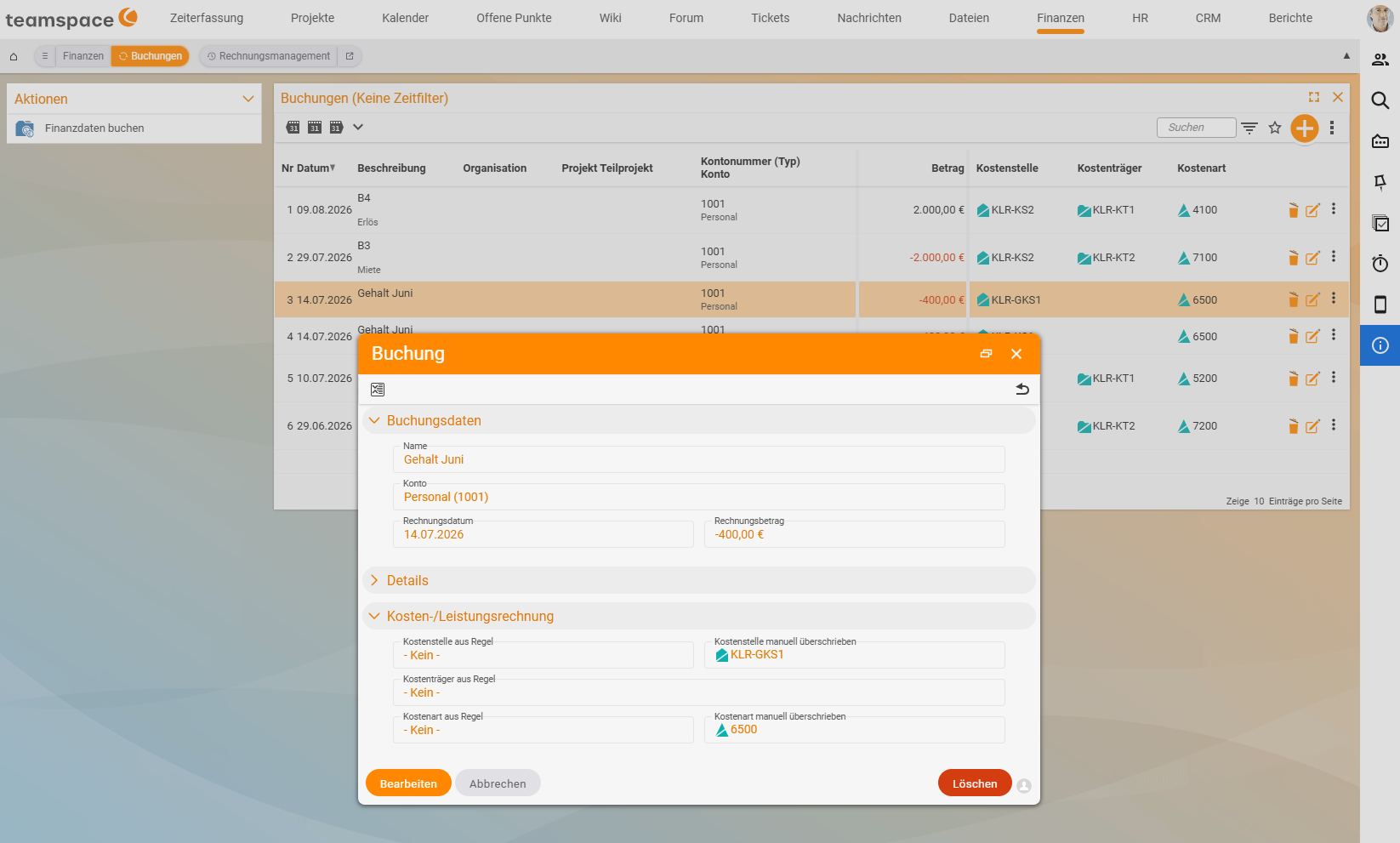
This is what an element whose values have been overridden looks like:
When to override and when not to
- Override if the rule value is wrong for this one case: a consultant works for another department as an exception, or a line item belongs to a different area from the article.
- Do not override if the rule value is wrong in principle. Then the source is maintained incorrectly, e.g. the cost centre on the employee or the cost category on the cost type. Have it corrected at the source, otherwise you will have to override the same error every time.
- Do not split amounts here. If an amount belongs to two projects (e.g. a trip for two customers), it stays complete in the original. Controlling then distributes it with a reposting (see Repost an amount).
Notes
- Whether you see the section and whether you may override depends on your rights: with
Set cost accounting elementsyou can override; without that right you only see the rule values.Hide cost accounting element inputhides the section entirely for individual primary elements, for example for interns who should get a simple time-tracking dialog (see Permissions for cost accounting). - An employee’s cost centre is stored as a time-dependent value on their department (
HR → Analysis → Department, fieldCost centre;Automatic= the department’s cost centre). If they change department, old time bookings keep their old cost centre. - With a salary cost centre, the cost centre of your time bookings is your department’s salary cost centre. That is correct and not an error (see Allocate personnel costs via a salary cost centre).
Common problems
I do not see the “Cost accounting” section.
There are three possible causes: the fields are set to Off or Visible in admin mode in the configuration. Or you are creating a new project time, and in the time-tracking configuration the fields are only set to Visible instead of Visible when creating new elements; in that case they only appear when you edit the element. Or your right Hide cost accounting element input hides the section for this input.
Every rule value says ”- None -”. The rule finds no value at its source. Typical causes are a missing cost centre on the employee or their department, a project without a cost object or a cost type without a cost category. This is not an error in the element but in the master data. Report it to the administration.
I cannot change the value.
You lack the right Set cost accounting elements, or it is restricted for this object type. Contact the administration.
I overrode a value, and now it no longer fits after a master data change.
A manual value stays in place even if the rule source changes. Click Reset, and the element takes over the rule value again.
Common questions & needs
| You want to … | How to |
|---|---|
| Assign a time booking to a different cost centre | In the project time dialog under Cost accounting, click Override next to “Cost centre from rule”, select the correct value and save. |
| Restore the rule value | Click Reset for the field. |
| Assign a line item to a different area | In the Line item dialog, click Override next to the cost centre. |
| Split a trip between two projects | Not in the original. Controlling reposts half of it: Repost an amount. |
| Get rid of a wrong rule value for good | Have the source corrected (employee, project, customer, article, cost type): Define rules for default values. |
| See and filter the cost accounting fields in lists | Show the cost accounting columns in the list: Work with the cost accounting analysis. |
Related topics
- Define rules for default values Cost accounting Configuration
- Repost an amount Cost accounting How-to
- Book project times Time tracking How-to
- Record expenses & material Costs & travel expenses How-to
- Topic: Cost accounting Cost accounting
- Cost accounting with teamspace