


You set up cost accounting once; after that it runs as a by-product of normal recording. The only effort is in creating the master data: cost categories, cost centres and cost objects, plus the rules that pre-fill them when you record. Follow this order and the steps will dovetail neatly.
The order
- Basic settings and cross-posting switch
- Create cost categories
- Create cost centres as a tree
- Create cost objects
- Make the fields visible in the modules
- Define rules for default values
- Grant rights, then allocations and salary cost centres
1. Basic settings
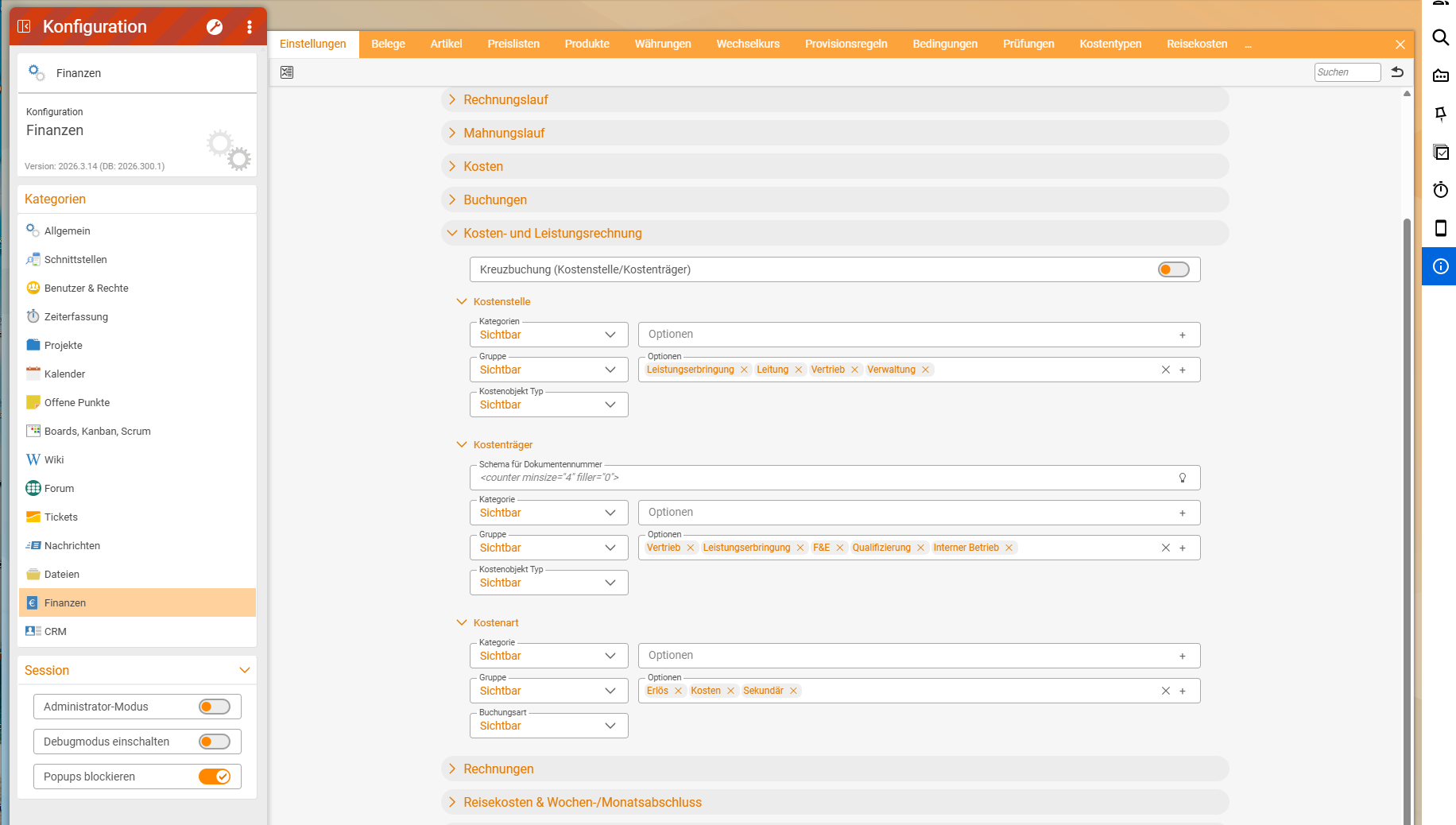
Configuration → Finance → Settings → Cost accountingThe accordion has one switch and three subsections:
Cross-posting (cost centre/cost object): leave it off. Then repostings and allocations stay within their view, and only salary cost centres may distribute to cost objects. The switch has no effect on salary cost centres. Why this matters is explained in Two views, one result.Cost centre: visibility of the fieldsCategories,GroupandCost object type. ForGroup, you define the options, e.g.Service delivery,Management,Sales,Administration.Cost object: theDocument number scheme(default<counter minsize="4" filler="0">, i.e. a four-digit sequential number with leading zeros) and the visibility ofCategory,GroupandCost object type. Group options e.g.Sales,Service delivery,R&D,Training,Internal operations.Cost category: visibility ofCategory,GroupandPosting type. The group of a cost category isRevenue,CostsorSecondary.
Each field has the visibility levels Off, Visible in admin mode, Visible and Visible and mandatory. For Cost object type: keep it visible, because the type controls the allocations.
2. Create cost categories
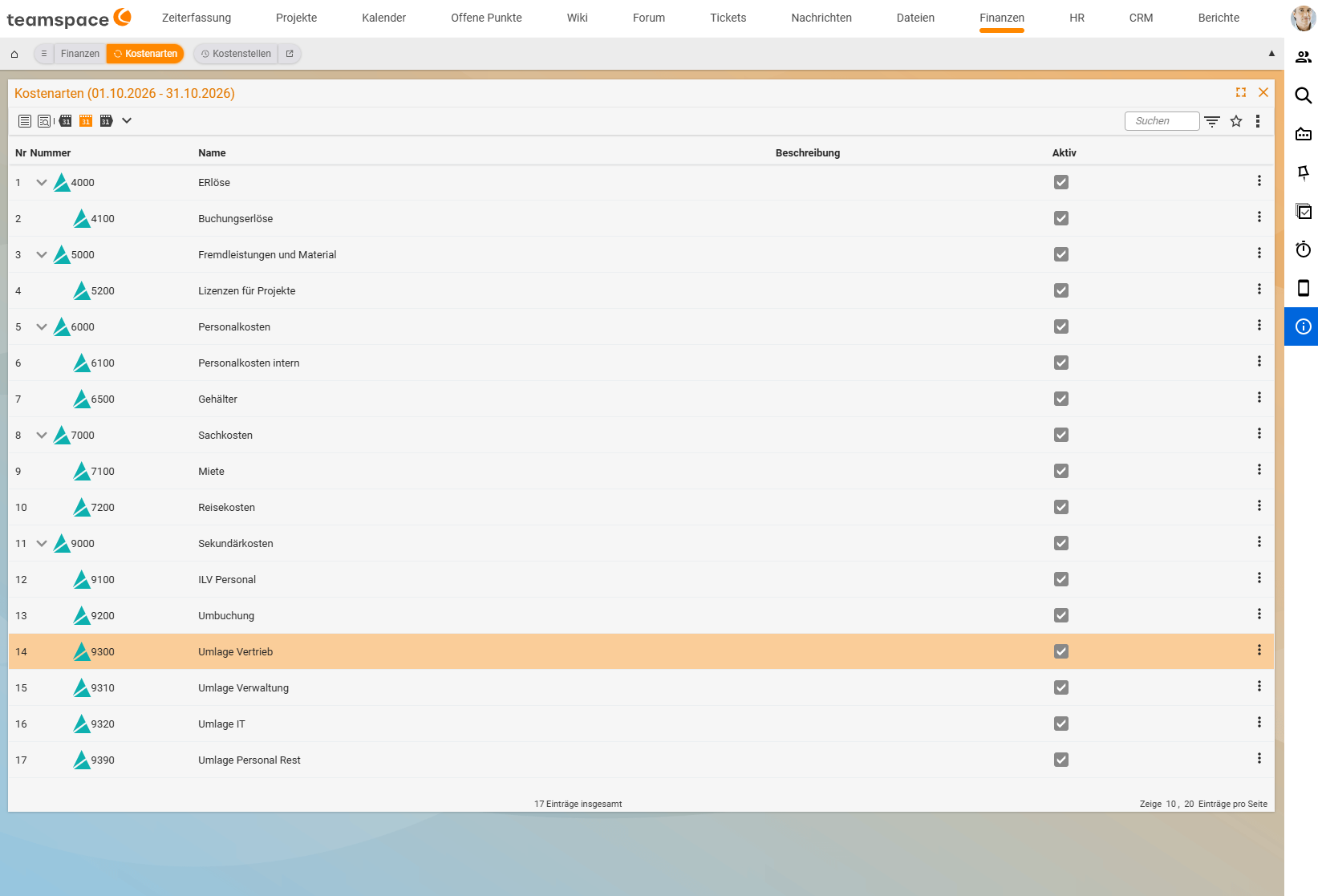
Finance → Cost categories → action "Create new record"Give each cost category a number, a name and its group (Revenue, Costs or Secondary). The posting type (Primary posting or Secondary posting) distinguishes cost categories coming from outside from those used for repostings and allocations; the Cost categories tile also counts by it. You can build cost categories as a tree: a class such as 6000 Personnel costs with the cost categories 6100 and 6500 below it.
- Revenue for class 4000,
- Costs for classes 5000 to 8000,
- Secondary for class 9000, i.e. repostings and allocations.
Create a separate secondary cost category for each allocation (e.g. 9310 Allocation administration, 9320 Allocation IT). Then you can see straight away in the movements where an amount comes from. A ready-made proposal is in the Sample chart of cost categories for service providers.
3. Create cost centres
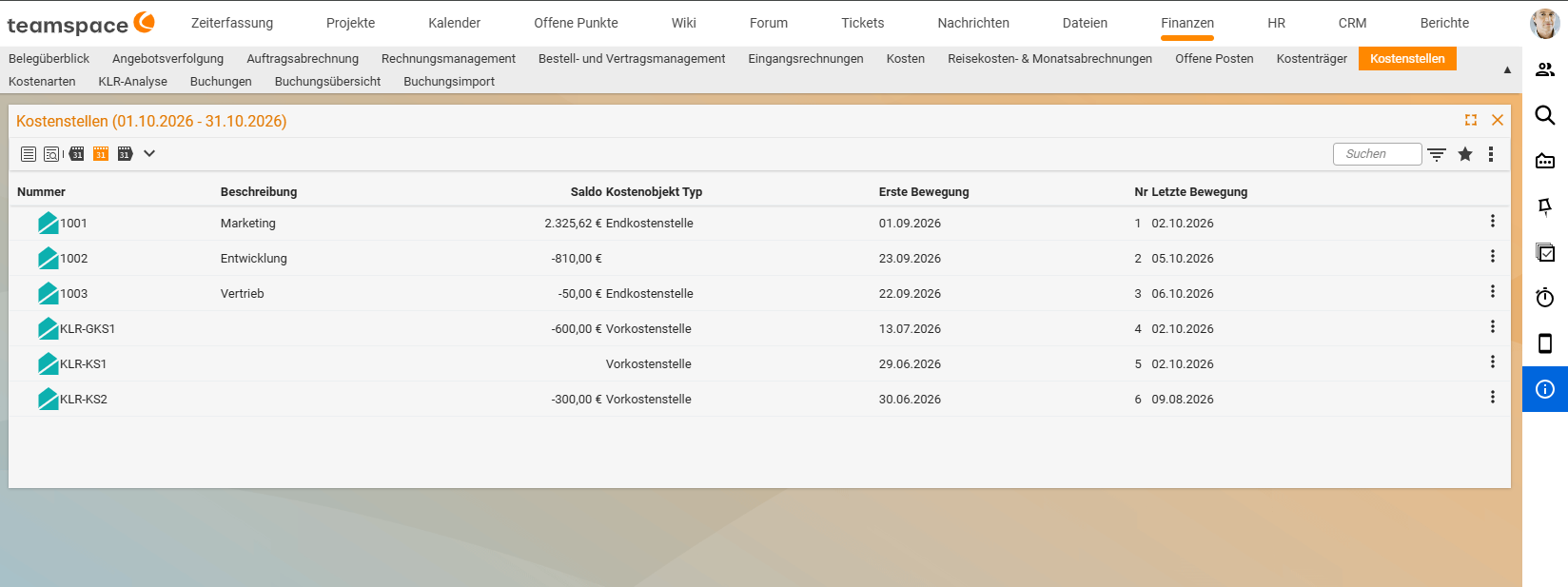
Finance → Cost centres → action "Create new record"- First create the nodes, e.g.
1000 Management,2000 Service delivery,5000 Administration. - Below them, create the leaves, e.g.
2100 Consulting,2200 Development,5100 IT, and select the node as theParent cost centrein each case. You only post to leaves. - For each leaf, set the
Cost object typeunderStatistics and classifications:Final cost centrefor areas that keep their costs (consulting, development, support),Service cost centrefor areas that provide services for others and are allocated (IT, administration, management),Salary cost centrefor the clearing account for a department’s personnel costs.
- Under
Assignment, assign theDepartmentthe cost centre belongs to. Optionally there is aProjectand, underSettings, the valueKOST2 for DATEV posting batch. - For salary cost centres, do not select the cost centre of the department whose salaries they carry as the parent cost centre, but a separate node.
What the types do is described in Cost centres and cost objects: types and structure. Allocate personnel costs via a salary cost centre shows the master data of a cost centre in a screenshot.
4. Create cost objects
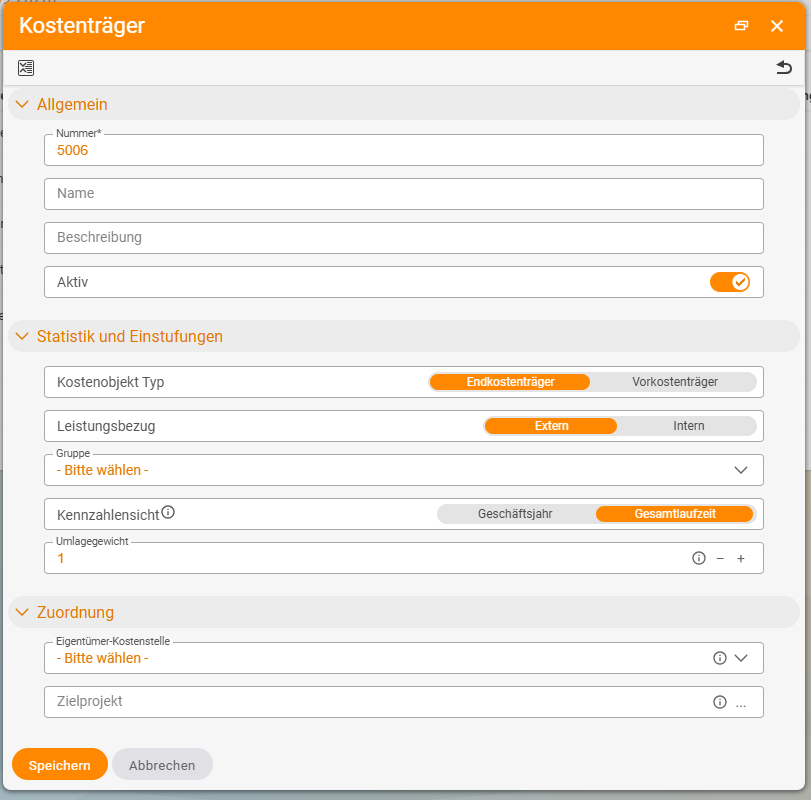
Finance → Cost objects → action "Create new record"Cost objects are flat, with no tree. For each cost object:
- General:
Number*(according to the document number scheme),Name,Description,Active. Cost object type:Final cost objectfor customer projects, contracts and internal projects;Intermediate cost objectfor pools such as servers, licences, vehicles or acquisition.Service basis:ExternalorInternal.GroupandMetrics view(Financial yearorTotal term).Allocation weight: the value (default 1.00) with which it counts as the target of allocations.Owner cost centre: the area the cost object belongs to.Target project: via the target project, the cost object knows its customer.
Also create an internal cost object for overheads such as rent, so that every posting carries both sides and the cost object view stays complete. Cost centres, cost objects and cost categories in the detail manager shows what the master data of a cost object looks like.
5. Make the fields visible in the modules
For cost category, cost centre and cost object to appear in the recording dialogs, make them visible per module under “Field visibility”:
| Configuration | What for |
|---|---|
Time tracking → Settings | project times. Additional level Visible when creating new elements: the field already appears in the create dialog; with Visible only when editing. |
Finance → Settings | costs, line items and postings |
Projects → Settings | cost centre and cost object on the project (source of the “Project” rule) |
CRM → Settings | cost centre on the customer (source of the “Customer” rule) |
Users & rights → Settings | Field visibility → HR → Time-dependent values → Time-dependent values - Department → Cost centre: the field that holds the employee’s cost centre (source of the “Employee” rule) |
Visible and mandatory makes a field compulsory. Only set this if the rule supplies the value in almost all cases, otherwise you block recording.
6. Rules for default values
Define the source from which cost category, cost centre and cost object come when recording. This is described in Define rules for default values.
7. Rights, allocations and salary cost centres
- Grant the rights in the
Cost accountingaccordion of the user groups (see Permissions for cost accounting). - Set up an allocation rule for each service cost centre and each intermediate cost object (see Set up an allocation rule).
- Switch personnel costs over to salary cost centres (see Allocate personnel costs via a salary cost centre).
Notes
- Rights: creating and changing require
Edit cost accounting elements (master data and plan data)orCost accounting clerk. For administration in the system configuration, there is also one right each forCost centres,Cost objectsandCost categoryunderConfiguration rights → Finance. - Test first, then roll out. Run through the process once with a few test objects before you create all areas. The Exercise: work through cost accounting by hand is a guide for this.
- General postings remain without a rule. Controlling creates them and deliberately sets the three fields itself.
Common problems
Cost objects, cost centres or cost categories are missing from the Finance menu.
You lack the right View cost accounting elements for this object type (see Permissions for cost accounting).
I cannot post to a node. That is correct: you only post to leaves. Create a leaf below the node.
An allocation does not distribute to cost objects. The source is a service cost centre; it only distributes to cost centres. For projects you need an intermediate cost object as a pool.
Common questions & needs
| You want to … | How to |
|---|---|
| Prevent cross-postings | Leave Cross-posting (cost centre/cost object) off (step 1). |
| Group cost centres by area | Make the Group field visible and create options (step 1). |
| Use your own numbers for cost objects | Adjust the Document number scheme (step 1). |
| Distribute IT costs to the areas | Create IT as a Service cost centre (step 3) and set up an allocation rule. |
| Distribute server costs to contracts | Create a pool as an Intermediate cost object (step 4) and allocate it. |
| Evaluate costs per customer | Maintain the Target project on the cost object (step 4). |
| Make sure nobody posts without a cost centre | Set the field to Visible and mandatory (step 5) – only if the rule almost always supplies a value. |
Related topics
- Define rules for default values Cost accounting Configuration
- Permissions for cost accounting Cost accounting Configuration
- Sample chart of cost categories for service providers Cost accounting Reference
- Finance – System configuration System configuration Reference
- Topic: Cost accounting Cost accounting
- Cost accounting with teamspace