


An allocation automatically distributes the costs of a period according to a key, for example IT costs to the areas by headcount. Once set up, it runs on a fixed schedule and empties the source. For this purpose, every cost centre and every cost object has its own “Allocation rule” tab in the detail manager. The rule answers three questions: when, how and where.
Why allocations?
CM1 shows what a project earns directly. But the areas and resources that never post directly to a customer project have to be paid for as well. Without allocation, all areas and projects look more profitable than they are. Three typical cases:
| Case | Source | Route |
|---|---|---|
| Area overheads: IT, administration and management belong to the departments | service cost centre | cost centre → cost centres |
| Resource pools: servers, licences and vehicles belong to the projects | intermediate cost object | cost object → cost objects |
| Remainder of salaries: holidays, sickness and idle time belong to the projects | salary cost centre | salary cost centre → cost objects |
The third case is described in Allocate personnel costs via a salary cost centre.
The three parts of the rule
The Allocation rule tab has three sections. To the right of them, the selected targets are listed with Target, Allocation weight and Share.
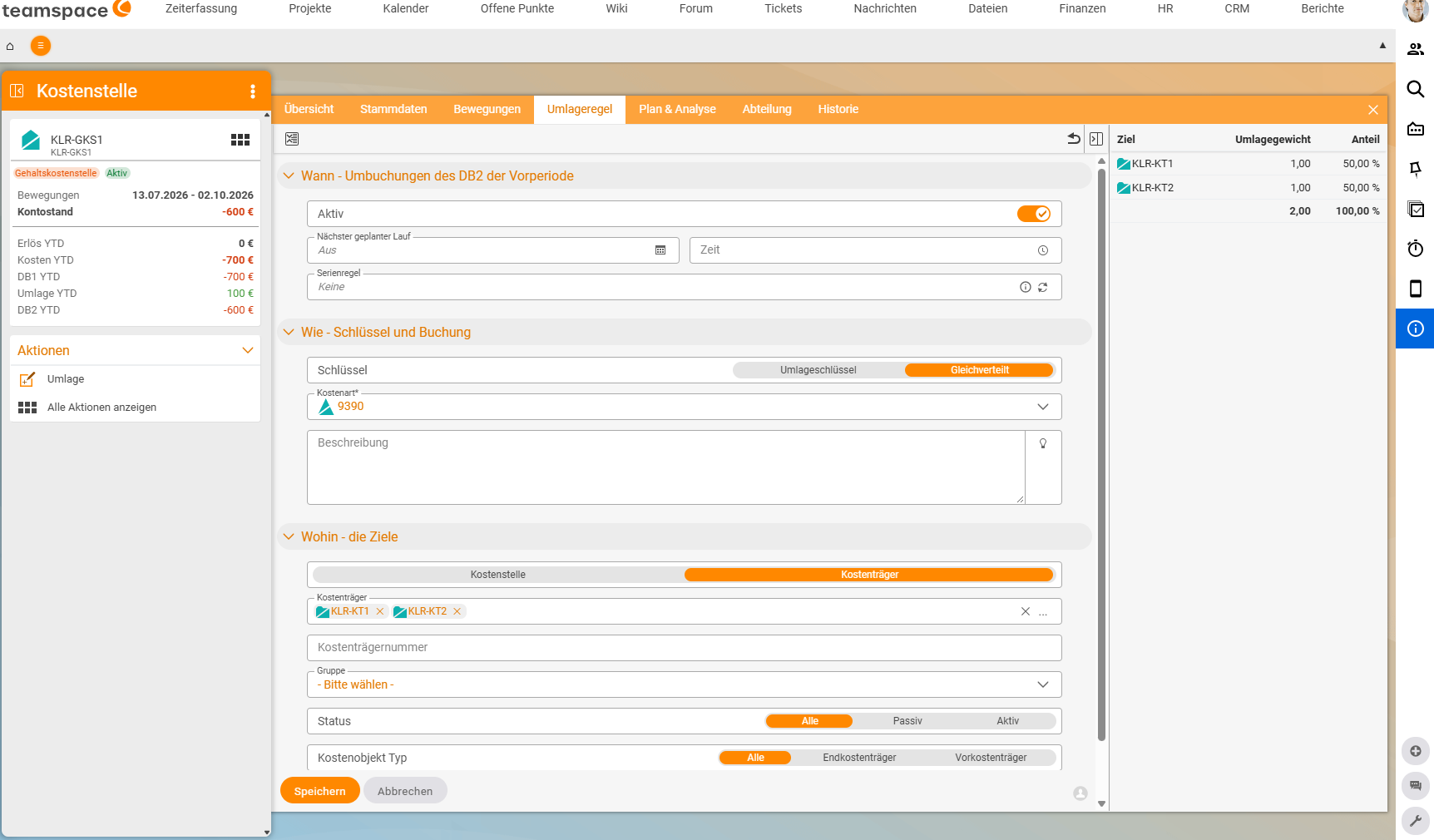
When – repostings of the CM2 of the previous period
Activeswitches the rule on or off.Next scheduled runwithTime, e.g. on the 3rd of the month at 10:00. If it says “Off”, the rule does not run by itself.Recurrence rulefor the recurring run, e.g. monthly.- Amount: what is allocated is the CM2 of the previous period – the section heading already says so. If the rule runs in October, it distributes the balance for September. Because the entire balance is distributed, the source is at zero afterwards.
Each source has its own schedule. Each run uses the rule as it is set at the time of the run.
How – key and posting
KeyEvenly distributed: each target receives the same share.KeyAllocation key: each target receives a share according to itsAllocation weight(default 1.00), e.g. the headcount of an area or the usage of a server. There are deliberately no fixed percentages; you express them using weights (e.g. 2 : 1 : 1 instead of 50% : 25% : 25%).Cost category*: a secondary cost category, e.g.9320 Allocation IT. Use a separate one for each allocation, then you can see straight away in the movements where an amount comes from.Description: optional, e.g. the reason for the key.
Where – the targets
- For a salary cost centre, use the toggle at the top to choose
Cost centreorCost object– the kind of targets you are looking for. - You search for targets using filter fields – for cost objects
Cost object,Cost object number,Group,Status(All,Inactive,Active) andCost object type(All,Final cost object,Intermediate cost object) – and start withSearch. - The targets appear on the right with their
Allocation weightand theSharecalculated from it; the total is shown at the bottom. - New objects are included automatically: if you narrow down the targets using a filter, such as a
Group, the rule automatically includes any new object that matches the filter from the next run onwards. If you select the targets individually, it sticks to exactly those.
Step by step
- Open the detail manager of the source, e.g. the service cost centre
5100 ITviaFinance → Cost centres. - In the
Master datatab, check that theCost object typeis correct:Service cost centre,Intermediate cost objectorSalary cost centre. - Switch to the
Allocation ruletab. - When: switch
Activeon, setNext scheduled runandTimeand enter theRecurrence rule, e.g. monthly. - How: select the
KeyAllocation keyorEvenly distributedand theCost category*of the allocation. - Where: for a salary cost centre, first choose
Cost centreorCost object, narrow down the targets using the filter fields and clickSearch. - On the right, check the
Allocation weightandShareof each target. - Click
Save.
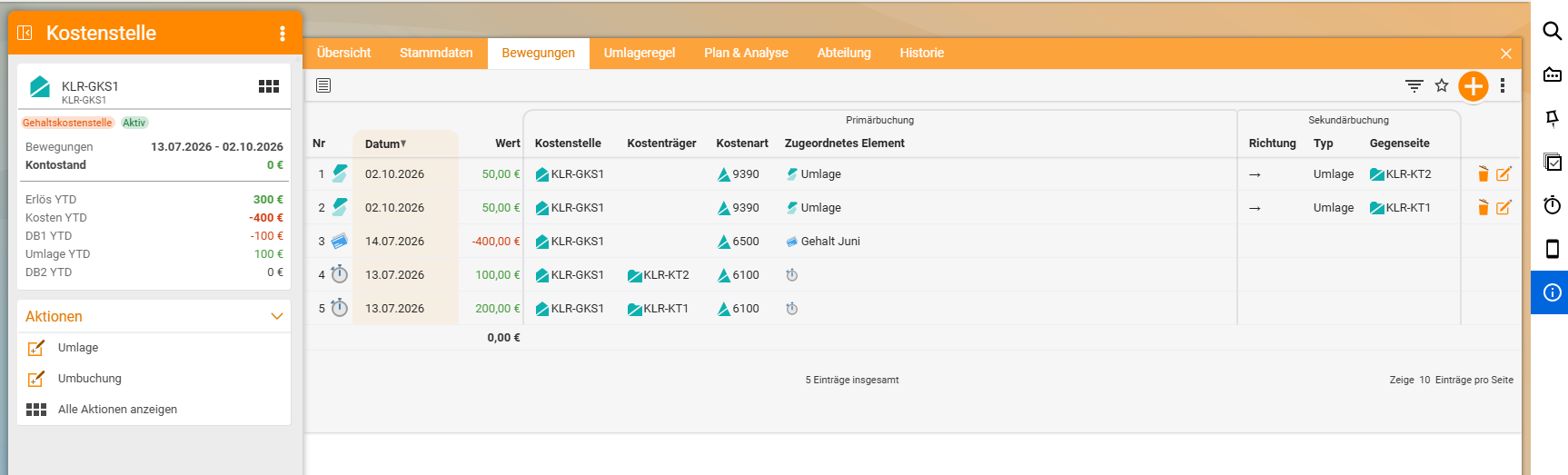
After the first run: check in the movements of the source and the targets whether the amounts have arrived correctly, and cross-check the totals (see Work with the cost accounting analysis).
Run an allocation manually
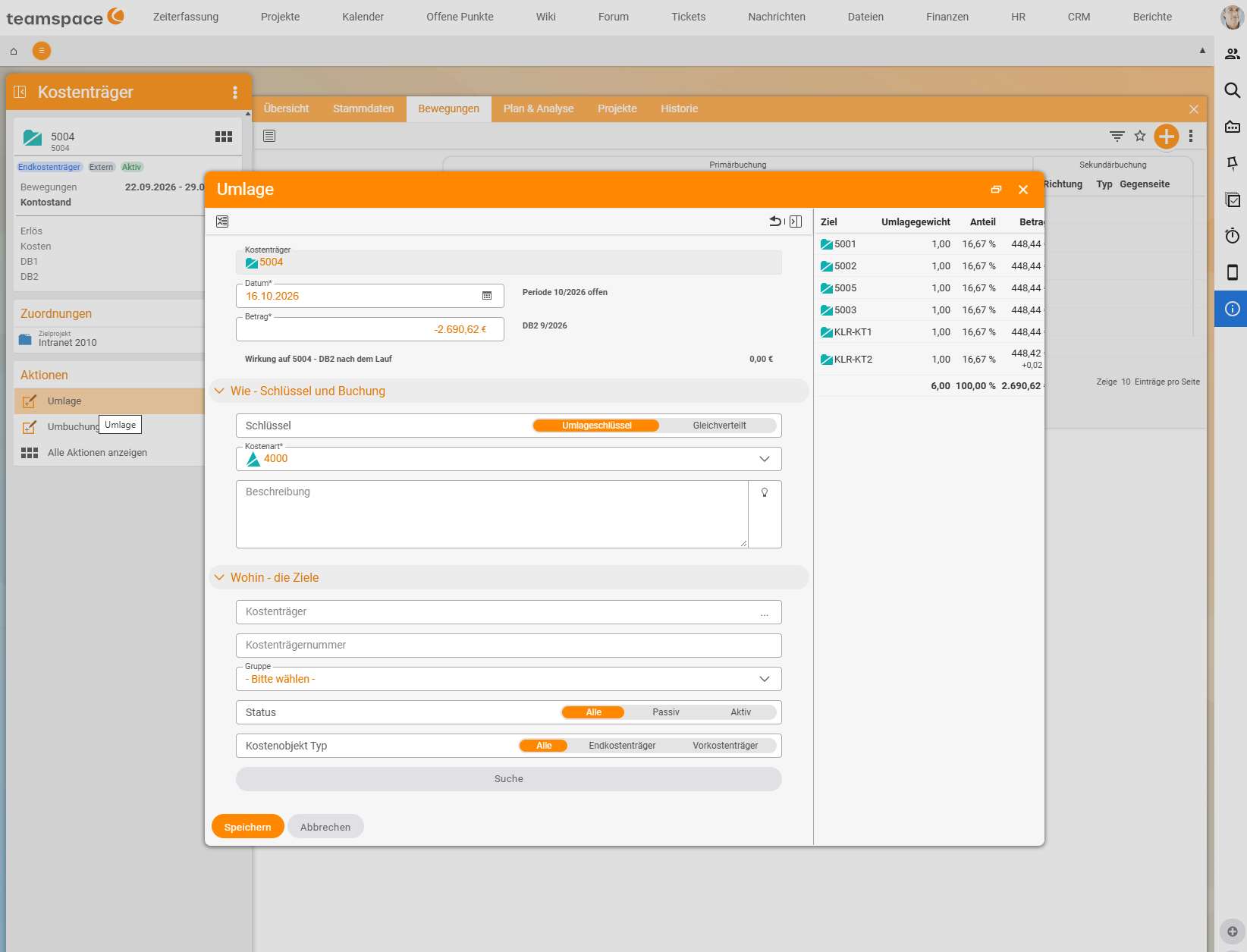
Use the action Allocation on the left of the detail manager to start a run immediately, for example for testing or for a follow-up run. The Allocation dialog shows:
Date*: today by default, with the period hint next to it (e.g. “Period 10/2026 open”). The allocation postings carry this date.Amount*: pre-filled with the CM2 of the previous period (e.g. “CM2 9/2026”). Below it you see the effect on the source, i.e. its CM2 after the run; with full distribution €0.00.How - key and postingandWhere - the targetsas in the rule.- On the right,
Allocation weight,ShareandAmountfor each target. A rounding difference of a few cents goes to the last target.
Click Save to post.
Which targets are allowed
| Source | Allowed targets |
|---|---|
| Service cost centre | cost centres |
| Intermediate cost object | cost objects |
| Salary cost centre | cost objects |
| Final cost centre, final cost object | not intended; they should keep their costs |
A normal cost centre may only allocate to cost objects if the Cross-posting (cost centre/cost object) switch under Configuration → Finance → Settings → Cost accounting is on. Leave it off: such an allocation counts twice (see Two views, one result). The switch has no effect on salary cost centres.
Several levels: the step-down method
If several service cost centres distribute one after the other, stagger their schedules:
| Schedule | Rule | Distributes to |
|---|---|---|
| 3rd of the month, 10:00 | management rule | administration, IT |
| 3rd of the month, 11:00 | administration and IT rules | consulting, development, support |
The second level also distributes what it received from management at 10:00. After 11:00, all service cost centres are at zero. If all rules run at the same time, that is the direct method. The reciprocal method for mutual services is not available. More in Reposting, allocation or correction?.
This works even though the allocation postings carry the date of the run and are therefore already in the new period.
Practical example: IT costs to the areas by headcount
IT supports all departments. Its €30,000 is on the cost centre 5100 IT. Consulting, development and support see none of it and appear more profitable than they are.
Solution: 5100 IT is a service cost centre. Its allocation rule distributes to the three areas using Allocation key; the allocation weight of each target is its headcount (12, 18, 10).
| Area | CM before | IT share | CM after |
|---|---|---|---|
| Consulting | +€40,000 | −€9,000 | +€31,000 |
| Development | +€25,000 | −€13,500 | +€11,500 |
| Support | +€5,000 | −€7,500 | −€2,500 |
| IT | −€30,000 | +€30,000 | €0 |
| Total | +€40,000 | €0 | +€40,000 ✓ |
The total stays the same, and the cost object view is not affected. And now you can see: support does not pay for itself.
Practical example: server costs to the contracts via a pool
In June, the data centre (CC 5100) pays €3,000 for server leasing and €600 for electricity and floor space. The servers run for maintenance and hosting contracts. Two requirements apply at the same time: the contracts should bear their share of the servers, and the data centre should still see all its costs, for budget and accountability.
Solution: The server costs are posted to the real cost centre 5100 and, as the cost object, to an intermediate cost object SRV pool. The pool has an allocation rule with Allocation key to the contracts; weights by usage 2 : 1 : 1.
| Status | CC 5100 | SRV pool | W-101 Müller | W-102 Schmidt | INT-IT | Σ CC | Σ CO |
|---|---|---|---|---|---|---|---|
| Postings (CC 5100, CO SRV pool) | −3,600 | −3,600 | 0 | 0 | 0 | −3,600 | −3,600 |
| after the pool allocation | −3,600 | 0 | −1,800 | −900 | −900 | −3,600 ✓ | −3,600 ✓ |
The data centre still sees all €3,600, and the contracts bear their share. The same pattern applies to all pools: licence pool, vehicle pool, test lab, acquisition collector.
Notes
- The allocation weight belongs to the target object (field
Allocation weightin theMaster datatab, default 1.00) and therefore applies equally in all rules. If you need different weights for two pools on the same targets, set the weights so that they work for both, or separate the targets. - An allocation does not change any documents. It creates its own secondary postings; the originals remain unchanged.
- If an allocation runs for a month without postings, it moves nothing. That is correct.
Common problems
I cannot select a cost object as the target. The source is a service cost centre. It may only allocate to cost centres. If you want to distribute costs to projects, post them to an intermediate cost object (pool) and allocate that.
The source is not at zero after the run. Postings for the previous period were added after the run, or there are postings in the current period. The rule only distributes the CM2 of the previous period; anything later is distributed by the next run.
The allocation appears in the wrong month.
The allocation postings carry the date of the run, not that of the distributed period. An allocation for September that runs on 2 October appears in October. For a manual run via the Allocation action, you can adjust the Date*.
The second level distributes too little. The first level ran after the second, or their schedules are the same. Stagger the schedules so that management runs before administration and IT.
All targets receive the same amount despite Allocation key.
The Allocation weight is still at the default 1.00 for all targets. Enter the appropriate weight in the Master data tab of each target, e.g. the headcount.
Common questions & needs
| You want to … | How to |
|---|---|
| Distribute IT costs to the areas by headcount | IT as a service cost centre, key Allocation key, headcount as the Allocation weight of the targets. |
| Distribute administration evenly | Key Evenly distributed. |
| Run an allocation immediately | Action Allocation in the detail manager of the source. |
| Assign server costs to the contracts without the data centre losing them | Posting to the data centre CC + intermediate cost object as a pool, pool allocated to the contracts. |
| Distribute management first, then administration and IT | Stagger the schedules (step-down), e.g. 10:00 and 11:00. |
| Include new areas automatically | Select the targets using a filter, e.g. a Group, instead of individually. |
| Distribute a fixed percentage | Express it with weights, e.g. 50 : 30 : 20. |
| Get the remainder of the salaries onto the projects | Allocate personnel costs via a salary cost centre. |
Related topics
- Reposting, allocation or correction? Choosing the right way Cost accounting Concept
- Allocate personnel costs via a salary cost centre Cost accounting Configuration
- Cost centres and cost objects: types and structure Cost accounting Concept
- Repost an amount Cost accounting How-to
- Topic: Cost accounting Cost accounting
- Cost centre accounting with teamspace