


Without a plan there is no variance, and without a variance nobody notices in time that something is getting out of hand. In the “Plan & analysis” tab, you plan revenue and costs per month for every cost centre and cost object. The actuals from the postings are shown alongside. The difference is the variance – your early warning.
Enter a plan
Each plan value is a separate entry: one month with the planned revenue and the planned costs. You can plan a whole year at once or a single month.
Plan a whole year
- Open the detail manager of the cost centre or cost object, e.g. via
Finance → Cost objects. - Switch to the
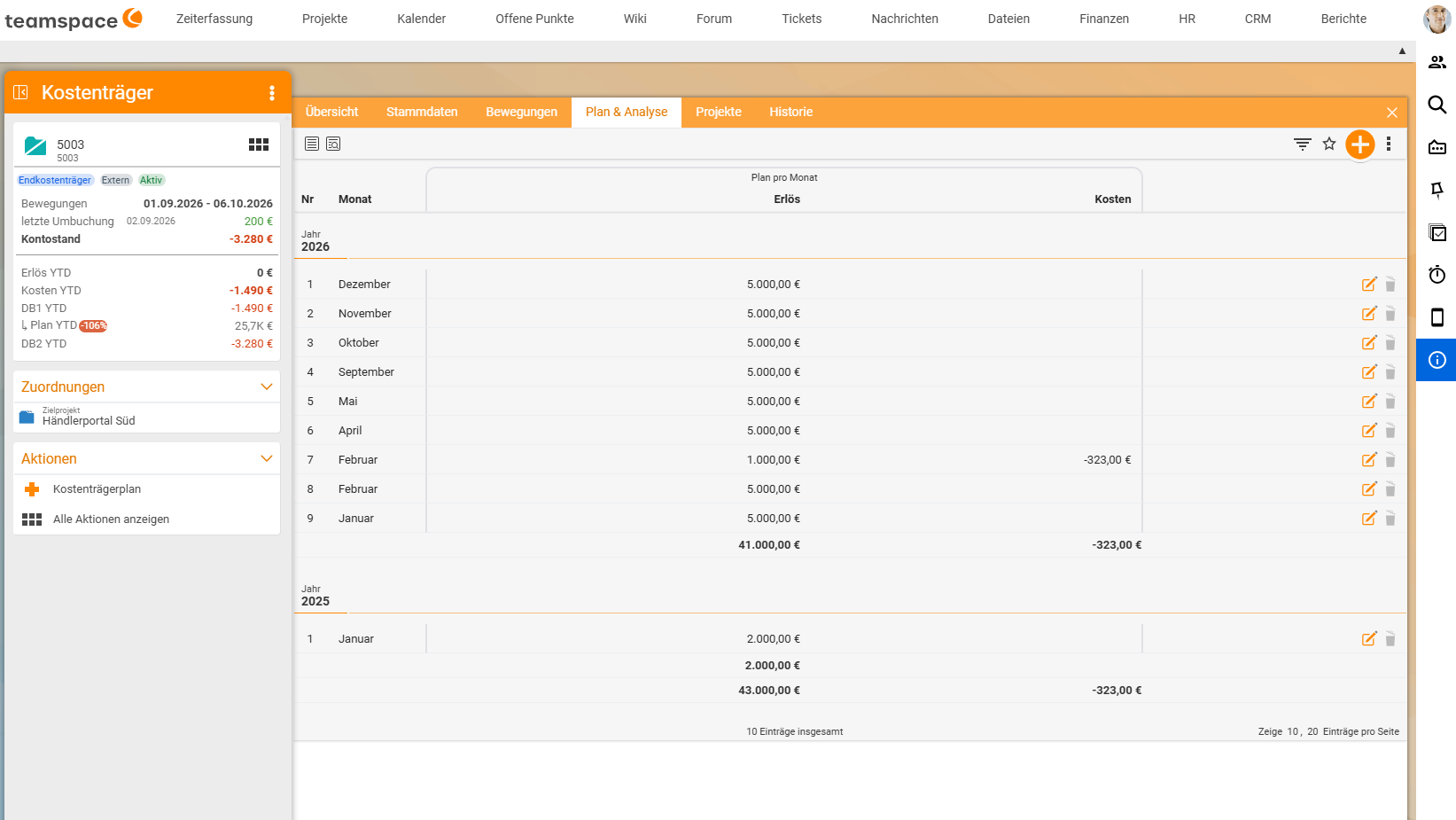
Plan & analysistab. In the default view you see the columnPlan per monthwithRevenueandCosts, grouped by year. - Click the plus at the top right or, on the left under
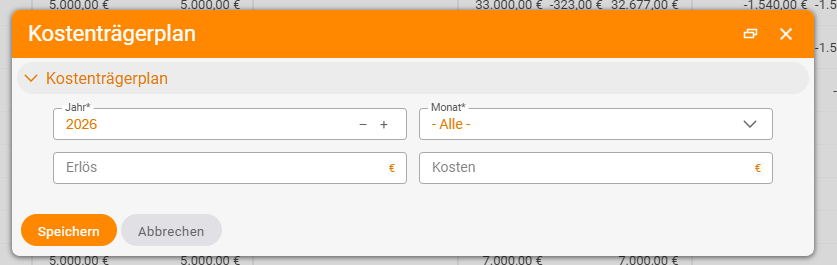
Actions, clickCost object plan(Cost centre planfor cost centres). - In the dialog, select the
Year*and, underMonth*,- All -for the whole year or a single month. - Enter the planned
Revenueand the plannedCostsand save. With- All -, the value is then entered in every month: €5,000 revenue therefore results in €5,000 per month, €60,000 per year. So always enter the monthly value, not the annual value.
Change a month
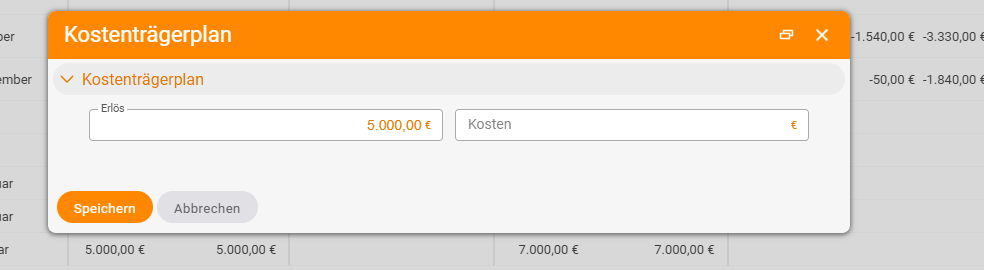
In the list, click the month you want to change (or the pencil icon at the end of the row). The dialog (Cost object plan or Cost centre plan) then only shows Revenue and Costs for exactly this month. This is how you adjust individual months after pre-filling the year with - All -, for example for holiday months with lower sales. Use the bin icon to delete a plan value. The plan total is shown below each year.
Tip: For cost objects, plan the CM from the quotation or the costing; for cost centres, plan the area’s budget. Plan salary cost centres so that they roughly come out at zero with realistic utilisation.
What the tab shows in the Details view
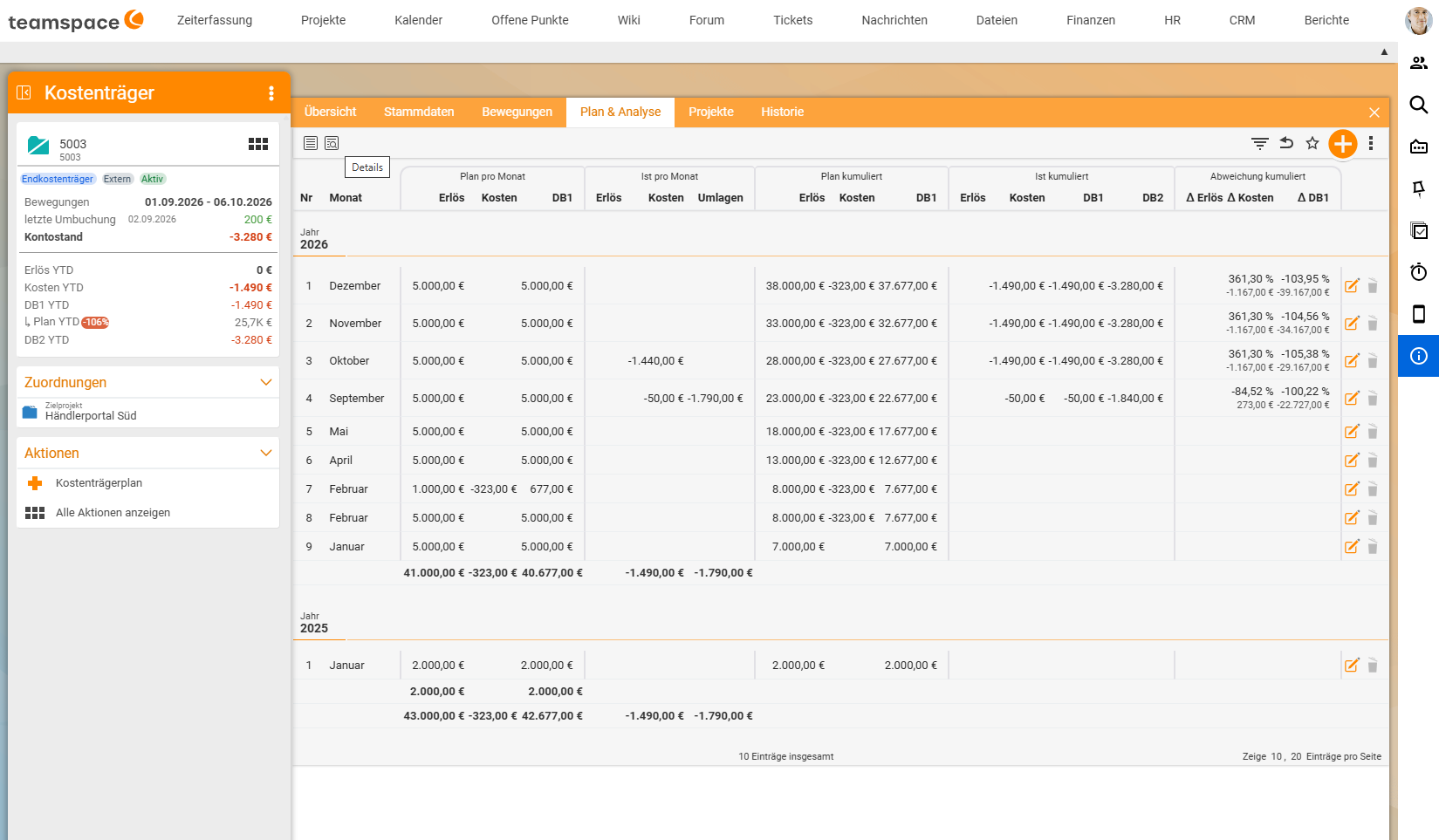
Use the view icon at the top left to switch to Details. The tab then shows the following per month:
| Column group | Columns | Meaning |
|---|---|---|
| Plan per month | Revenue, Costs, CM1 | what you expect for this month |
| Actual per month | Revenue, Costs, Allocations | what was actually posted and allocated |
| Plan cumulative | Revenue, Costs, CM1 | plan year to date |
| Actual cumulative | Revenue, Costs, CM1, CM2 | actuals year to date, with and without secondary postings |
| Variance cumulative | Δ Revenue, Δ Costs, Δ CM1 | variance in per cent and euros |
Read plan and actuals
Example cost object KLR-KT1, year to date:
| Plan | Actual | Variance | |
|---|---|---|---|
| Revenue | €600 | €2,000 | +€1,400 |
| Costs | −€350 | −€1,200 | −€850 |
| CM1 | €250 | €800 | +€550 |
How to interpret the signs:
- Positive variance in revenue: you earned more than planned.
- Negative variance in costs: you spent more than planned.
- Positive variance in the CM: the object is doing better than planned, despite higher costs.
The key is to look at the cumulative variance. A single month often fluctuates because invoices and costs arrive at different times. Only the trend since the start of the year shows a pattern.
Plan per customer
Via the target project, every cost object knows its customer. So plan, actual and variance are also available per customer, across all their projects and contracts (see Contribution margin I and II).
Notes
- The plan is a benchmark, not a posting lock. The signal is the variance, so it is worth having a fixed date on which area and project management review it.
- For projects there is also project planning with budget and forecast per phase in project management (see Project reports). The plan in the
Plan & analysistab is the cost accounting view of it.
Common problems
I cannot enter any plan values.
You lack the right Edit cost accounting elements (master data and plan data) for this object type.
The variance jumps sharply from month to month. This is usually due to accrual timing: an annual invoice, such as insurance, lands in one month. Read the cumulative variance or spread such costs across the months with a general posting.
The actuals of a service cost centre are zero after the turn of the month. The allocation has emptied it. So compare the actuals before the allocation (CM1) with the plan. The result after the allocation (CM2) belongs to the recipients.
Common questions & needs
| You want to … | How to |
|---|---|
| Plan a department’s budget | Detail manager of the cost centre → Plan & analysis tab → action Cost centre plan → enter the costs per month. |
| Store the planned CM of a project | Detail manager of the cost object → Plan & analysis tab → plus or action Cost object plan → Year*, Month* (- All - for the whole year), Revenue, Costs. |
| Change the plan for a single month | In the Plan & analysis tab, click the month and adjust Revenue or Costs. |
| See whether an area is on plan in the current year | Details view in the Plan & analysis tab: columns Actual cumulative and Variance cumulative. |
| Plan against actuals per customer | Evaluation via the target project of the cost objects. |
| Compare all areas side by side | Work with the cost accounting analysis. |