


In the project reports you analyse what has been worked on in your projects and how they stand financially. Three reports: Project times lists all booked times, Project time analysis aggregates them over time, Project analysis looks at the contribution margin.
The shared operating concept (quick filters, filter modal, Split/Show, drill-down, export) is described in Working with reports: filter and export.
Project times
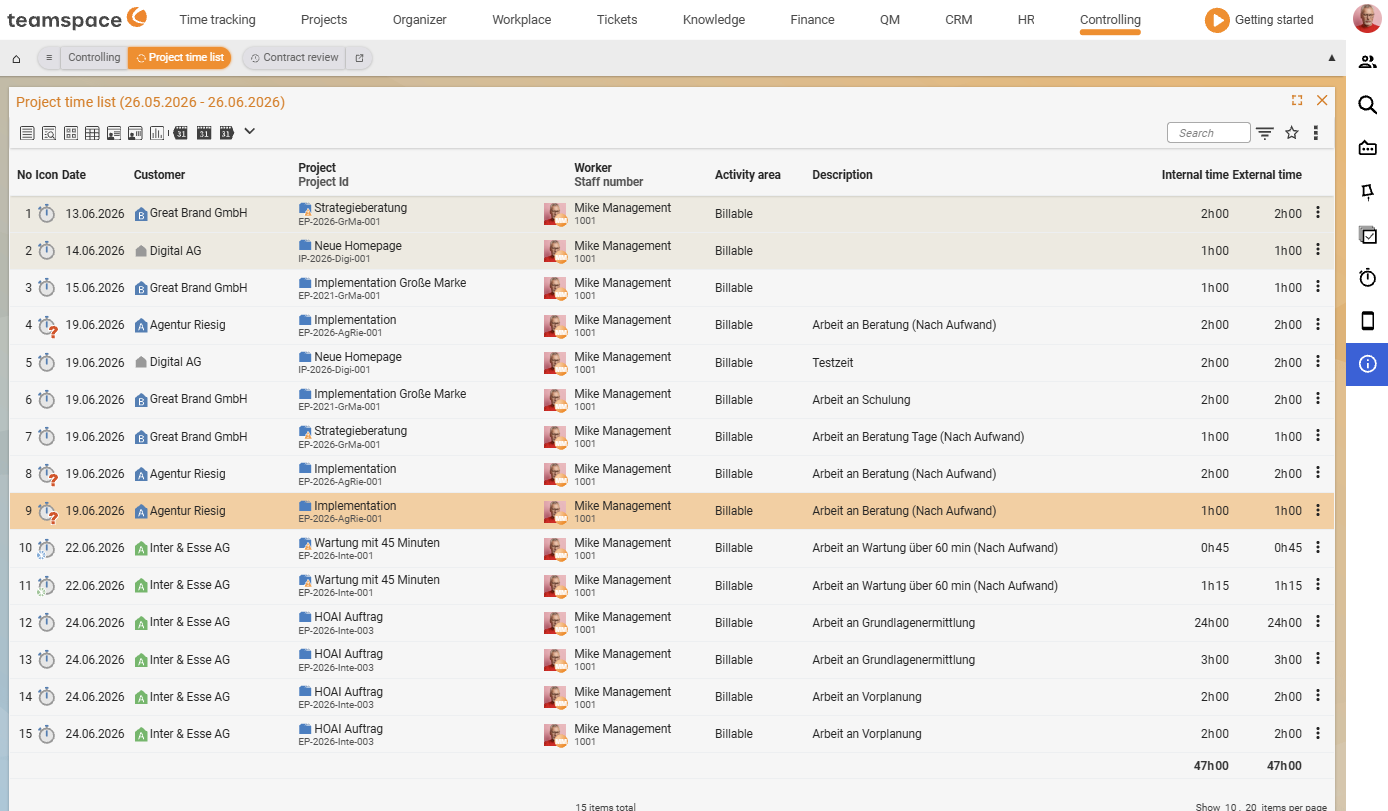
The Project times report shows all recorded project times and can serve as an activity report. It lists in detail all booked times including costs – this way you see, for example, the project times of the last month or split them by project.
Columns of the list are No., Date, Customer, Project (second line Project ID), Assignee (second line personnel number), Category, Description, Internal time, External time. The billing values appear within the Category column (e.g. Non-billable).
In the Settings and filters modal you control:
Split– breaks the list down by a criterion (e.g. date, project, area); for each split a separate list with a heading.Aggregate– determines which contents are pulled together per row. Options: subproject, area, category.Period– from/to date picker, filters by the period in which the times arose.Filters– accordions forProject time,Employee,Project,Billing,Assignments,Cost accounting,Timesheet.Billingsets the billing status a time must have in order to appear in the report.
The export settings decide whether the time units in the export appear in minutes, hours or days.
Via the cost-accounting filters you can show cost category, cost centre and cost object as active columns and filter by them – see Cost accounting (KLR).
Project time analysis
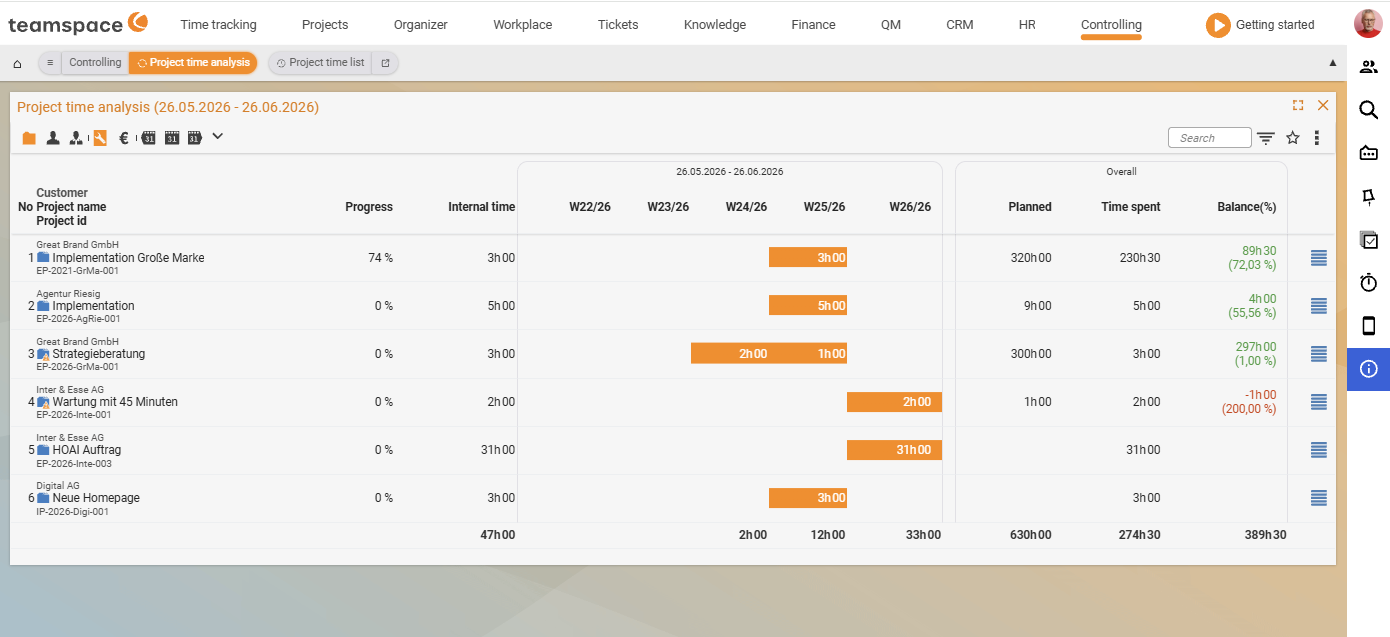
The Project time analysis is – unlike Project times – an analysis of cumulative values. You see how much time was booked to a project or a customer, broken down over time (day, week, month).
The columns name No., Customer, Project name (second line Project ID), Progress (bar), Internal time and weekly columns such as CW21/26, CW22/26, ending with a Total summary group with the sub-columns Planned, Booked, Balance (%).
Typical analyses:
- Weekly project times per project of the last month.
- An employee’s project work in the last month.
- Effort per customer in the same period.
- When filtering on a particular project activity: how much time per customer in meetings, consulting, etc.
In the filter modal you control via several main fields:
Show(underReport settings) – aggregation basis: projects, project types, customers.Split– breaks down byProjects,Assignees,Categories,AreasorOrganisation.Billing– sets which billing statuses a time must have in order to appear.
Via the report type Type of report you choose which values are calculated – e.g. Booked or Calculated costs (internal); further variants are calculated costs (external/balance), resource planning and count.
Project analysis
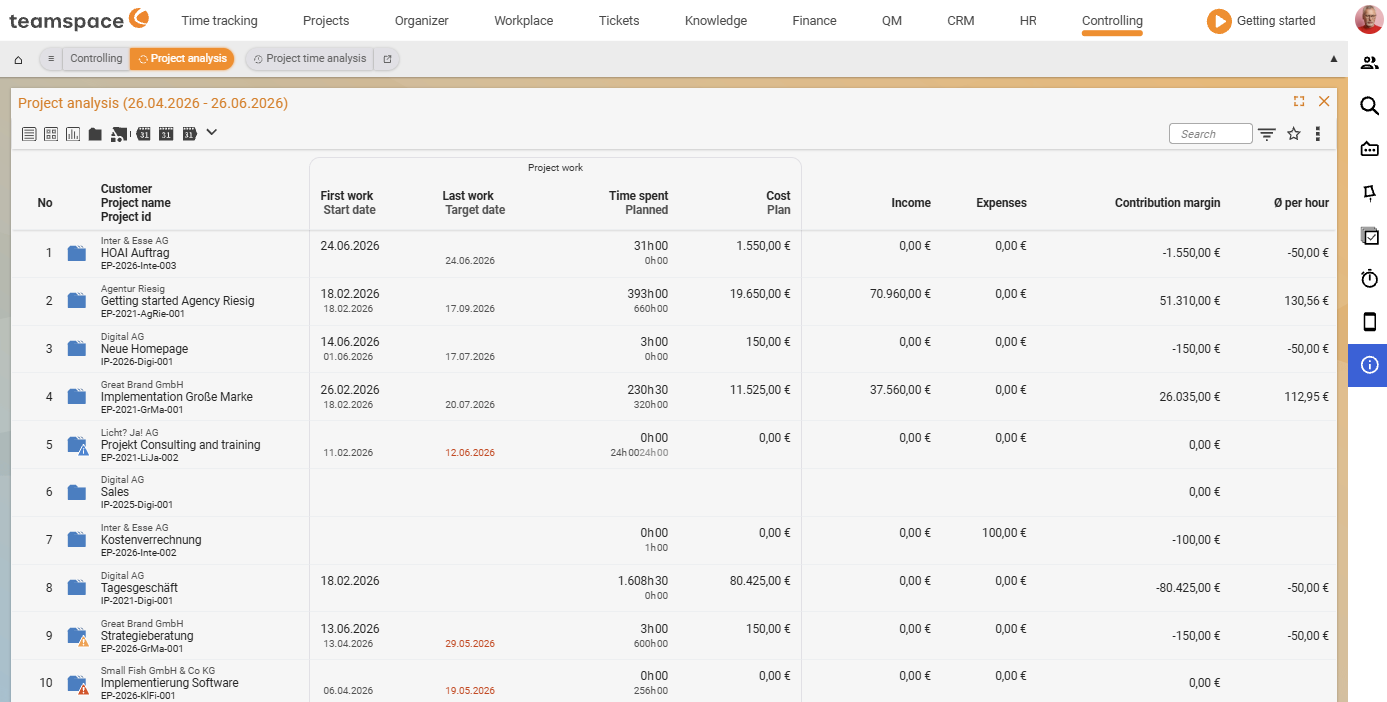
The Project analysis looks at projects in terms of their financial success. The project success results from working times, revenue and expenses; from this teamspace calculates the contribution margin and the average revenue per hour.
You can sort by contribution margin and so quickly recognise which projects are running best – or which are no longer worthwhile. Clicking a project shows the project details: you trace how the figures came about.
Important basis: the employee’s internal cost rate. You maintain it per period in the HR portal – it feeds into every calculation in which the labour costs are charged proportionally to the contribution margin. Setting up: Set up cost rates, commissions & ad-hoc reports.
Via the filters you decide how the project success is calculated: from bookings, documents or costs. If you filter by categories, areas or assignees, project times that don’t match are excluded.
The Employee analysis applies the same logic to the employee view (contribution margin by share per employee) – see Employee reports.
Common problems
Why does the contribution margin stay empty in the Project analysis?
The contribution-margin calculation needs employees’ internal cost rate – without it, the labour costs are missing. You maintain the rate per period in the HR portal; the setup is described in Set up cost rates, commissions & ad-hoc dispatch.
Why are recorded times missing from Project times?
The Billing filter determines which billing status a time must have to appear. If it is set too narrowly, times drop out. A set employee, project or category filter also hides non-matching times – when in doubt, click Reset in the filter modal.
Where do I activate cost centre and cost object as columns?
Via the Cost accounting filter accordions in Project times, you show cost category, cost centre and cost object as active columns and filter by them – background in Cost accounting (KLR).
Common questions & needs
| You want to … | How to |
|---|---|
| Create an activity report | Project times, set the period, optionally Split by project, then Actions → Excel report. |
| Know how much time a project cost | Project time analysis, Show = projects, show the “Calculated costs” report setting. |
| Find the most profitable projects | Project analysis, sort by Contribution margin. |
| See where the contribution margin comes from | In the Project analysis, click the project → project details. |
| Filter times by cost centre/object | In Project times, activate the cost-accounting columns and filter by them. |
| Calculate success based on documents instead of bookings | In the Project analysis, switch the calculation criterion (bookings/documents/costs). |
Related topics
- Working with reports: filter and export Controlling How-to
- Employee reports Controlling How-to
- Project controlling methods Controlling Concept
- Topic: Project management Project management
- Project controlling software