


The employee reports analyse the employee view: how much working time, leave and sickness arise, how employees are utilised and how much each contributes to profitability. In the current edition, Working time analysis, Working days, Capacity analysis and Employee analysis are visible as separate Controlling tiles; the others (Employee data, Commissions, Leave) are fully described here and sit, depending on edition, in the Personnel & HR module.
Note:
Working time analysis,Working days,Capacity analysisandEmployee analysisare present as separate Controlling tiles (Employee analysissits in the Bookmarks area in the block directly below “Finance”, together withProject analysisandCustomer analysis).Employee data, the commission report and the leave report appear in the current sandbox edition probably in the Personnel & HR module or in a different grouping. The exact location will be added via live check – the function itself is documented below.
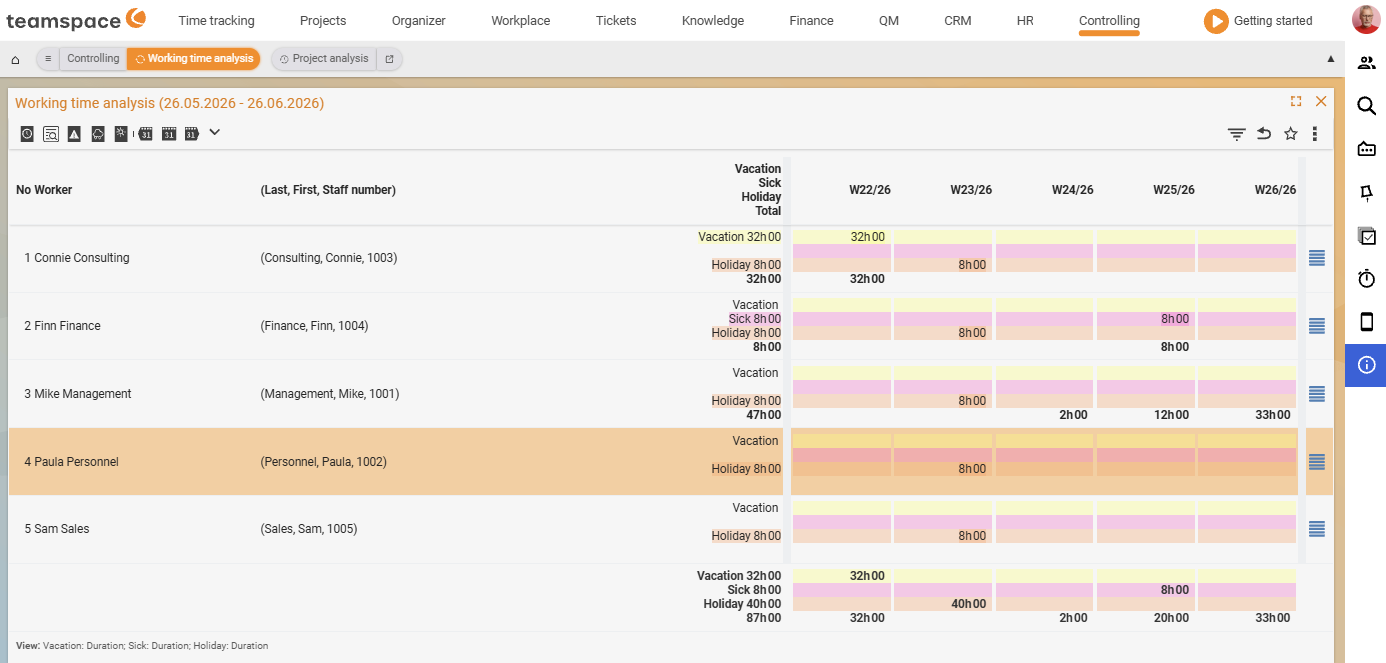
Working time analysis
The Working time analysis gives an analysis of working times over time. You see sickness and leave days and reconcile attendance and working time. It is a cumulative analysis – across days, weeks or months.
Via From and To you set the display period; all entries within it are shown. Columns of the table are No., Employee (sub-columns Surname, First name, personnel number), Total and CW columns such as CW15/26, CW16/26. With the assignee filter you show only the entries of a particular employee.
Working days
The Working days report lists, per employee and day, the booked hours plus the absence sub-columns Leave, Sick, Public holiday. While the Working time analysis shows the cumulative weekly totals, Working days goes down to the individual days – the two reports complement each other.
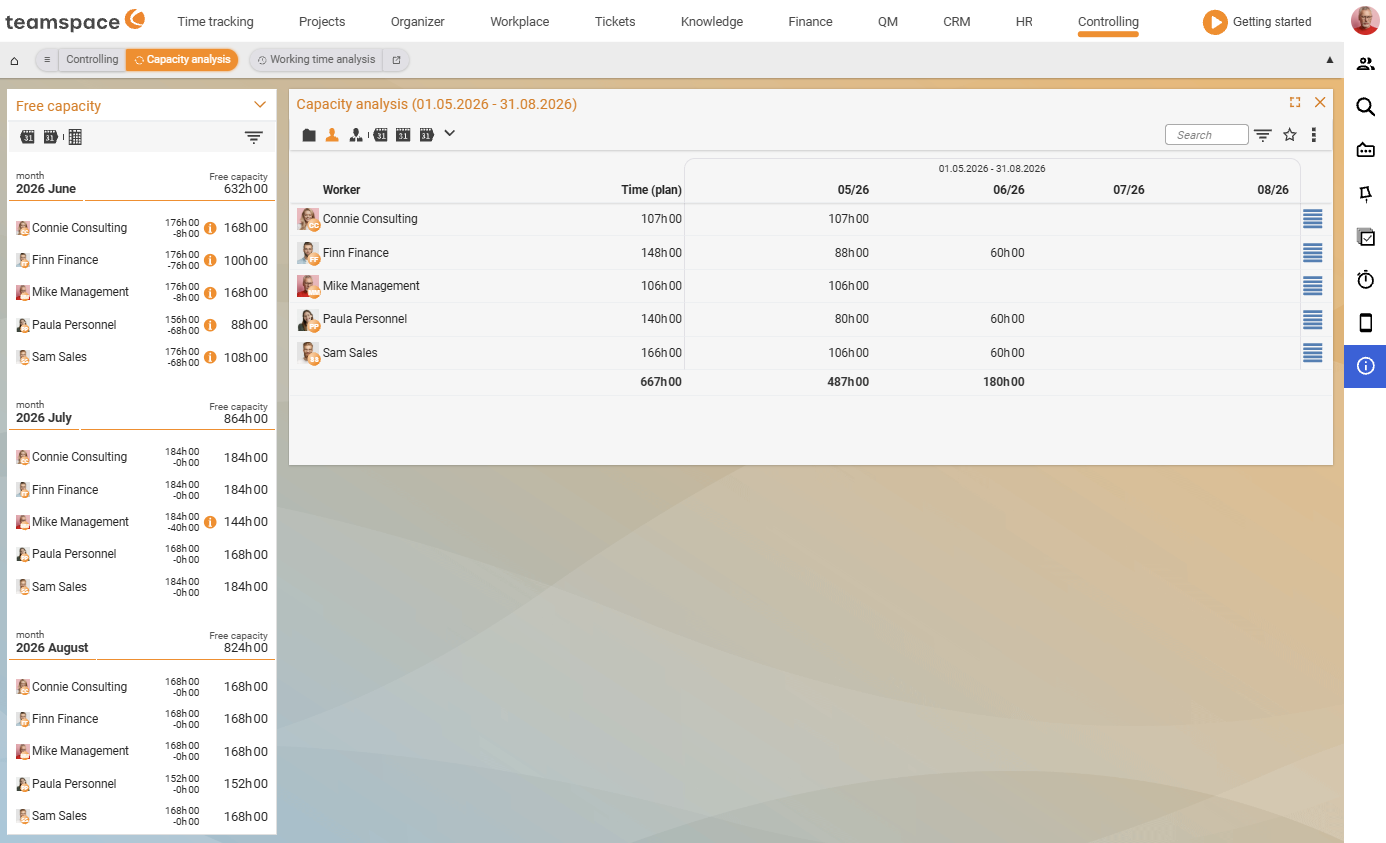
Capacity analysis
The Capacity analysis sets available capacities against what is planned. It shows employee rows with monthly columns and a left sidebar Available capacity.
Booked and planned activities appear, as do leave and sickness times. A capacity line illustrates the available capacities per day; the current day is highlighted by a dashed line, as are the weekends and public holidays of the respective employee. Via the drill-down icon on a row you go directly into the individual bookings.
Filters:
- Name – free-text field for the employee’s name.
- Show past – shows resource bookings that are already in the past.
The
Capacity analysiscorresponds to the analysis formerly known as “Employee utilisation” in a newer edition.
Employee data
The Employee data report captures the relevant baseline values of employees – hourly rate, workforce (e.g. a full-time position), weekly working hours – and maps their affiliation within the company. Via the checkboxes in the view area you show/hide columns. Key fields:
Area– the areas assigned to the employees.Category– the categories the employees are assigned to.Working time– working time in hours plus percentage.Hourly rate– internal and external hourly rate.
Via the filters you select subsets – by employees, departments, areas or categories.
Employee analysis
The Employee analysis shows how much each employee has contributed – that is, their contribution to the contribution margin. The analysis builds on the projects they were involved in, plus their share of them. If you want to analyse an employee’s work in a particular period, the activity/project time analysis is the right tool.
Most important basis: the employee’s internal cost rate (HR portal, per period). It calculates the costs and distributes the share of the positive contribution margin – proportional to the labour costs on the project. Setting up: Set up cost rates, commissions & ad-hoc reports.
With the filters you shape the report: contribution margins of the employees across all projects of a period; the contribution margin of a single employee for a particular project; Active between/and for the period in which projects must have been active. In addition you filter by customers, individual projects, project type, matching or contractor; employees can be shown by criteria such as internal/external.
Commissions
In the commission report, project times are assigned to the respective categories with a commission rate. If an employee records a project time under a category with a stored commission rate, the commission is calculated based on the order item. The report shows how much commission the employee can be paid based on their project times.
You set the commission rates in the configuration under
Projects→Categories– see Set up cost rates, commissions & ad-hoc reports.
Leave
The Leave report gives an overview of the leave days of each employee – how many days have already been taken and how many remain open in the current year. teamspace creates this report automatically (handy, for example, for reporting remaining leave at the turn of the year). You choose between a general leave summary for a period and a detailed listing; via the filters you narrow down to particular assignees.
In the Controlling module the leave report is not visible as a separate tile; the absences do, however, appear as sub-columns (
Leave,Sick,Public holiday) in theWorking daysreport.
Common problems
Why does the contribution margin stay empty in the Employee analysis?
It distributes the share of the contribution margin via the employee’s internal cost rate. If it isn’t maintained, teamspace can calculate neither the costs nor the share. You store the rate per period in the HR portal – see Set up cost rates, commissions & ad-hoc dispatch.
Why does the commission report show no commission?
Commission only arises when a commission rate is stored on the booked category and the project time matches an order item. You maintain the rate in Configuration under Projects → Categories – the setup is described in Set up cost rates, commissions & ad-hoc dispatch.
Why can’t I find Employee data, commissions or the leave report in Controlling?
In the current edition, only Working time analysis, Working days, Capacity analysis and Employee analysis are visible as separate Controlling tiles. The remaining reports sit, depending on the edition, in the HR module.
Common questions & needs
| You want to … | How to |
|---|---|
| Reconcile weekly working time per employee | Working time analysis, set From/To, optionally the assignee filter. |
| Check the hours of a single day | Working days – booked hours plus leave/sick/public holiday per day. |
| Find available capacities for the next project | Capacity analysis, “Available capacity” sidebar, optionally turn off “Show past”. |
| See an employee’s contribution to the contribution margin | Employee analysis – requires maintained internal cost rates. |
| Determine payable commissions | Commission report – store commission rates per category first. |
| Report remaining leave at the turn of the year | Leave report, year period, export the detailed listing. |
| Look up internal/external hourly rates | Employee data, show the Hourly rate column. |
Related topics
- Working with reports: filter and export Controlling How-to
- Project reports Controlling How-to
- Set up cost rates, commissions & ad-hoc reports Controlling Configuration
- Topic: Personnel & HR Personnel & HR