


The CRM & sales reports look at customers and sales: what pipeline you have, which activities are running, which customer brings which contribution margin. They comprise Sales opportunity analysis, Sales opportunities, Customer analysis, CRM analysis as well as Activity analysis/Activities, which analyse across modules.
Note: Where a report shows up – in which module, in which group, whether as a separate tile at all – depends on your tenant’s menu configuration. There is no statement about it that holds everywhere. If you are looking for a report, use the search or check the report overview; the function itself is described below independently of its location.
Sales opportunity analysis
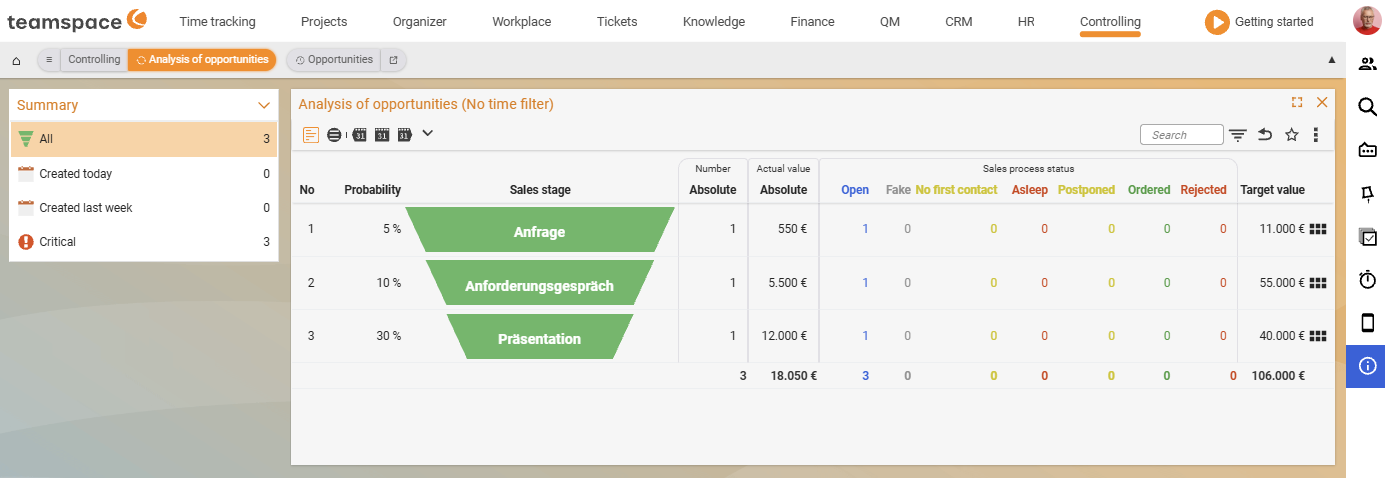
With the Sales opportunity analysis you see your opportunities split by stage and break the pipeline down. You recognise which opportunities are in which stage, what the current value per stage looks like and in which stage most of the potential customers currently sit.
In the table are the columns No., Probability, Sales stage, Count (sub: Absolute), Current value (sub: Absolute), Sales opportunity status with the sub-columns Open, Junk data, No initial contact, Dormant, On hold, Ordered, Rejected as well as a Target value column. The sales stages appear as funnel bars – typical values: Enquiry, Requirements meeting, Presentation.
On the left sits the Summary sidebar with quick filters All, New today, Last week, Critical (each with a count). Via the main filters you choose, for example, a period or target value; via the assignments you filter by customers or key account managers.
Sales opportunities
The Sales opportunities detail report gives an overview of all individual sales opportunities. You analyse each opportunity, see the current value and the stage it is in – including the opportunities of your key account managers. Via the filters you select specifically: the period sets when the opportunity was created or when you expect the revenue. Via the assignments you filter by customers or key account managers.
CRM analysis
The CRM analysis gives an overview of customer activities and sales performance and helps to assess future orders. The basis is all CRM activities, summarised by type and shown over time.
With the Split field you break things down by assignee or customer – alternatively for just a particular activity type or CRM status. In the report settings you show additional data: count, revenue, forecast. For quotes, the probability feeds into the calculation.
Customer analysis
The Customer analysis shows how your customers fare financially – based on the projects, their revenue and expenses. From this teamspace calculates the contribution margin and the average revenue per hour. This way you find out which customers bring the most revenue and which deliver the best contribution margin.
In the Show field you decide how the data appears:
- Cumulative – shows only the main customers.
- Departments – shows all customers with departments.
In addition you choose whether the project success is calculated based on bookings, documents and/or costs. Clicking the magnifier icon next to a customer opens the detailed individual bookings.
Basis as with the Project/Employee analysis: the employees’ internal cost rate (HR portal, per period).
Activity analysis and Activities
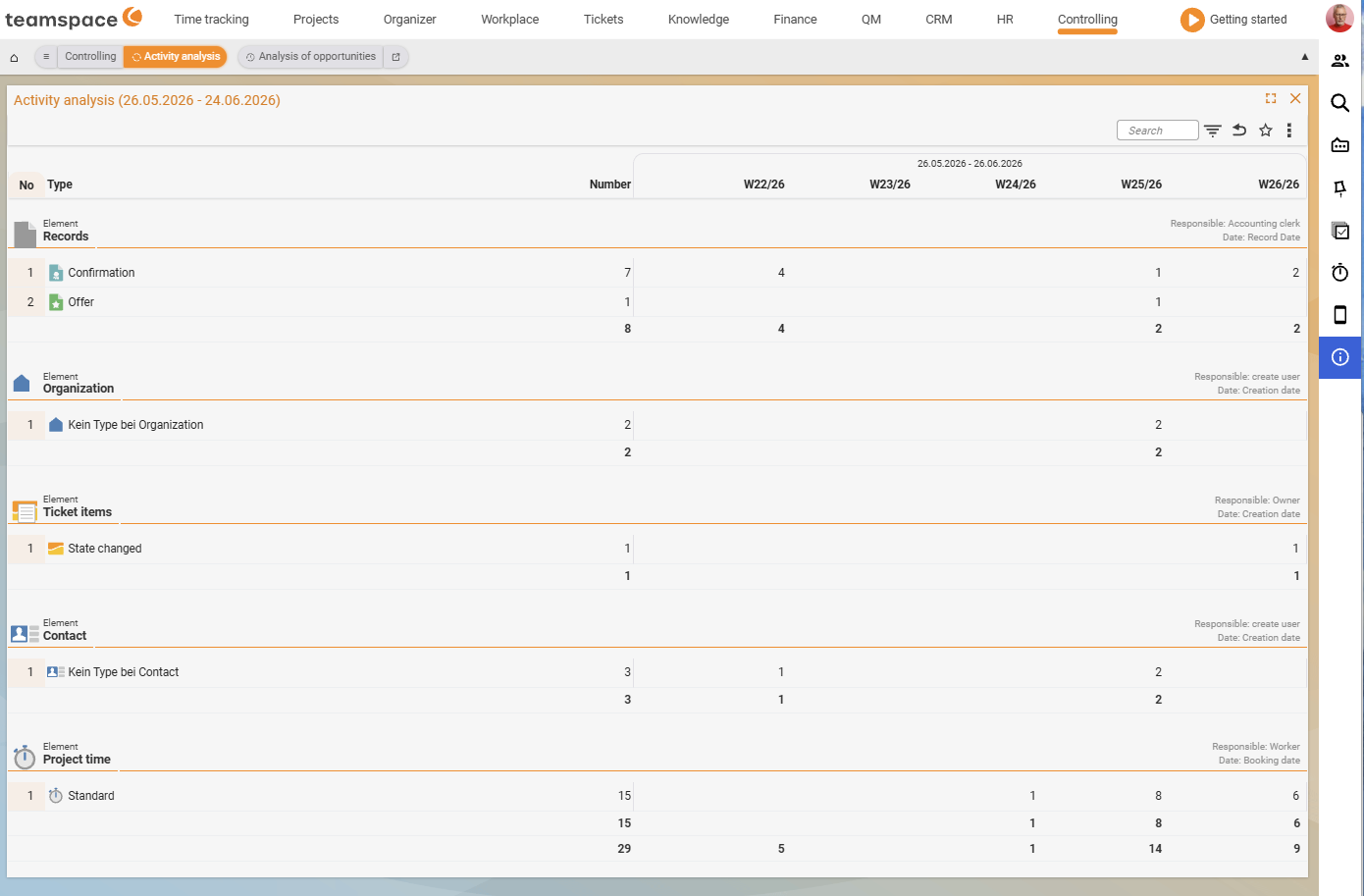
The Activity analysis is a pivot view over all customer activities across the modules – across element types such as Sales opportunity, Documents, Ticket elements, Calendar entry. Via drill-down you land in Activities, the detail list of all individual activities. This way you first analyse cumulatively what happened when, and then fetch the individual activities behind it.
Common problems
Why does the contribution margin stay empty in the Customer analysis?
Like the project and employee analyses, it calculates with employees’ internal cost rate. Without a maintained rate, the labour costs are missing and the contribution margin stays incomplete. You maintain the rate per period in the HR portal – see Set up cost rates, commissions & ad-hoc dispatch.
Why can’t I find a report where a colleague has it?
Because the menu is configurable: which module and which group a report sits in as a tile is decided by your tenant’s configuration – with the CRM analysis this stands out most often, because it hangs sometimes in Controlling and sometimes directly in the CRM module. There is no fixed place that applies to everyone. If a report is missing entirely, your permissions may be the reason as well.
Common questions & needs
| You want to … | How to |
|---|---|
| See where most prospects sit | Sales opportunity analysis – funnel bars per stage. |
| Check opportunities received today | In the Sales opportunity analysis, the sidebar quick filter New today. |
| Track a single opportunity in detail | The Sales opportunities detail report, optionally filter by customer/key account manager. |
| Analyse sales activities per assignee | CRM analysis, Split = assignee, report setting “Count”/“Revenue”. |
| Find the most profitable customer | Customer analysis, sort by contribution margin (internal cost rates required). |
| See all of a customer’s activities across modules | Activity analysis, then drill-down into Activities. |