


Two reports analyse your tickets. The Ticket report lists all tickets in one of four views and allows free column selection. The Ticket analysis summarises the tickets by assignee, customer or project. Via drill-down you jump from the analysis back into the Ticket report when you want to see the individual tickets behind a figure.
Note:
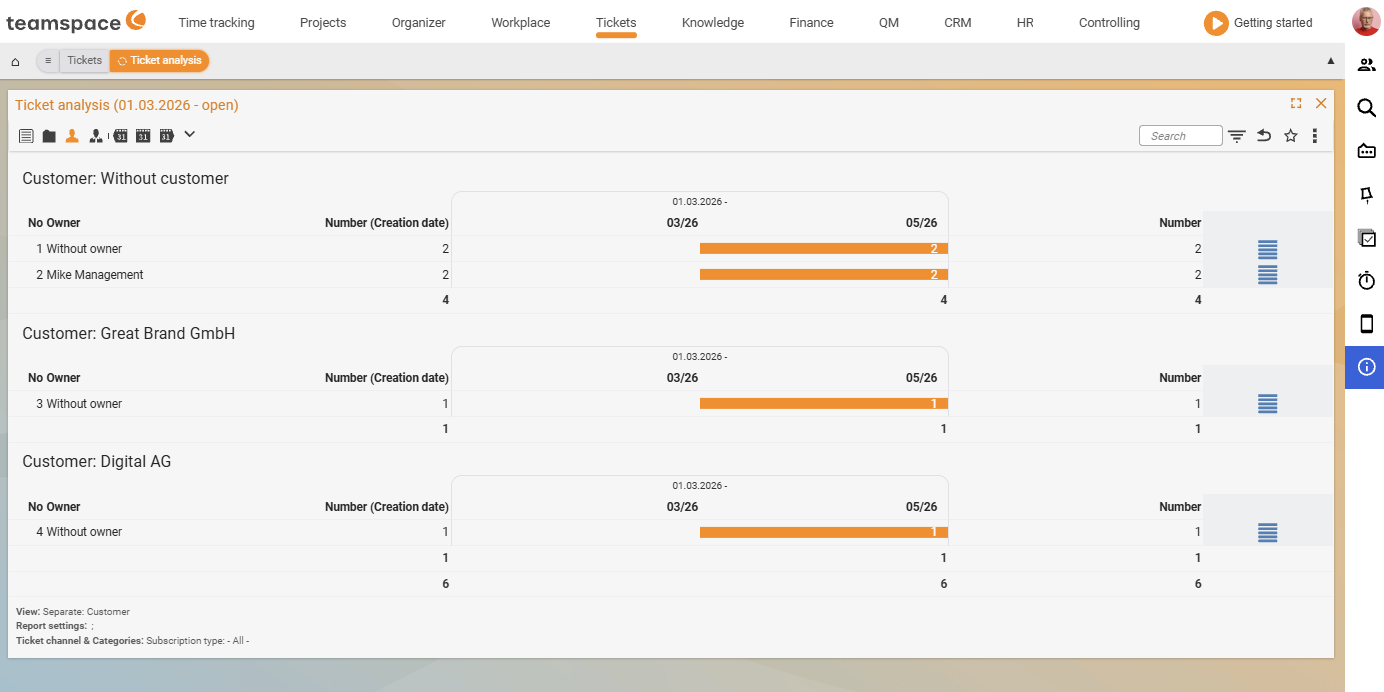
Ticket reportandTicket analysisare not separate Controlling tiles but sit in the Ticketing module – theTicket analysisis present there live (see the screenshot below, theTicket analysistab). The operating concepts below describe both reports in full.
Ticket report
With the Ticket report you get an overview of all tickets. Via the display quick filters at the top left you switch the view; five are available (Standard, Tile view, Details, Analysis, Statistics):
Standard– tickets grouped by aspects such as customers.Tile view– each ticket as its own tile.Details– when and by whom the ticket was created, when the last action was and who is responsible.Analysis– additional information: original channel, current channel, status, number of ticket elements.Statistics– statistical analysis of the tickets.
You filter the tickets by parameters such as status, owner or channel. Which columns appear you set individually: via the Add button under Active columns you choose from many categories. Which ones you get depends on your tenant’s configuration and your permissions – there is no fixed list. In addition you narrow down to tickets with a particular status, type or SLA status.
Ticket analysis
With the Ticket analysis you analyse tickets by various criteria. By default there are three views in the status bar:
- Number of tickets by assignee.
- Number of tickets by customer.
- Number of tickets by project.
This way you get, for example, an overview of the tickets by assignee or customer, or a detailed analysis by project. Further adjustments are made via the filters – for example only tickets with a particular status.
The Ticket analysis is linked with the Ticket report: via the drill-down icon on a row you go directly into the Ticket report. First you analyse the number of tickets per employee or customer, then you fetch the associated details.
Behind the ticket reports lies the ticket data from the service desk – including time booking, SLA traffic light and escalations. How tickets, channels and SLAs work is explained in the Ticketing topic.
Common problems
Why can’t I find the Ticket report and Ticket analysis in the Controlling module?
Neither is a separate Controlling tile; both sit in the Ticketing module – the Ticket analysis is available there as its own tab. The operation is the same as for any Controlling report.
Why is a column missing in the Ticket report?
You define the columns yourself: via the Add button under Active columns, you choose from many categories. If a particular one is missing, it is usually down to your tenant’s configuration or your permissions – both decide what is offered there in the first place.
Common questions & needs
| You want to … | How to |
|---|---|
| See all open tickets of a customer | Ticket report, standard view (grouped by customer), status filter “open”. |
| Go through tickets as tiles | Ticket report, tile view. |
| Who last responded, and when? | Ticket report, details view. |
| Number of tickets per assignee | Ticket analysis, “by assignee” view. |
| Jump from a figure into the individual tickets | In the Ticket analysis, click the drill-down icon → Ticket report. |
| Assemble your own columns | Ticket report, Active columns → Add; what is on offer depends on configuration and permissions. |
| Only tickets with a breached SLA | Ticket report, filter by SLA status. |