


An organisation is usually a company, but can also be a public authority, an association or a private household. It is the bracket around the contacts who work there and around everything you do with the company. You enter the address once on the organisation – every contact inherits it automatically. How organisation, contact and activity fit together is described in Organisations, contacts and activities – the data model.
List and filter
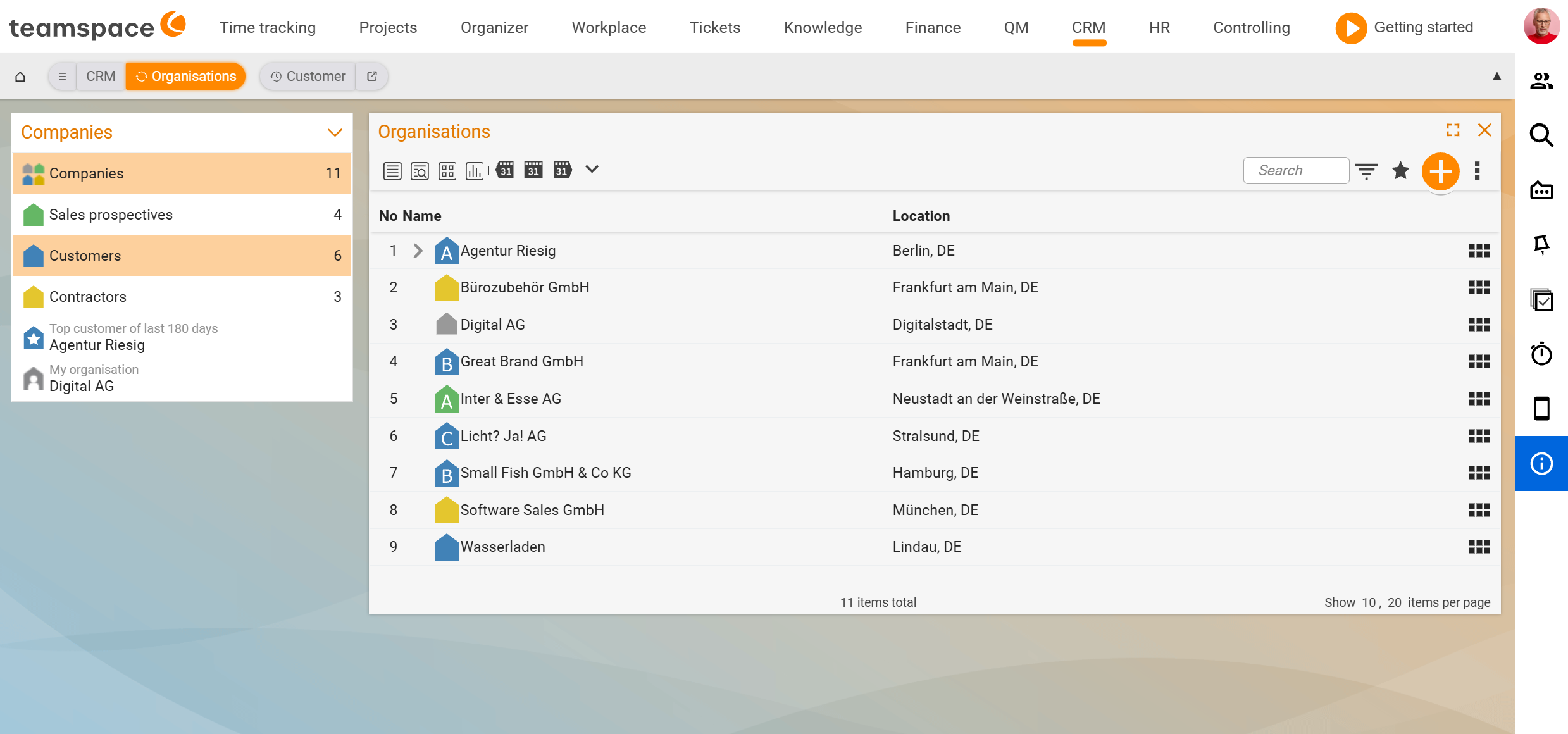
In the Organisations list tab you see all companies. Each row shows No., Name and Town. The sidebar on the left filters by relationship – Prospects, Customers, Suppliers – and offers quick filters such as Top customer of the last 180 days or My organisation. The filters are independent of each other: an organisation can be both a customer and a supplier at once.
1. Create a new organisation
Via the plus button to the right of the search field you create a new organisation. When creating it, a few fields are enough; the rest comes later in the master data:
Name(mandatory): the internal name under which you find the organisation. The address name for documents can differ – you set that later in theMain address and special emailsarea.- Abbreviation: a short code for the project number generator and other assignments.
Relationship to the organisation: leave it onAutomatic. teamspace sets the relationship itself as soon as a document or project arises – an invoice or customer project makes the organisation a customer, an incoming invoice or purchase order a supplier.- Parent organisation: links the new organisation as a subsidiary of one already created – this is how you map holding and department structures.
ℹ Info: You can also create an organisation directly from the contact dialog when you are creating a contact and its company does not yet exist. You land in a short creation step for the organisation and then return to the contact.
2. The detail manager of the organisation
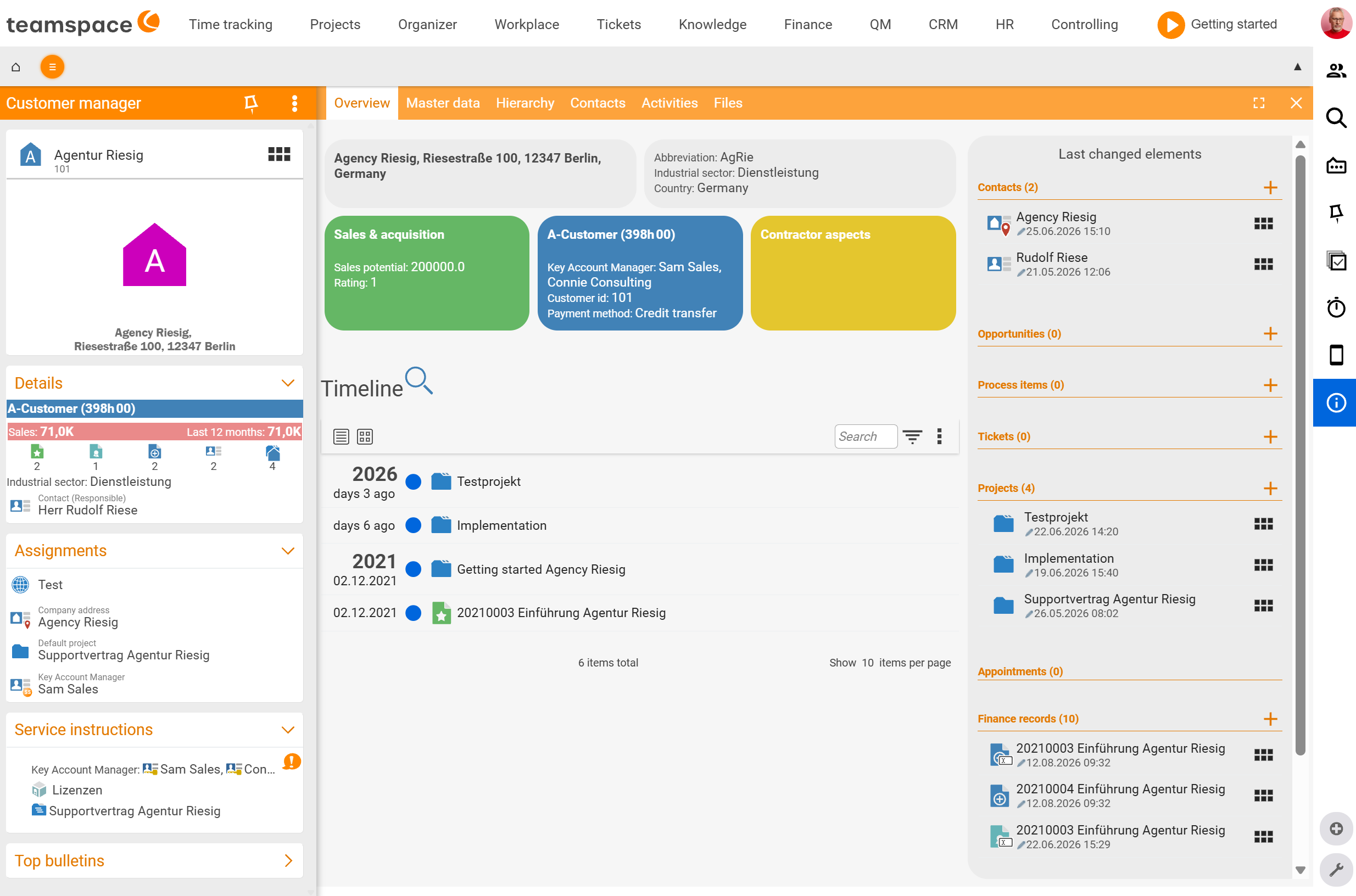
A click on a row opens the detail manager: the row of tabs at the top, the sidebar with the status block and actions on the left, the active tab in the middle.
The tabs (order in the UI):
Overview– a quick look at revenue, rating, industries and ABC badge, plus, on the right, the element types that were last moved.Master data– the areas that represent the business relationship and address data.Org chart– view and edit parent/subsidiary structures.Contacts– all people who belong to this organisation.Activities– activities, appointments, tickets, documents, times, projects – everything that has happened with the company.Files– a separate filing area per organisation.
Overview
The Overview shows the ABC class and revenue on the left, in the middle the Sales aspects and Supplier aspects areas with the most important values (Revenue potential:, Rating:). On the right sits the Recently edited elements box with types such as Contacts (n), Sales opportunities (n), Activities (n), Tickets (n), Projects (n), Appointments (n), Documents (n), Files (n). A click on a type filters the view to that element type.
3. Maintain master data
The master data holds the data that distinguishes the organisation from others. It is split into several areas:
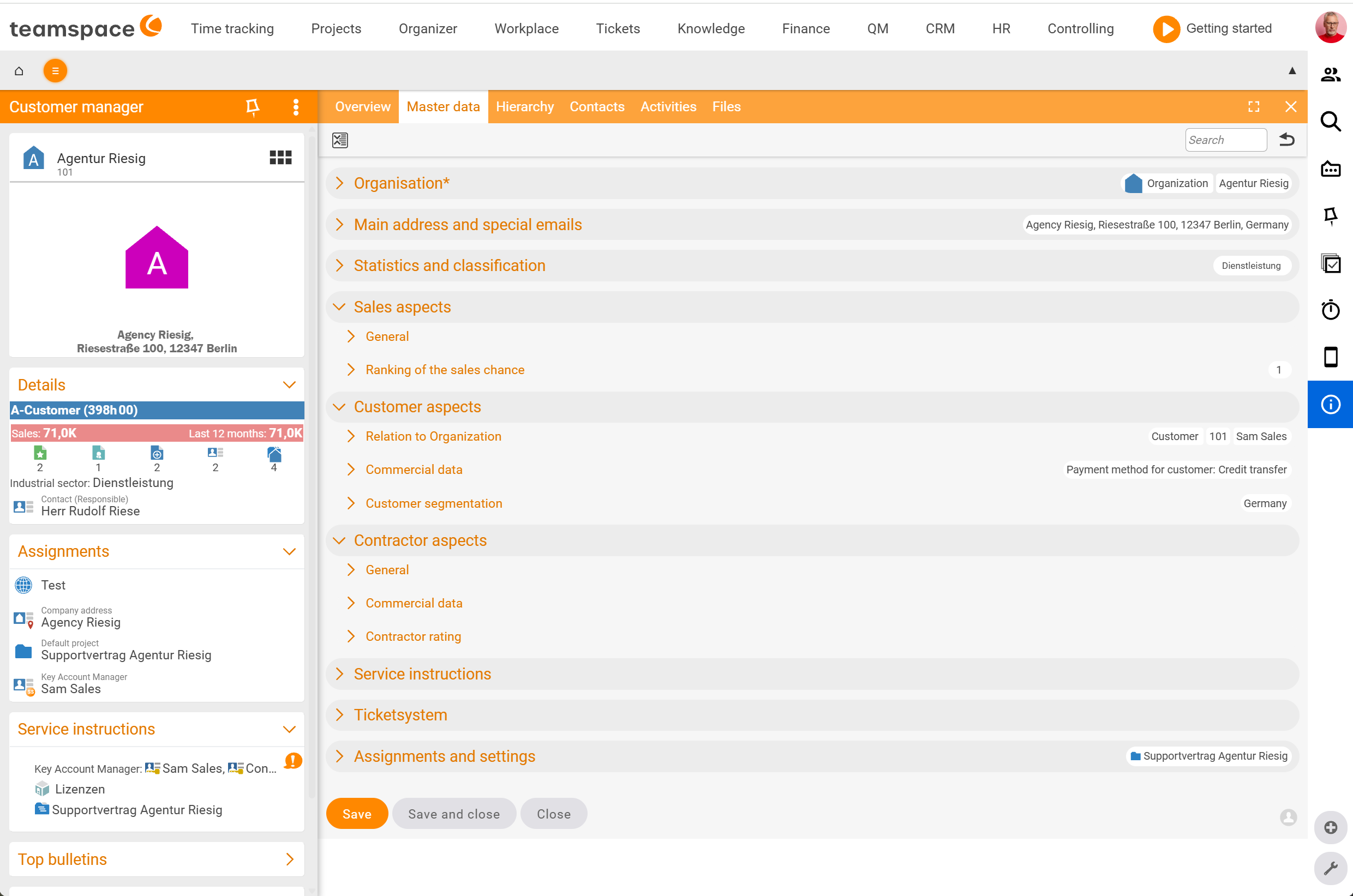
Main address and special emails: company address, phone, homepage and dedicated email addresses (e.g. a separate invoicing email). If the organisation has several addresses, you mark one as the invoice and one as the visitor address. If the field is onStandard, the address is that of the main contact.Statistics and classifications: industries (several possible), employee size category, date fields for the last and next classification. You maintain the selection values for industry and size in the configuration.Sales aspects:Revenue potential, sales aspect selection, customer requirements. TheRevenue potentialis the estimated revenue you expect with the organisation – the basis of the prospect ABC if the rating model is set to it.Customer aspects:Relationship to the organisation,Key account manager,Service Level Agreement (SLA), VAT/VAT ID,Customer categories, accounts-receivable number. You can set theKey account manageras the only authorised viewer if you want to shield data from the rest of the team.Supplier aspects: setting the supplier status toAutomaticlets teamspace set the relationship as soon as an incoming invoice or purchase order arises. In addition there are checkboxes forNDA (non-disclosure agreement)and signed terms and conditions, plus three rating selections:Cost,Quality,Time. You define the possible values and the rating model in the configuration.Service note: short notes that travel with the organisation – see below.
If you need fields that teamspace does not provide, you create them in the CRM configuration as custom fields. How to do this is described in Set up the CRM: fields, rating models and activity types.
⚠ Caution: The
Generate customer numberaction is only worthwhile once you are sure the organisation will become a customer. Leaving it onAutomaticis the easier way, because teamspace then assigns the number itself as soon as the first invoice or first customer project arises – important, because many charts of accounts only allow six-digit accounts-receivable numbers.
4. Build the org chart
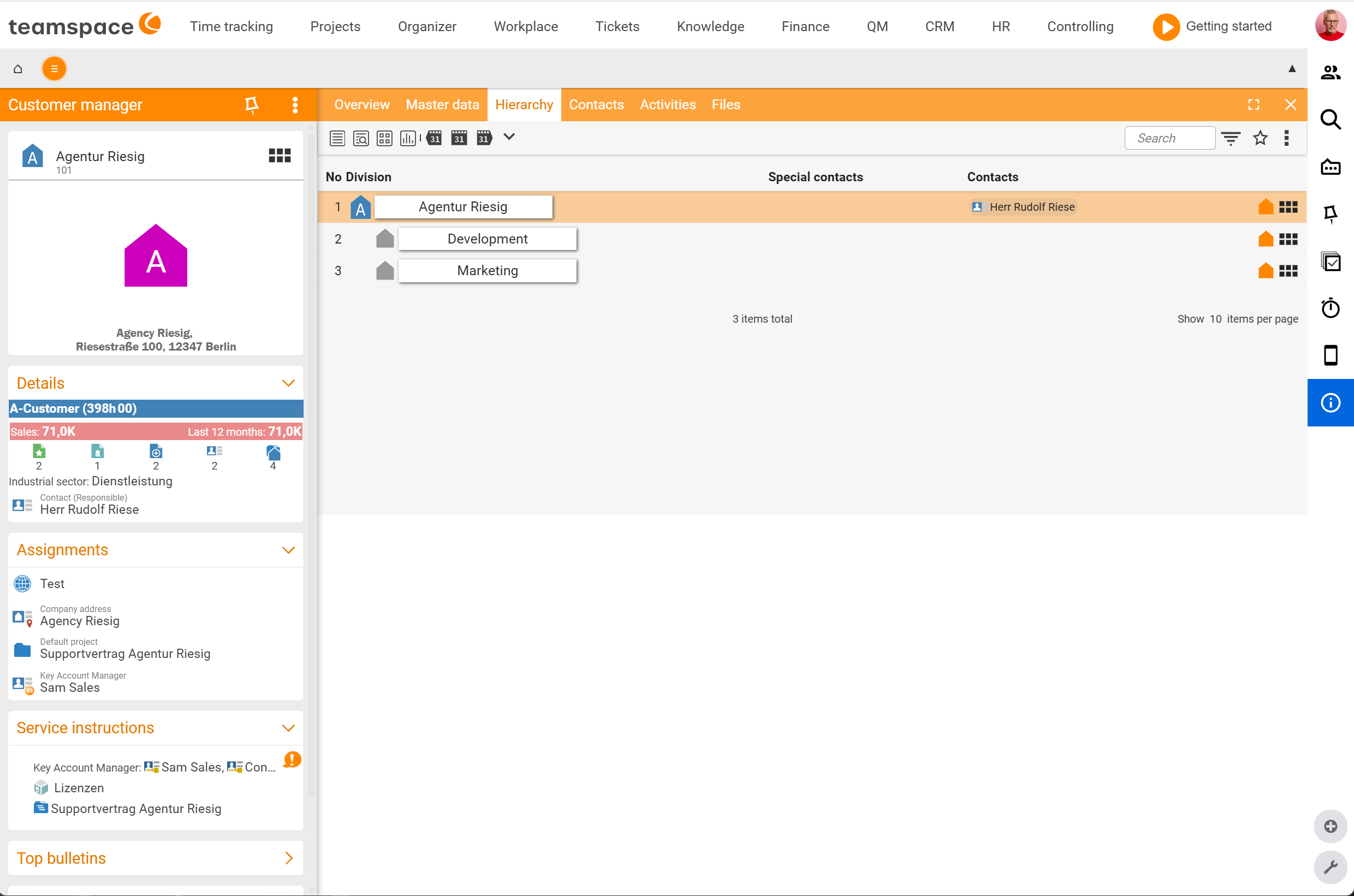
The Org chart shows an organisation together with its departments (and, where present, parent/subsidiary organisations). You can edit it directly in the tab – add nodes via Create new department or move organisations. This makes it clear at a glance which departments belong to an organisation and who the contacts there are.
5. Activities and files
While in the detail manager of an individual contact you only see its activities, the Activities tab on the organisation collects everything: activities, sales opportunities, projects, tickets, emails, appointments, documents, costs, times. No matter who in the company created the activity – if it is attached to a contact of this organisation, it appears here.
Each organisation also has its own filing area (Files tab). Project-related files can be made to flow automatically into matching subfolders if you enable this in the configuration.
6. Actions on the organisation
At the very bottom of the left sidebar is the Actions section. Three are visible; you open all the others via Show all actions. In the dialog they are grouped by area:
General:Details,Delete,Link,Files,New image.Management:Generate customer number,Create new department,New contact,New project,Create ticket,New sales opportunity,Service note.Finance:New posting,New document.Time tracking:Book time,Start work.Files:New document.
Service notes and default project
A service note is a note that appears directly below the organisation’s info box and is not overlooked – such as “only pays after dunning level 2”. Via the configuration you decide where the note becomes visible: only in the organisation, in the ticketing system, in documents, in projects. Details in Key account managers, VIPs and service notes.
In the Customer aspects you can assign a default project to the organisation. It is automatically suggested for every new ticket from the customer mailbox and when booking times from the contact business card – so the time ends up on the right project straight away.
Common problems
Why does every organisation immediately get an accounts-receivable number?
The Relationship to the organisation is probably forced to Customer, or you triggered Generate customer number manually. Leave the relationship on Automatic – teamspace assigns the number only with the first invoice or the first customer project. This matters because many charts of accounts only allow six-digit accounts-receivable numbers, so you would otherwise use up the limit prematurely.
Why does a company stay a “prospect” even though it has long since ordered?
The relationship was set manually to a fixed value. teamspace no longer changes a forced relationship on its own. Reset it in the Customer aspects to Automatic so that the first invoice makes it a customer automatically.
How do I send invoices to a different address from the visiting address?
In the Main address and special emails area, enter a second address and mark it as the invoice address. If the address field is on Standard, the main contact’s address is used.
Common questions & needs
| You want to … | How to do it |
|---|---|
| Map a company with several sites | Create the head organisation, link the sites as subsidiaries via the Parent organisation field; visible in the Org chart tab. |
| Send invoices to a different address | In the Main address and special emails area, mark a second address as the invoice address (instead of Standard = main contact). |
| Prevent every organisation from getting an accounts-receivable number | Leave Relationship to the organisation on Automatic – the number arises only with the first invoice/the first customer project. |
| Make an important note visible everywhere | Set a Service note in the master data and define the visibility (ticket, document, project) in the configuration. |
| Additional fields that teamspace does not provide | Create custom fields in the CRM configuration (see Set up the CRM). |
| See what the whole company last did with the firm | Open the organisation’s Activities tab – it collects the activities of all contacts. |