


With deletion deadlines, teamspace identifies contacts that must be removed from the system under the GDPR – because there has been no activity for a defined time and there is no longer any reason to keep storing their data. You create the deadlines in the configuration, teamspace regularly checks which contacts reach a deadline and offers them to you for anonymisation or deletion.
⚠ Caution: Deletion deadlines propose, they do not delete on their own. You trigger the deletion deliberately. This keeps you in control and lets you decide per contact. Deletion deadlines also do not replace a legal review – which deadline fits which contact type (B2B, B2C, employee data, applicants) belongs in a data protection assessment, not in this help document.
What a deletion deadline does
A deletion deadline has two jobs:
- Identify: who has had no activity for months or years – no item, no email, no appointment, no open ticket – and therefore fits the deadline’s pattern.
- Propose: teamspace shows these contacts in a suggestion list so that you can process them in bulk.
1. Create a deletion deadline
The deadlines are in the configuration of the CRM module: via the avatar menu under Administrator mode → System configuration → category CRM → Deletion deadlines. Via the plus button you create a new deadline.
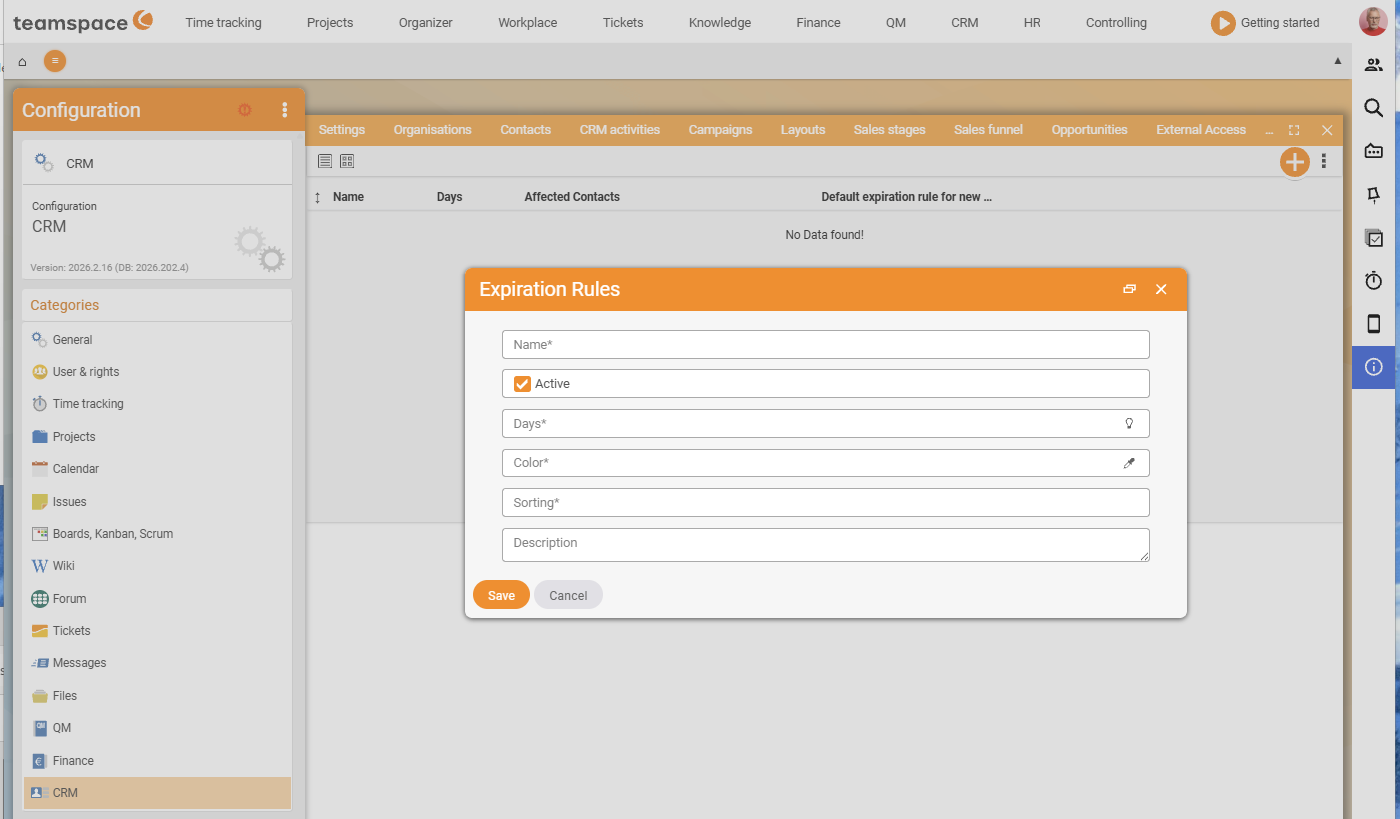
Per deadline you define:
- Label: what the deadline applies to – “Applicants without employment”, “Customers without an invoice for 5 years”, “Prospects without a sales opportunity for 3 years”.
- Period: how long without activity before a contact is proposed.
- Criteria: which contacts the deadline applies to – such as only a certain contact category, a status or a source.
You can create any number of deadlines. A contact can fall under several deadlines and then appears in several evaluations; which one you apply you decide when processing the suggestion list.
2. Check and run the suggestion list
Once a deadline is reached, teamspace gathers the affected contacts in a suggestion list. You check it row by row and usually have three options per contact:
- Anonymise: personal data (name, address, phone, email) is removed; statistical traces (activity count, revenue history) are kept anonymously. The GDPR-compliant route when you want to keep historical evaluations.
- Delete: the contact is removed completely – personal data and activity history disappear.
- Keep: you mark the contact as checked and exempted – for example because of an ongoing warranty or another retention obligation. It drops out of the suggestions for its duration.
ℹ Info: Anonymising is not reversible. Once the personal data is gone, it cannot be recovered from a backup without reproducing the GDPR conflict. If in doubt, set the contact to
Keepfirst and check with legal advice.
3. What is anonymised, what stays
When anonymising, teamspace removes all fields that point to a specific person – name, address, phone, email, date of birth, personal notes. Anonymous traces remain in the statistics:
- Activity count per period – you still see how many CRM activities ran, without people being identifiable.
- Revenue history of the assigned organisation – invoices from previous years stay in the accounts, but are tied to the organisation record, not to a person.
- Ticket history – if tickets ran via the contact, they stay visible with an anonymous originator.
This keeps what the GDPR allows: personal data gone, statistical evidence of business activity retained.
Example: applicant data after a rejection
Pia Personal manages applicants who did not get a contract. The data protection assessment says: applicant data may be kept for six months after a rejection, after which it must go.
- Pia creates a deletion deadline “Applicants without employment – 6 months”. Criterion: contact category
Applicant, no employment activity. Period: 6 months without activity. - After six months without further activity, the applicants appear in the suggestion list.
- Pia checks each entry: for one there is still an unresolved query with the data protection officer – she sets that one to
Keepwith a note. The others she anonymises. - Result: the statistic “47 applications in Q1 2025” stays, the personal data is gone.
Common problems
Does teamspace delete the contacts automatically once the deadline is reached? No. Deletion deadlines suggest, they do not delete on their own. teamspace gathers the affected contacts in the suggestion list; you trigger the actual anonymisation or deletion deliberately, per contact. That way you stay in control.
Can I undo an anonymisation?
No, anonymising is not reversible. Once the personal data is gone, it cannot be restored from a backup without reproducing the GDPR conflict. If in doubt, set the contact to Keep first and check with your legal advisers.
A contact appears in several suggestion lists – is that an error? No. A contact can fall under several deadlines and then appears in several analyses. You decide which deadline to apply when working through the suggestion list.
Common questions & needs
| You want to … | How to do it |
|---|---|
| Have inactive contacts found automatically | Create a deletion deadline with a period and criteria; teamspace gathers the matches in the suggestion list. |
| Keep evaluations but remove personal data | Anonymise the contact instead of Delete – statistical traces remain anonymously. |
| Retain a contact despite the deadline | Set it to Keep in the suggestion list (e.g. because of an ongoing warranty). |
| Map different retention rules | Create several deadlines with different criteria/periods – a contact may appear in several. |
| Dispose of applicant data after a rejection in a legally sound way | A deadline with the category Applicant and a suitable period, then anonymise in bulk. |
Related topics
- Create and manage contacts CRM How-to
- Set up the CRM: fields, rating models & activity types CRM Configuration
- Create and manage organisations CRM How-to