


An activity documents an action with a contact, an organisation or a sales opportunity – call, appointment, quote, email, presentation. It has a Date (when it is to take place or took place) and a Completion date (when it is done). If the completion date stays empty and the date slips into the past, the activity becomes a follow-up for the responsible employee – your daily call list of outstanding tasks.
ℹ Rule of thumb: An activity is something I did and that is documented. A follow-up is something I still have to do – in the system these are also called follow-up elements. It is not an appointment: an appointment takes place at a fixed time (“call on 21 June at 14:00”) and lands in the calendar; a follow-up is the open promise “from 21 June onwards I should stay on it”, until it is done.
The three groups of activities
Activity types can be sorted into three groups:
- Soft activities: enquiries, socialising, acquisition, following up – relationship building, usually with a date and keyword, without a monetary value.
- Hard factors: need, quote, order, cancellation – business-relevant, often with revenue figures. For quotes a probability can be stored that feeds into the pipeline valuation.
- Internal matters: status updates, internal questions, notes – impressions about the contact that are not tied to a specific action.
A special form is the status activity: it is only available within a sales opportunity and switches its status (open, rejected, commissioned and others). It is not a relationship activity, but the switching tool of the sales process (see Topic: Sales opportunities).
Which activity types are available depends on the configuration. In the detail manager you see the four to five most common directly at the plus button; the admin enables further (“passive”) CRM activities in the configuration under Configuration → CRM → CRM templates (see Set up the CRM).
1. Create an activity
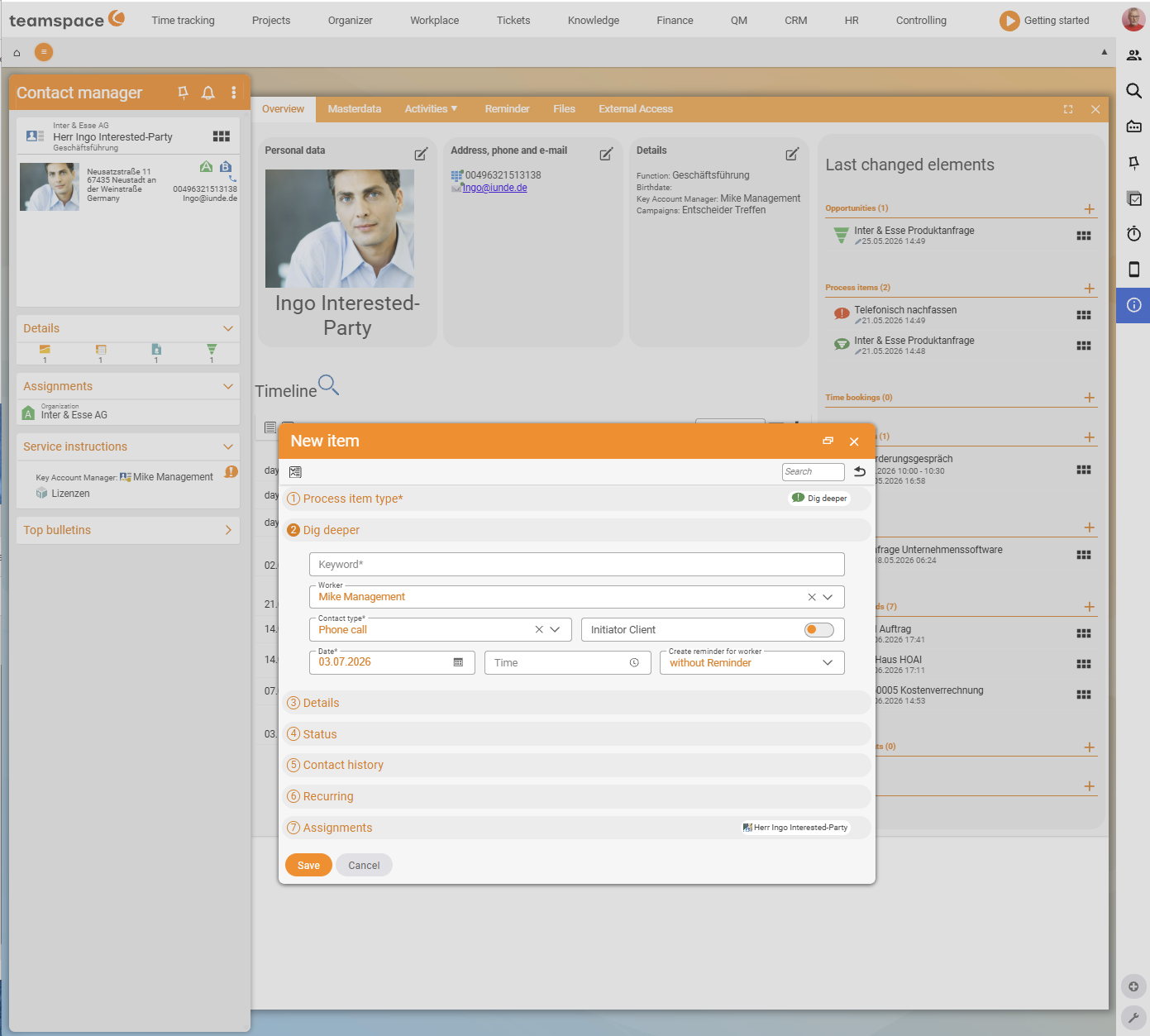
In every detail manager that can collect activities – contact, organisation, sales opportunity – the Actions section sits at the bottom of the left sidebar. Open the dialog via the plus at Activities (or directly via the matching activity type, such as Follow up by phone). Alternatively, you can create the activity in the Activities tab.
Depending on the type, the dialog differs slightly. All have in common:
Date: when the activity is planned or took place.Keyword(or label): a short title that appears in the list.- Description: a more detailed text – what happened or what needs to be done.
Completion date: empty = open, set = done.
As soon as you save, the activity is attached to the contact and automatically to its organisation as well; created on a sales opportunity, it additionally appears there.
2. The date/completion-date mechanism
The mechanism is simple but carries the whole follow-up:
Datein the future,Completion dateempty → planned activity, marked yellow: something is coming.Datein the past,Completion dateempty → overdue, marked red; appears in the follow-up list: there is something you still need to do.Completion dateset → done; disappears from the open tasks but stays permanently in the history.
There is no separate “follow-up” status – it arises solely from the relationship between Date and Completion date.
3. The follow-up list
In the Follow-ups list tab you see your open activities in one view – like a daily call list. Each row shows Keyword, Date, Activity type, Status, Company, Contact and Priority.
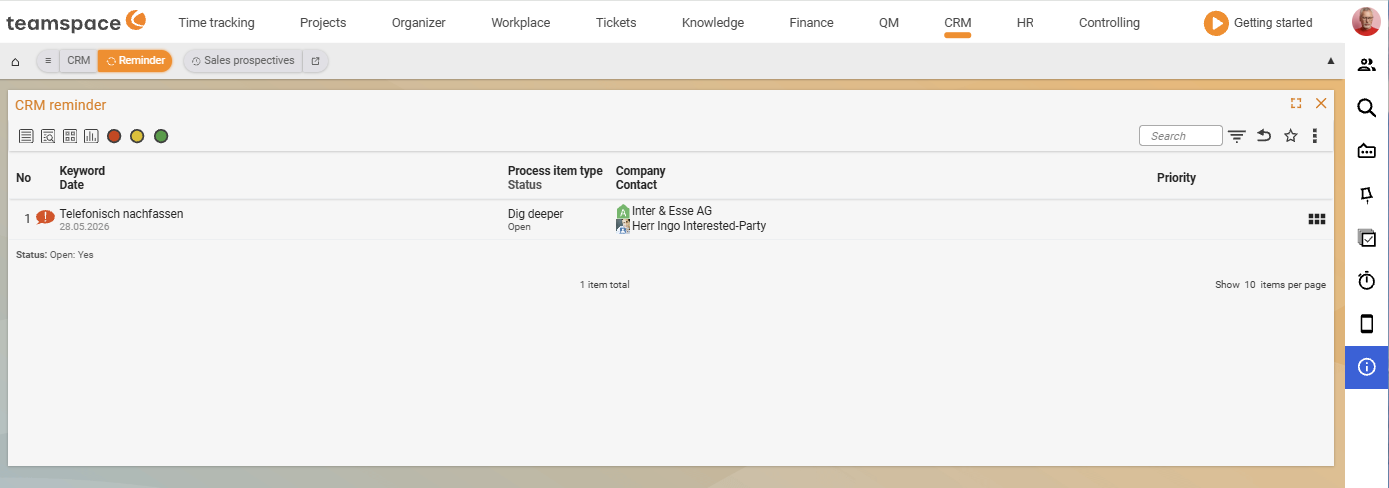
The “already tried today” filter is handy: it hides any contacts you have already tried to reach today. What remains are the follow-up tasks still waiting. A typical run looks like this:
- You open
Follow-upsand set the filter to “not yet tried today”. - First row: click the handset on the left → if telephony is set up, teamspace dials straight through the headset.
- No one reached → document a call attempt via the plus. The activity stays open, and the attempt is recorded with a timestamp.
Save and close. - Second row: contact reached, but declined → set the
Completion date; the activity drops out of the list but stays in the history. - Third row: no time left today → it is back at the top tomorrow.
Anyone using the telephony integration dials directly from the list, and the attempts are documented automatically in the activity. The configuration path for setting up telephony is described in Set up the CRM.
4. Status activities in the sales opportunity
If you click New status in a sales opportunity, you do not create a relationship activity, but switch the opportunity to a new funnel status – for example from Enquiry to Quote or from open to rejected. With each change the probability changes and with it the current value; if it goes to rejected, it falls out of the pipeline and the associated prospect is re-ranked in the ABC classification (see Prospects, customers and suppliers).
5. Where activities become visible
- On the contact in the
Activitiestab and in the overview timeline. - On the organisation in the
Activitiestab – everything that happens on any contact of the organisation is collected here. - On the sales opportunity, if the activity was created there.
- In the follow-up list for each responsible employee, as long as the activity is open and overdue.
- In the
CRM analysisfor evaluation (who handled how many activities, which types dominate) – see CRM reports and analyses.
ℹ Info: Appointments, tickets, documents and projects are teamspace elements in their own right, not CRM activities. They appear on the contact and on the organisation in parallel, but you do not see them in the
CRM analysisfilter – for that there is theActivity analysisin Controlling, which combines all element types.
Common problems
Why does my activity not appear in the follow-up list?
A follow-up arises only from the relationship between Date and Completion date: the Date must lie in the past and the Completion date must be empty. If the Date is still in the future, the activity is planned (yellow) but not yet due. If the Completion date is set, the activity counts as done and drops out of the open tasks.
Why don’t I see appointments and tickets in the CRM analysis?
Appointments, tickets, documents and projects are teamspace elements in their own right, not CRM activities – the CRM analysis shows only CRM activities. For an overall view across all element types, use the Activity analysis in Controlling (see CRM reports and analyses).
Why is an activity type missing at the plus button?
In the detail manager teamspace shows only the four to five most common activity types directly. The admin enables further (“passive”) CRM activities in the configuration under Configuration → CRM → CRM activities → Available types (see Set up the CRM).
Common questions & needs
| You want to … | How to do it |
|---|---|
| Follow up on a quote in two weeks | Activity with Date today + 14, keyword “Quote A1-2026”, leave Completion date empty – it appears in the follow-up list on the due date. |
| Record an unsuccessful call attempt | In the follow-up, document an attempt via the plus; the activity stays open, the attempt is saved with a timestamp. |
| Mark a task as done | Set the Completion date – the activity disappears from the open tasks, stays in the history. |
| Call directly from the list | Click the handset symbol in the follow-up row (telephony must be set up). |
| Hide contacts already tried today | Use the “already tried today” filter in the follow-up list. |
| Evaluate which CRM activities ran recently | Open the CRM analysis and break it down by handler or customer (see CRM reports). |
Related topics
- Create and manage contacts CRM How-to
- Prospects, customers and suppliers CRM Concept
- CRM reports and analyses CRM Reference
- Topic: Sales opportunities Sales opportunities