


In the Boards module you create your own boards to work through tasks clearly and visually. A board is a panel made up of columns and cards: each card stands for a task, each column for a workflow status. You move cards from column to column by drag & drop and see at a glance how your team and your tasks are doing.
In addition to the columns, you can optionally also create rows – which effectively gives you a matrix. The rows could be the people responsible and the columns, for example, the status of the card.
Why boards?
Boards are a proven way to organise work – whether just for you alone or for a whole team. They are particularly suitable when you
- want to manage many small tasks visually rather than in a list,
- need the status of many items at a glance,
- work distributed with a team on the same tasks (everyone accesses the same board via the cloud).
Typical use scenarios:
- Recruiting: one board per open position with columns from incoming through screening and first interview to offer – the applications sit as tickets on the cards, complete with cover letter and CV.
- Sales pipeline: columns from lead to close, rows per sales representative; the contacts from the CRM sit on the cards along with their quotes.
- Invoice approval: stages from incoming through factual review and approval to posting, rows by cost centre or project – so bottlenecks become visible immediately.
- Personal overview: a private board as a watch list on which you keep an eye on tickets, quotes or projects, without anyone else seeing it.
Cards and their types
The cards on a board are entities in their own right, onto which any teamspace element can in turn be “attached” and thereby linked. A card can have a status of its own that is independent of the element linked to it. This makes it possible to have a card with, for example, the same quote on several different boards. Even so, the cards can carry different semantic meanings: the element always has the same state, but the card the element is “attached” to can be interpreted differently – that then depends on the board.
When you create a card, you use the Type field to choose what the card carries. Two types stand out because they do not represent a teamspace element but live independently on the card:
- Comment – a self-contained card with only its own information; it lives exclusively on this board.
- URL – any link to a web page that only gains a status through the card.
All other types are concrete teamspace elements that you pull onto the card:
- Open item – a single to-do/pending item
- Open-items list – a whole open-items list
- Project – a complete project
- Ticket – an item from the ticketing system
- Contact – a person from the CRM
- Organisation – a company from the CRM
- Wiki – a Wiki entry
- File – a document from file management
- Calendar entry – an appointment
- Document – a quote, order, invoice or similar
- Sales opportunity – a lead or sales opportunity
Via Recently used you can also quickly access elements you have used lately.
A board page and a Wiki page are the same element. In teamspace a board page is technically the same page type as a Wiki page – each page can use a board area, a Wiki area or both and then appears in both lists (for example the instructions in the Wiki, the tasks in columns on the board). This is not to be confused with the card type “Wiki” above: that sticks a single Wiki entry onto a card. How to set board, Wiki or both per page is explained in Configure board and Wiki pages.
Tasks reach a board in two ways
- Created directly: you create a card straight on the board.
- Linked from other modules: you pull existing elements – a ticket, a CRM contact, a quote or a file – onto the board and carry on working with them there. How to do this is described in Bring tasks & elements from other modules onto a board.
A board card is not the real element itself but only a link to it. So each element exists only once: if you change only the card, only your card is adjusted. If, however, you change the linked element, the change is automatically visible on all cards linked to it. A card with a linked element always shows that element’s current status – and, where needed, additionally its own card status, its own card name and so on.
Three board types
teamspace comes with three preconfigured types that differ only in their preset columns (statuses) and can be converted into one another at any time:
- Pin board – free-form, for loose collections and your personal to-do overview.
- Kanban – the classic choice for ongoing work (Waiting → In progress → Done).
- Scrum – for agile work with product and sprint backlog.
Details on this in Board types: pin board, Kanban, Scrum.
More than just moving cards: especially with Scrum boards you can use the real functionality of the work packages from project management – with backlog and sprints, not just as a visual representation. More on this in Working agile with Kanban & Scrum; the Scrum implementation in projects is explained in the Project management topic.
Where to find your boards
You reach your boards in the Organizer via the Boards section: there, under “My boards”, you will find all your boards, an overview and your board entries.
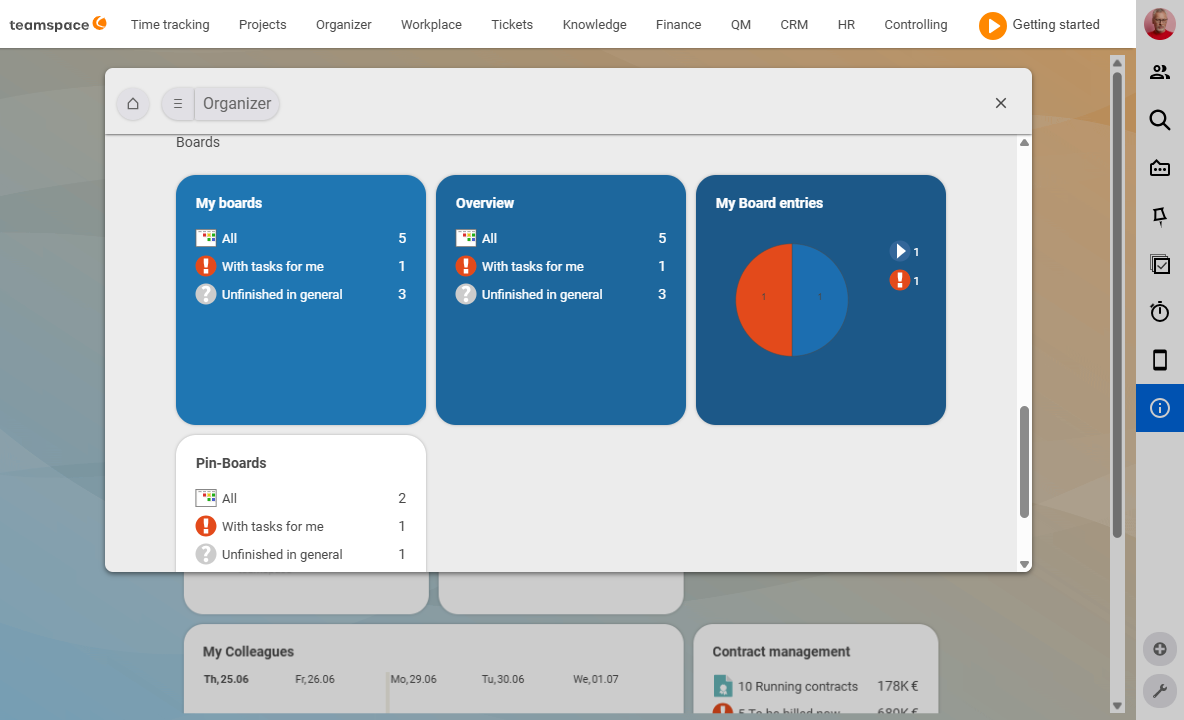
Note: this is how the boards sit in our demo tenant. The menu in teamspace is fully configurable – in your installation the boards may therefore be in a different place in the menu or under a menu item all of their own.
Related topics
- Create and set up a board Boards How-to
- Use your personal pin board (with video) Boards How-to
- The detail manager of a board Boards Concept
- Kanban Boards · Scrum Boards