


A board does not only collect free-form notes. You can place any elements from the system – tickets, work packages, quotes, CRM contacts – directly on the board and keep working with them using the board logic. A board card then refers to the linked element; changes stay in sync everywhere.
Option A: individual elements via drag & drop
For individual items, drag & drop is the fastest way:
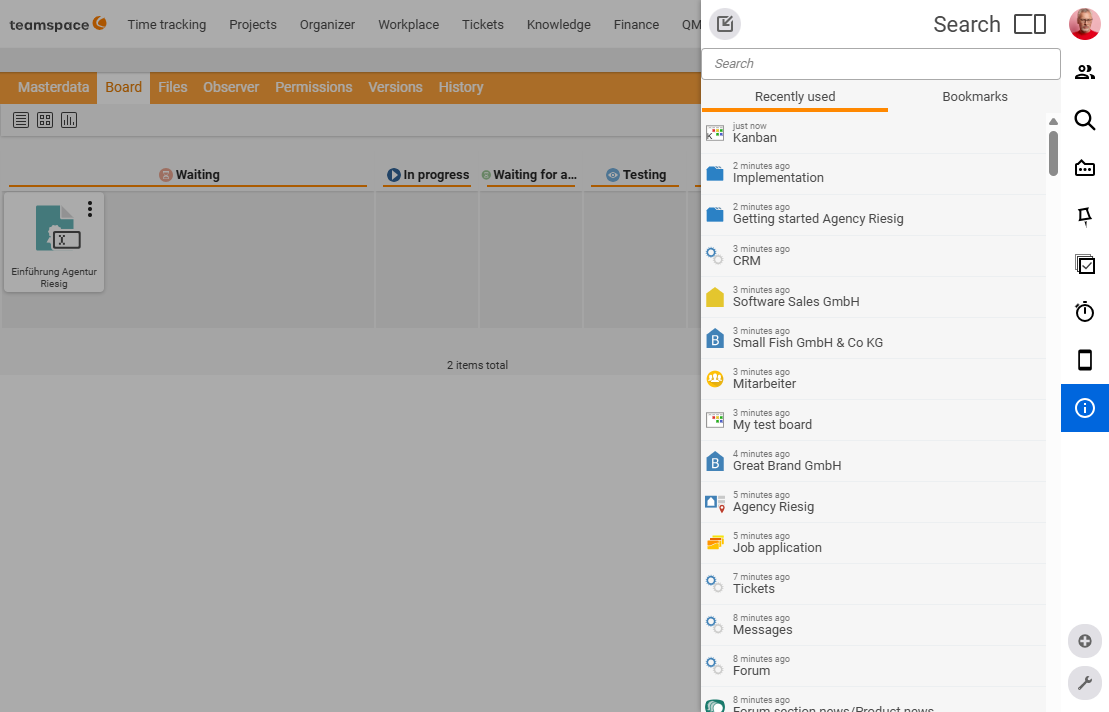
- Open the “Recently used” overview via the sidebar (or search for the element directly).
- Drag the desired element (e.g. a ticket, a work package or a note) from there onto the board via drag & drop.
- When the workflow status changes, simply drag the card to the next column.
Option B: fill open tasks automatically
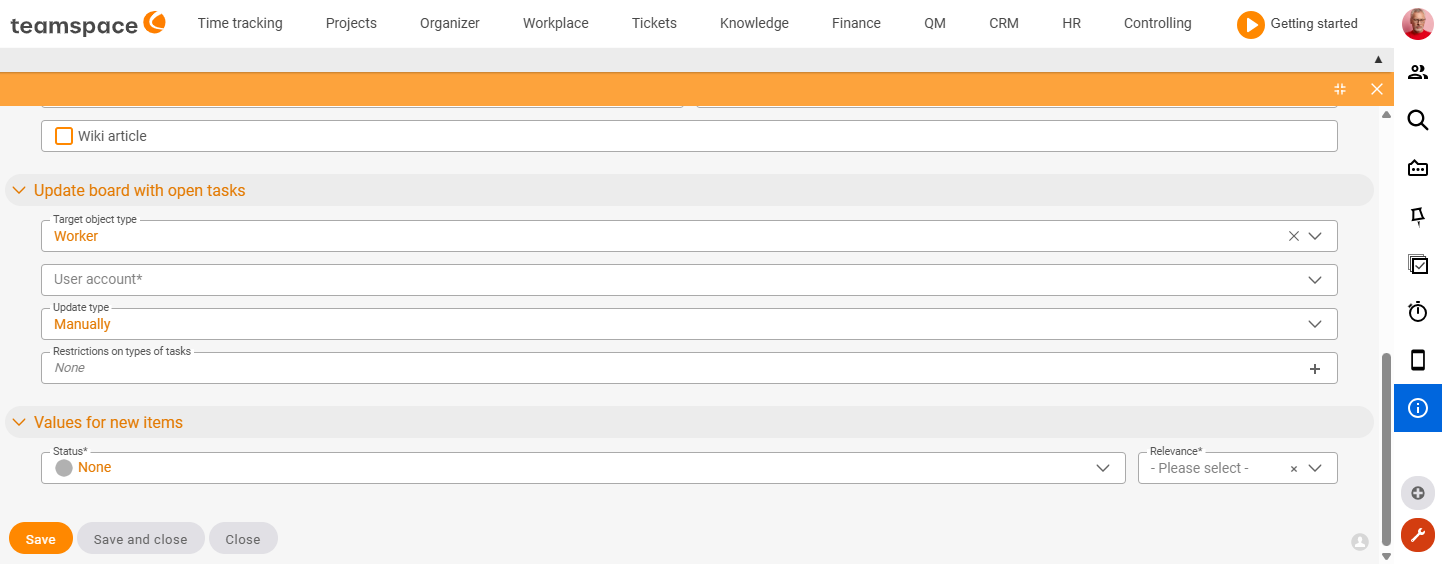
If a board is to be filled continuously with open tasks, use the “Update pin board with open tasks” section in the master data:
- Choose the target object type: open tasks of a project, a project directory or an employee.
- Specify a user account – so that only tasks this user is also allowed to see appear. (For “employee”, this concerns that employee’s tasks specifically.)
- Set the update mode:
- Automatic – new open tasks land on the board immediately.
- Manual – you update via a green action on the board whenever you want.
- Set relevance and status for the transfer: at which priority and in which status (e.g. “Open”) the tasks appear on the board.
Option C: directly from the element
If you have already opened an element (ticket, work package, contact, etc.), you can place it onto a pin board directly from the detail manager – without opening the board first:
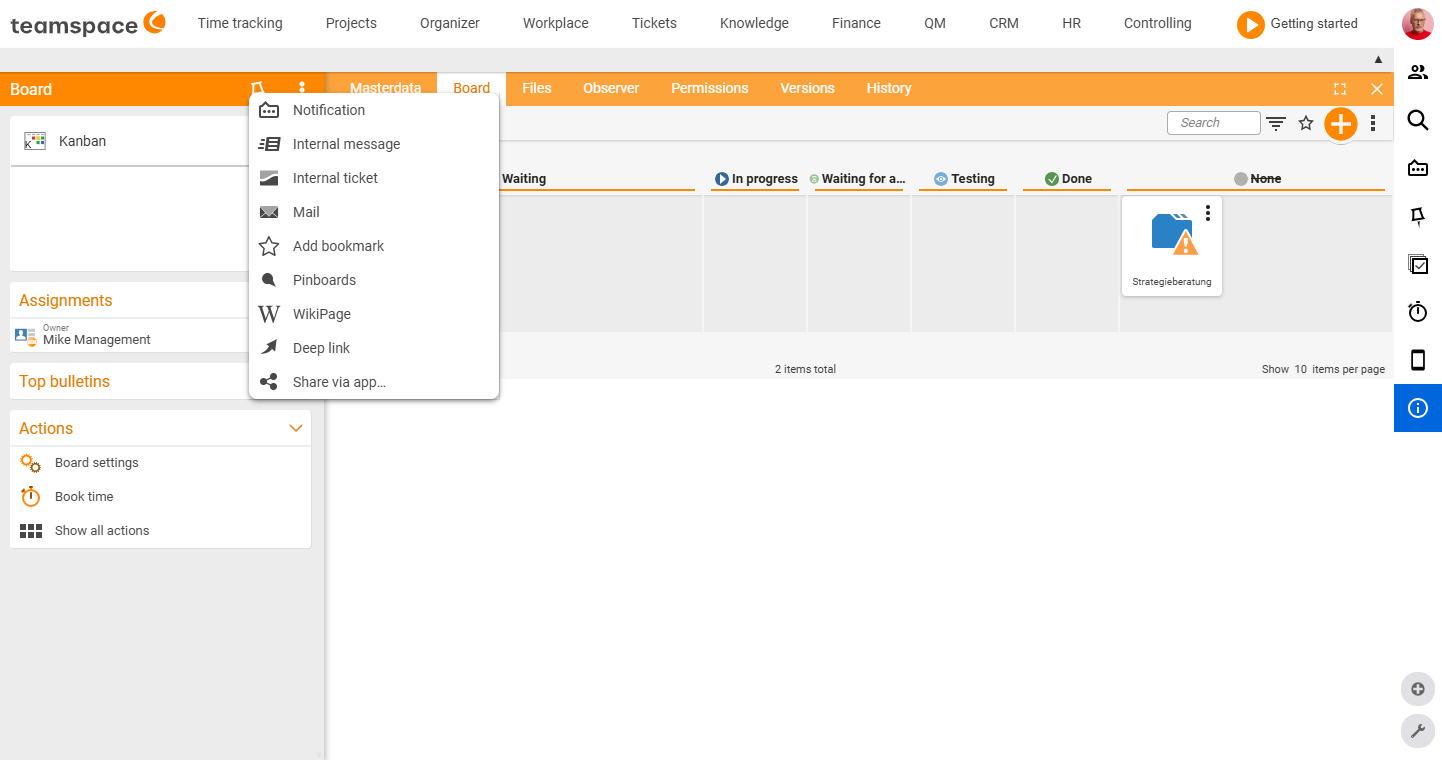
- Open the three-dots menu (⋮) at the top right of the detail manager.
- Select “Pin boards”.
- Choose the desired pin board – all boards you have permission for are available. The element is linked to the item as a card.
Using the pin icon at the top, you can instead quickly place the element onto your personal pin board.
Option D: create a new link from the board
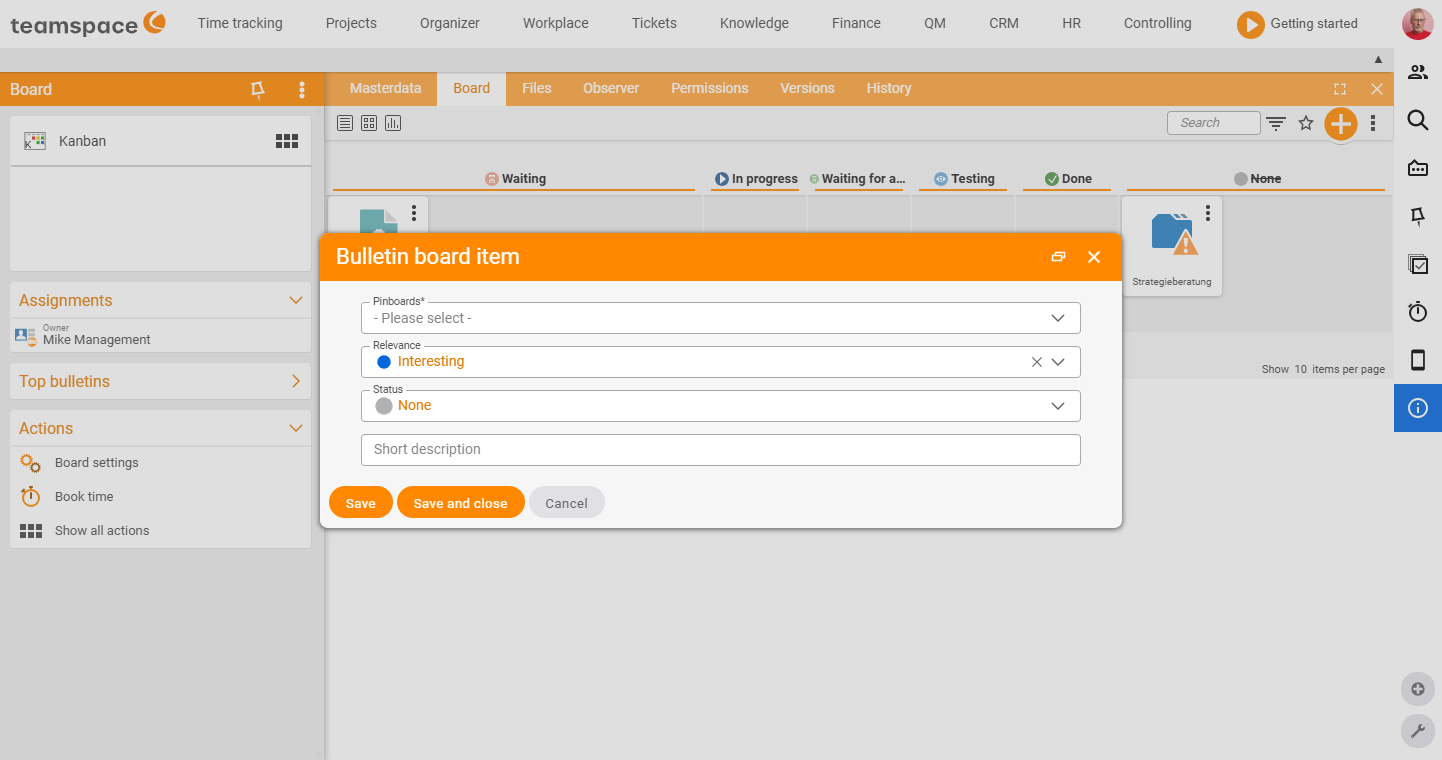
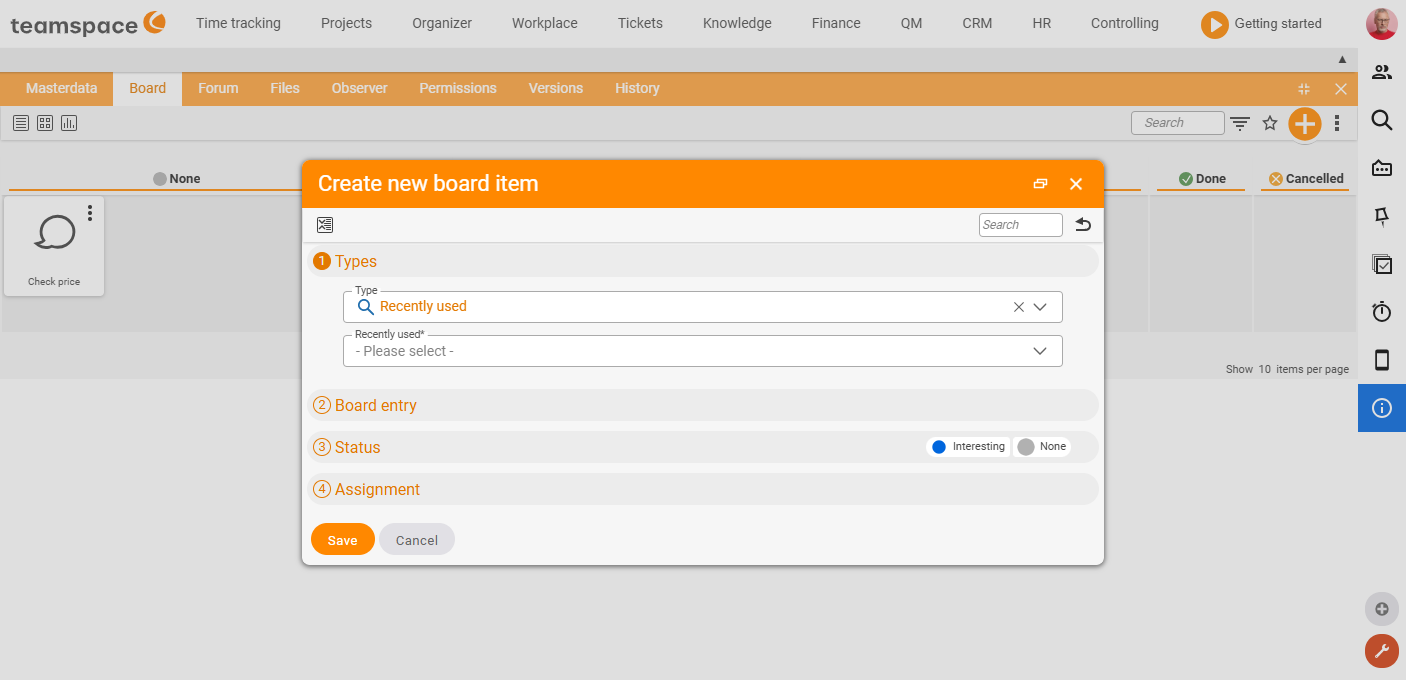
You can also start the link from the board itself – using the plus you create a new card and connect it directly to an existing element:
- On the board, click the plus.
- Choose the type of the element (e.g. ticket, work package, contact). You get a selection box in which you choose the specific element to link.
- Alternatively, choose “Recently used” as the type – the selection box then shows your most recently used elements directly for quick selection.
Typical use cases
- Support tickets – collect internal tickets or customer requests on a Kanban board and drag them from column to column depending on progress. See Ticketing.
- Sales actions – drag the contacts of a campaign onto the board and move them depending on whether you have already followed up. See CRM.
- Project tasks – transfer the work packages of a project (automatically if desired) and work through them in an agile way with Kanban or Scrum. See Project management.
Common problems
Why do no tasks appear when I use Employee as the source?
You also have to specify a user account. Only tasks this user is allowed to see are transferred – without a user account the board stays empty.
Why doesn’t my board update automatically? Then the update mode is set to Manual. New open tasks only reach the board once you trigger the green update action on the board. For immediate transfer, set the “Update pin board with open tasks” option in the master data to Automatic.
I can’t find the linked element again. The card is only a link, not the element itself. Clicking the card always opens the original record in the detail manager of the source module (ticket, work package, contact, etc.).
Notes
- Which statuses, columns and card info are shown is set in the board settings.
- For your small personal to-dos, the personal pin board is the right place.