


Boards are a team tool: through the cloud, everyone with access works on the same board and sees at any time which status the cards are currently in. You control who may view or edit the board through the access permissions.
Owner ≠ access
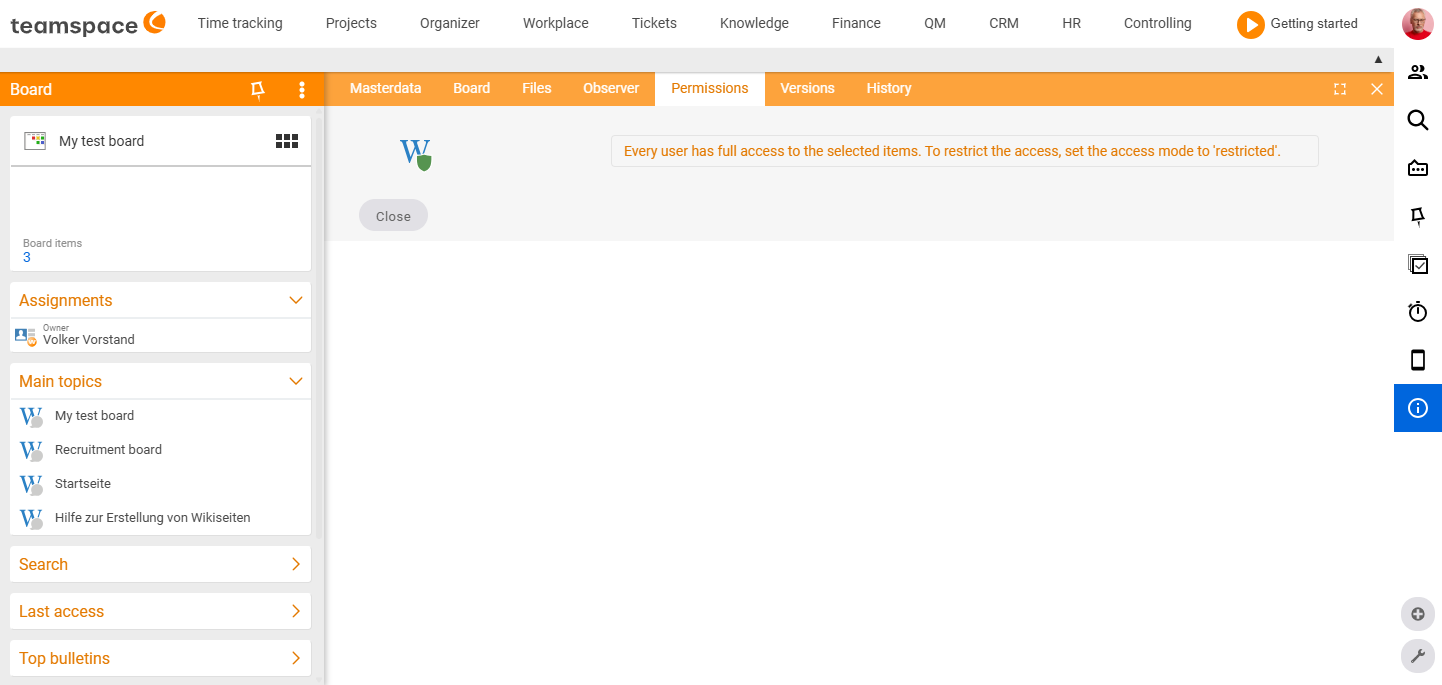
The owner is entered in the master data. The owner role alone, however, grants no exclusive access – other users can also view and edit a board, as long as the permissions allow it. You control the actual access exclusively in the Permissions tab.
Set access
- Open the board’s detail manager and switch to the Permissions tab.
- Choose one of the three modes:
- Unrestricted – all users who are generally allowed to see boards have full access (read, edit, up to deletion).
- Restricted – you define individually which people or groups receive which access: read, write or full access.
- Private – only the owner has access.
- Save.
A board can also be set to private directly when it is created, via the “Create as a private page” option, and reopened here again later.
Stay informed about changes
Add the relevant people as watchers – they are notified about changes to the board. The owner is automatically on the watcher list.
Recommendation for teamwork
- Restricted with targeted write access is usually the best choice for team boards: those involved edit, everyone else reads along.
- For purely personal to-dos, every employee uses their personal pin board anyway – it is always private.
Common problems
Why can a colleague edit my board even though I am the owner? The owner role is organisational, not a matter of access rights. You control the actual access exclusively in the Permissions tab – in Unrestricted mode, everyone allowed to see boards can read and edit. If only a specific group should write, choose Restricted and grant write or full access selectively.
Why can no one but me see the board? Then the mode is set to Private – only the owner has access. This also happens when the board was created with the “Create as a private page” option. In the Permissions tab you switch it to Unrestricted or Restricted.
I’m not being notified about changes to the board. Add yourself as a watcher – only watchers are notified about changes. The owner is automatically on the list.
Related topics
- The detail manager of a board Boards Concept
- Create and set up a board Boards How-to
- Topic: Permissions Permissions