


Letting an AI assistant into your own ERP sounds at first like a far-reaching decision. It is less so than it sounds – because MCP creates no new access anywhere. This article shows where the control points are.
Three barriers, not one
An access via MCP has to clear three independent hurdles. If one of them fails, nothing happens.
- Is the access released? Every MCP configuration carries an authorised group or person. Anyone not among them cannot get past the address – even if they know it.
- Has the user granted permission? On first connecting, teamspace asks via OAuth what the client may do. Without this consent there is no access.
- Is the user allowed to see the data at all? On every single call, their normal permission profile applies.
The third barrier is the most important, and it cannot be switched off:
An MCP access can never do more than the person who uses it. The tool list describes what an access can offer – not who gets to see what with it. That is decided solely by the logged-in user’s permission profile, exactly as in the interface.
Concretely: two people connect the same access, ask the same question – and get different answers if they have different permissions. That is not a bug; it is the core of the design. It also means you don’t maintain permissions twice: whatever is governed in Permissions applies automatically via MCP too.
What the tool selection does – and what it doesn’t
A common misconception: that the tool selection is a security setting. It isn’t.
- What it is: a way of tailoring the access to the use case. Fewer tools means faster and more accurate – see How MCP works in teamspace.
- What it is not: an access restriction. Leaving a tool out does not stop anyone from seeing the data – they simply see it in the interface or via another access.
If you really want to stop someone seeing something, that belongs in the permission profile, not in the tool list.
Even so, care over the selection is worth it, for a different reason: write access. An assistant can make mistakes, and it has no sense of whether a change was consequential. This is controlled via the allowed operations – Read, Write, Delete – which you grant for the whole access and for each tool individually. It is therefore common practice to:
- give the general access for everyone only Read;
- grant Write and Delete only in a separate access with a narrower release;
- give sensitive areas (personnel, finance) their own access for their own department.
Understanding the OAuth permission
On first connecting, teamspace shows a consent screen. It is the moment when the user decides – and the only one where they see the details. So it is worth reading rather than clicking away.
It names three permissions:
| Permission | Label | What it allows |
|---|---|---|
| Read MCP server | READ | List the available tools and resources. Without this, the client doesn’t know what exists. |
| Call tools | READ & EXECUTE | Actually run the configured tools. |
| Write data | WRITE | Write data through the MCP server. |
The screen also shows:
- Application identity – who registered here and when they were first seen. With a client such as Claude, this is a dynamically registered client: it signed up automatically, without an administrator having entered it beforehand. That is exactly why the yellow notice on the screen prompts you to check the requested permissions and the redirect URI.
- The redirect URI – where the user is sent after granting consent, for example
https://claude.ai/api/mcp/auth_callback. This is the single most important check on the whole screen: the domain must match the service you are about to authorise. If it says anything other than expected, cancel. - The MCP configuration being authorised – so you can see which access you are releasing.
- A confirmation checkbox that must be actively ticked before “Allow” takes effect.
Explain this screen to your users. It is the only point at which a human checks whether the redirect is correct – technically this cannot be taken off their hands. One sentence in the introductory email saves trouble later.
What an administrator keeps an eye on
Configuration → InterfacesAlongside the MCP configurations, this category contains several tiles that belong together:
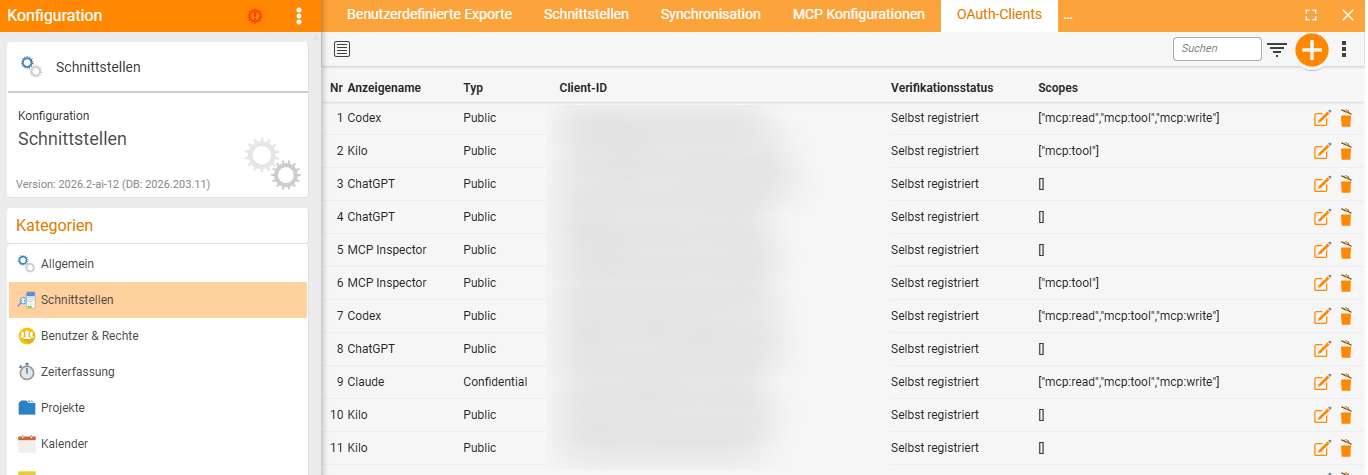
- OAuth clients – which applications have registered.
- OAuth authorisations (audit) – who allowed which client to do what, and when. The first place to look when you want to know who has connected teamspace to which assistant.
- Tenant client policies – the rules on which clients are permitted in the tenant at all.
- OAuth server settings – the base settings of the OAuth server.
In the list of OAuth clients, each entry shows the client’s display name, its type, the verification status and the scopes – that is, which of the three permissions were actually granted. Several entries for the same assistant is normal: each new connection registers separately.
Notes
- The kill switch is the “Active” field. A deactivated MCP configuration stops answering at once – regardless of who has already connected it.
- Changing permissions takes effect immediately. Take a permission away from someone in teamspace and it is gone via MCP too. The connector need not be touched for this.
- The address is no secret, but it is no invitation either. It contains a long identifier, but the protection lies in the release and the permission profile – not in not knowing the URL.
- Different OAuth, same name. teamspace also uses OAuth for Microsoft 365 mail accounts and single sign-on. Those are separate settings and have nothing to do with MCP – see Additional configurations and Microsoft app registration.
Related topics
- How MCP works in teamspace MCP & AI agents Concept
- Create an MCP configuration MCP & AI agents Configuration
- Connect teamspace to Claude MCP & AI agents How-to
- Topic: Permissions Permissions
- Security at teamspace