


teamspace imposes no requirements on the client. Because sign-in runs via OAuth – a standard that all MCP-capable assistants support – in principle any client can be connected. All that differs is where the field for the address sits and what it is called.
This list names the clients we have tested ourselves. It grows over time – a client not being here doesn’t mean it doesn’t work, only that we haven’t run through it yet.
Tested clients
| Client | Where the address is entered | Quirks |
|---|---|---|
| Claude (Desktop & Web) | Settings → Connectors → Add → Add custom connector | The reference route described in detail: Connect teamspace to Claude. Desktop and web behave identically. |
| ChatGPT (Web) | Settings → Connectors | Use Firefox or Safari. In Chrome the sign-in currently fails. |
| Codex (OpenAI Desktop) | Configure the MCP server in the app | Runs without any quirks. |
| Cursor | Settings → MCP | Both setup routes (interface and configuration file) work. |
| VS Code | MCP settings | Two ways: automatic detection via the discovery settings, or entering the address manually. |
| LibreChat | Add MCP server | Self-hosted. Requires extra details – see below. |
| Kilo Code | CLI or configuration file | Watch the OAuth permissions when setting it up. |
LibreChat specifics
LibreChat is self-hosted and therefore asks for more when you create the entry than the others do:
- Name and MCP server URL – as everywhere.
- Transport – a choice between Streamable HTTPS and SSE.
- Authentication – None (automatic detection), API key or OAuth. Automatic detection usually finds teamspace’s OAuth route by itself.
- I trust this application – a mandatory checkbox. LibreChat points out that custom connectors are not verified by LibreChat.
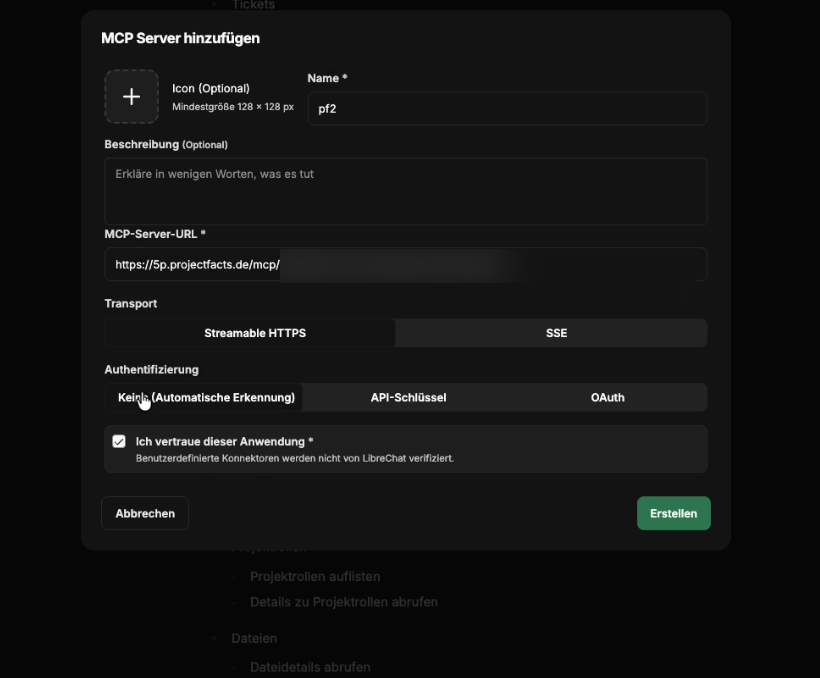
One more thing: in a LibreChat installation, the LibreChat administrator decides which MCP servers are permitted at all. If the teamspace access doesn’t appear or is rejected, it is usually down to this release – not to teamspace.
Connecting a client that isn’t listed here
The process is always the same:
- Find the field. In the settings, search for “MCP”, “Connector” or “Konnektor”.
- Enter the address (
https://<your-tenant>/mcp/<identifier>). - Go through OAuth – check the permissions and above all the redirect URI, then confirm.
- Test with “Who am I in teamspace?”.
If the client asks for an OAuth Client ID or a Client Secret: leave it empty. teamspace registers clients dynamically; fixed credentials are not needed.
If it asks about the transport: Streamable HTTPS is the current variant, SSE the older one. When in doubt, choose automatic detection.
Notes
- The address is the same with every client. One access works in several clients at once – the OAuth consent applies per client in each case.
- Always check the redirect URI. It is the only point at which it becomes visible where you are authorising.
- What you see doesn’t depend on the client. All clients are subject to your permission profile – see Security and permissions with MCP.
- A client missing here is not ruled out. Try it; if it works, let us know – then we’ll add it.
Related topics
- Connect teamspace to Claude MCP & AI agents How-to
- Available MCP tools MCP & AI agents Reference
- Security and permissions with MCP MCP & AI agents Concept
- Introduction to MCP MCP & AI agents Introduction