


This article bundles supplementary server configurations that are needed depending on your environment. Each section stands on its own – only set up what you actually use:
- Connecting LDAP login – log in through an LDAP server such as Active Directory.
- Setting up the PDF processing service – convert Word documents into PDFs and merge documents into a single PDF.
- Importing an SSL certificate into the Java truststore – e.g. for LDAP over SSL.
- OAuth 2.0 login – Microsoft 365 mail accounts
- Installing Tomcat 9 manually under Debian 12
Connecting LDAP login
You can handle the login to teamspace/projectfacts through an LDAP server (e.g. Active Directory). To do this, you determine the necessary DNs, adjust the web.xml and set the parameters.
LDAP over SSL: If you use an encrypted LDAP connection, the LDAP certificate must first be imported into the Java truststore. This is described in the section Importing an SSL certificate into the Java truststore below.
Determining the DNs and host names
Connect to the LDAP server and determine the values through the CMD:
- User Base DN:
dsquery user -name <username used> - Group Base DN:
dsquery group -name <group name> - LDAP host name:
set L
Adjust web.xml
In the web.xml, the LDAP connection is commented out. Uncomment the block and adjust the marked areas. If the block is not present, add it.
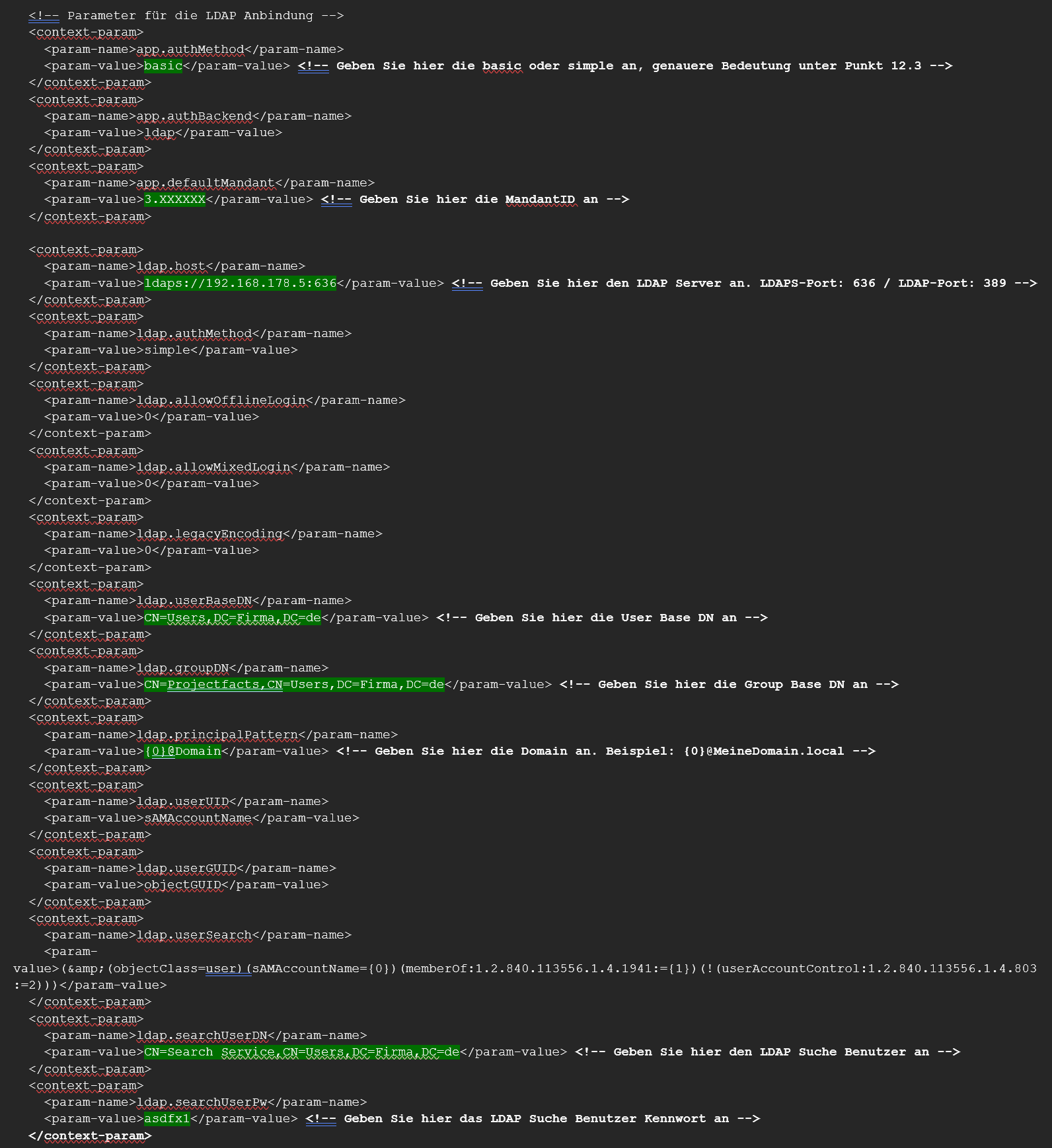
Parameter reference for LDAP
| Name | Description |
|---|---|
| app.authMethod | Can be set to “basic” if you want to use Basic Authentication instead of a form for the login. |
| app.authBackend | For the LDAP connection, “ldap” must be entered here. |
| app.defaultMandant | The ID of the tenant. |
| ldap.host | The full URL to the LDAP server (e.g. ldap://127.0.0.1:389). |
| ldap.authMethod | ”none”, “simple” or a sasl_mech list (see the Oracle JNDI documentation). |
| ldap.allowOfflineLogin | How long you may still log in after the last successful LDAP login if the LDAP is unreachable (value in hours). |
| ldap.userBaseDN | The DN in which users are searched for. |
| ldap.groupDN | The DN of the group a user must belong to in order to be allowed to log in. |
| ldap.principalPattern | Determines whether and how the “raw” login name is reformatted into a principal (e.g. {0}@5p). |
| ldap.userUID | The attribute that uniquely identifies the user (the login name). With AD, usually sAMAccountName. |
| ldap.userGUID | The attribute that globally and uniquely identifies the user and stays the same even when renaming/moving. With AD, the objectGUID. |
| ldap.userSearch | The search filter used to find a user. The placeholder for the username is {0}. |
| ldap.searchUserDN | The DN of a user who is allowed to search for users in the LDAP. |
| ldap.searchUserPw | The password for the search user. |
Assigning LDAP users
In the teamspace tenant, map the LDAP users to the teamspace users:
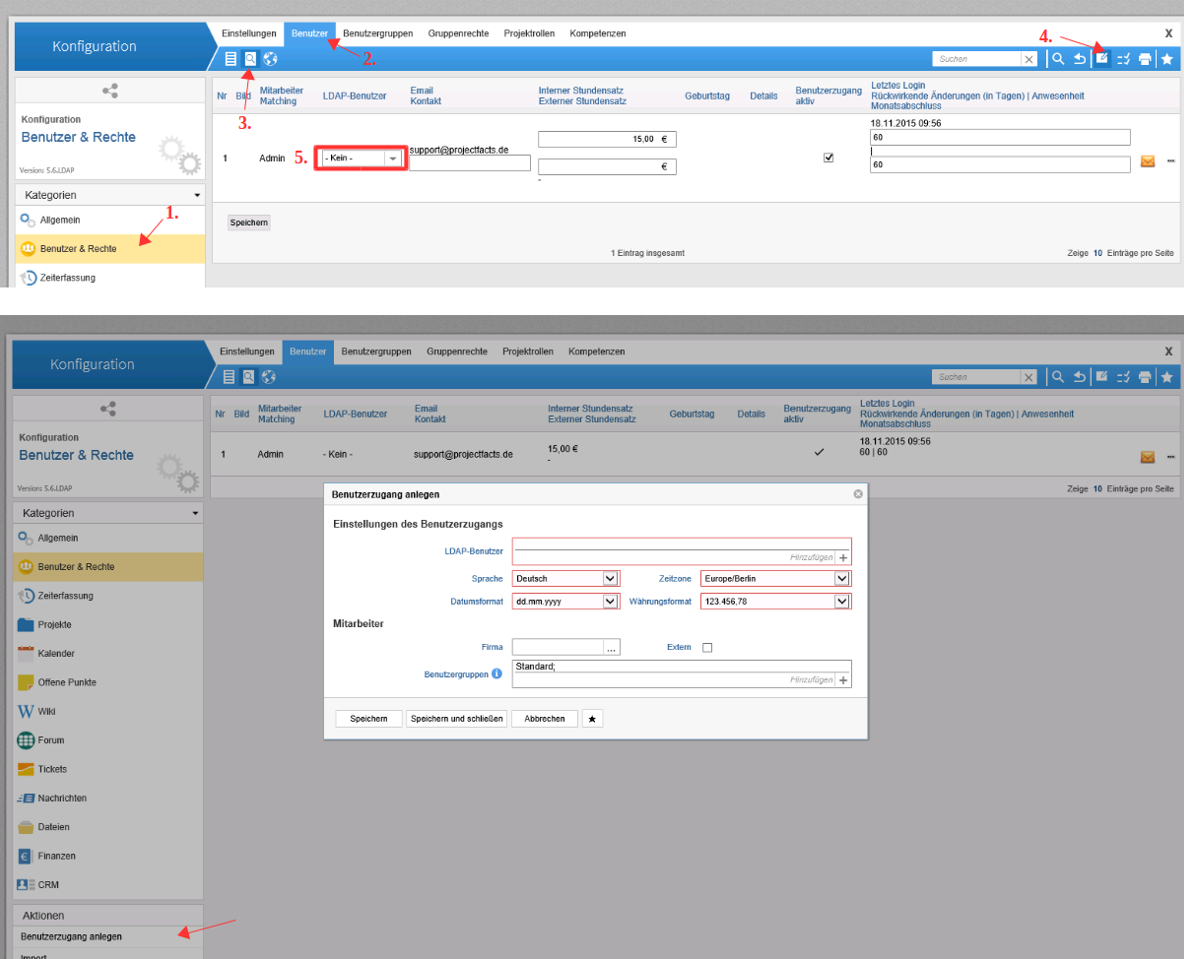
Setting up the PDF processing service
The PDF processing service (JOD server) is a helper service that converts Word documents into PDFs and makes it possible to merge various document types into a single PDF. You can run it on the same server that projectfacts/teamspace runs on.
For the PDF function you need the file
jod-server.jar. We will provide it to you on request. If you do not use the service, no changes to theweb.xmlare required.
PDF processing service on Linux
- Install LibreOffice:
apt install libreoffice - Copy the
jod-server.jarto/opt/jod-server/. - Create
/opt/jod-server/config.properties:port=3902 threads=2 whitelist=*portis your choice. To allow an IP address, specify it underwhitelistas a regex. - Create the user and group:
groupadd -r jod useradd -r -s /bin/false -g jod jod chown jod: /opt/jod-server - Create
/etc/systemd/system/jod.service:[Unit] Description=JOD-Server [Service] WorkingDirectory=/opt/jod-server ExecStart=/bin/java -jar jod-server.jar User=jod Type=simple Restart=on-failure RestartSec=15 [Install] WantedBy=multi-user.target - Enable the service:
systemctl daemon-reload systemctl enable jod.service - Add the following entry to the projectfacts
web.xml(or adjust it):<context-param> <param-name>pdfConvertService.url</param-name> <param-value>127.0.0.1:3902</param-value> </context-param>
PDF processing service on Windows
- Under
C:\projectfacts\, create the folderjod-server(C:\projectfacts\jod-server) and copy thejod-server.jarinto it. - Create the file
jod-server-start.bat:java -Dserver.port=3902 -jar jod-server.jar - Create a scheduled task so that the batch file is run automatically after the server starts.
- Add the
pdfConvertService.urlentry to theweb.xml(see Linux step 7).
Importing an SSL certificate into the Java truststore
In some cases, an SSL certificate must be imported into the Java truststore – for example with an LDAP-over-SSL connection (see Connecting LDAP login). Without the certificate, the encrypted connection is not possible.
The default keystore resides in the Java directory at:
- Linux:
/lib/security/cacerts - Linux (alternative):
/usr/lib/jvm/java-17-openjdk-amd64/lib/security/cacerts - Windows:
C:\Program Files\Java\jre1.8.0_221\lib\security\cacerts
The password for the default keystore is changeit.
List the certificates:
keytool -list -keystore cacertsImport a certificate:
keytool -keystore cacerts -importcert -alias [enter name] -file [enter name].cerConfirm the prompt asking whether you trust the certificate with Yes.
Alternatively, you can edit, import and export the truststore graphically with the tool Portecle (homepage, download). The procedure is the same on Windows – only the paths differ.
OAuth 2.0 login – Microsoft 365 mail accounts
So that OAuth 2.0 can be used for Microsoft 365 mail accounts, your URL must be added to our whitelist. To do this, send us your URL. The associated oauth2Gateway.url is set in the web.xml (for projectfacts https://www.projectfacts.de, for teamspace https://www.teamspace.de).
If you have any questions or need support, contact support@projectfacts.de.
Installing Tomcat 9 manually under Debian 12
Under Debian 12, no Tomcat 9 is provided from the repository. If Tomcat 9 is required, install it manually.
Install Java 17
If not already present:
apt update && apt install openjdk-17-headlessCheck the installation:
java -versionCreate the user and group
groupadd tomcat9 && useradd -s /bin/false -g tomcat9 -d /opt/tomcat tomcat9Download and unpack Tomcat 9
Download the desired version from the official archive page:
cd /tmp && wget https://archive.apache.org/dist/tomcat/tomcat-9/v9.0.98/bin/apache-tomcat-9.0.98.tar.gz
mkdir /opt/tomcat && tar xzvf apache-tomcat-*.tar.gz -C /opt/tomcat
Adjust permissions
cd /opt/tomcat && chown -R tomcat9:tomcat9 /opt/tomcat/apache-tomcat-9.0.98Create a symlink
ln -s /opt/tomcat/apache-tomcat-9.0.98 /opt/tomcat/liveCreate the systemd file
Find the JAVA_HOME path:
update-java-alternatives -lCreate the file /etc/systemd/system/tomcat.service and adjust the JAVA_HOME path:
[Unit]
Description=Apache Tomcat Web Application Container
After=network.target

[Service]
Type=forking

Environment=JAVA_HOME=/usr/lib/jvm/default-java
Environment=CATALINA_PID=/opt/tomcat/live/temp/tomcat.pid
Environment=CATALINA_HOME=/opt/tomcat/live
Environment=CATALINA_BASE=/opt/tomcat/live
Environment='CATALINA_OPTS=-Xms512M -Xmx1024M -server -XX:+UseParallelGC'
Environment='JAVA_OPTS=-Djava.awt.headless=true -Dfile.encoding=UTF-8 -Djava.security.egd=file:/dev/./urandom'

ExecStart=/opt/tomcat/bin/startup.sh
ExecStop=/opt/tomcat/bin/shutdown.sh

User=tomcat9
Group=tomcat9
UMask=0007
RestartSec=10
Restart=always

[Install]
WantedBy=multi-user.target- JAVA_HOME: enter the Java path you determined.
- CATALINA_OPTS: adjust the RAM requirement here.
Reload the daemon, enable the Tomcat and check the status:
systemctl daemon-reload && systemctl enable --now tomcat && systemctl status tomcatTomcat 9 is now installed and resides at /opt/tomcat.
Common problems
Why won’t the encrypted LDAP connection (LDAP over SSL) come up? Without the LDAP certificate in the Java truststore, the encrypted connection fails. Import it first – this is described under “Importing an SSL certificate into the Java truststore” above.
Why can’t users in a group log in?
ldap.groupDN defines which group a user must belong to in order to log in. Check that the DN is correct and that the user is a member.
Why isn’t a user found?
The search base and search filter have to match: ldap.userBaseDN defines where the search runs, ldap.userSearch the filter (placeholder {0}), and ldap.userUID the identifying attribute (usually sAMAccountName with AD).
Why aren’t Word documents converted to PDF?
Without a running JOD server, the conversion is missing. Set up the service and enter pdfConvertService.url in the web.xml (e.g. 127.0.0.1:3902). If the value is empty, the feature is off.
Why doesn’t the PDF processing service start by itself after a server restart?
On Linux, enable it with systemctl enable jod.service; on Windows, create a scheduled task for the jod-server-start.bat.
Why doesn’t the configured port of the PDF processing service take effect?
The port in config.properties (Linux) or the .bat (Windows) and the value in pdfConvertService.url in the web.xml have to match.
What is the password for the Java default keystore?
The default password for the keystore (cacerts) is changeit. You use it to list, import and export certificates via keytool.
Why is there no Tomcat 9 in the repository under Debian 12? Debian 12 only provides Tomcat 10. If you need Tomcat 9, install it manually (see “Installing Tomcat 9 manually under Debian 12” above).
Common questions & needs
| You want to … | How to |
|---|---|
| Replace the form login with Basic Auth | Set app.authMethod to “basic”. |
| Login should still work briefly if LDAP fails | Set ldap.allowOfflineLogin (in hours). |
| Allow only members of a specific group | Define the group through ldap.groupDN. |
| Connect LDAP over SSL | Import the certificate into the Java truststore first (see Importing an SSL certificate into the Java truststore). |
| Generate Word documents as PDFs | Set up the JOD server and set pdfConvertService.url in the web.xml. |
| Use a different port for the PDF service | Change the port in config.properties (Linux) or the .bat (Windows) and align it in the web.xml. |
| Start the PDF service automatically after the server boots | Linux: systemctl enable jod.service. Windows: a scheduled task for the .bat. |
Related topics
- Version-specific update notes Installation Reference
- Installing teamspace on Linux Installation Configuration
- Installing teamspace with Docker Installation Configuration
- How teamspace is built Installation Concept
- Introduction to permissions Permissions Introduction