


This is how you update an existing on-premises installation. The procedure is the same on all platforms: download the update package → stop the Tomcat → run the deploy script → start the Tomcat → check the version. Always check the version-specific update notes beforehand.
Before every update: create a backup. Only one
.warfile may ever reside in the projectfacts directory. A downgrade to an older version is not permitted and can cause the system to stop starting.
Obtaining the update package
A teamspace-classic account is required to install the current version. If you do not yet have one, contact us.
- Log in at teamspace-classic.de with your login details.
- Go to the Files and navigate to » Main folder → Current version → READ THE UPDATE NOTES! «.
- First read the update notes and the »Notice board« – it states whether minor adjustments are needed before a larger version jump.
- Download the
projectfacts-x.x.xx.war.
Performing the update
Linux
- Copy the update into the
/srv/projectfactsdirectory. - Stop the Tomcat and check that it has really stopped (
systemctl stop tomcat10). - Observe the notice board and the update notes.
- Run the deploy script:
./deploy-war.sh - Start the Tomcat. It may take a moment until the system is reachable again.
- Log in and check the version number via the »(i)« button in the sidebar.
Windows
- Copy the update into the
C:\projectfactsdirectory. - Stop the Tomcat service and check that it has stopped.
- Observe the notice board and the update notes.
- Run the deploy script with administrator rights. First check the paths in the deploy script.
- Start the Tomcat service. It may take a moment until the system is reachable again.
- Log in and check the version number via the »(i)« button in the sidebar.
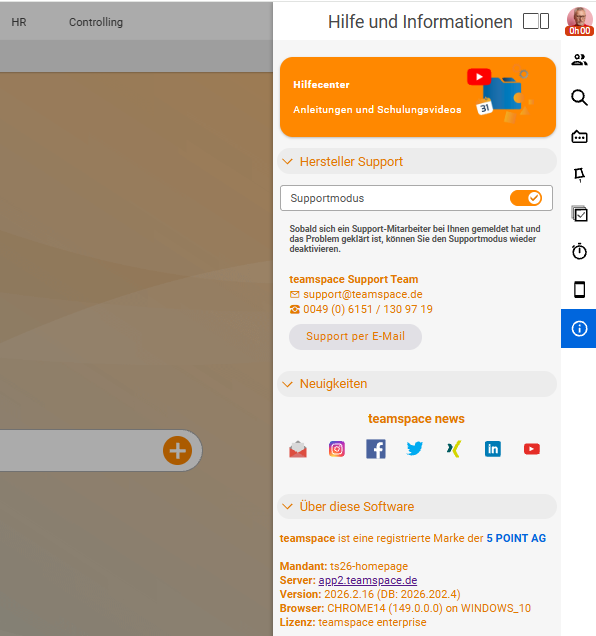
In addition, you can check in the
projectfacts.logwhether the update was successful. After the update, remove the.warfile from the projectfacts directory. For a large version jump, please contact us.
Subscribing to update notifications
So that you are informed about new versions, you can watch the “Current version” folder in teamspace-classic:
- Log in to teamspace-classic and click »Files«.
- Select the »Current version« folder (via the rights selection box).
- Open the dropdown menu, choose »Watch« and click »Action«.
- Click »Overview« and select »Customise overview« on the left.
- In the »Change report«, select the »Sending interval« and click »Save«.
As soon as a new version is placed in the folder, you receive an email.
Common problems
Why won’t the system start after the update?
The most common causes: more than one .war file is present in the projectfacts directory, or a downgrade was attempted. Make sure exactly one .war is present and that you did not roll back to an older version.
Why should I remove the .war file after the update?
Once the deploy has succeeded, the .war should be removed from the projectfacts directory so that the next update doesn’t end up with two .war files. Check the projectfacts.log beforehand to confirm the update ran through.
What do I need to watch out for with a large version jump? Work through the version-specific notes chronologically and observe the notice board in teamspace-classic. For large jumps, contact us beforehand.
Common questions & needs
| You want to … | How to |
|---|---|
| Check which version is running | After logging in, click »(i)« in the sidebar. |
| Be informed about new versions | Watch the “Current version” folder in teamspace-classic (see above). |
| Make a larger version jump | First check the version notes and the notice board; for large jumps, contact us. |
| The update fails | Make sure that only one .war is present and that there is no downgrade. |
Related topics
- Version-specific update notes Installation Reference
- Installing teamspace on Linux Installation Configuration
- Installing teamspace on Windows Installation Configuration