


In My appointments you see your own week; in the Overview you see what is happening across the team. Both views show the same calendar — filtered to what concerns you. You switch between four views, filter to employees and additional elements, and save useful views as bookmarks.
My appointments and Overview
The two tiles in the Bookmarks area Organizer differ in what you see:
My appointments: appointments you are listed in as a participant or that you created.Overview: all appointments visible to you — your own plus your colleagues’ public appointments, plus, on request, leave, sickness, birthdays and project milestones.
Week, Month, Standard, Appointment requests
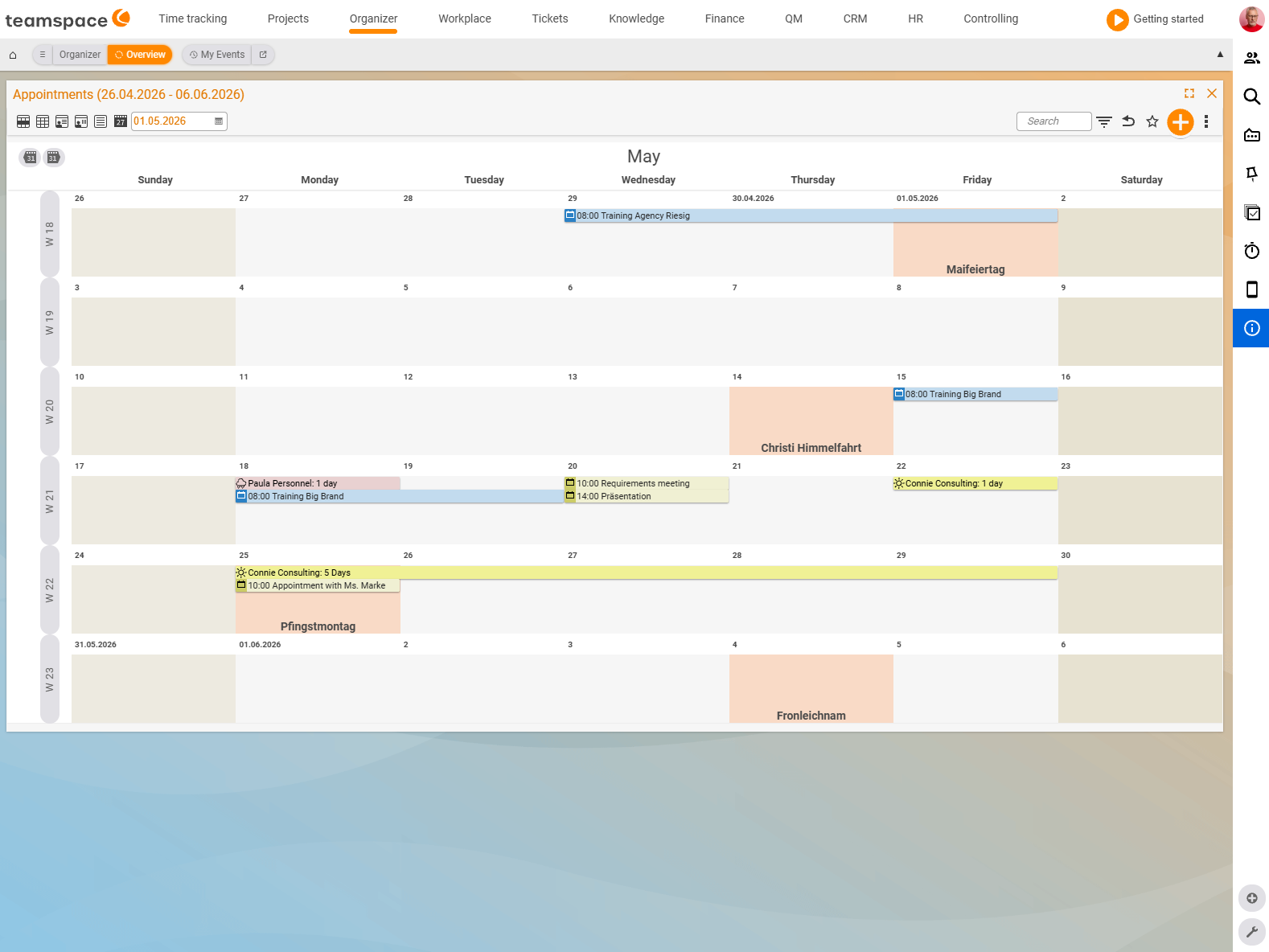
Using the icon bar at the top left you switch between four views. Which you choose depends on your question:
Week: a seven-day grid with hour columns, headerCW NN. The default for the current working week.Month: a monthly overview with weekday column headers and the week labelCW NNon the left per row. For medium-term planning — you see at a glance which week is busy.Standard: a list view with two sections,PastandNext 7 days. ColumnsDate,Name Description,Location,Participants. Useful for printing, for export, or when you are looking for a detail that gets lost in the grid.Appointment requests: a pre-filtered Standard list that shows only appointments withAttendance: Pending. This is where you clear invitations.
To the right of the view icons sit three navigation icons with the tooltips 7 days back, This week, 7 days forward. The date drop-down beside them opens the Period menu with longer jumps — previous and next month, Today and Appointment requests. Clicking a week header CW NN jumps straight into that week.
Tailoring the view with filters
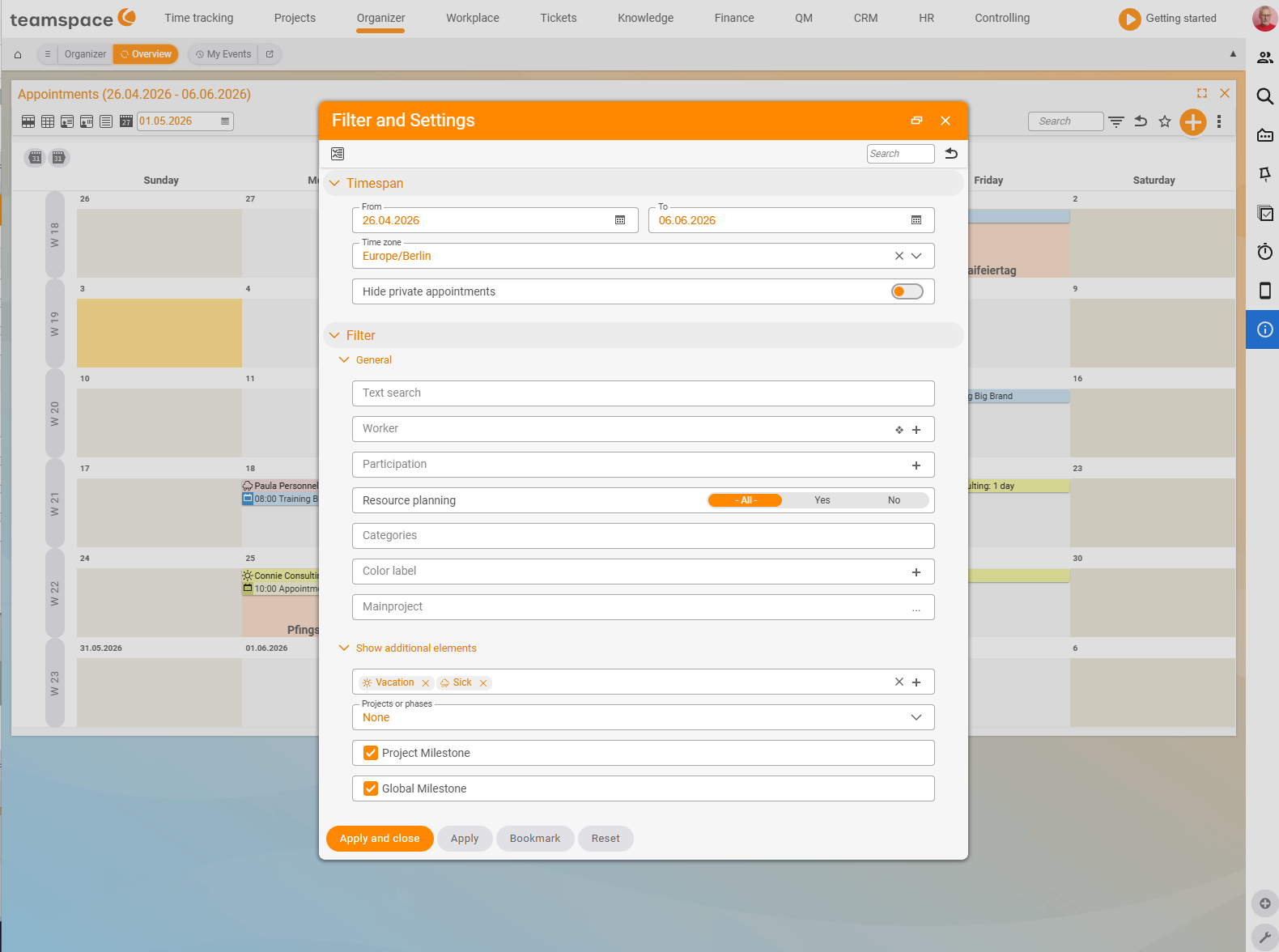
The filter icon at the top right opens Settings and filters. Three accordions govern what you see:
View: a chip field with the columns visible in the Standard list —Icon,Start and end time,Name and description,Location,Participants. Remove or add columns directly on the chip.Period: time zone, start and end date, plus the toggleHide private appointments. The default time zone isEurope/Berlin.Filter: two sub-accordions —Generalwith the employee filter and the attendance-status filter;Show additional elementswith a chip field forLeaveandSick, aProjects or phasesdrop-down and the checkboxesProject milestoneandGlobal milestone.
At the bottom of the modal are four buttons: Apply and close applies the filter and closes the window; Apply leaves the window open; Bookmark saves the configuration as its own view; Reset restores the default.
ℹ The footer legend of the Standard view shows the attendance-status values with colour dots: None (grey), Pending (yellow), Acknowledged, Tentative (orange), Accepted (green). The dots appear in the Participants column after each avatar.
Finding a free slot
If you want to agree an appointment with several people, filter the Overview via Settings and filters → General to the people concerned (e.g. just you and one colleague). Appointments that involve none of those people drop out, and the free times become visible. Use Reset afterwards to get your default view back. For a single person’s busy time, the participant timeline in the detail manager helps as well.
Saving a colleague’s calendar as a bookmark
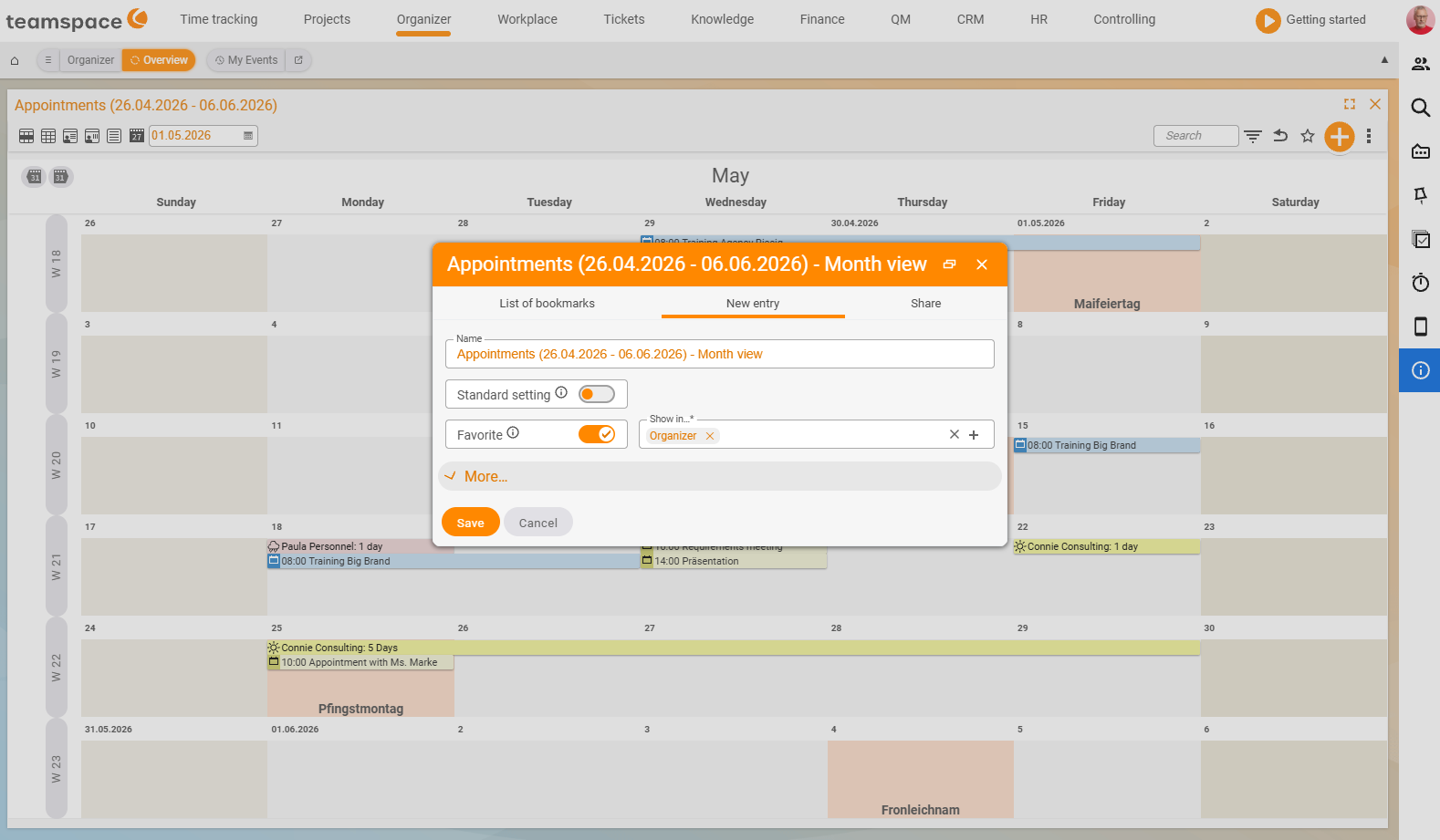
If you want to open a colleague’s calendar permanently with one click, save the filtered view as its own tile:
- Open
Overviewand filter to the person viaSettings and filters. - Click the star icon at the top.
- Choose
Save newand give it a name (e.g.Pia's calendar). - Set the storage location to
Organizer. - Save.
The next time you click Organizer, the colleague’s calendar is there as its own tile.
Common problems
Why don’t I see a particular appointment in the Overview?
In the Overview you see your own and public appointments. If a colleague’s appointment is set to Private or Restricted and you are neither a participant nor cleared for it, it does not appear — the permission sits on the appointment, not the calendar. Also check whether an active filter (Settings and filters → Filter) is narrowing the view; use Reset to get the default view back.
Why is a colleague’s calendar missing?
There is no separate colleague’s calendar to share. You filter the Overview via Settings and filters → General to the person and see their public appointments. Confidential appointments (Private/Restricted) stay hidden as long as you have no permission on the appointment.
Why don’t I see leave, sickness or birthdays?
These entries are not classic appointments and are shown separately: Settings and filters → Filter → Show additional elements, then set Leave/Sick as a chip. You enable project key dates in the same sub-accordion via Project milestone and Global milestone.
Why do cancelled appointments clutter my list?
In the Period accordion, set the Hide cancellations toggle — cancelled appointments then drop out of the view.
Common questions & needs
| You want to … | How to |
|---|---|
| See only my own appointments | Open the My appointments tile. |
| See what’s happening across the team | Open the Overview tile — shows your own plus your colleagues’ public appointments. |
| Show leave, sickness, birthdays | Settings and filters → Filter → Show additional elements: Leave/Sick as a chip, birthdays via the filter. |
| Project key dates in the calendar | In the same sub-accordion, switch on Project milestone and Global milestone, choose Projects or phases. |
| Work through open invitations | The Appointment requests view (shows only Attendance: Pending). |
| A list to print/export | The Standard view; tailor the columns via the View accordion. |
| A colleague’s calendar permanently | In the Overview, filter to the person, star icon → Save new, storage location Organizer. |
| Hide cancelled appointments | Settings and filters → Period → toggle Hide cancellations. |
| Find a free time for several people | Filter to those involved and read off the free times; afterwards Reset. |