


The Microsoft Teams interface is activated once per system; after that, each employee is assigned to their Entra ID account (formerly Azure AD). Only then can a teamspace appointment become a Teams meeting and Teams calls land in the CRM. Day-to-day usage is covered in Create a Teams meeting.
Step 1 — Grant access to Microsoft Graph
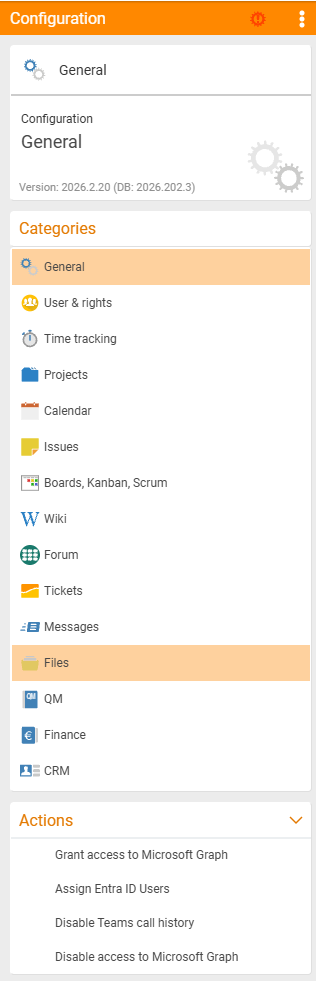
Open the configuration via the tool icon at the bottom right → System configuration. In the General category you’ll find the Actions area at the bottom, with the link Grant access to Microsoft Graph.
When you click it, you are redirected to Microsoft. You sign in with the administrator account and confirm teamspace’s access request to Microsoft Graph. After confirmation, the system connection is in place.
Step 2 — Assign employees to their Entra ID accounts
So that teamspace knows which teamspace user is which Microsoft account, you need one assignment per person. In the same Actions area you’ll find the entry Assign Entra ID users.
In the Entra ID user assignment dialog, all teamspace users are listed; people already linked are collected in the Already assigned area. Per person:
- Expand the entry.
- Search for the matching Entra ID identity.
- Confirm the assignment.
The connection stays in place permanently — until you remove it here again.

ℹ Without this assignment, teamspace can list the person as a participant but cannot create a Teams meeting on their behalf. The person notices this because the Online meeting field cannot be set to As a Microsoft appointment for them.
”Microsoft Teams online” in the calendar configuration
In Configuration → Calendar → Settings there is the Microsoft Teams online switch. Important: this is not the switch that turns the interface on (that happens via Microsoft Graph). It governs how an appointment is interpreted — whether only the virtual room is reserved or whether an additional calendar entry is created in Teams. Our practical recommendation: leave this switch off. The remaining calendar switches are explained in the calendar topic.
Teams calls in the CRM
Through the interface, not only Teams meetings land in teamspace, but also calls. With the interface connected, the phone sidebar (the Phone icon in the right-hand vertical bar) shows all Teams calls from the last seven days — direction, duration, main contact.
In the CRM you filter Teams calls precisely: between calls and meetings, and, for meetings, between those as organiser and those as participant. From a call you carry on working directly:
- Jump to the contact: switch to the assigned CRM contact or create a new one.
- Book working time: the duration and the other party are taken over automatically.
- Document in the CRM: record the reason as an activity.
- Create a ticket: the contact details are taken over automatically.
- Create a follow-up appointment: also directly as a Teams call again.
Common problems
Why can’t an employee create a Teams appointment, even though the interface is in place?
The system-wide connection (Microsoft Graph) is not enough — each person additionally needs their assignment to the Entra ID account. If it is missing, the Online meeting field cannot be set to As a Microsoft appointment for that person. Assign them via Assign Entra ID users.
Is Microsoft Teams online the switch that turns the interface on?
No. You activate the interface via Grant access to Microsoft Graph. The Microsoft Teams online switch in Calendar → Settings only governs how an appointment is interpreted — whether only the virtual room is reserved or an additional calendar entry is created in Teams. Recommendation: leave it off.
Why do no Teams calls appear in the CRM? The phone sidebar shows only Teams calls from the last seven days, and only with the interface connected. If the Graph connection is not in place, or the call is further back, it does not appear.
Common questions & needs
| You want to … | How to |
|---|---|
| Activate the interface system-wide | Configuration → General → Actions → Grant access to Microsoft Graph (Microsoft 365 admin). |
| Clear an employee | In the Actions area, Assign Entra ID users — expand the entry, choose the identity, confirm. |
| Remove an assignment | In the same dialog, remove the existing assignment. |
| Set how Teams appointments are interpreted | The Microsoft Teams online switch in Calendar → Settings (recommendation: off). |
| See Teams calls in the CRM | The phone sidebar (right-hand vertical bar) shows Teams calls from the last 7 days. |
| Turn a call into a ticket | In the call list, the Create ticket action — the contact details are taken over. |