


If you sync teamspace with Outlook and mobile, every appointment shows up in all three calendars — no matter where you create it. Synchronisation runs per employee through personal sync profiles: one profile per device, each with its own choice of what is synchronised. For Outlook you need the add-on tool teamSync for Outlook; you connect your phone via CalDAV. Our recommendation: one empty Outlook calendar per employee, and device passwords instead of your personal login password.
What a sync profile governs
The sync profile decides more than just appointments. Per profile you set:
- What is synchronised? Appointments, CRM addresses or both.
- In which direction? Two-way is the default — changes on the device land in teamspace, changes in teamspace land on the device.
- Which period? How many days back and forward are synchronised.
- Which sub-selection? For example, only appointments of certain categories, or only addresses from a filter.
This is useful because you don’t need everything everywhere: Outlook on the work computer often pulls all appointments plus all addresses; on the phone the next few days and the most important contacts are enough. A sync profile can be deactivated at any time without deleting it — handy if a phone is lost: you switch the profile off, the device’s access is gone, and you don’t touch your other profiles.
The “Synchronisation” permission
⚙ Prerequisites:
- The
Synchronisationpermission in your user group. If it is not set, theSynchronisationtab is missing from your personal settings. - An Outlook licence with Outlook installed (for Outlook sync).
- A phone with a CalDAV-capable calendar program (all iOS and Android devices support it natively).
If you can’t find the Synchronisation tab, check the relevant group as administrator in the configuration under Users & rights → User groups. Search with Ctrl+F for “Synchronisation”, switch on the right and save the group.
Creating a sync profile
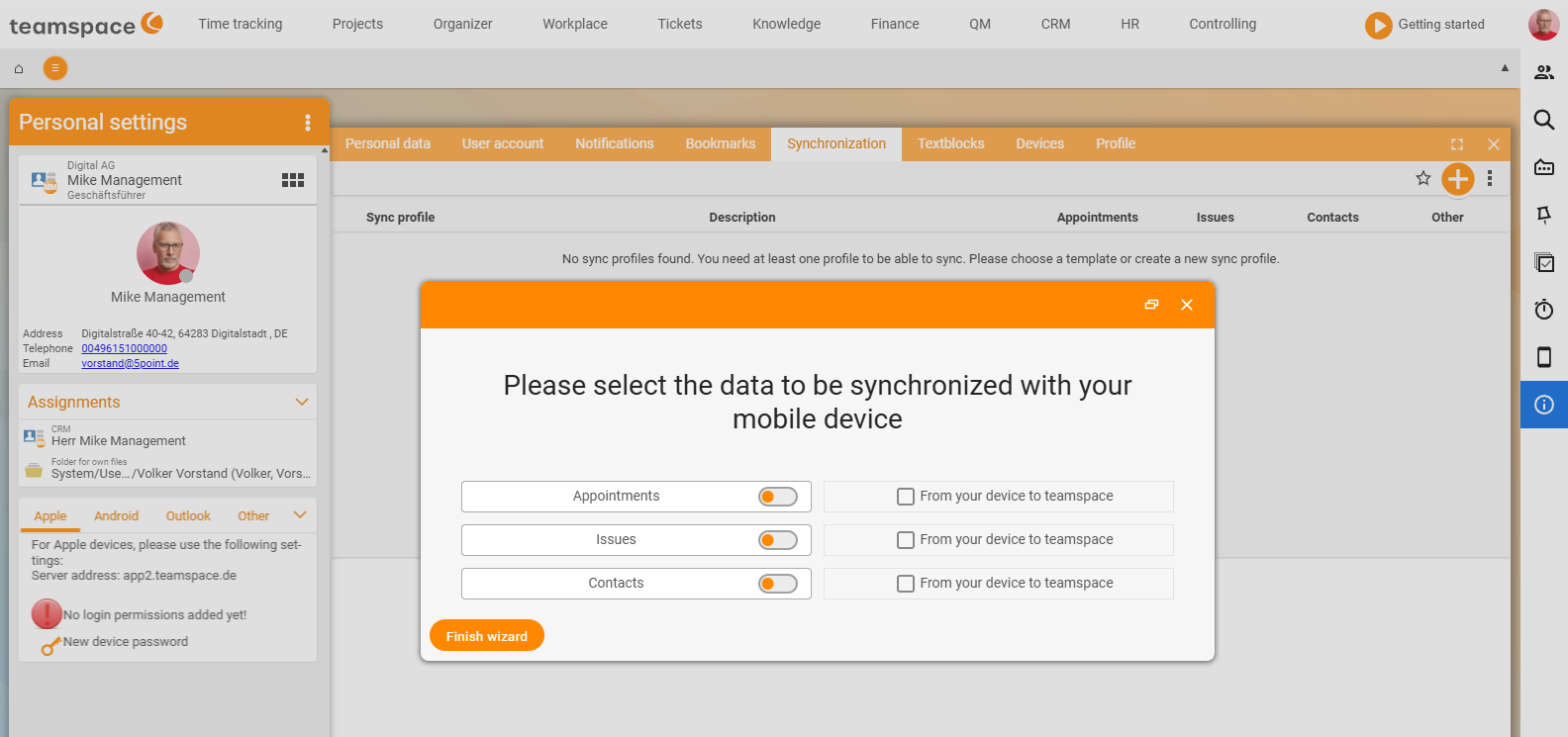
You maintain sync profiles in Personal settings in the avatar menu at the top right. In the Synchronisation tab you see your existing profiles and create new ones via the plus button. The creation wizard asks in several steps:
- Device type:
Mobile(phone or tablet via CalDAV) orComputer(Outlook). - What should be synchronised: appointments, addresses, direction — by default
Appointmentsis active and two-way. - Period: days back and forward. Keep it shorter on the phone.
- Sub-selection: additional filters, such as only certain appointment categories.
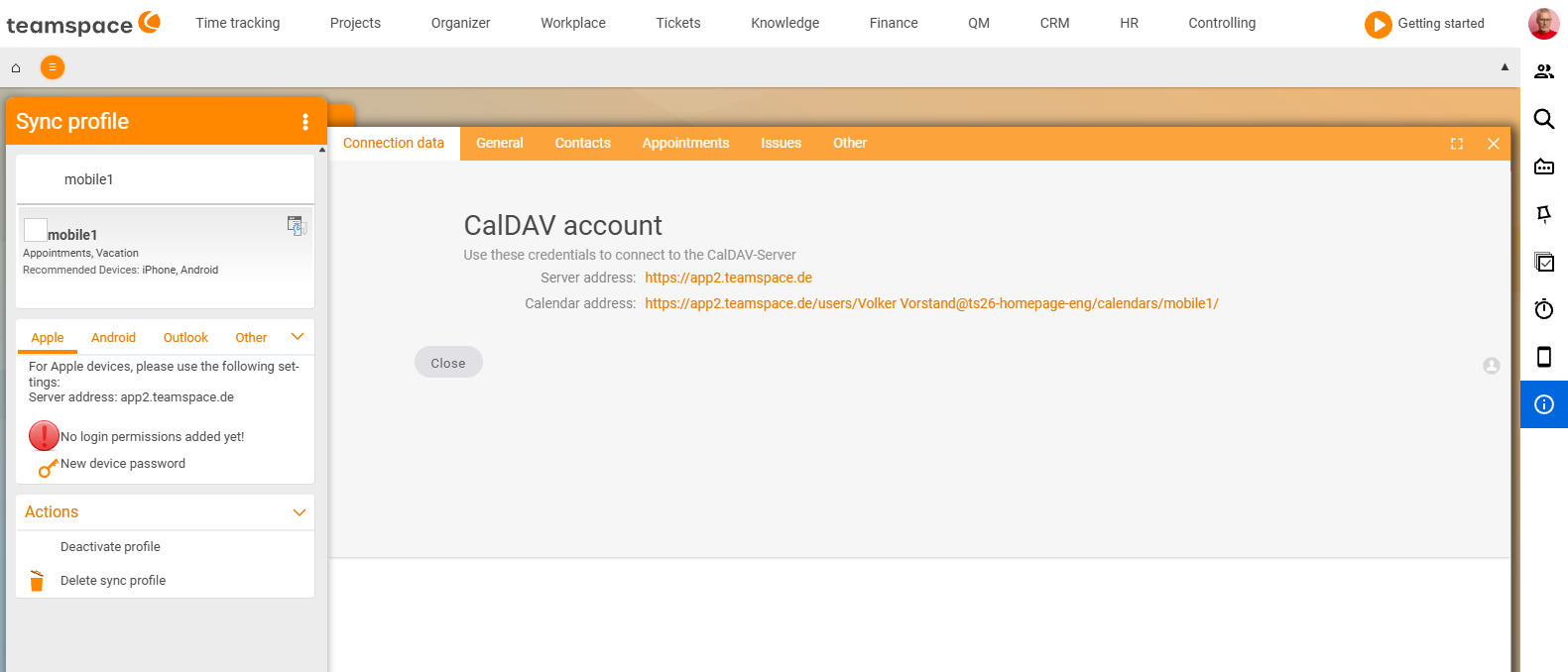
At the end, teamspace shows the connection details: server name, tenant, user name, password. You enter these into the respective add-on tool.
At the end of the wizard, the profile opens on the Connection details tab. For phones, it shows the CalDAV server address and the calendar address that you enter in the device’s calendar program.
Syncing Outlook
You can’t connect Outlook directly to teamspace — you need the add-on tool teamSync for Outlook, a small background service that mediates between Outlook and the teamspace server.
Step 1 — Download teamSync
On the teamspace website you’ll find a Downloads area in the footer. Download teamSync for Outlook and install the program like any normal Windows application.
Step 2 — Set up the connection
On first start, the tool asks for:
- Server name: the address shown at the top of your browser —
app1.teamspace.de, say. - Tenant: the tenant name from your teamspace installation (visible in the browser window or ask your administrator).
- User name and password: your teamspace login — better, a device password (see below).
Step 3 — Choose the profile and Outlook calendar
In teamSync you choose the sync profile you created in teamspace. The tool also asks which Outlook calendar it should synchronise with.
⚠ Recommendation: create a separate, empty calendar in Outlook for teamspace and sync with that. If you sync your full Outlook calendar and a colleague does the same, shared appointments end up in the system twice — once as a native Outlook appointment, once as a teamspace appointment. An empty sync calendar keeps the sources clean; you overlay both calendars in Outlook. For shared appointments, one person maintains the appointment in teamspace — the others see it automatically as participants.
Syncing your phone via CalDAV
On the phone you need no add-on tool — iOS and Android handle CalDAV natively. You create a new calendar account and enter the connection details that teamspace shows in the sync profile. Create a separate sync profile per phone — happily with a shorter period than on the work computer.
- iPhone: Settings → Calendar → Accounts → Add account → Other → Add CalDAV account.
- Android: the route varies by manufacturer; many devices need the DAVx⁵ app or a comparable tool.
ℹ Don’t maintain duplicate appointments across several calendars on the phone. Where you have the choice, create new appointments in teamspace and let them sync to the phone — appointments with participants need the teamspace logic (one appointment, several participants), which the phone does not map cleanly.
Device passwords instead of the login password
Instead of using your normal teamspace login, you create a separate device password per device. The benefits:
- If you lose the device, you deactivate only the device password — your main password is untouched.
- In the teamspace audit you can tell which device an action came from.
- You don’t have to change your main password when you reconfigure a sync tool.
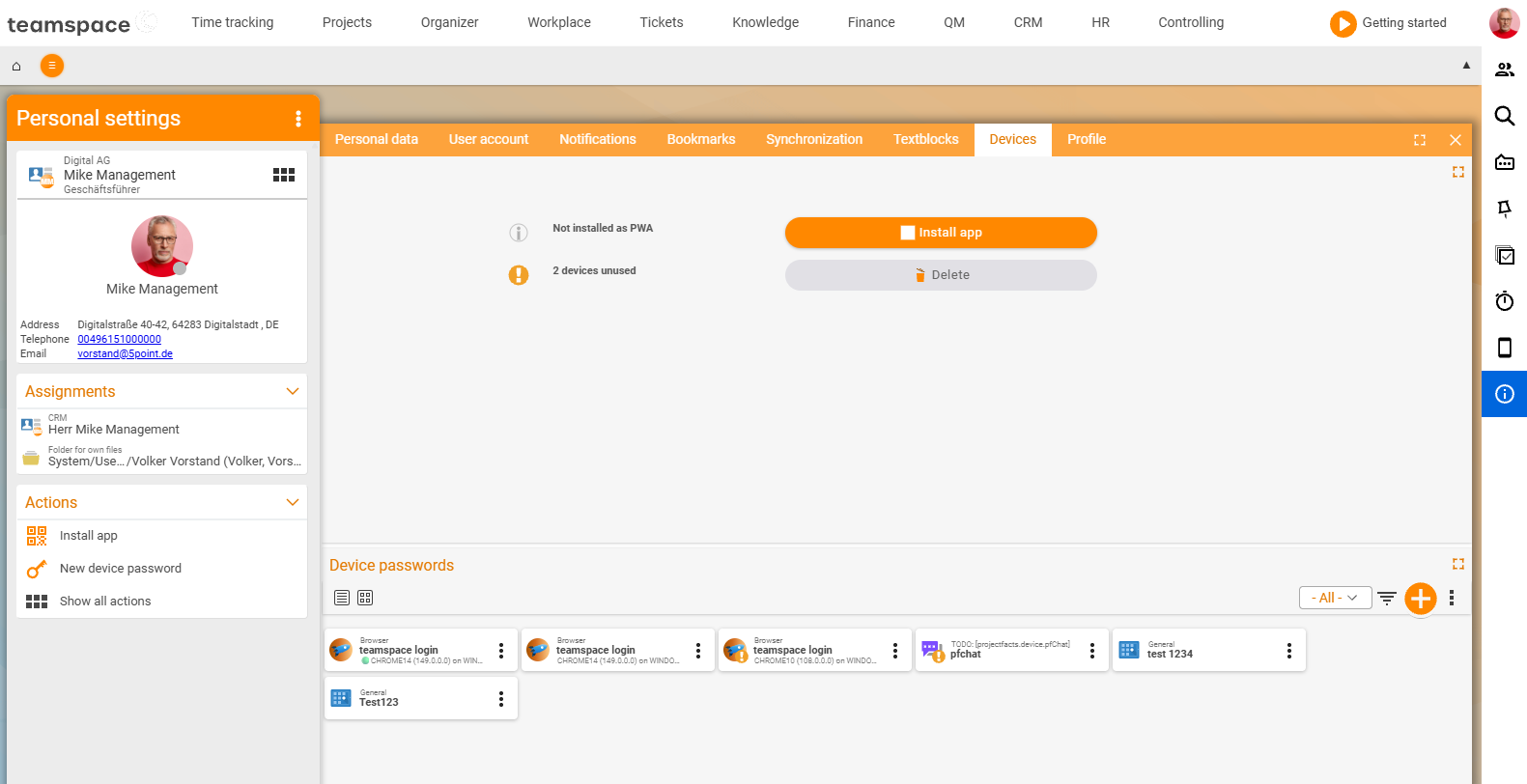
You create device passwords in Personal data in the Devices area: plus button, give it a meaningful name (such as iPhone work or Outlook office), Save. teamspace shows the user name and password once — take that into the add-on tool. In the same area you see all active device passwords with a toggle. Switch one off and synchronisation via that password is blocked immediately.
⚠ Never use your real login password in the sync tool — if a device is lost, the exposure would be large.
What syncs, and what doesn’t
Outlook and CalDAV are classic calendar protocols — they don’t know every teamspace feature:
- Participants: come across as a list; the accept status shows on the device as a set or open response hint.
- Permissions: still apply — what you may not see in teamspace does not appear in the sync calendar.
- Availability: is translated into the matching Outlook values (
Free,Busy,Tentative,Away). - Microsoft Teams meeting link: is carried over — you click straight into the meeting from the Outlook or phone appointment.
- Resource schedules: do not come across (not a classic appointment, but a capacity record).
- Recurring appointments: come across as a series; if a single instance changes, it drops out of the series (as in Outlook).
Common problems
Why do shared appointments end up in the system twice? If you sync your full Outlook calendar with teamspace and a colleague does the same, a shared appointment arrives twice — once as a native Outlook appointment, once as a teamspace appointment. The fix: use a separate, empty Outlook calendar just for teamspace, or have only one person maintain shared appointments in teamspace.
Why is the Synchronisation tab missing from my personal settings?
Then the Synchronisation right is not set in your user group. The administrator switches it on in the configuration under Users & rights → User groups (search with Ctrl+F for “Synchronisation”) and saves the group.
Why shouldn’t I use my login password in the sync tool? If a device is lost or stolen, the exposure would be large. Use a device password instead — if you lose the device, you deactivate only that password and your main password is untouched.
Why does an old device keep syncing? After a device change, the old sync profile stays active until you switch it off. Deactivate the old device password and the old sync profile via the toggle.
Which state wins when two devices change something at the same time? Synchronisation runs two-way — in a conflict, the most recently received state wins. For important changes, wait a moment until the synchronisation is through.
Common questions & needs
| You want to … | How to |
|---|---|
| The “Synchronisation” tab is missing | The admin sets the Synchronisation right in Users & rights → User groups. |
| Connect Outlook | Install teamSync for Outlook from the footer download, choose a profile + an empty sync calendar. |
| Avoid duplicate appointments | Use a separate, empty Outlook calendar just for teamspace. |
| Connect your phone | Create a mobile sync profile, enter the connection details into a CalDAV account (iOS/DAVx⁵). |
| Less data on the phone | Set a shorter period and a sub-selection in the sync profile. |
| Be secure rather than use the main password | In Personal data → Devices, create a device password. |
| Lock down a lost device | Deactivate the device password and/or sync profile via the toggle. |
| Only addresses, no appointments | Limit the selection to Addresses in the sync profile. |