


In the calendar you create appointments, invite participants and see what is happening for you and across the team. Unlike Outlook, teamspace has no separate per-employee calendars that you have to share with one another: there is one calendar holding all the company’s appointments, and everyone sees what they are entitled to. Outlook, mobile and Microsoft Teams hang off it through sync profiles and the Teams interface, so the same appointment shows up everywhere.
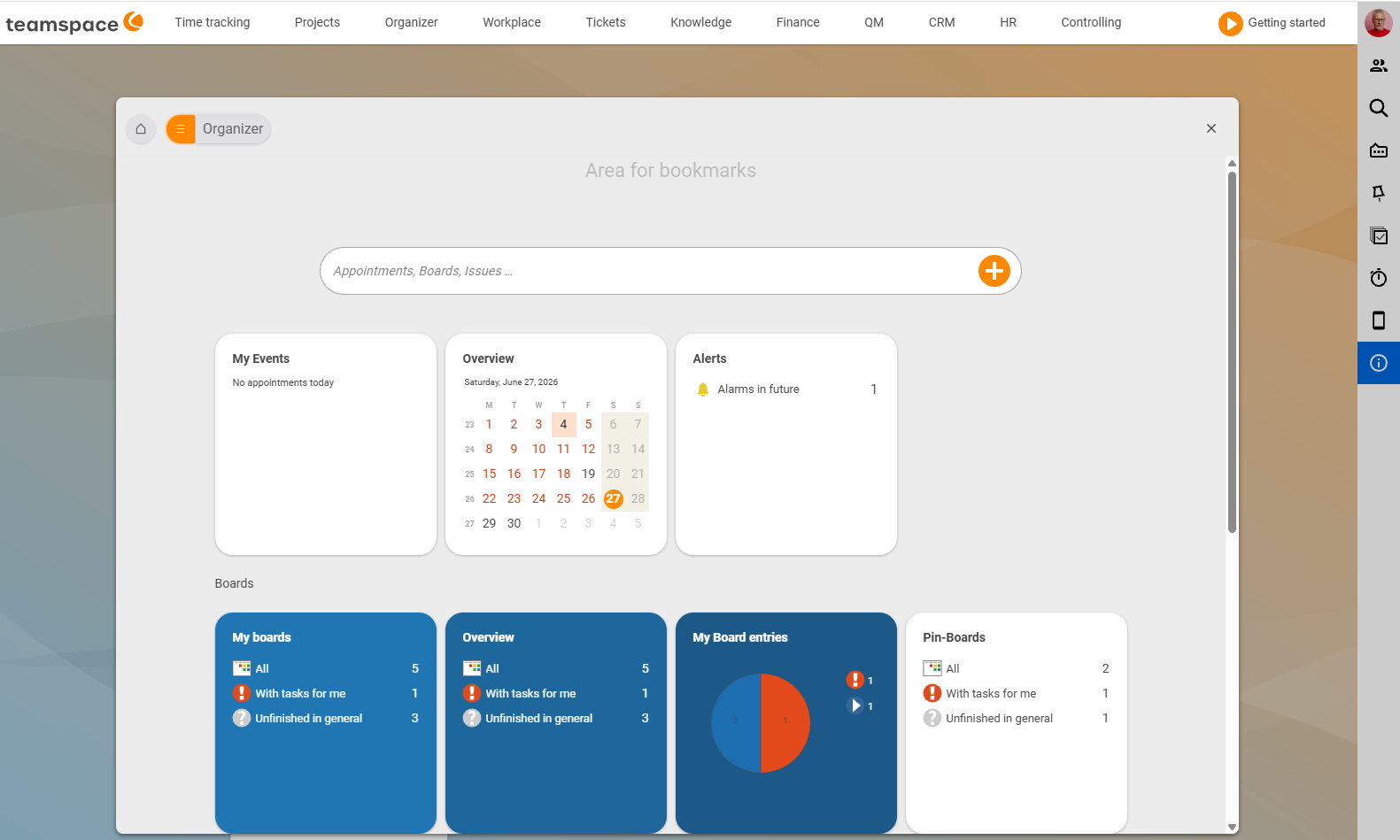
The calendar sits in the main menu under Organizer. One click opens the Bookmarks area Organizer with three tiles that matter for appointments: My appointments, Overview and Alarms.
One calendar, many views
teamspace has no separate calendars that you have to switch on. There is one calendar holding all appointments — Permissions and Filters govern who sees what. If a colleague has appointments you are listed in as a participant, they show up in My appointments; your colleagues’ public appointments appear in the Overview. If you want to protect an appointment, you set permissions on the appointment — you do not share a whole calendar.
The two standard tiles in the Organizer split exactly that:
My appointments: all appointments you are listed in as a participant or that you created yourself.Overview: all appointments visible to you — your own plus all your colleagues’ public appointments, plus, on request, leave, sickness, birthdays and project milestones.
If you want to keep an eye on a colleague’s calendar separately, filter the Overview to that person and save the view as a bookmark under Organizer. From then on you have that colleague’s calendar one click away. Why the model works this way is explained in One calendar, many views; how to use it in View & filter appointments.
Four views for different questions
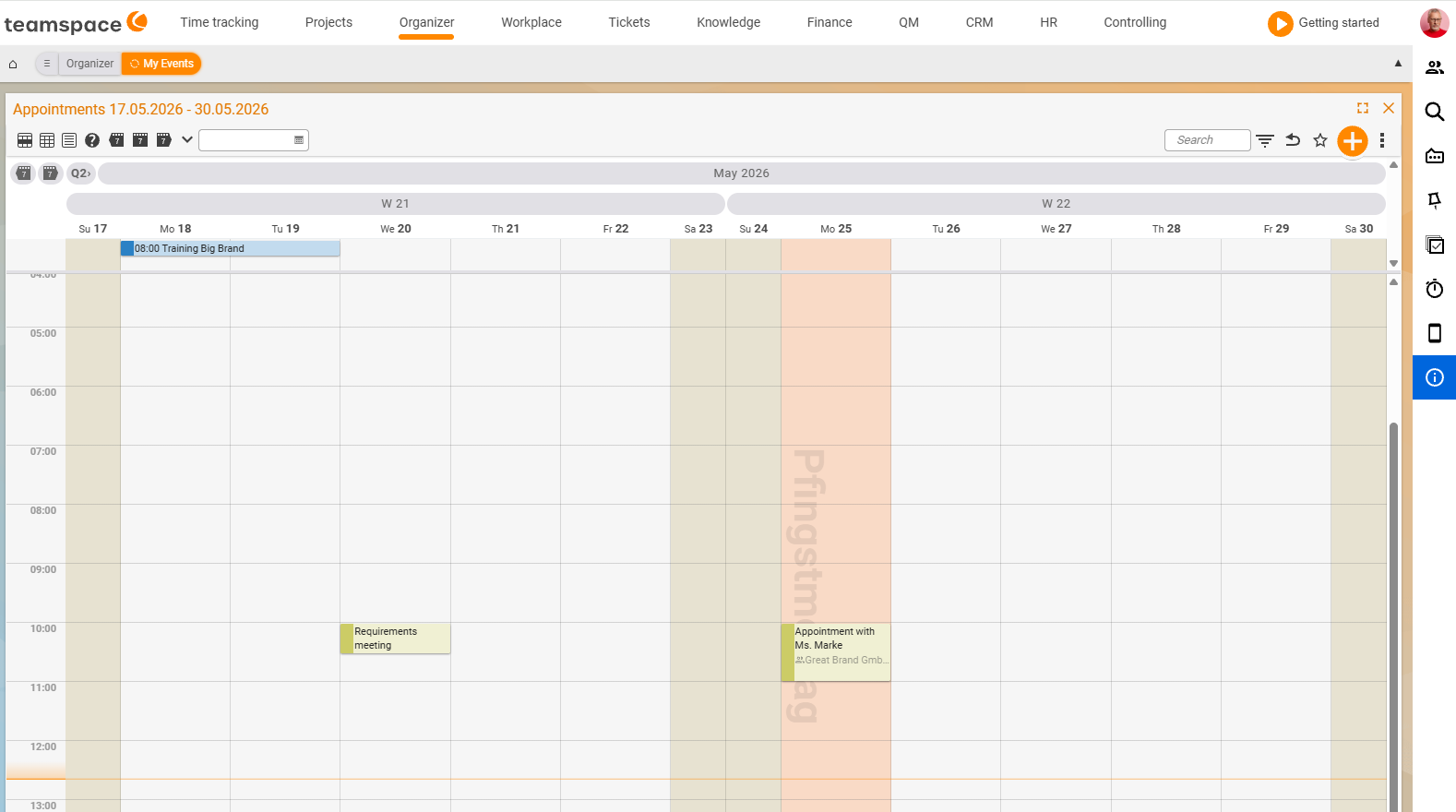
Within My appointments and Overview you switch between four views using the icons at the top left:
Week: a seven-day grid with hour columns and aCW NNheader. The default for the current working week.Month: a compact monthly overview, with weeks markedCW NNdown the left per row. For medium-term planning.Standard: a list view with the sectionsPastandNext 7 days. When you need a list rather than a grid — for printing or filtering, say.Appointment requests: a pre-filtered Standard list of all appointments where your attendance is stillPending. This is where you tidy up when invitations have been waiting for you.
To the right of the view icons, 7 days back, This week and 7 days forward move you back and forth in time; the Period drop-down opens longer jumps.
How appointments come about
You create an appointment wherever it comes to mind. In the calendar you click on a free slot and type in the name, time and participants. In a CRM contact, in a project or on a ticket you use the New appointment action — the appointment is automatically attached to the record you came from and appears in parallel in every participant’s calendar.
When you create it, you decide among other things on the availability (Free, Tentative, Busy, Away), the permission (Unrestricted, Restricted, Private) and whether the appointment is also a Microsoft Teams meeting. The full how-to is in Create an appointment.
Permissions sit on the appointment
Permissions sit on the appointment itself, not on the calendar. That way you protect a single confidential appointment without locking down your whole calendar:
Unrestricted: all users with calendar permission see the appointment and its details.Restricted: only listed participants, groups or people withRead,WriteorFull accessrights see or edit the appointment.Private: only the owner sees the appointment. Colleagues only see that the time is taken — the subject and participants stay hidden.
How to switch between the modes and grant groups specific rights is covered in Edit an appointment – the detail manager.
Entries that do not come from you
Not every entry in the calendar is a classic appointment. Via Settings and filters → Show additional elements, teamspace also pulls in other sources:
- Leave and sickness from HR personnel management, shown as absence bars.
- Project phases, project milestones and global milestones — handy when you plan towards key dates.
- Birthdays from the contact data.
- Resource schedules from capacity planning, as their own entries.
Alarms, synchronisation, Teams, public holidays
Four sub-topics each have their own page:
- Have teamspace remind you before an appointment by popup, email or SMS — on the single appointment or as a general alarm. See Alarms & reminders.
- Synchronise appointments between teamspace, Outlook and mobile through personal sync profiles. See Sync with Outlook & mobile.
- You create Microsoft Teams meetings directly in the appointment. Usage in Create a Teams meeting, setup in Set up Teams integration.
- The public holiday calendar must reach two years into the future. Updating it is covered in the calendar topic.
Three examples from everyday work
Anna plans a consultation. In the CRM she opens the contact and uses New appointment. The appointment lands in her calendar and in Tom’s as a participant, with the customer attached as an external participant. She sets Online meeting to As a Microsoft appointment — the invitation with the meeting link goes out automatically.
Tom checks his week. He opens My appointments in the week view and sees two appointments plus half of his Wednesday, where he is scheduled as a resource. In the Participants tab the grey bars tell him a colleague is already booked — so he proposes a different time.
Volker looks at the month. In Overview he switches to the Month view and shows project milestones and leave. He sees that two key employees are on leave during the release week, and moves the deadline.