


With the Microsoft Teams interface, a teamspace appointment becomes a Teams meeting at the same time. Invitations with the meeting link go out automatically to all participants — internal and external. Whether you plan the appointment in the Teams client or in teamspace: it shows up in both calendars, with the same link. The prerequisites are the interface, set up once per system, and your assignment to the Entra ID account — both covered in Set up Teams integration.
What teamspace does automatically
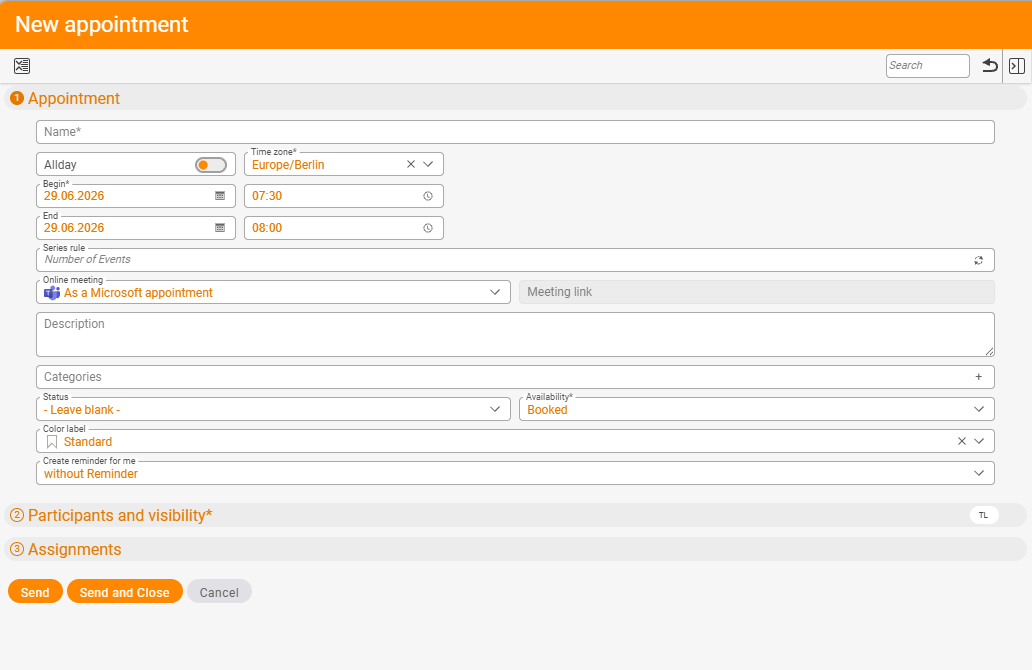
With an active Teams connection, only one field changes when you create an appointment: Online meeting can be set to As a Microsoft appointment. Everything else runs in the background:
- The meeting link is generated and written into the appointment — directly clickable.
- Invitations go to all participants — internally to employees, externally by email with the meeting link.
- On later changes — a new time, an amended description, different participants — everyone automatically gets an updated invitation.
- You join straight from the appointment — via the attendance button on the calendar entry.
You can create the same appointment either in the Teams client or in teamspace — both sides know it. If your Outlook sync is set up, the meeting link also appears in the Outlook appointment (see Sync with Outlook & mobile).
Creating the appointment as a Teams meeting
Once your assignment is in place, creating it runs as for any appointment — with one extra step:
- Click a free slot in the calendar, or use the plus button New appointment.
- Enter the name, start, end and participants as usual.
- Set
Online meetingfromNotoAs a Microsoft appointment. - Save and close.
teamspace creates the meeting in Microsoft Graph in the background, writes the link into the appointment and sends the invitation. In the detail manager, the online meeting field stays on As a Microsoft appointment in the Properties tab; the Meeting link appears in the appointment.
ℹ Without an Entra ID assignment, you cannot set the Online meeting field to As a Microsoft appointment — teamspace then cannot create the meeting on your behalf. The administrator handles the setup (see Set up Teams integration).
Joining from the calendar
In the calendar you recognise Teams appointments by the attendance button that appears as soon as you hover over the calendar entry. One click opens the meeting in the Teams client. It works the same from the detail manager — the meeting link in the Properties tab is clickable. So you don’t have to switch to the Teams client to find your meetings; the week view shows all Teams appointments together with the rest.
Other meeting tools (Zoom, Google Meet, Webex)
Zoom, Google Meet, Webex and similar tools are not integrated as deeply as Microsoft Teams. You use them via the standard route:
- Enter the URL in the appointment — in the
Descriptionor in theLocationfield. - Invite via your own email — not via teamspace.
- Join via the link in the appointment — as with any URL click in the browser.
These appointments appear in the calendar like regular appointments, without the automatic attendance button.
Common problems
Why can’t I set Online meeting to As a Microsoft appointment?
You are missing the assignment to the Entra ID account — without it, teamspace cannot create the meeting on your behalf. The administrator assigns you (see Set up Teams integration).
Why don’t I see the meeting link in Outlook? The link is only carried into the Outlook appointment if your Outlook sync is set up. Set up the Sync with Outlook & mobile, and the Teams link comes along.
How do I add Zoom, Google Meet or Webex?
These tools are not integrated automatically. You enter the meeting link manually in Description or Location; the invitation runs via your own email, not via teamspace.
Common questions & needs
| You want to … | How to |
|---|---|
| An appointment as a Teams meeting | In the creation dialog, set Online meeting to As a Microsoft appointment. |
| Send the meeting link | Happens automatically on saving — to internal and external participants. |
| Join from the calendar | Via the hover attendance button on the entry, or the link in the Properties tab. |
| ”Online meeting” won’t go to “As a Microsoft appointment” | The Entra ID assignment is missing — the admin must assign you. |
| Use Zoom/Google Meet | Enter the link manually in Description or Location; invite via your own email. |
| See the link in Outlook too | Set up the Outlook sync — the Teams link is synced along. |
Related topics
- Set up Teams integration Calendar Configuration
- Create an appointment Calendar How-to
- Sync with Outlook & mobile Calendar How-to
- teamspace and Microsoft Teams as a duo