


Alarms are reminders that teamspace sends at a set time — as a popup, notification, internal message, SMS, email or via report. Two kinds: appointment alarms hang off a single appointment and fire relative to its start or end. General alarms stand on their own and fire at a fixed time, with no reference to an appointment.
Appointment alarms
When you open an appointment in the detail manager, the Alarms tab sits at the far right of the tab row. The table lists all alarms for the appointment with the columns Date, Recipient, Description. As long as no alarm is set, it reads No data found. Please check the search settings.
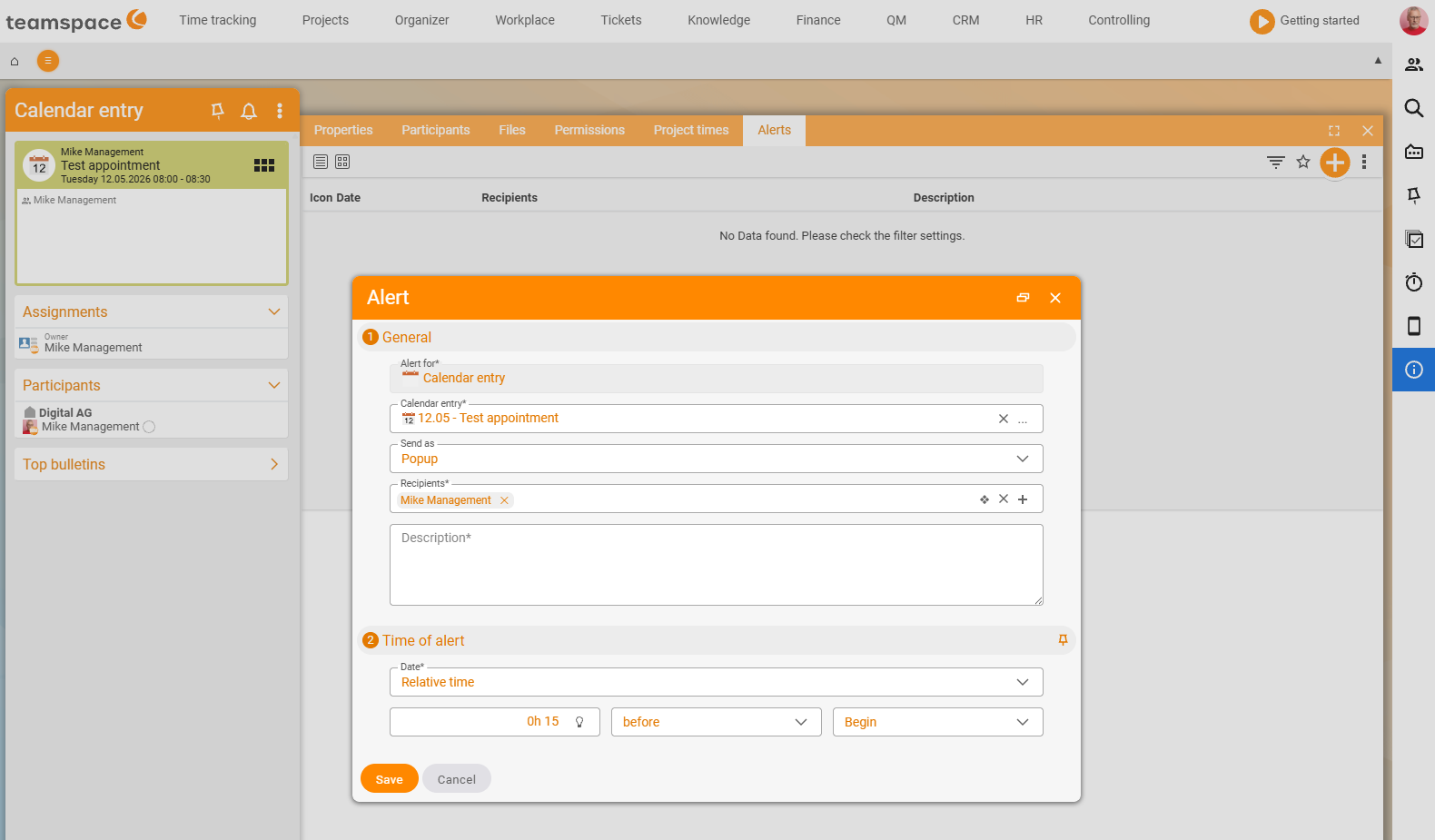
The plus button with the tooltip New alarm opens the alarm dialog. Two sections need filling in:
General*:
Alarm for*: prefilled withCalendar entry.Calendar entry*: prefilled with the current appointment.Send as: a drop-down,Popupby default. Other values:Popup,Notification,Internal message,SMS,Email,Via report.Recipient*: a chip field. The appointment owner by default; add further people or groups.Description*: free text that appears in the notification.
Time of the alarm*:
Date*: a drop-down.Relative time(default) — the alarm fires a set amount of time before or after the appointment’s start or end.- Time entry: e.g.
0h 15for 15 minutes. before/after: a drop-down — fires before or after the reference point.Start/End: a drop-down — the reference point is the appointment’s start or end.
Example: 0h 15 before Start — reminds all recipients 15 minutes before the appointment’s start, as a popup. Footer buttons: Save, Cancel. After saving, the alarm appears in the table.
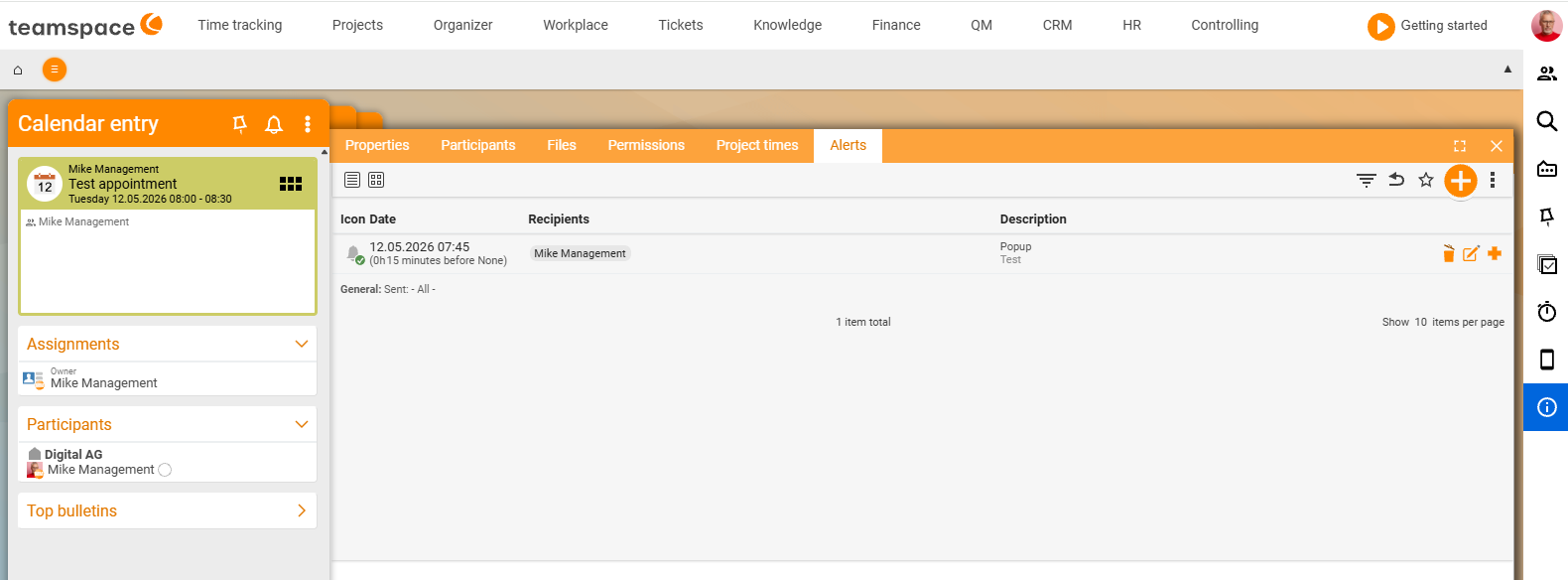
After Save, the alarm appears in the table of the Alarms tab — with a bell icon, the trigger time, the recipient and the description.
Six delivery methods
The six values of the Send as drop-down differ in where the recipient sees the alarm:
Popup: opens directly in front of the recipient in teamspace. For active users at their work computer.Notification: appears in the notification centre of the right-hand vertical bar. Stays visible until it is dismissed.Internal message: as an entry in the messages module. Useful when the recipient is not currently in the calendar.SMS: goes to the mobile number in the employee profile.Email: goes to the email address in the employee profile.Via report: lands in the recipient’s report distribution — useful for batched reminders.
ℹ Several delivery methods at once need several alarms. If you want a popup and an email for the same appointment, create two alarms.
General alarms
Some reminders do not hang off an appointment: a call that should go out at a fixed time; a deadline; maintenance that comes up each quarter. For these there is the Alarms sub-page in the Organizer module.
You reach it via the main menu Organizer → tile Alarms. The list shows all alarms with the columns Date, Affected element, Description, Recipient and Active. Each entry has a bell icon on the left and, on the right, an Active tick and three icons to delete, edit and for further actions. The switch at the top toggles between list and tile view.
Creating a general alarm
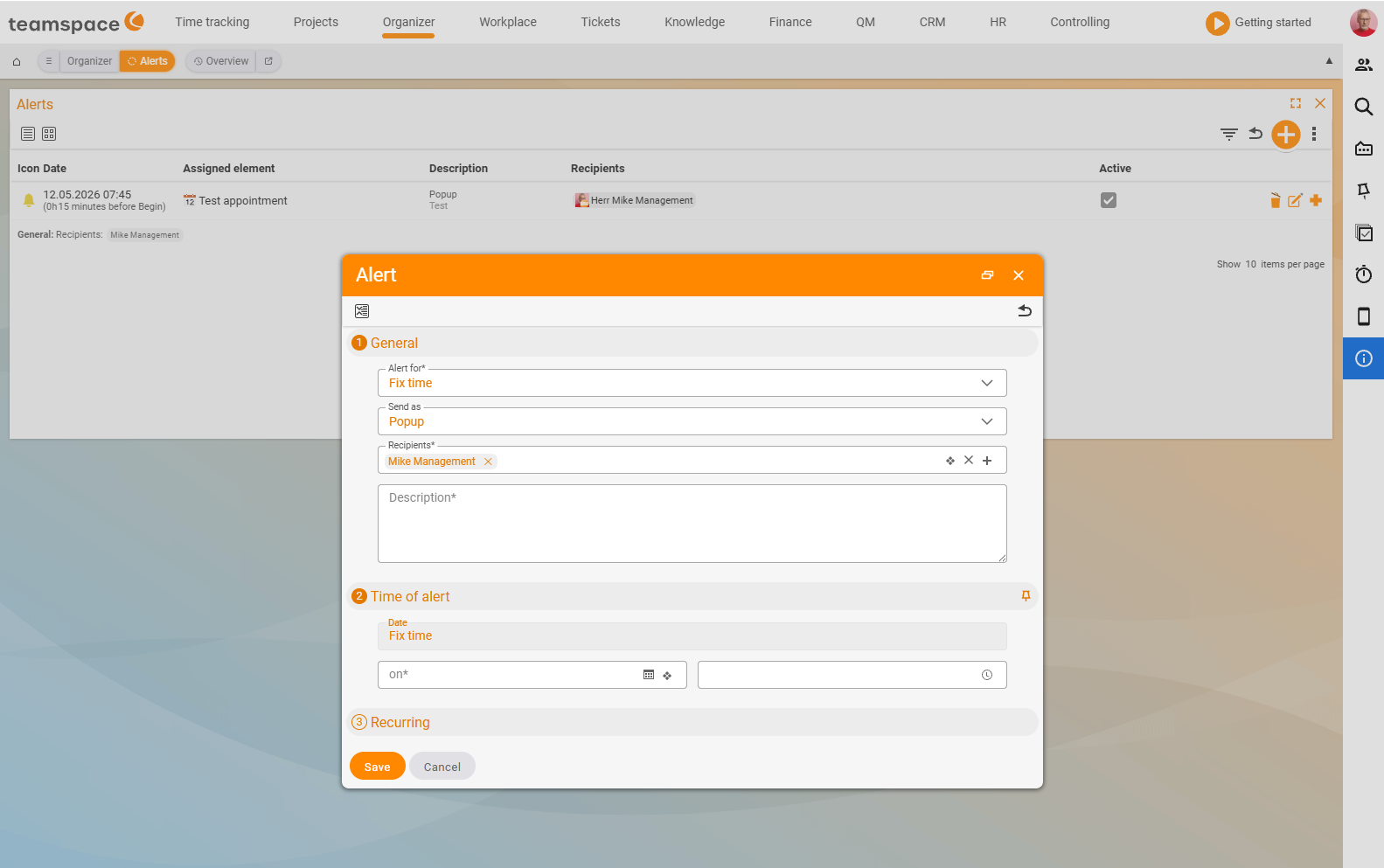
In the alarms list you click the plus button. The dialog is the same as for appointment alarms, with two differences:
Alarm foris set toFixed timeinstead ofCalendar entry— there is no reference to an appointment.Time of the alarmknows only the fixed time — via theonfield you choose the date and time directly, not relative to a reference point. In theRecurrencesection the alarm can additionally be repeated periodically.
Everything else — recipient, delivery method, description — works as for the appointment alarm. With the Active tick you switch an alarm off temporarily without deleting it.
Common problems
Why don’t I get a popup and an email from one alarm?
An alarm carries exactly one delivery method. If you want a popup and an email for the same appointment, create two alarms — one with Send as set to Popup, one to Email.
Why doesn’t my SMS alarm arrive?
SMS goes to the mobile number in the employee profile. If it is missing there, teamspace cannot deliver the SMS — add the number to the profile. The same applies to Email and the stored email address.
How do I pause a reminder without losing it?
In the alarms list in the Organizer, switch off the Active tick. The alarm is kept and no longer fires until you re-activate it.
Common questions & needs
| You want to … | How to |
|---|---|
| Be reminded 15 minutes before an appointment | In the appointment, Alarms tab → New alarm: 0h 15 before Start. |
| Be reminded by email instead of popup | In the alarm dialog, set Send as to Email. |
| Popup AND email | Create two alarms (one method per alarm). |
| Remind colleagues too | Add further people/groups in the Recipient field. |
| A reminder with no appointment | Organizer → tile Alarms → plus button (fixed time). |
| Pause a reminder | In the alarms list, switch off the Active tick. |
| Be reminded by SMS | Set Send as to SMS — goes to the mobile number in the profile. |