


A wiki with five pages still fits in your head – from thirty onwards it needs structure. Two tools make sure readers find their way: the landing page as the module’s home page and the main topics as a consistent navigation that is visible on every wiki page. This guide shows how to build both.
The landing page
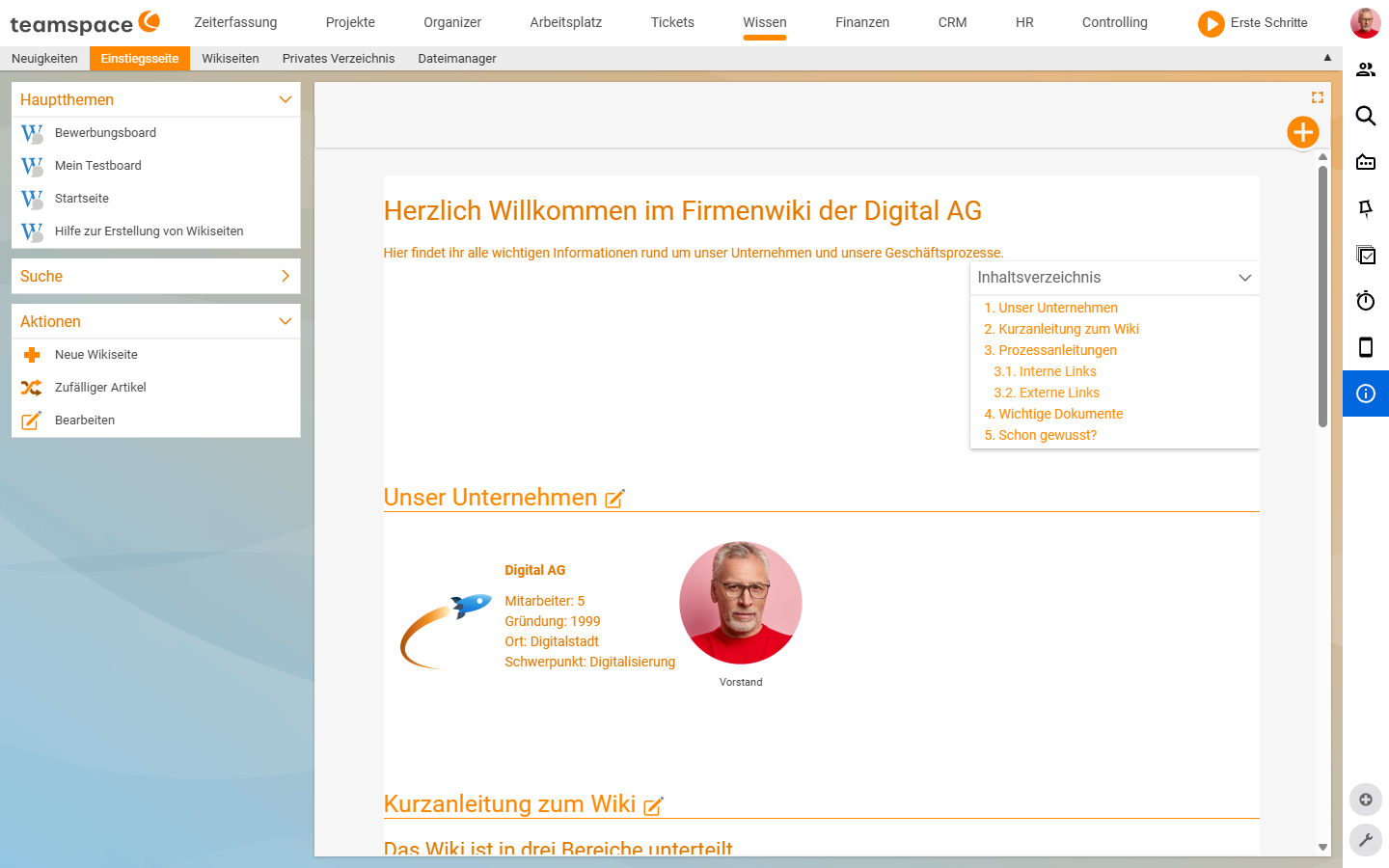
The landing page is the first page you see in the wiki. It opens automatically when you open the Landing page tab in the Knowledge module – and it is itself a wiki page. You can edit it like any other page and turn it into a table of contents, a team home page or a link list for the most important main topics.
What belongs on the landing page
Three types of content usually go here:
- Table of contents – a list of internal wiki links to the main pages (glossary, processes, onboarding, product docs).
- Welcome and orientation – a paragraph or two telling new colleagues what they will find in the wiki and where to start.
- Quick access – links to the most-used pages or external tools in the wiki context.
What does not belong here: detailed content. That sits on the respective wiki page. The landing page is a distributor, not a storeroom.
Editing the landing page
Three ways lead into the editor:
- The left
Actionsbox with the Edit button – the quickest way when you want to rebuild completely. - The pencil icon
✎next to a heading in the main area – it opens section editing, which opens only the section below. - The bottom Edit button on the
Wikitab – it opens the entire source.
In the editor you write in wiki syntax. Which commands apply to links, images and tables is collected in Wiki syntax: commands and formatting.
Note: In the demo tenant the landing page is often called
Homewith the content “Welcome to the company wiki”. The title is freely chosen – the “start of the module” function stays bound to this tab regardless of the title.
The sidebar of wiki pages
To the left of every wiki page – including the landing page – sit four accordion boxes. They look the same everywhere:
Main topics– a list of all pages marked as a main topic. This is your wiki’s global navigation: whatever appears here is seen by everyone who opens any wiki page.Search– a full-text search fieldSearch term. If the search finds nothing, it showsNo matches found.Actions– the buttonsNew wiki page,Random article,Edit.Recently viewed– an expandable box with the most recently opened wiki pages.
In the top right of the main area sits a Table of contents box. It generates itself automatically as soon as the page contains three or more headings – you do not need to create the block yourself.
Building main topics as navigation
Main topics are the second navigation level alongside the landing page. A page marked as a main topic appears in the Main topics box on every wiki page – no matter where the reader currently is.
This is how you turn a page into a main topic:
- Open the desired wiki page in the detail manager.
- Switch to the
Master datatab. - In the
Generalsection, activate theMain topictoggle. - Save with Save or Save and close.
The page now appears in the Main topics box of every wiki page. Via the Sorting field in the master data you control the order of the main topics.
Tip: Use main topics sparingly – they are the top orientation level. Five to eight clearly named main topics (e.g. Onboarding, Processes, Glossary, Product docs) navigate better than twenty. You link subpages within each main-topic page via
[[…]].
When the wiki grows
As long as you have five to ten wiki pages, a flat link list on the landing page is enough. From thirty pages onwards, structure pays off:
- main-topic clusters with short descriptions,
- a pointer to the full-text search,
- a reference to the new pages of the week.
The landing page gives the first orientation, the Main topics box carries it onto every page. How to create individual pages and set the main-topic flag is described in Create and edit wiki pages.
Common problems
Why does no table of contents appear on my page?
The Table of contents box only generates itself automatically once the page contains three or more headings. You do not need to create a block yourself – just add enough headings.
My page does not appear in the navigation.
A page only appears in the Main topics box if the Main topic toggle in its Master data is active. Set it, and it is then seen by everyone who opens any wiki page. You control the order via the Sorting field.
Common questions & needs
| You want to … | How to |
|---|---|
| A home page for the team | Edit the Landing page tab – a welcome plus links to the most important pages. |
| Show a page everywhere in the navigation | Activate the Main topic toggle in the page’s master data. |
| Change the order of the main topics | The Sorting field in the respective page’s master data. |
| Change only one section of the landing page | The pencil icon ✎ next to the heading (section editing). |
| Quickly open a random page | The Random article button in the Actions box. |
| Search for a page in the wiki | The Search box in the sidebar or the search field in the Wiki pages list. |
Related topics
- Create and edit wiki pages Wiki How-to
- Introduction to the wiki Wiki Introduction
- Wiki syntax: commands and formatting Wiki Reference