


A wiki page is a single entry in your wiki – a process description, a glossary entry, an onboarding chapter. You create it via the Wiki pages tab, maintain it in the detail manager with five tabs, and decide in the master data whether the page becomes a main topic, a template or a public page. You write the content in wiki syntax.
The “Wiki pages” list
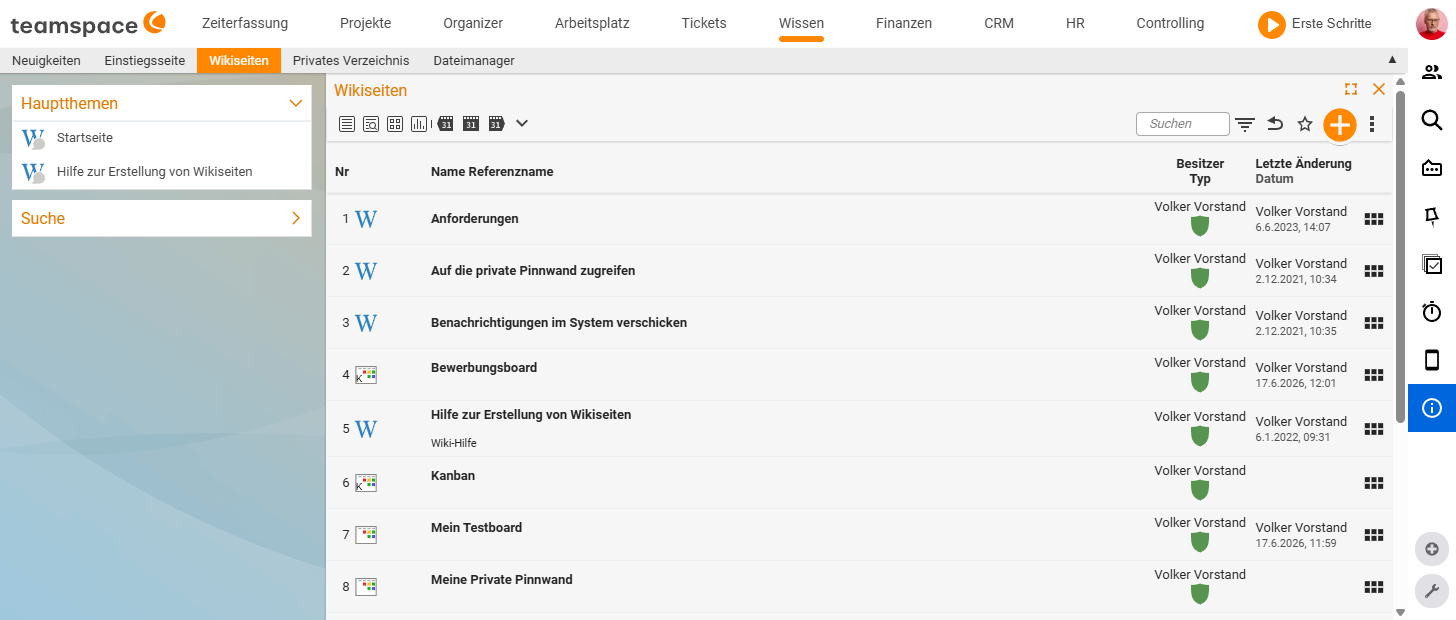
In the Knowledge → Wiki pages tab you see every page in a table with the columns No., Name Reference name, Owner Type and Last change Date. Above it sits a toolbar with view icons, the Search field, a filter icon, a star icon, the blue + button and a three-dots menu.
Knowledge → Wiki pages → Toolbar: Search | Filter | ☆ | + | ⋮- Via the search field you find pages by name and content; the result shows the search term in context, so you quickly see whether the page contains the information you are looking for.
- Via the filter you narrow down by owner, type or group.
Create a new wiki page
You start a new page via the blue + button in the list, or via the plus drop-down next to the module search field (New wiki page). Both open the same Wiki page creation dialog, which runs in two steps.
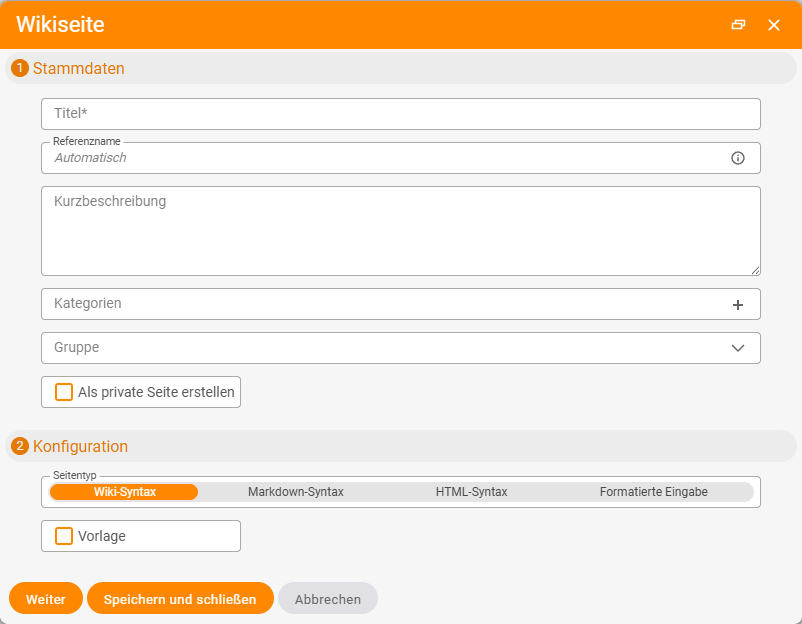
Step 1 Master data:
- In the mandatory
Titlefield, enter the page’s display name. - Optional: add a
Short description– it later appears in lists and links. - The
Reference namefills itself withAutomatic. You can overwrite it – it is the short ID with which you link to the page from other pages via[[Reference name]]. - Via
Categoriesyou assign the page to one or more keywords; viaGroupyou set the permission group. - The
Create as a private pagecheckbox makes the page visible only to you.
Step 2 Configuration:
- Choose the
Page type–Wiki syntax(default),Markdown syntax,HTML syntaxorFormatted input. - Optional: tick the
Templatecheckbox to turn the page into a reusable template.
With Save and close you create the page and land directly in the detail manager. Next takes you to the following step, Cancel discards.
The detail manager
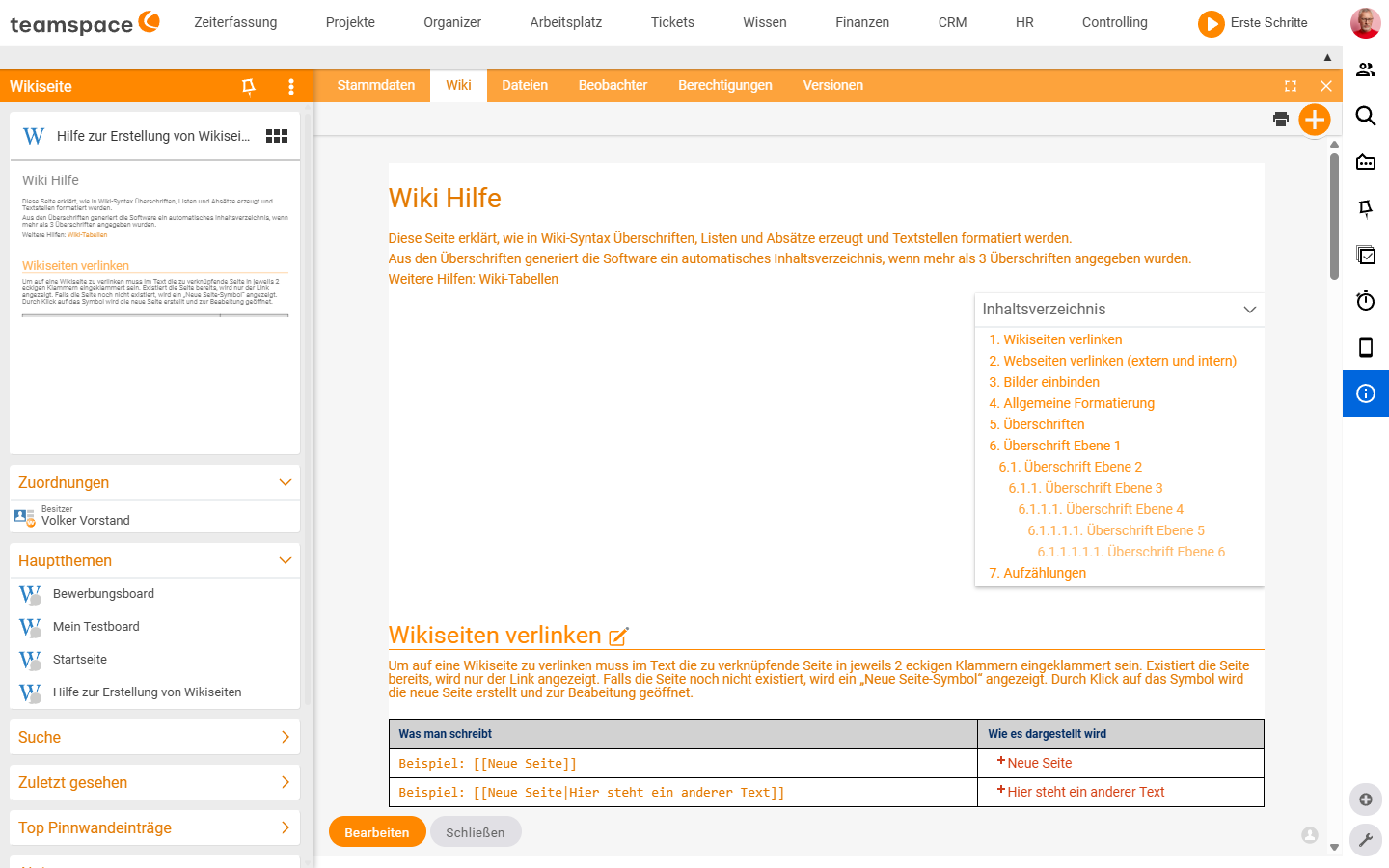
A click on a list row opens the detail manager. At the top you see six tabs: Master data, Wiki, Files, Watchers, Permissions, Versions. On the left sits the document card with the page name, below it the accordion boxes Assignments, Main topics, Search and Recently viewed. At the bottom are the Edit and Close buttons.
Master data tab
The master data holds everything that makes a wiki page a wiki page – without the actual content. In the General section:
Title(mandatory) – display name of the page.Reference name– short ID for internal wiki links ([[Reference name]]).Sorting– order in lists.Main topic(toggle) – sets the page as a global navigation entry. Active main topics appear in theMain topicsbox of every wiki page. More on this in Landing page and main topics.Short description(multi-line) – appears in lists and links.Owner(mandatory) – the employee the page belongs to.KeywordsandCategories– tags and clusters for filtering and search.Group– the page’s permission group (see Wiki permissions).
In the Configuration section:
Template(toggle) – turns the page into a template; more in Set up templates, headers and footers.Board,Wiki page,Public pagecheckboxes – determine which additional roles the page takes on.Wiki pageis active by default.Public pagemakes the page shareable (see Public pages).Page type(mandatory) –Wiki syntax,Markdown syntax,HTML syntax,Formatted input. Once chosen, the page type determines the valid commands.
Bottom buttons: Save, Save and close, Close.
Wiki tab – view and edit content
Wiki is the central content view. First you see the formatted display of the page: headings, tables, images and links exactly as a reader sees them. Next to each heading sits a pencil icon ✎ for section editing – a click opens only the section below it.
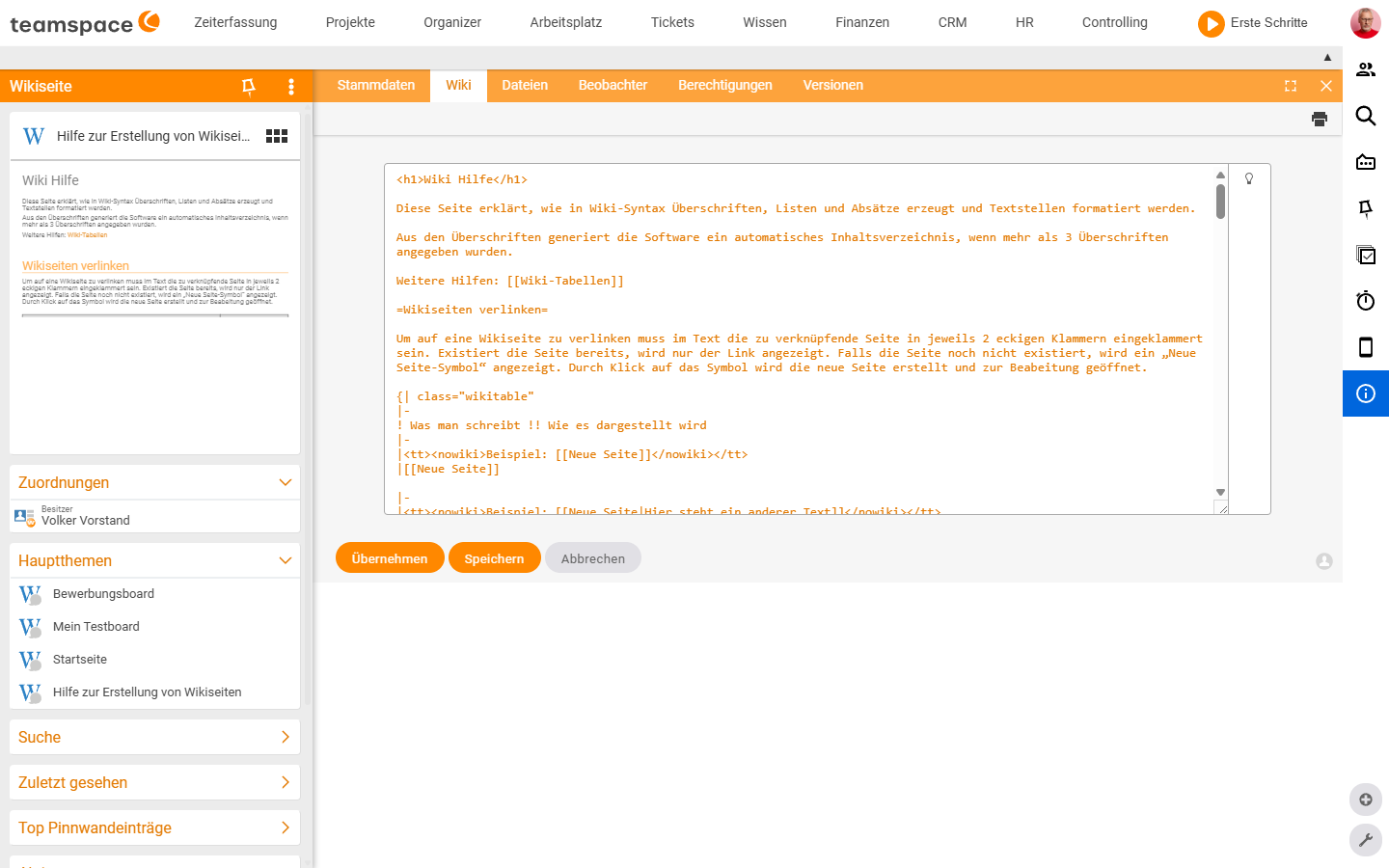
A click on the bottom Edit button opens the editor: a plain text area with the page’s source – no formatting toolbar, you write the commands directly. At the top right sits a lamp icon 💡 with help on the syntax. Bottom buttons here: Apply (saves without closing), Save, Cancel.
From three headings onwards, the display automatically builds a Table of contents in the top right. Which commands apply to links, images and tables is collected in Wiki syntax: commands and formatting.
Files tab
Every wiki page has its own file directory. Via [[File:Filename]] and [[Image:Image name]], the wiki commands access exactly this directory – the name you give in the command is looked up here.
In the tab you see the files as a table with No., Filename, Description, Colour marker, File size and Version Change date. You upload a new file via the + button or by drag & drop into the directory. If you link a file in the editor that is not yet stored here, you can upload it directly from the editor.
Watchers tab
Anyone who wants to be told about changes to a wiki page adds themselves as a watcher. In the tab you see Add watcher with the mandatory Employee field and the Add button, and below it the table of all current watchers. Anyone who creates or edits the page is added to the list automatically. Details in Versions and watchers.
Versions tab
Every save creates a new version. In the Versions tab you see the history and can reactivate an older version as the current one without losing content. How exactly this works is described in Versions and watchers.
Actions on the detail manager
In the document card header of the left sidebar sits a three-dots menu …. Behind it are direct actions for the page: Notification, Internal message, Internal ticket, Mail, Create bookmark, WikiPage, Direct link, Share with app….
To the right of the page title sits a board icon ▦ – a click opens the actions modal with the Actions tab (Details, Delete, Link, Print, Files) and the Relationships tab with a graph view of the objects linked to the page.
Common problems
Why do my internal [[…]] links stop working after I rename a page?
You changed the target page’s Reference name after the fact. It is the stable ID that [[Reference name]] points to – if it changes, all existing references break. Set it sensibly early on and then leave it.
Why are my wiki commands not taking effect?
Check the Page type in the Master data. Commands apply differently per type – switching from Wiki syntax to Markdown syntax changes which commands work. Set the type before you start writing and stay with it.
I want to embed an image that has not been uploaded yet.
If you link a file via [[Image:Image name]] in the editor that is not yet in the Files tab, you can upload it directly from the editor – or upload it beforehand in the Files tab via the + button or by drag & drop.
Common questions & needs
| You want to … | How to |
|---|---|
| Quickly create a new page | Blue + button in the Wiki pages list, or New wiki page in the plus drop-down next to the module search field. |
| Create a page just for yourself | In step 1 of the creation dialog, tick the Create as a private page checkbox. |
| Change only one section | In the Wiki tab, click the pencil icon ✎ next to the heading (section editing). |
| Set the internal link name | The Reference name field in the master data – you link to it via [[Reference name]]. |
| Add the page to the navigation | Activate the Main topic toggle in the master data (see Landing page and main topics). |
| Show an image on the page | Upload the file in the Files tab, then embed it via [[Image:Image name]] (see Commands and formatting). |
| Be informed about changes | Add yourself as an employee in the Watchers tab. |
| Return to an earlier state | Versions tab – reactivate an older version (see Versions and watchers). |
Notes
- The
Page typedetermines the valid syntax. Set it before you start writing and stay consistent – switching from wiki syntax to Markdown changes which commands take effect. - The
Reference nameis the stable ID for internal links. If you change it later, existing[[…]]references break. Set it sensibly early on. - Saving creates a version every time. So you do not need to “back up” anything before experimenting – a rollback is always possible.
Related topics
- Introduction to the wiki Wiki Introduction
- Wiki syntax: commands and formatting Wiki Reference
- Landing page and main topics Wiki How-to
- Versions and watchers Wiki Concept