


With teamSync you synchronise your teamspace or projectfacts data with the programs you use every day – Outlook, Apple Calendar/Contacts, Thunderbird or your iPhone/iPad. That way your appointments and contacts appear where you already work, without constantly switching between applications.
What can you synchronise?
teamSync transfers three kinds of data:
- Appointments – your calendar.
- Contacts – your address book.
- Open items – in Outlook these appear as tasks. So “tasks” on the program side and “open items” in projectfacts mean the same thing.
Two routes to synchronisation
Which route you take depends on the target program:
- Dedicated teamSync client (Outlook/Windows only) – a small Windows program that you install. It connects the Outlook calendar, address book and tasks to the server. Details in Set up teamSync for Outlook.
- CalDAV/CardDAV (open standards) – for iPhone/iPad, Mac and Thunderbird you don’t need a dedicated client. These programs already support the CalDAV (calendar) and CardDAV (contacts) standards; you simply enter the connection details from your sync profile.
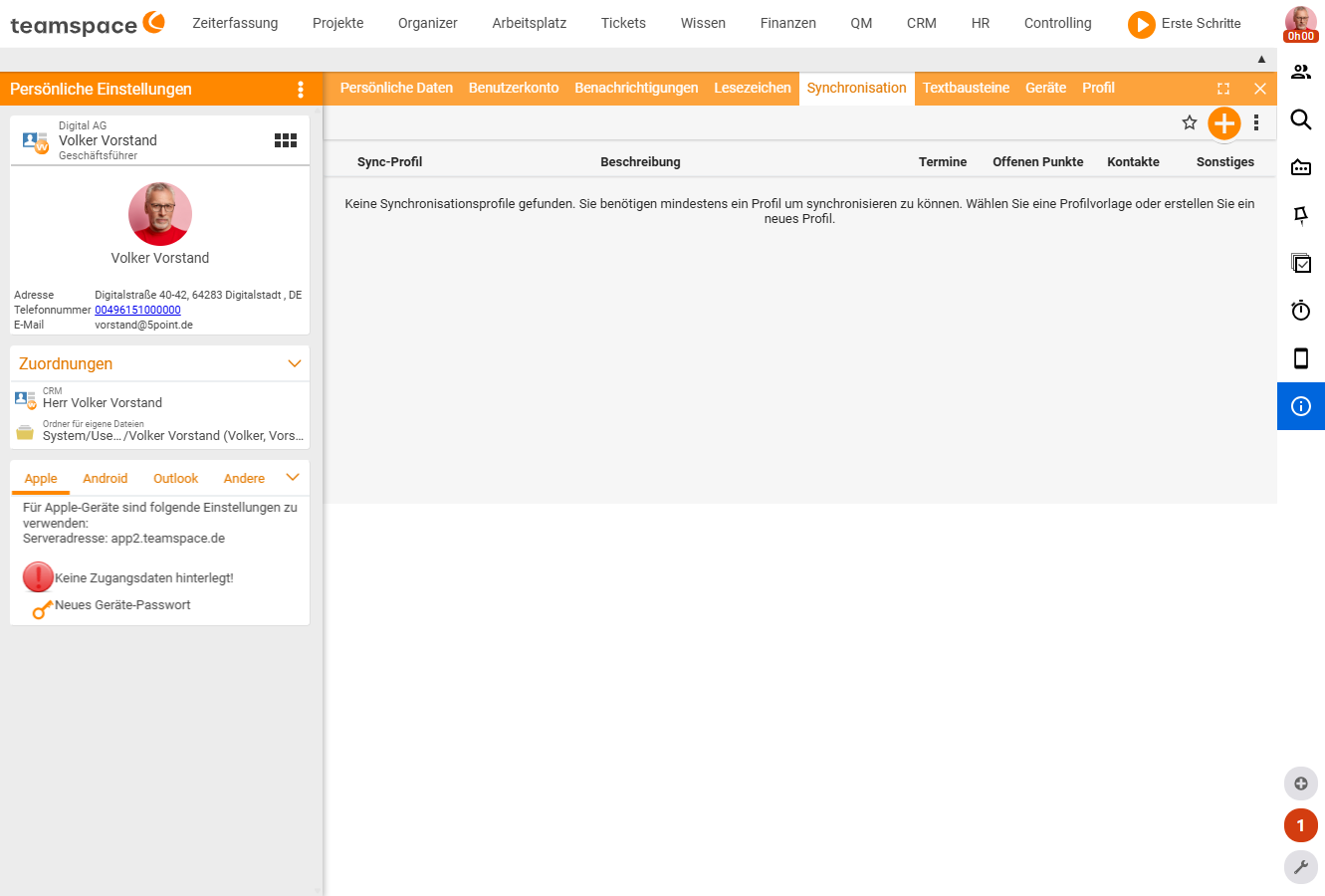
Prerequisite for either route: first you create a sync profile once in your personal settings and – depending on the device – a device password. See Create a sync profile and a device password.
One-way or two-way
When you set things up, you define the direction:
- One-way – data flows only from the server to your program. Changes you make in Outlook, for example, do not flow back. This is useful when you want to make sure that nothing is changed through the program.
- Two-way – changes and new entries from your program are also transferred to the server.
Phone interface
The teamSync phone interface connects the PhonerLite software to projectfacts: you can see who is calling before you even pick up, jump straight to contact details and service notes, and create tickets or appointments during the call. Setting it up is described in Set up the teamSync phone interface (PhonerLite).
Common problems
Why can’t I synchronise Outlook? Outlook synchronisation runs only through the dedicated teamSync client and only on Windows. iPhone/iPad, Mac and Thunderbird need no client and connect via CalDAV/CardDAV. Setup is described in Set up teamSync for Outlook.
Why do my open items appear as “tasks” in Outlook? They are the same thing: “open items” in projectfacts are called tasks in Outlook. No data is lost – only the label differs.
Why does synchronisation take a moment? Depending on the device’s internet connection, the sync needs a short while. With the Outlook client you also need a separate connection per data type (calendar, address book, tasks) – if a data type is missing, check whether its connection has been created.
Download
You download the current teamSync clients (Outlook 32-/64-bit) and the phone interface from the teamspace download page. To find out which Outlook variant (32- or 64-bit) you need, check Outlook under Office Account → About Outlook (the bit version is at the end of the version line). When in doubt, 64-bit is the right choice.
Direct download links:
- teamSync 64-bit: teamSync4_x64.exe
- teamSync 32-bit: teamSync4.exe
- Phone interface (version 1.6): teamSync-TS-installation-1.6.exe
Notes
- For the Outlook client, each data type (calendar, address book, tasks) needs its own connection.
- Synchronisation can take a short moment, depending on the device’s internet connection.