


iPhone and iPad already support the CalDAV (calendar) and CardDAV (contacts) standards – you don’t need a dedicated client, you simply enter the connection details from your sync profile.
Add an account
- On the iPhone/iPad, open Settings and choose Mail.
- Go to Accounts.
- Tap Add Account.
- Choose Other.
- Now choose what you want to synchronise:
- Add CardDAV Account for contacts,
- Add CalDAV Account for the calendar.
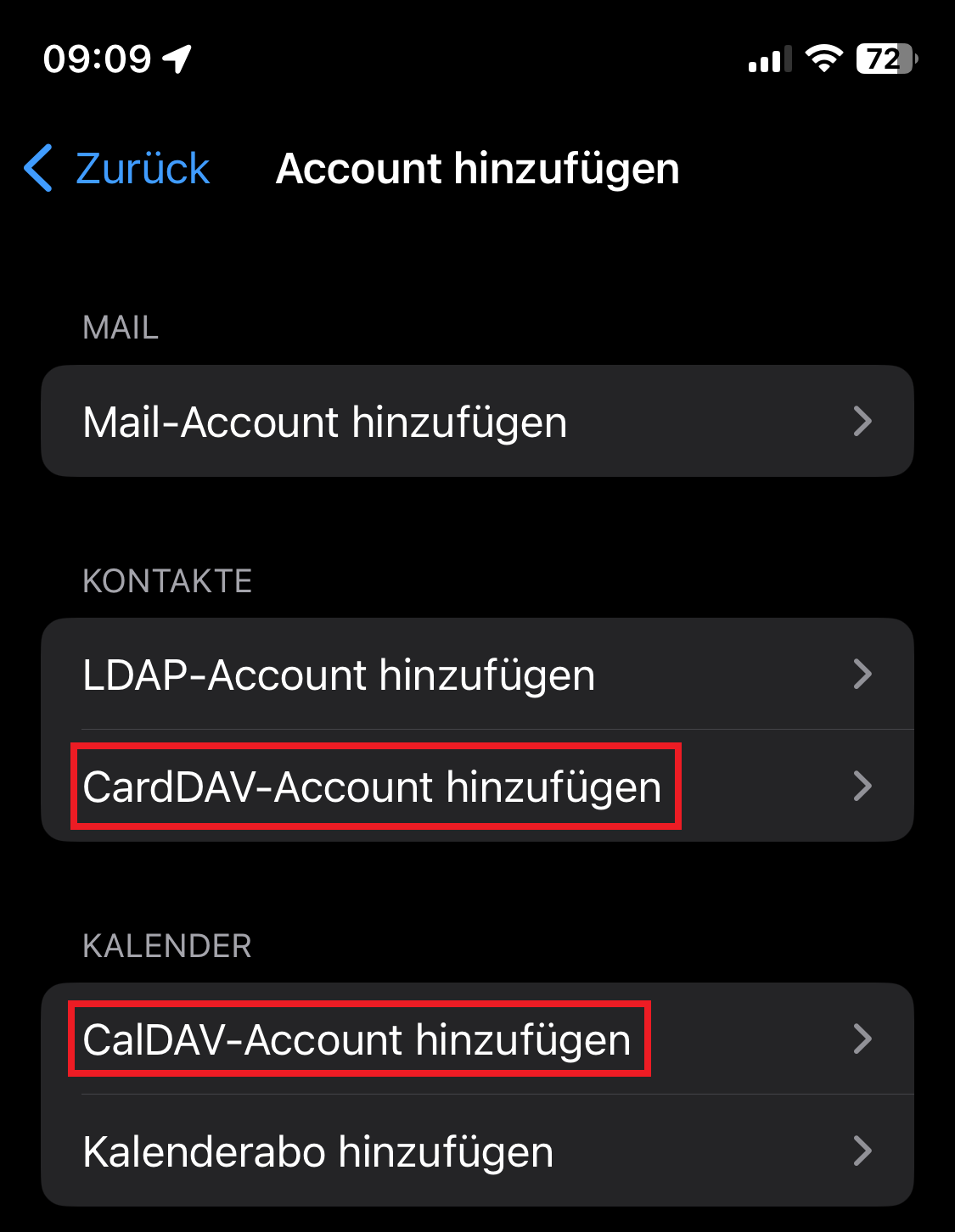
Enter the connection details
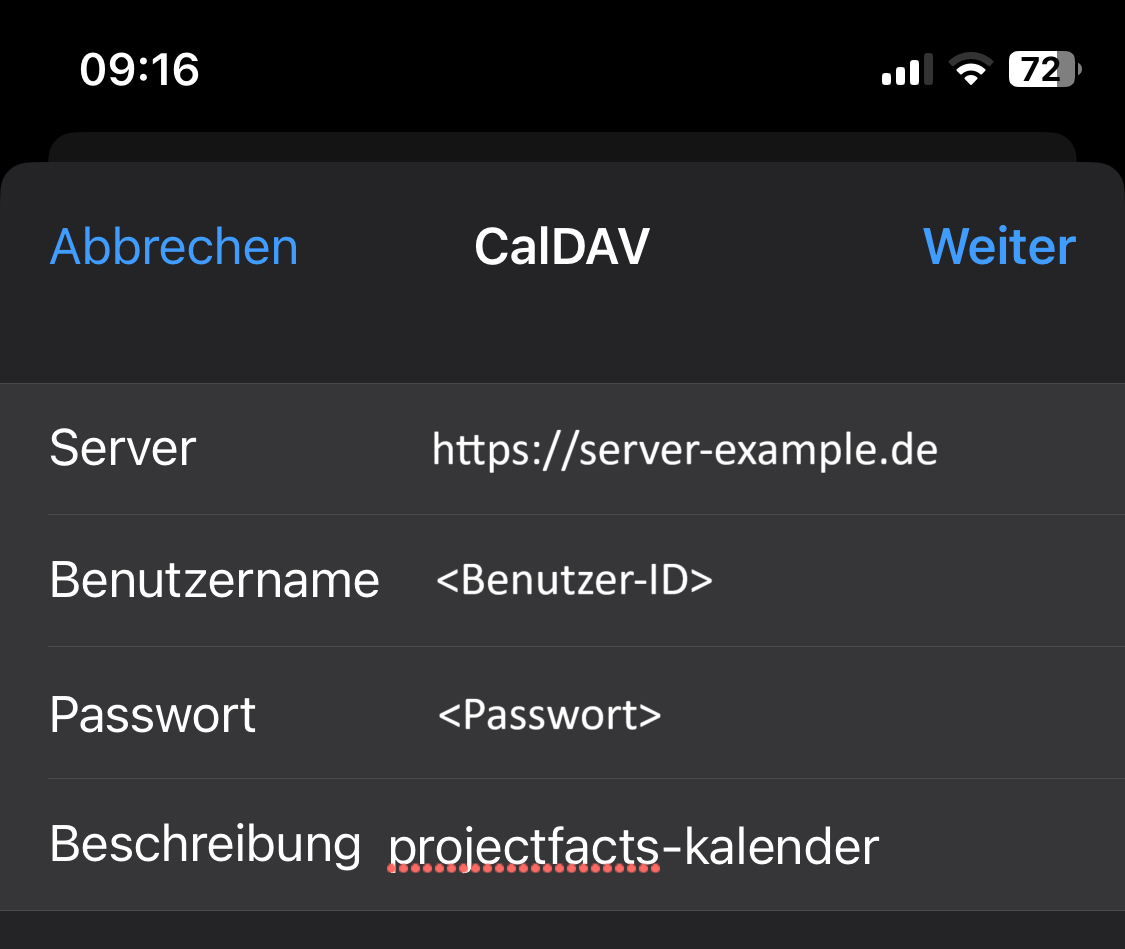
- Enter Server, Username and a Description. If necessary, use your device password as the username. Take the server and username from the connection details of your sync profile.
- Tap Next. If the credentials are correct, iOS confirms this with a green tick.
- Choose what should be synchronised and tap Save. The same applies to CardDAV synchronisation.
Check the result
Open your Calendar (or Contacts). For contact synchronisation via CardDAV, select the contacts there. You now see that the Mobile1 profile has been added.
Note: It can take a short moment for synchronisation to finish – depending on your device’s internet connection.
Common problems
iOS won’t confirm my credentials – what’s wrong? If the server and username are correct, iOS shows a green tick. If it doesn’t appear, check both values against the connection details of your sync profile. As the username, enter your device password if necessary, not your normal password.
Where do I find the server and username? In your sync profile under Connection details. Use CalDAV for the calendar and CardDAV for the contacts – you enter each as a separate account.
My appointments don’t appear straight away. The first sync can take a moment, depending on the device’s internet connection. After that, the Mobile1 profile appears in Calendar or Contacts.
Related topics
- Create a sync profile and a device password teamSync How-to
- Sync calendar & contacts on Mac teamSync How-to
- Introduction to teamSync teamSync Introduction