


Before you connect a device or program, you create a sync profile once. It determines which data is synchronised and provides the connection details that you then enter in Outlook, on the iPhone, on the Mac or in Thunderbird.
1. Create a sync profile
- Click your profile picture in the top right and choose Personal settings.
- In the detail manager, open the Synchronisation tab.
- On the left, scroll down to the Actions area and click Create new sync profile.
- In the new window, choose what to link the profile to: Mobile (mobile devices) or Computer.
- Now choose what should be synchronised – individually or all together:
- Appointments – your calendar.
- Open items – your open items (called “tasks” in Outlook).
- Contacts – your address book.
- Once you have enabled at least one function, you can additionally switch on From device to projectfacts. This means entries you create on the mobile device, for example, also flow back into projectfacts (two-way synchronisation).
- Click Finish wizard. You are redirected and see your connection details.
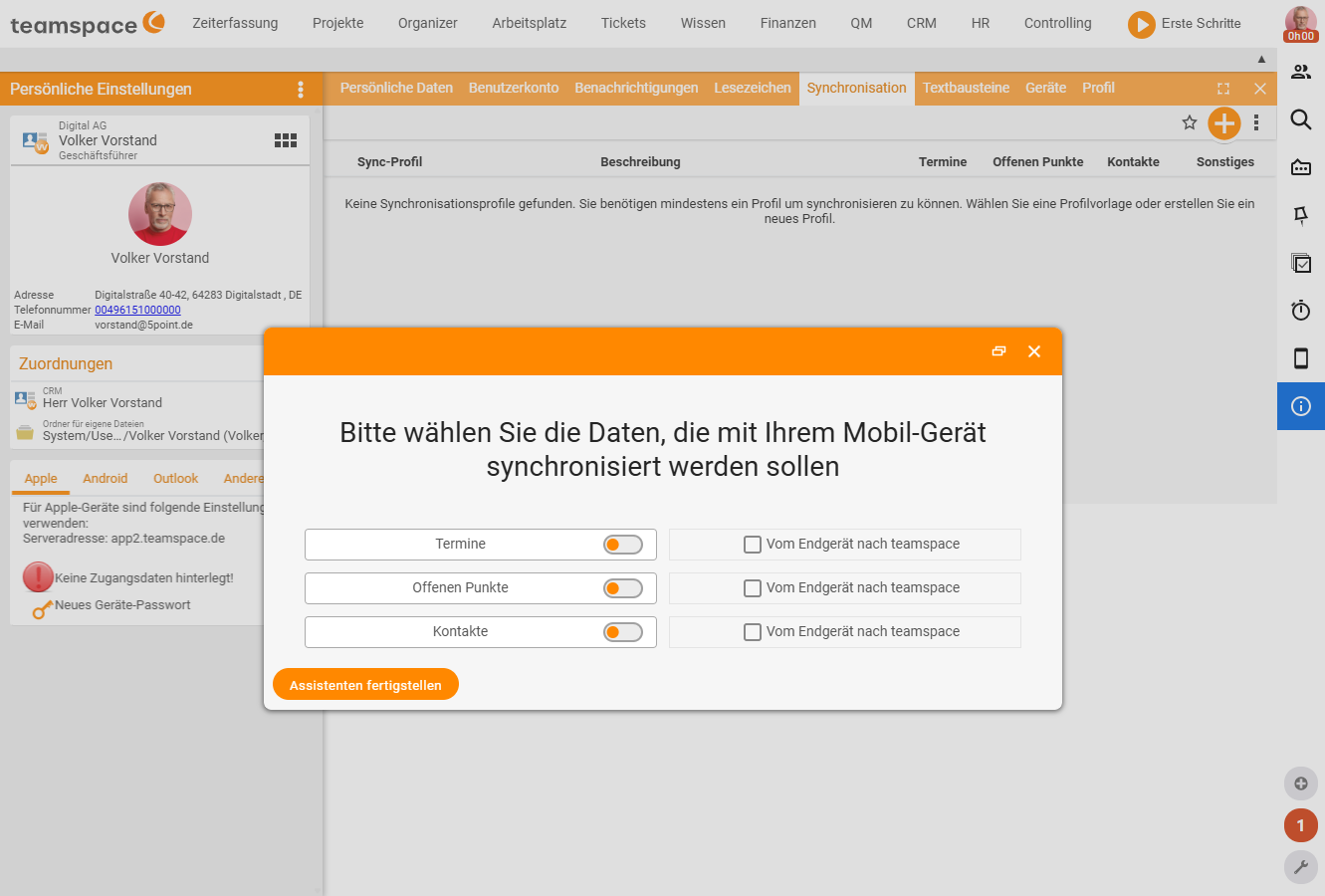
This lays the groundwork for linking a mobile device or computer to the sync profile. Click the profile you created in Personal settings to adjust it further.

2. Create a device password
To sign in on a device, you don’t use your normal password but a dedicated device password:
- Go back to Profile picture → Personal settings.
- In the detail manager, open the Devices tab.
- In the left column, choose New device password.
- In the New device password window, under Type choose General and give the device a name, e.g. iPhone/iPad.
- Click Save.
A further window opens with a username and password. Make a note of both, or copy them straight into the login dialog of the app you want to connect.
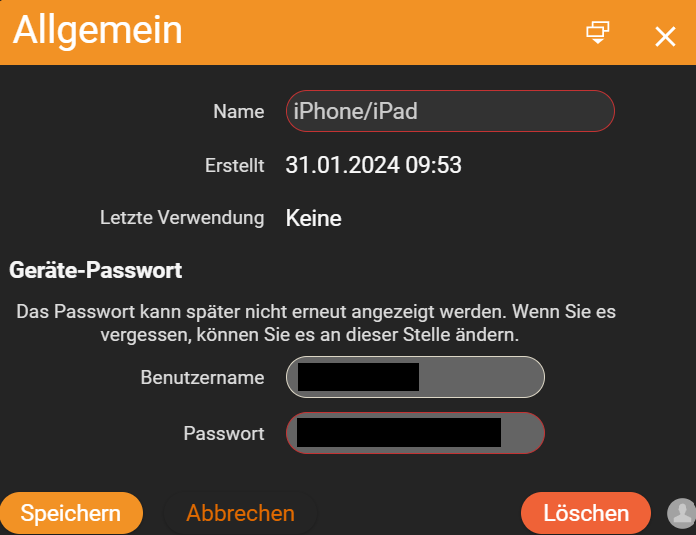
Important: These credentials are needed for synchronisation and cannot be shown again. If you lose them, create a new device password.
3. The sync profile’s detail-manager entries
When you click the profile you created, you find the following entries:
- Connection details – the URLs you need to connect a device (e.g. the calendar and address-book addresses).
- General – name and description of the profile; here you enable/disable the required protocols and can restrict access to specific IP addresses.
- Contacts – switch contact synchronisation on/off and fine-tune it further.
- Appointments – switch appointment synchronisation on/off and fine-tune it further.
- Open items – switch synchronisation of open items on/off and fine-tune it further.
- Other – additional settings for synchronisation.
Notes
- You can create several sync profiles – for example, one each for “Mobile” and “Computer”.
- For more on device passwords, see the general guide to device passwords in your personal settings.
Common problems
I’ve lost my device password – how do I get it back? You can’t: the username and password are shown only once and cannot be shown again. Simply create a New device password under Profile picture → Personal settings → Devices.
Why can’t I switch on “From device to projectfacts”? The toggle for two-way synchronisation only appears once at least one function (Appointments, Open items or Contacts) is enabled. Enable a function first, then the option appears.
Mobile or Computer – which do I choose when creating the profile? That depends on the target device: Mobile for iPhone/iPad, Computer for the Outlook client. You can also create several profiles, for example one each for “Mobile” and “Computer”.
Related topics
- Introduction to teamSync teamSync Introduction
- Set up teamSync for Outlook teamSync How-to
- Sync calendar & contacts on iPhone/iPad teamSync How-to