


In the Editorial area you write and manage the news articles of the internal company blog. You create an article, assign it to a forum, maintain the title, teaser and full text, and set a publication period during which the article is visible to readers. Published articles then appear in the News area.
Note: You only see the
Editorialarea with editorial rights. Employees without this right seeNewsonly.
The Editorial overview
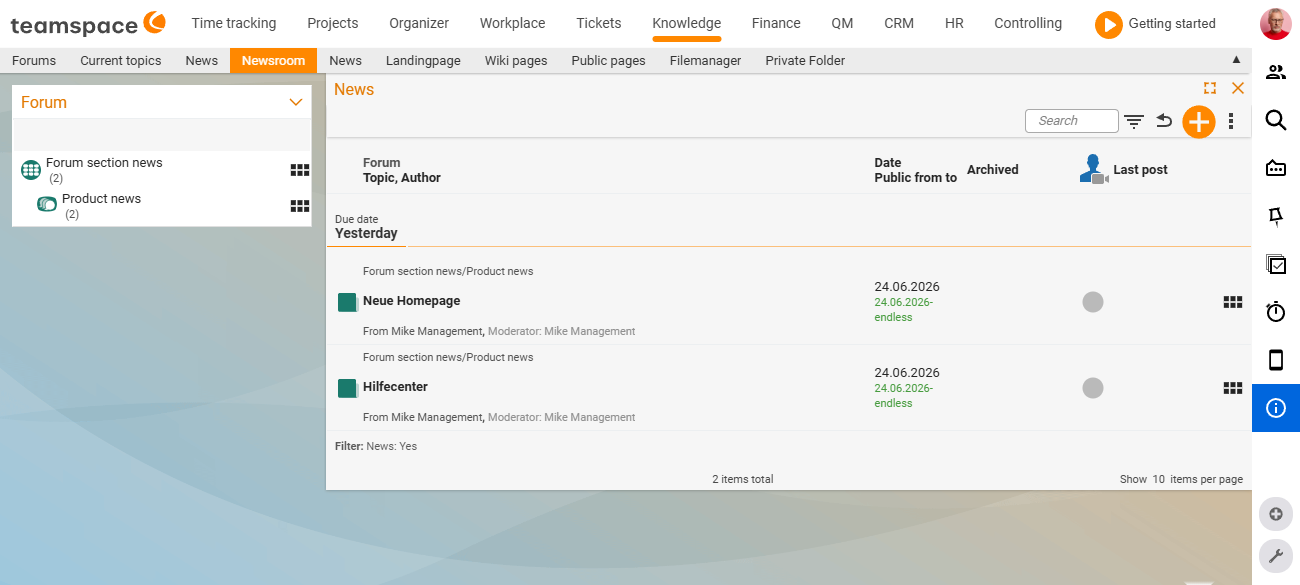
In the Editorial overview, you see the existing articles with their title, creation date and publication period. This keeps it clear which articles are currently active and how long an older article was published.
Creating a new news article
- In the Editorial area, start a new news article via the
Actionsbox. - Give the article a title.
- Assign it to a forum – the forum decides which employees may read the article later.
- Save – you land in the news article’s detail manager.
In the detail manager: master data and texts
In the news article’s detail manager, you maintain two areas.
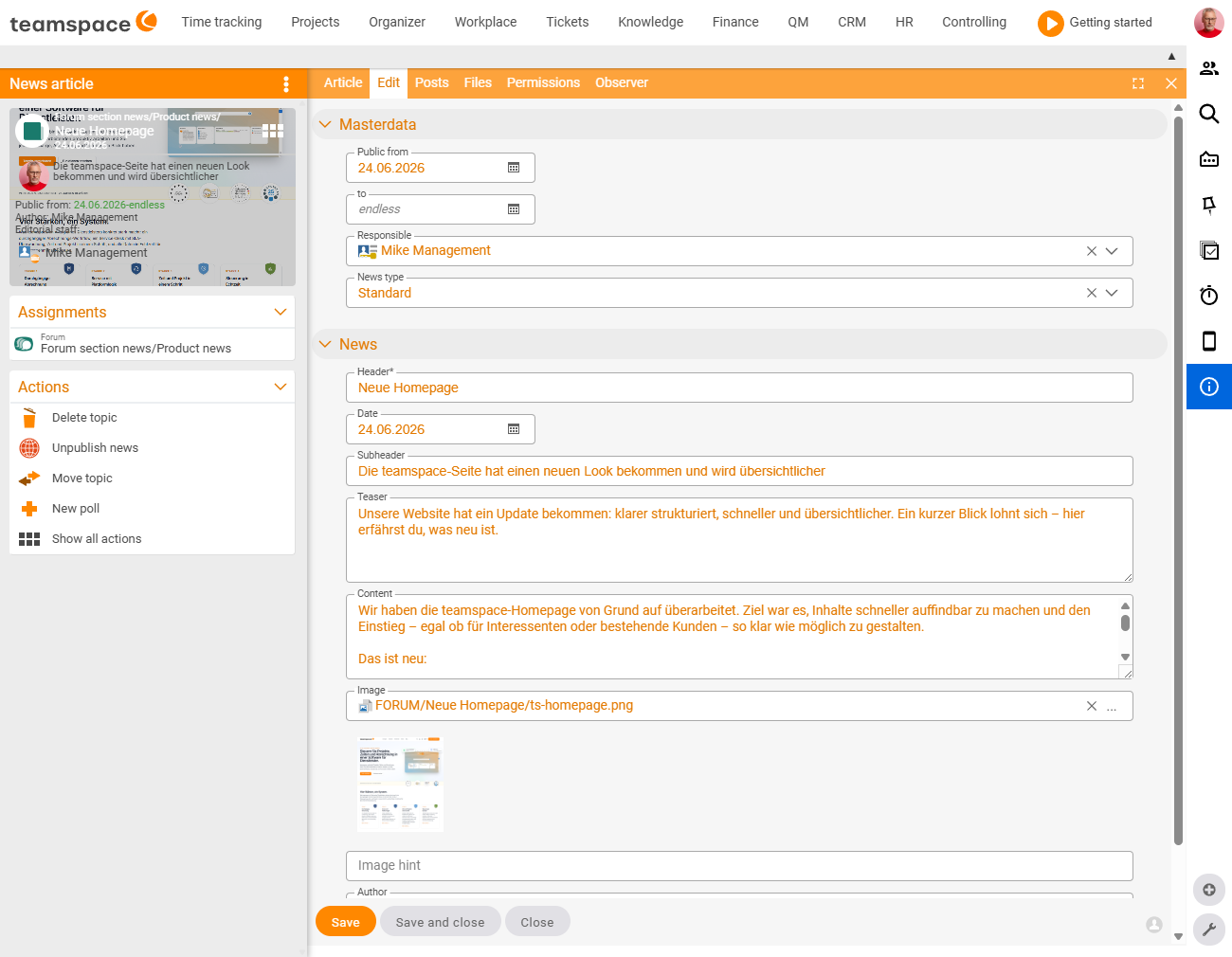
Master data carry the organisational values:
- Publication period – from when and until when the article is visible in the
Newsarea. Outside this period the article remains in the Editorial area but does not appear in the reader view. - Person responsible – who looks after the article (the creator by default).
- Forum assignment – the forum the article lands in, and thus the permission structure that takes effect.
News carries the actual content:
- Heading and teaser for the list and overview display.
- Full text of the article, in which you can embed images, files and videos.
Preview and publication
You find a preview of the article in the Article tab – exactly as readers will see it in the News area. Here you check the layout, images and line breaks before the article goes live.
Publication does not run via a separate “Publish” button, but via the publication period in the master data:
- As soon as the
Fromdate is reached, the article automatically appears in theNewsarea. - Once the
Todate has passed, it disappears again.
Tip: To make an article visible immediately, set the
Fromdate to today and theTodate to a value in the future. You withdraw an article by bringing theTodate forward.
Permissions and forum assignment
Who sees a news article depends on the assigned forum: an article in the Board internal forum appears only for the employees who have read rights for that forum. This lets you target sensitive information at a specific circle only. Who may create and publish news articles at all is governed by the module permission – see Structure & permissions in the forum.
Common problems
My article does not appear in the News area.
What matters is the publication period in the master data, not a “Publish” button. If the From date has not been reached yet or the To date has already passed, the article remains in the Editorial area but does not appear in the reader view. Set the From date to today and the To date to a value in the future.
I cannot see the Editorial area myself.
You only see the Editorial entry with editorial rights; without them, only News appears. If the entry is missing despite the rights, an administrator adds it to the main menu via System configuration → General → Menus.
I want to withdraw an article that is already published.
There is no separate withdraw command – bring the To date forward to a today or past value. Once it has passed, the article disappears from the News area automatically.
Common questions & needs
| You want to … | How to |
|---|---|
| Publish an article immediately | Set the From date to today, the To date to the future. |
| Limit an article in time | Fill the publication period with a specific From and To date. |
| Withdraw an article | Bring the To date forward to a past/today value. |
| Show an article to one department only | Assign the article to a forum with a correspondingly restricted read right. |
| Check the layout before it goes live | Open the Article tab for the preview. |
| Hand the upkeep to another person | Change the person responsible in the master data. |
Related topics
- Reading and commenting on news Forum How-to
- Introduction to the forum Forum Introduction
- Structure & permissions in the forum Forum Concept
- Digital company magazine