


A poll is a special case of a topic: in addition to the discussion, participants vote on options. You define what is voted on (poll type), how the vote is cast (voting method) and how much the others see of the result (visibility mode). The particular advantage: after the vote, the chosen appointment, file or project sits directly in the system – you do not have to transfer anything by hand.
Creating a poll
- In the forum detail manager, open the
Actionsbox and the actions modal. - In the
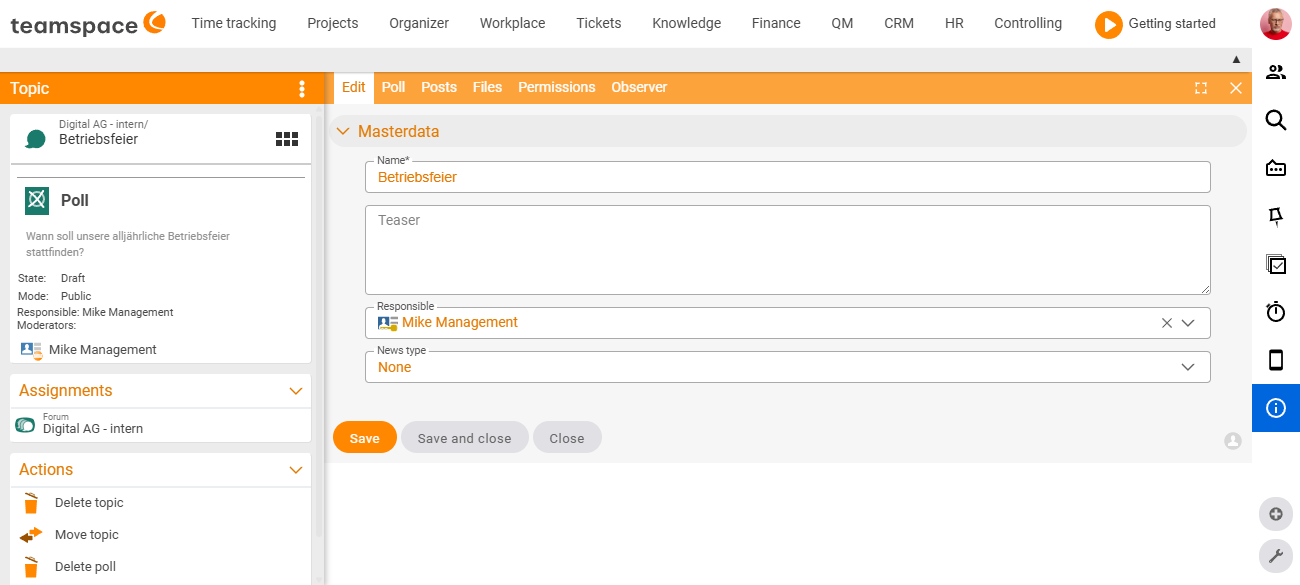
Generalsection, choose New poll. - Enter a title and the question to be voted on.
- Set the poll type, voting method and visibility mode (see below).
- Save – you land in the detail manager of the poll. A poll carries an additional
Polltab there.
Poll type – what is voted on
The poll type defines what the individual options are. Some types derive the options directly from the system:
- Standard – a simple text entry (title and description).
- Appointment – each option is a proposed appointment. After the vote, the appointment with the most votes is added to the calendar.
- File – uploaded files are put to the vote (e.g. the best of three layout variants).
- Open item – open items are put up for selection; the one with the most votes is worked on next.
- Project – projects are put up for selection, for instance to vote on their chronological order.
The advantage of these typed options: the result (the appointment, the file, the project) is stored in the system with all the relevant information – participants, handlers, properties.
Voting method – how the vote is cast
The voting method determines how a participant votes on each option:
- Single choice – exactly one option per participant.
- Multiple choice – several options at once per participant.
- Rating – each option is rated on a scale (e.g. “good”, “average”, “poor”).
Visibility mode – how much is visible
The mode decides when and who sees which results:
- Public – everyone sees the vote and the results.
- Secret – the others’ results only become visible once the vote has closed.
- Anonymous – the others’ results stay hidden even after it closes.
How a poll runs
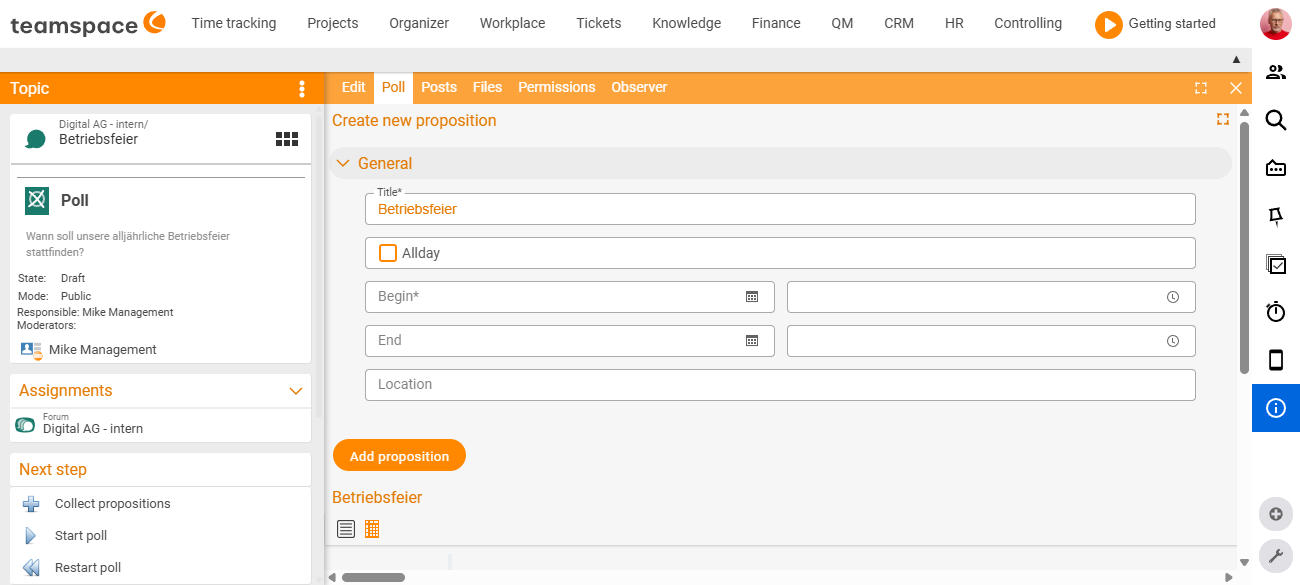
After it is created, the poll first sits in the Draft status. From here you steer it via the Next step action in the sidebar. The action menu changes depending on the current stage and offers the following steps:
Collect options– opens the poll up so that anyone with access can add their own options before it starts.Start poll– starts the vote; those with access can now vote on the options.Stop poll– stops a running vote and keeps the interim result.Restart poll– resets all entries and begins again.Back to draft– returns the poll to configuration mode; the vote is cancelled and all values are reset.
You do not have to go through every step: if you do not need options from the others, you can start the vote straight from the draft.
Creating options and seeing the result
In the Poll tab, you create the individual options at the top via New option – for an appointment poll, for example, with a title, start, end and location. Beneath it is the results table: the first column lists the people voting, the further columns come from the options. In an appointment poll, each column links into the calendar.
Common problems
Why can no one vote even though the poll is created?
A newly created poll sits in the Draft status and is not released yet. Via the Next step action in the sidebar, you use Start poll to start the vote – only then can those with access vote on the options.
Why do the participants see the interim results – or why don’t they?
That is controlled by the visibility mode. With Public everyone sees the results live, with Secret only once the vote has closed, and with Anonymous the others’ results stay hidden permanently.
I configured the poll wrongly – how do I start over?
Restart poll resets all entries and begins the vote again. Back to draft returns the poll entirely to configuration mode – the vote is cancelled and all values are reset.
Common questions & needs
| You want to … | How to |
|---|---|
| Find a common appointment | Create a poll with poll type Appointment; the winner moves into the calendar automatically. |
| Decide on the best of several files | Choose poll type File and upload the variants as options. |
| Set the order of several projects | Combine poll type Project with voting method Rating or Multiple choice. |
| Allow only one vote per person | Choose voting method Single choice. |
| Reveal results only at the end | Choose visibility mode Secret; for permanently hidden results, Anonymous. |
| Let participants propose their own options | Before the start, enable Collect options via the Next step action. |
| End a vote early but keep the result | Stop poll; the interim result stays visible. |
| Start completely from scratch | Restart poll (reset entries) or Back to draft (return to configuration mode). |
Related topics
- Topics & posts: working in the forum Forum How-to
- Introduction to the forum Forum Introduction
- Online team forum