


The working-time account (overtime account) automatically offsets your recorded attendance against the stored target. So you can see at any moment whether you are in credit or in deficit, without doing the maths yourself – and you can build up or reduce overtime deliberately. On top of that, teamspace takes automatically calculated supplements for night, Sunday and public holiday work into account.
The working-time account
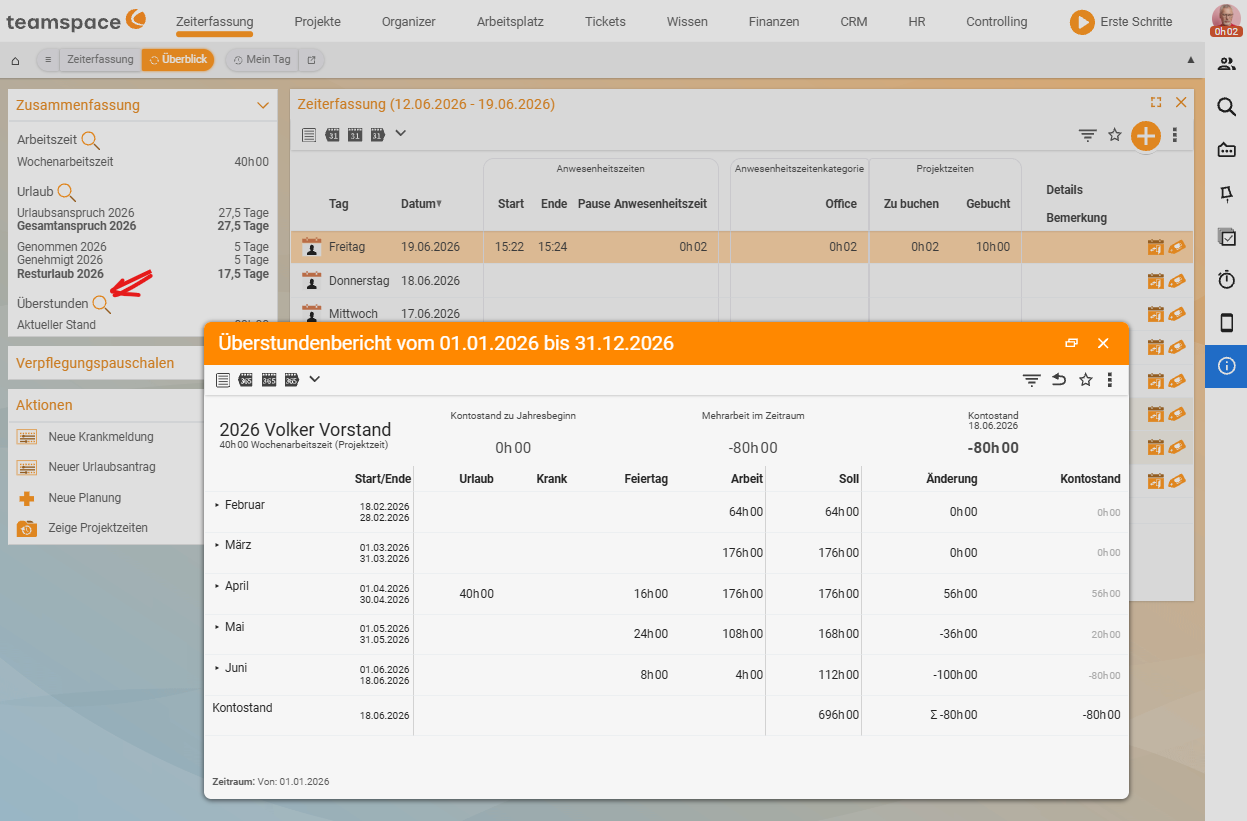
The balance is derived continuously from recorded attendance time minus target working time. teamspace shows it in the summary of time tracking with traffic-light/target-actual logic:
- More attendance than target → the account grows (overtime).
- Less than target → the account falls (negative hours).
Say your daily target is 8.0 h: if you record 8.75 h of attendance on a day, that day adds +0.75 h to the account; if you only reach 7.5 h, it is −0.5 h.
What feeds the account is stored contractually per employee – in the personnel file under HR → Employee → Contract data (Time tracking and overtime section). There you choose the source of the overtime account:
- from attendance times,
- from project times, or
- no overtime tracking.
You also set limits, such as a maximum of overtime per month.
Supplements
Certain working times automatically trigger supplements, e.g.:
- Night supplement – work during defined night hours.
- Sunday and public holiday supplement – work at weekends/on public holidays.
Each supplement rule defines a period of validity, a percentage and a combination rule (what happens when several supplements coincide). The rules are maintained by your administrators; you see the resulting supplement on the day’s card. The configuration is described in Configure time tracking.
Reducing overtime
Accrued overtime can be settled in several ways:
- Time off – request it as a dedicated leave type, “Time off in lieu” (see Record leave and sickness).
- Conversion or payout – via HR/payroll preparation, depending on the contractual arrangement.
Notes
- The overtime account builds on clean attendance times – so clock in and out reliably (see Check in and check out).
- In the event of sickness, the account is topped up based on the rules, rather than creating negative hours.
- You open detailed analyses via the magnifying glass on the summary.
Common problems
Why isn’t my overtime account updating? Check the source of the overtime account in the contract data (HR → Employee → Contract data). If it is set to no overtime tracking, no balance builds up. If the account is fed from attendance times, every forgotten clocking shows through – a block that was not recorded is missing from the balance. So clock in and out reliably.
No negative hours arise when I’m sick – is that right? Yes. When attendance is missing due to sickness, teamspace tops the account up based on the rules instead of creating negative hours.