



Checking in and out is teamspace’s digital time clock: you check in when you start work and out at the end of the day, recording your breaks in between – in the browser, on mobile or at a time terminal, and location-based via an IP restriction if needed. From these, teamspace builds attendance blocks accurate to the minute, which feed straight into your working-time account, overtime and reports.
Check in and check out
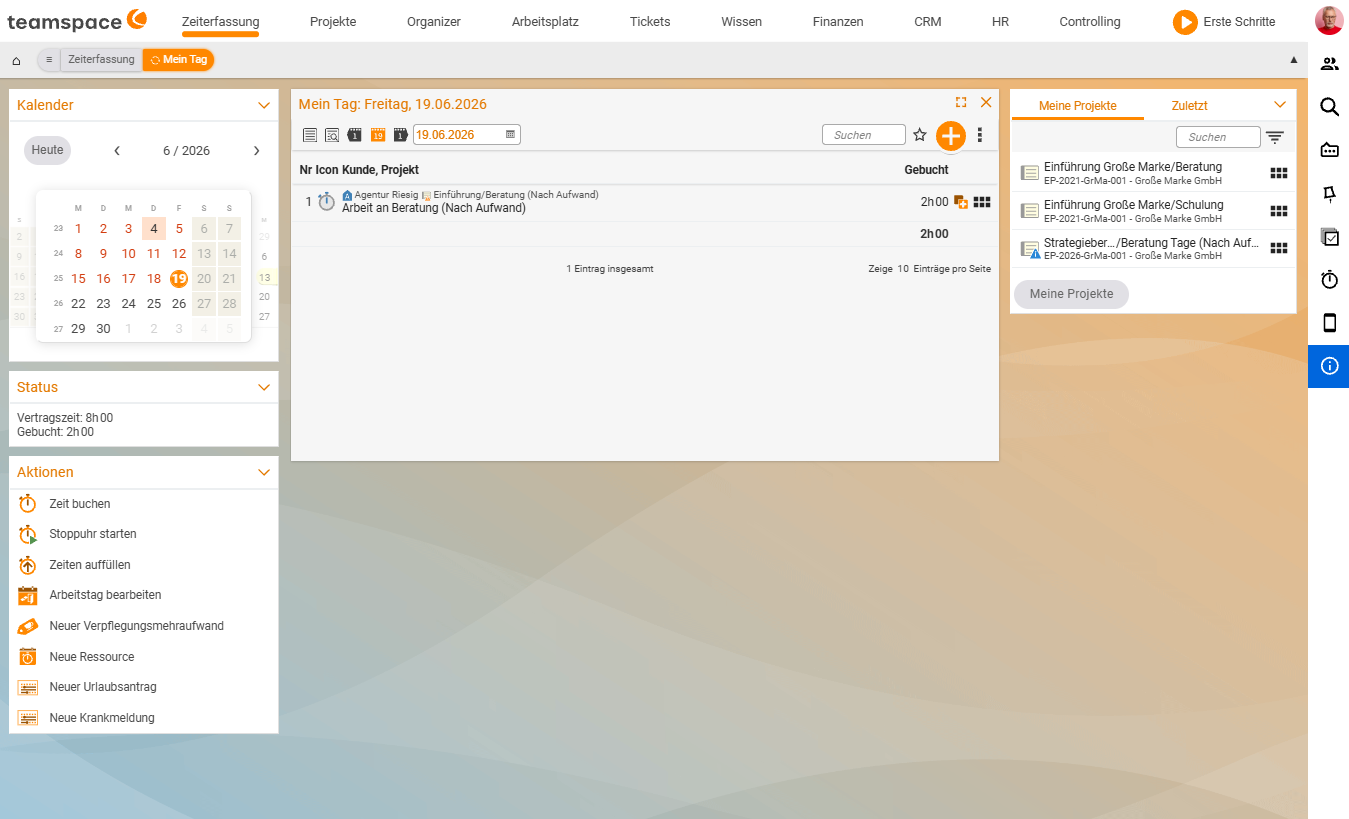
You will find the actions in the Time tracking → My day area (and, depending on the configuration, also in the status bar).
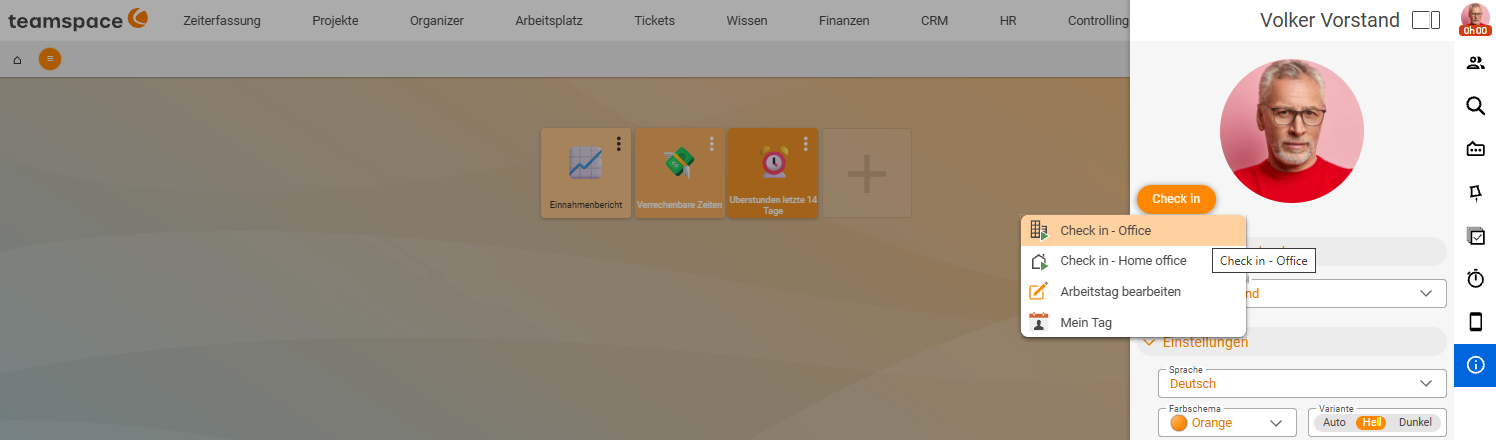
Time tracking › My day › Start work- Click Start work (check-in) at the start of your day. teamspace starts an attendance block at the current time.
- If set up, choose a category for the work location, e.g.
Office,Home officeorExternal work. This makes it traceable later where the work was done. - At the end of the day, click End working day (check-out). The block is closed.
Recording a break
For your lunch break, simply check out briefly and back in afterwards:
- Click Break (i.e. check-out) when your break begins.
- Click Start work (check-in) again after the break.
Alternatively, your company can store automatic break rules (e.g. “deduct 30 minutes after 6 hours”). You then do not need to clock the break yourself – it is taken into account based on the rule. How this is set up is described in Configure time tracking.
Who is in right now?
Your status is also visible to colleagues: the clock icon (status bar) is green when you are checked in and red when you are checked out, with the duration of the current session running alongside it. The attendance mini view shows you who is currently checked in, and the sidebar shows the team’s expected arrival – useful for availability and cover.
Location-based check-in (IP restriction)
If clocking should only be allowed from the company network, your administrators set up an IP restriction. If your IP address lies outside the permitted range, check-in is blocked – this lets you enforce, for example, that “Office” time is actually clocked in the office. The configuration is done by your administrators.
Notes
- You correct forgotten clockings afterwards in the attendance blocks – as long as the day is not locked. See Editing attendance times.
- Check-in does not replace project time. If you want to allocate effort to individual projects, you also book project times.
- For clocking on the move, the app installation (PWA) is worthwhile.
Common problems
Why can’t I check in? If your administrators have set up an IP restriction, check-in is only possible from the permitted network (e.g. the company network). If your IP address lies outside it, clocking stays blocked – this lets you enforce that “Office” time really is clocked in the office.
I forgot to check in or out. Correct the attendance block afterwards: in Time tracking → My day, click the block and adjust its start or end – as long as the day is not locked. Step by step, this is covered in Editing attendance times.
My clocked time doesn’t show up in project times. That is intentional: check-in only records your attendance. To allocate effort to individual projects, you also book project times.
Common questions & needs
| You want to … | How to |
|---|---|
| Record the start of work | In Time tracking → My day, click Start work (check-in). |
| Record the end of the day | Click End working day (check-out) – the attendance block is closed. |
| Note where you are working (office, home office) | When checking in, choose the category for the work location (e.g. Office, Home office, External work). |
| Clock a break | Click Break (check-out) when the break begins, then Start work (check-in) again afterwards. |
| Not have to clock breaks yourself | Use automatic break rules – set up in Configure time tracking. |
| See who is currently checked in | Use the attendance mini view; the clock icon in the status bar shows green (checked in) or red (checked out). |
| Allow clocking only from the company network | Your administrators set up an IP restriction; check-in is blocked outside the permitted range. |
| Correct a forgotten clocking | Adjust the attendance block afterwards, as long as the day is not locked – see Editing attendance times. |
| Allocate effort to individual projects | Also book project times – check-in does not replace project time. |
| Clock on the move | Install teamspace as an app (PWA). |
Related topics
- Understanding and editing attendance times (with video) Time tracking Concept
- Set up a time terminal Time tracking How-to
- Recording time by check-in