



If you book against the same handful of projects every day, the time matrix is the fastest way: projects sit in the rows, days in the columns – you enter the values straight into the fields and book a whole week in one go.
Opening the time matrix
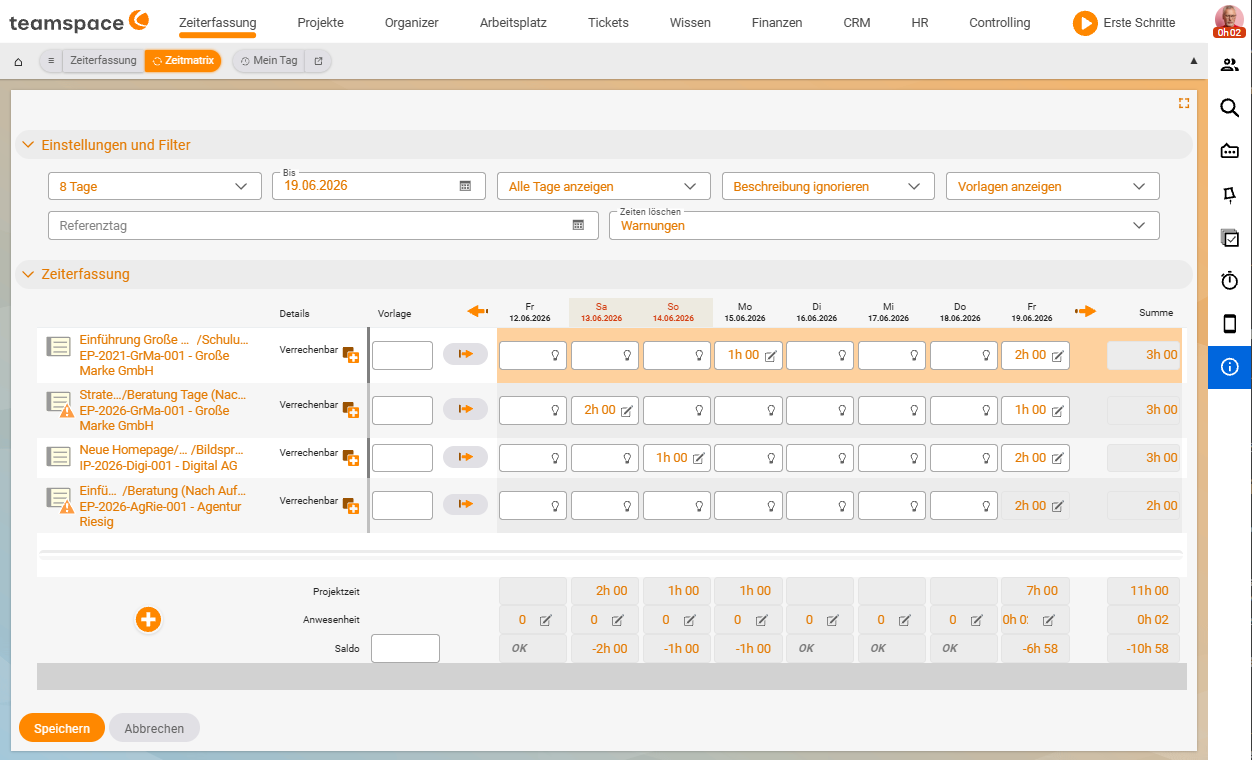
Time tracking › My day › Time matrix- Open Time tracking → Time matrix (also reachable via My day or the project-times view). By default the matrix shows the last 8 days – the period is configurable.
- Set the period via the filter – current week, current month or a custom period.
- Hide weekends if you wish.
Alongside the project columns, the matrix shows additional info columns per day: attendance time, project time and balance (the difference between the two); optionally also contracted time and overtime.
Entering times
- Click the field at the intersection of project (row) and day (column) and enter the time value.
- Repeat this for all projects and days and save.
Switches control how the description is handled – Ignore description (hide it) or Show description in field (maintain it directly in the cell). With the copy icon you transfer a whole row; you reset accidental entries via Discard changes. A project that does not yet appear as a row is simply booked outside the matrix – the row then appears automatically.
Using booking templates
For recurring tasks you create booking templates: a template bundles the project, category and, if applicable, a description. Via Create new template you create it directly in the matrix; the template then appears as a row of its own – regardless of whether times have already been booked there – and you only need to enter the hours. This saves you searching for the project again and again.
Discrepancy warning
If you book attendance times in parallel, the time matrix warns you when a day’s booked project time differs noticeably from its attendance time. This immediately reveals when hours are missing or have been recorded twice.
Notes
- The time matrix books project time, not attendance time – for clocking you still use Check in and check out.
- It is faster still for uniform days with booking time via a reference day.
- Locked days (deadline/lock) can no longer be edited in the matrix either.
Common questions & needs
| You want to … | How to |
|---|---|
| Book a whole week at once | Open Time tracking → Time matrix and enter the values straight into the fields at the intersection of project (row) and day (column). |
| Change the displayed period | Set the filter to the current week, current month or a custom period. |
| Hide weekends | Hide the weekends via the corresponding switch. |
| Apply a whole row | Transfer a row’s values with the copy icon. |
| Undo accidental entries | Use Discard changes. |
| Show or hide descriptions | Use the Ignore description or Show description in field switches. |
| Book recurring tasks faster | Create a booking template via Create new template – it appears as a row of its own into which you only enter hours. |
| See whether hours are missing or duplicated | The discrepancy warning alerts you when the project time differs noticeably from a day’s attendance time. |
| Record attendance time instead of project time | Keep using Check in and check out for that – the matrix books project time. |
Related topics
- Book project times (with video) Time tracking How-to
- Booking time via a reference day (with video) Time tracking How-to
- Project time tracking