


From booked project times, teamspace produces two kinds of evidence. They serve different purposes:
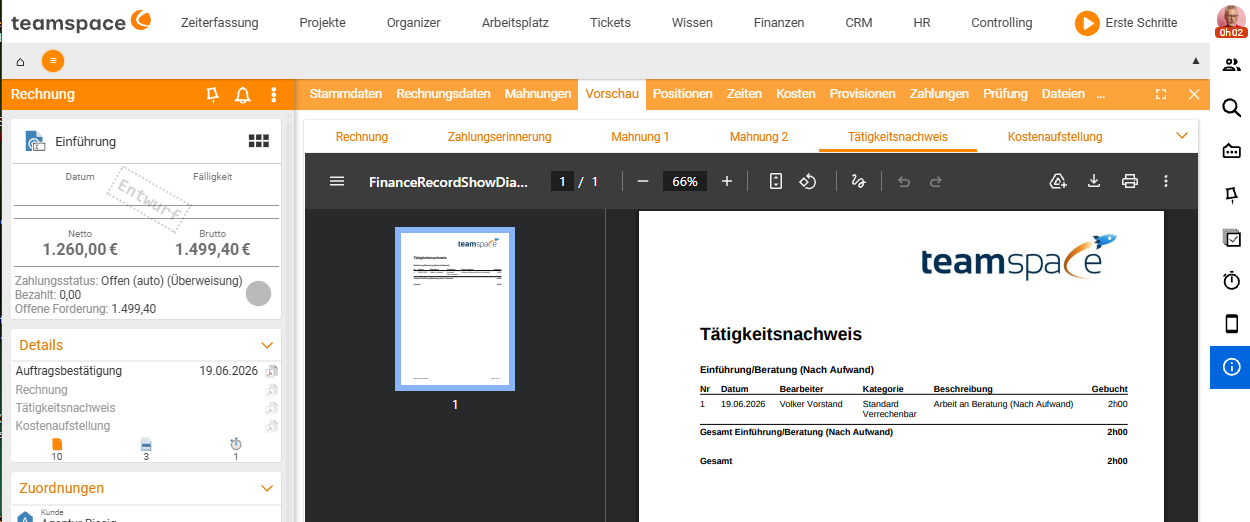
- Activity report – the automatic listing of hours worked that accompanies every invoice. It shows the client what is being billed.
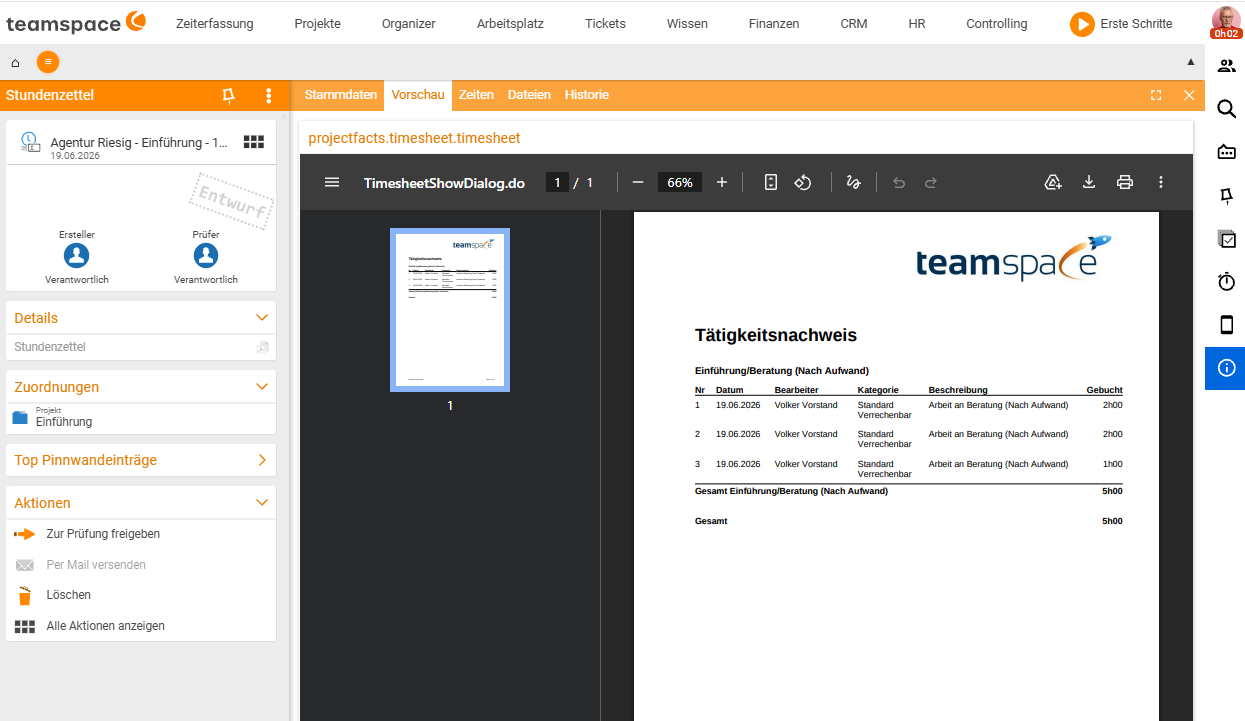
- Timesheet – a review-and-approval record with its own workflow, before hours are billed or sent out.
Activity report
The activity report is created automatically for each invoice from the billable project times of the period. Before sending, you can still edit it (e.g. smooth the wording or remove individual items). For a plain record without an invoice, download it under Time tracking → Project times via the actions as a PDF or Excel report.
Timesheet with approval
If a responsible person is to sign off the hours before billing, you use the timesheet:
- Employees book their project times as usual.
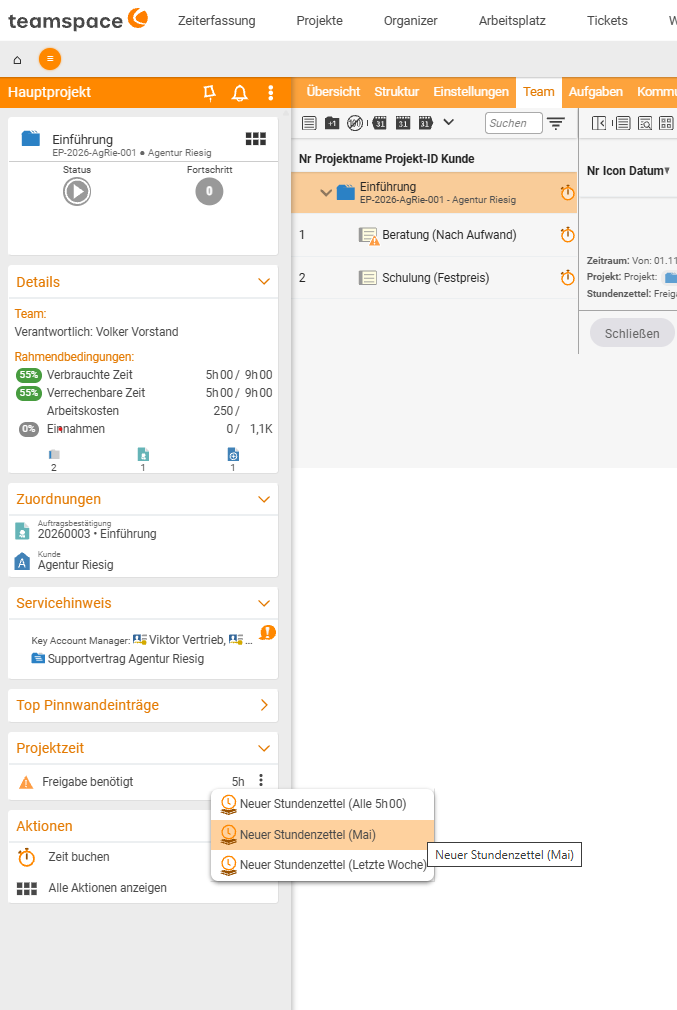
- The timesheet is created – manually in the project or via the approval box under Activities → Project times.
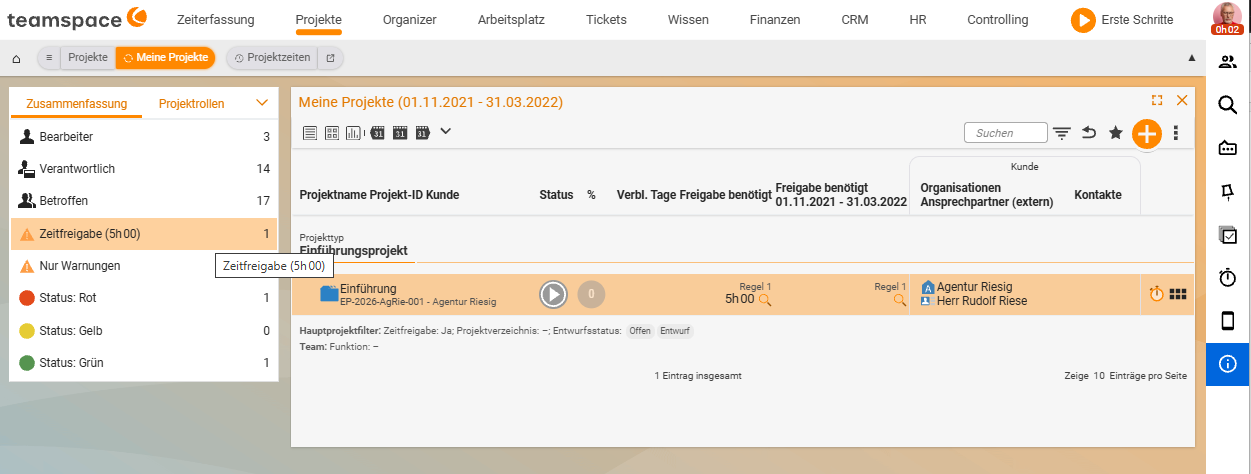
- The approver (e.g. project manager) receives a notification in the My projects tile; a small clock on the project preview signals that a time approval is pending.
- The approver opens the timesheet, reviews it and approves.
- Once approved, the timesheet can be sent (to the client if applicable) and the invoice created.
Approval rules
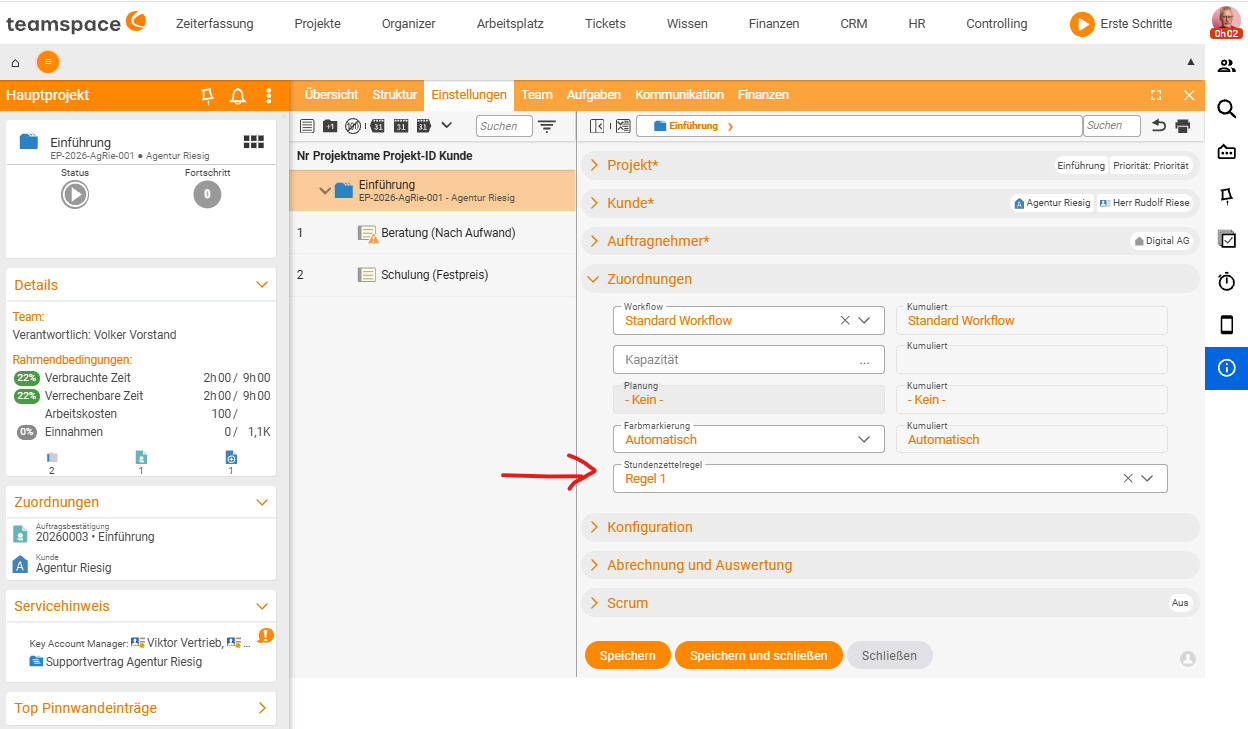
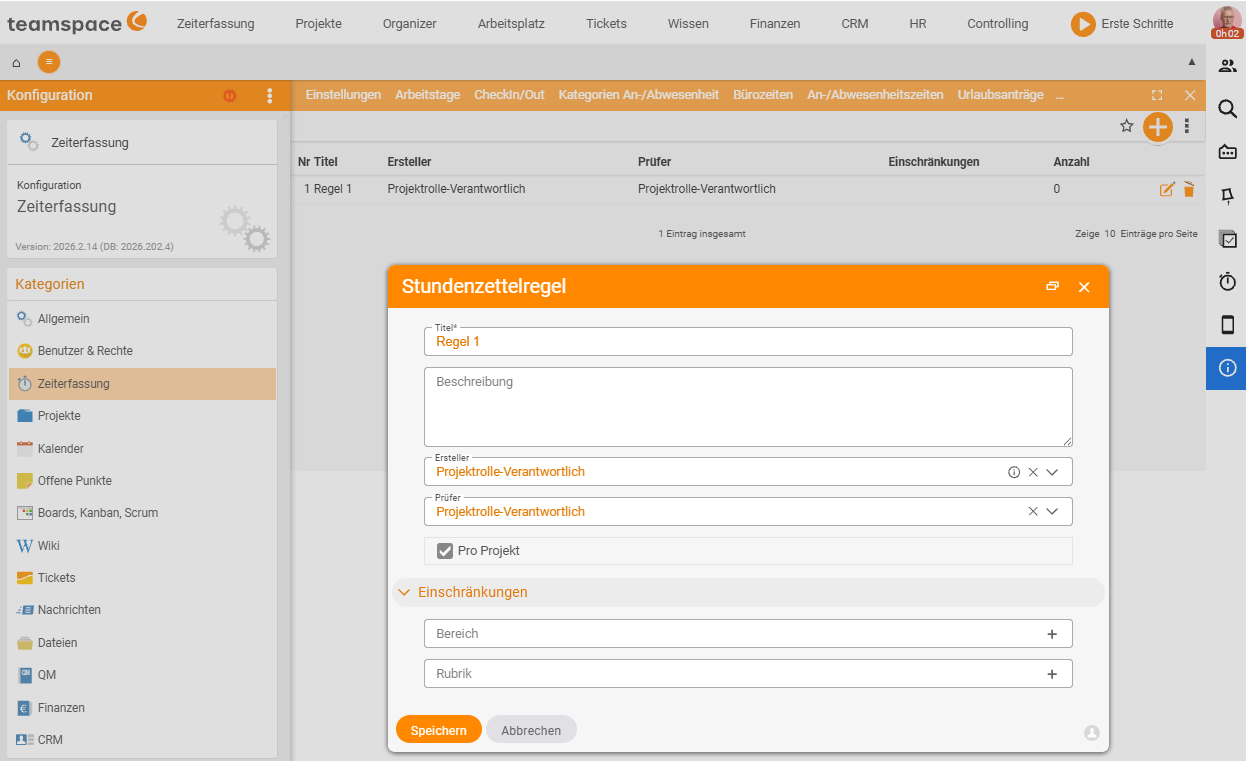
How approval works is governed by a time-approval rule on the project or project type:
- Project-based – all hours are approved together (e.g. at the end of the project).
- Employee-based – everyone has their hours signed off by their manager at regular intervals (e.g. weekly).
If you store the rule in the project type, new projects adopt it automatically. A rule can also be added manually in the project master data.
Notes
- After approval or billing, the associated project times are no longer editable – this protects the record.
- Which bookings are billable is governed by the category of the booking (see Book project times).
- For full protection against subsequent editing, additionally use locking.
Common questions & needs
| You want to … | How to |
|---|---|
| Show the client what is being billed | The activity report is created automatically for each invoice from the billable project times of the period. |
| Download a record without an invoice | Under Time tracking → Project times, output it via the actions as a PDF or Excel report. |
| Adjust the record before sending | Edit the activity report before sending (smooth the wording, remove items). |
| Have hours signed off before billing | Create a timesheet – manually in the project or via the approval box under Activities → Project times. |
| Spot a pending approval | A small clock on the project preview in the My projects tile signals a pending time approval. |
| Define how approval works | Via the time-approval rule on the project/project type: project-based (together) or employee-based (at regular intervals). |
| Control which hours are billable | Via the category of the booking (see Book project times). |
| Protect records against change permanently | Additionally use locking. |
Related topics
- Book project times (with video) Time tracking How-to
- Lock time entries Time tracking How-to
- Timesheets · Activity report